Adding a Work Order
Click here to edit the description
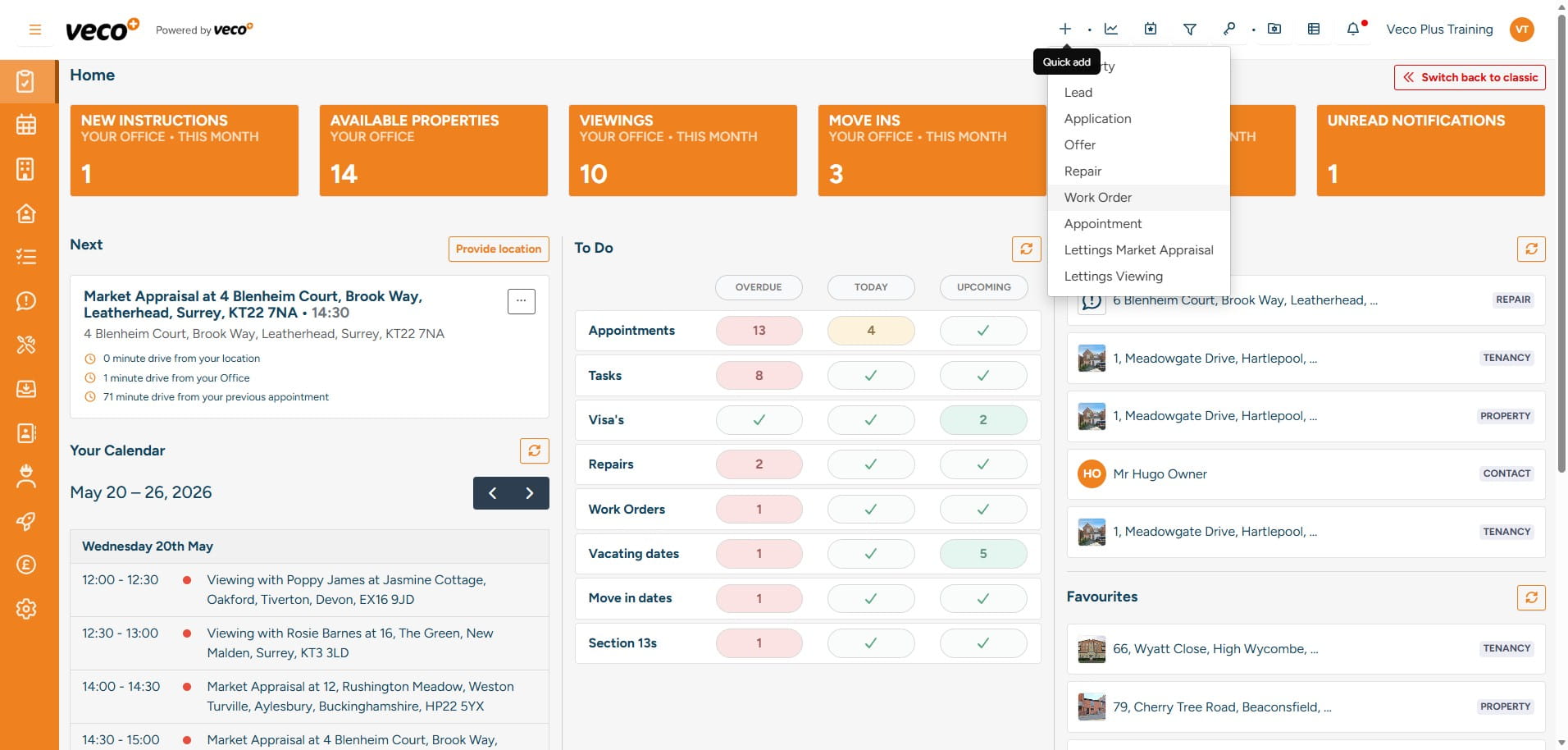
Select the ‘+’ symbol in the upper right corner of the screen
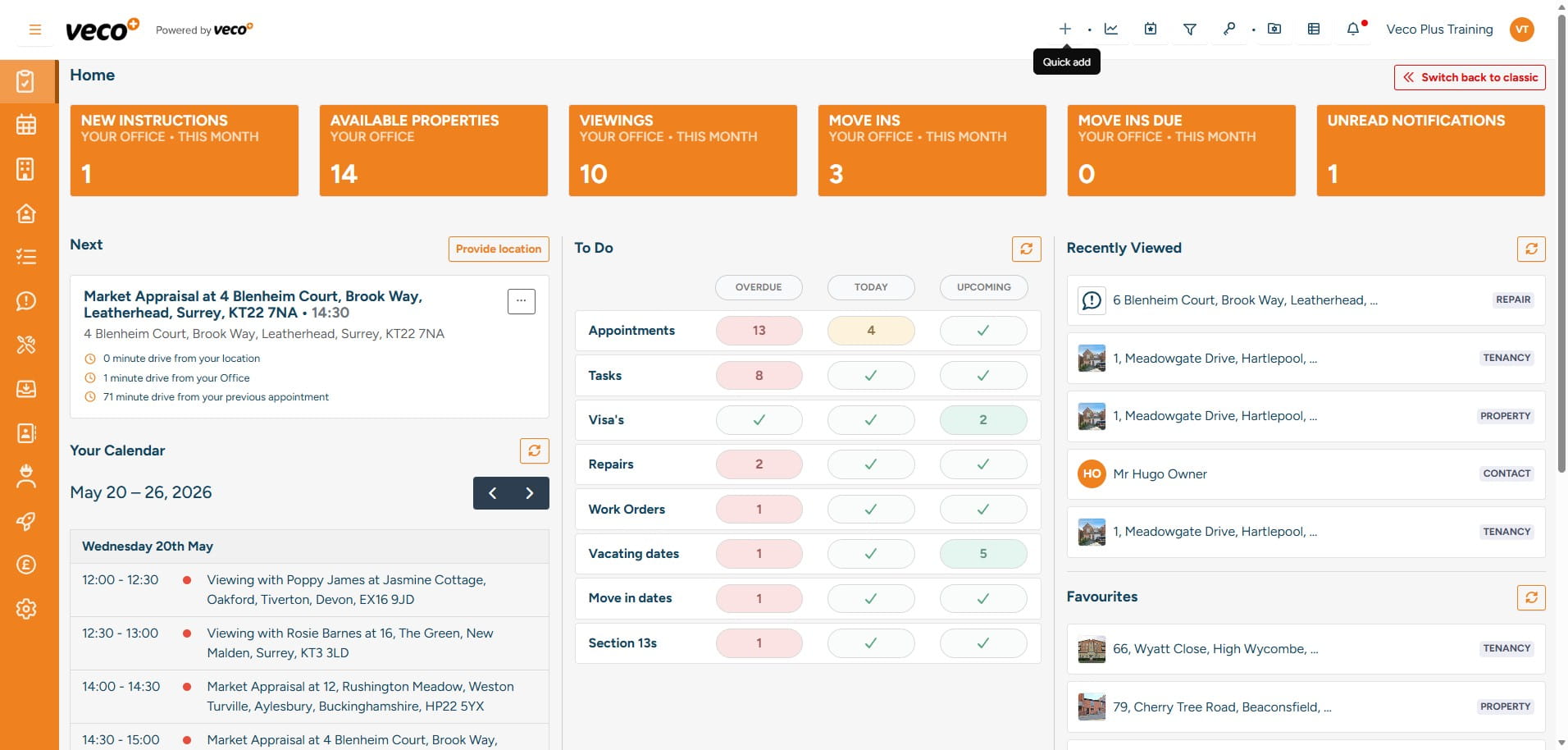
Select 'Work Order'
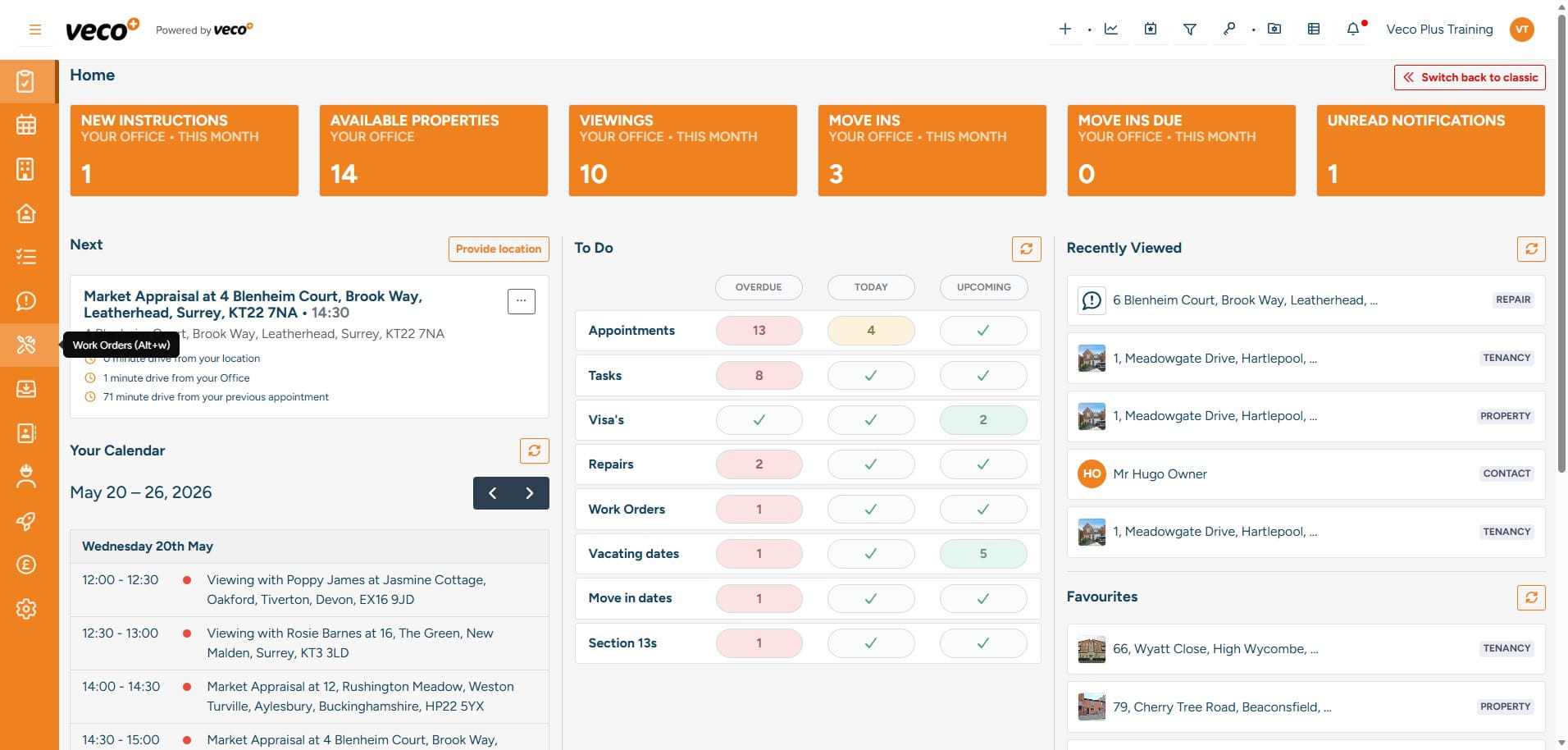
You can also add a Work Order from the Work Order area on the navigation bar – once there, select ‘New Work Order’ in the upper right corner
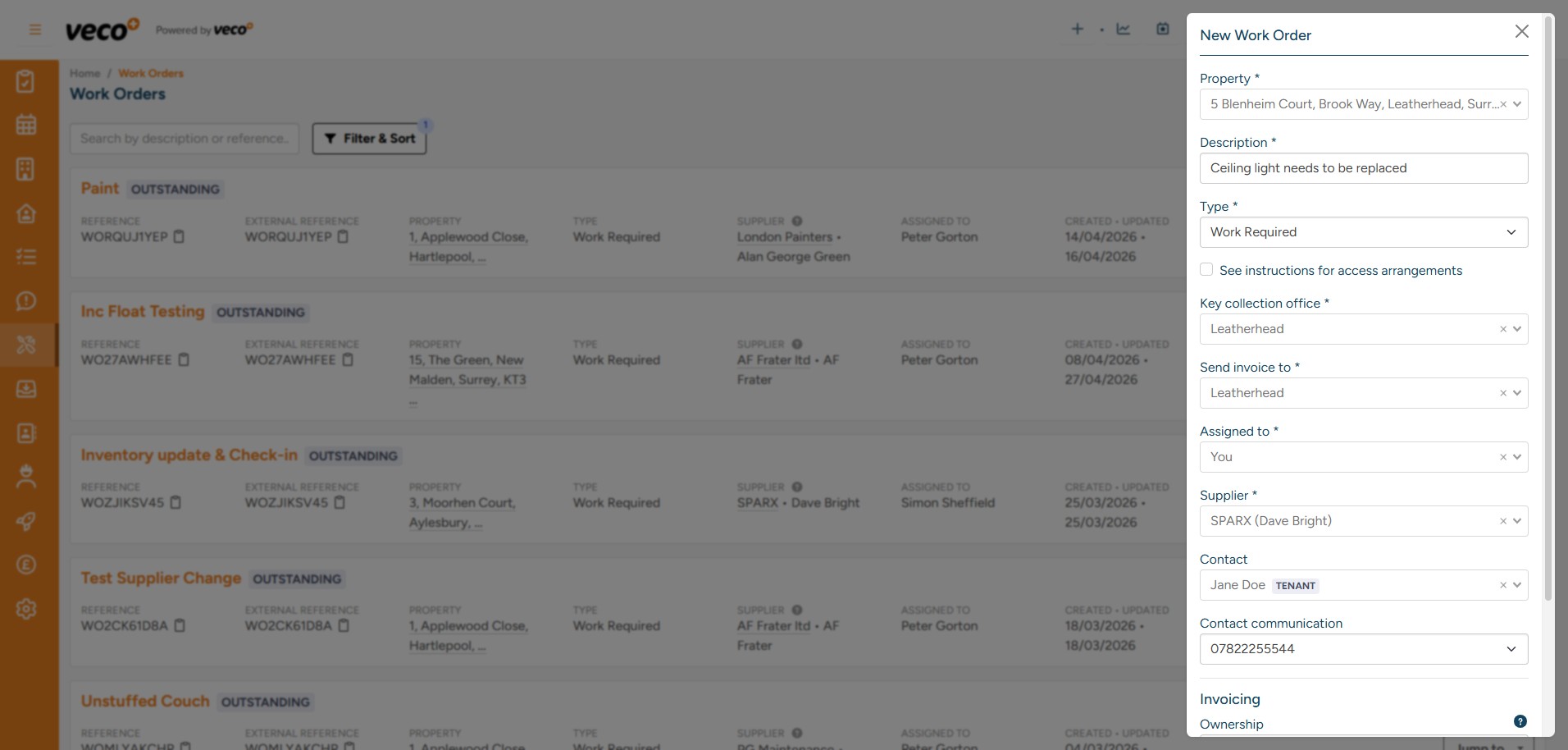
Search for the address the Work Order relates to. Complete the required information – this will include which party will be invoiced for the work
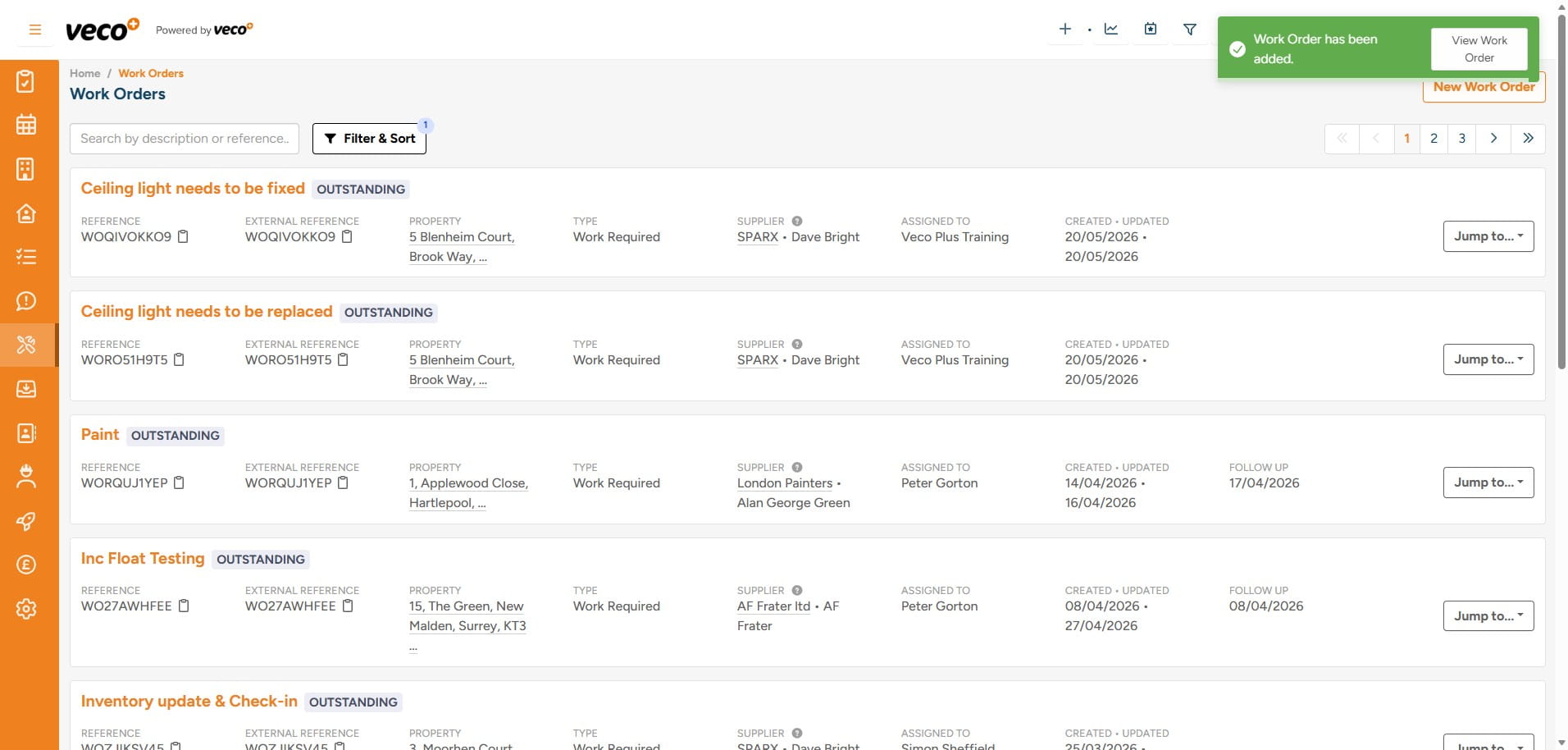
Once ‘Saved’, ‘View Work Order’ will appear in the upper right corner
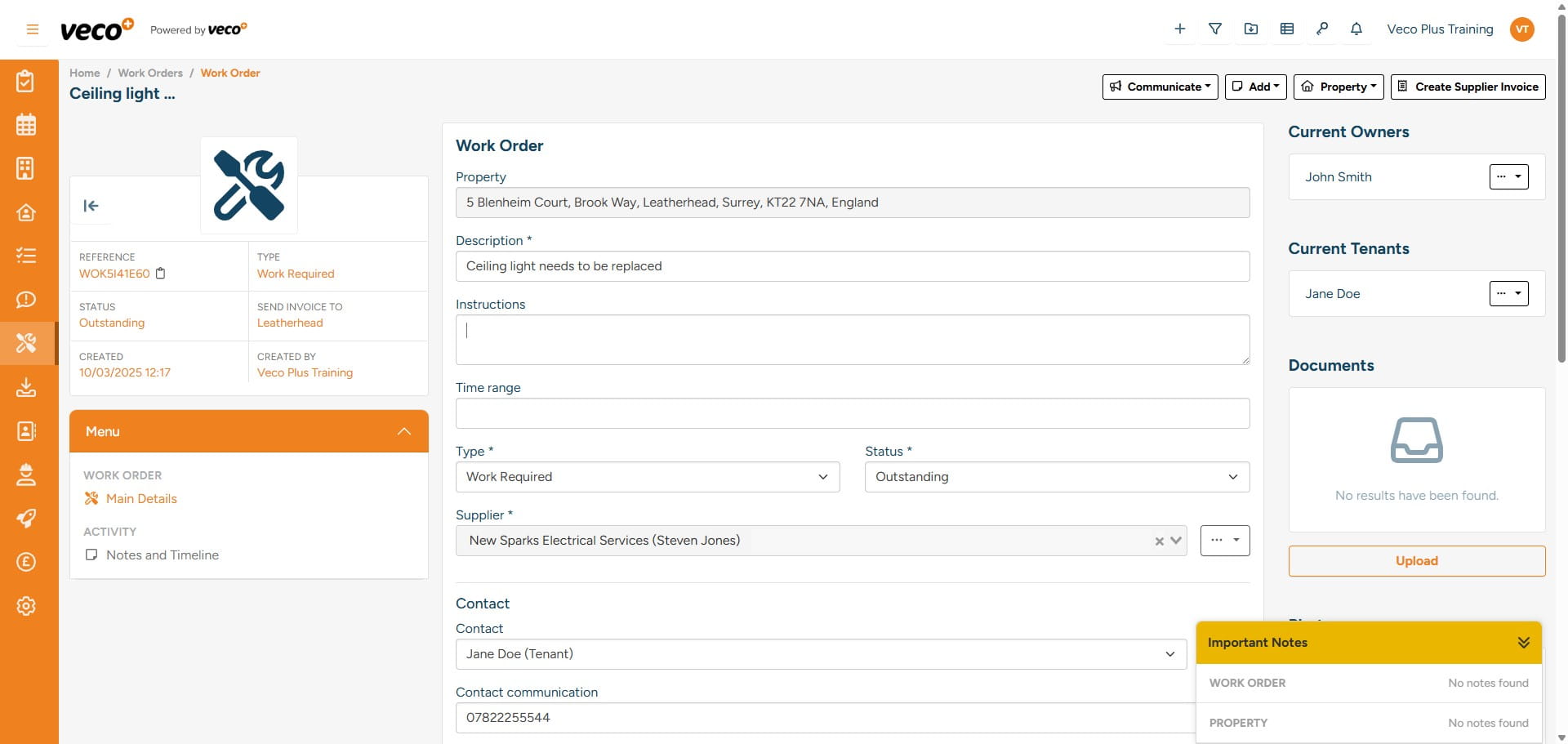
Complete the ‘Instructions’ if applicable - Instructions are used to give the supplier specific job details
Complete all required information e.g. ‘Work required by’
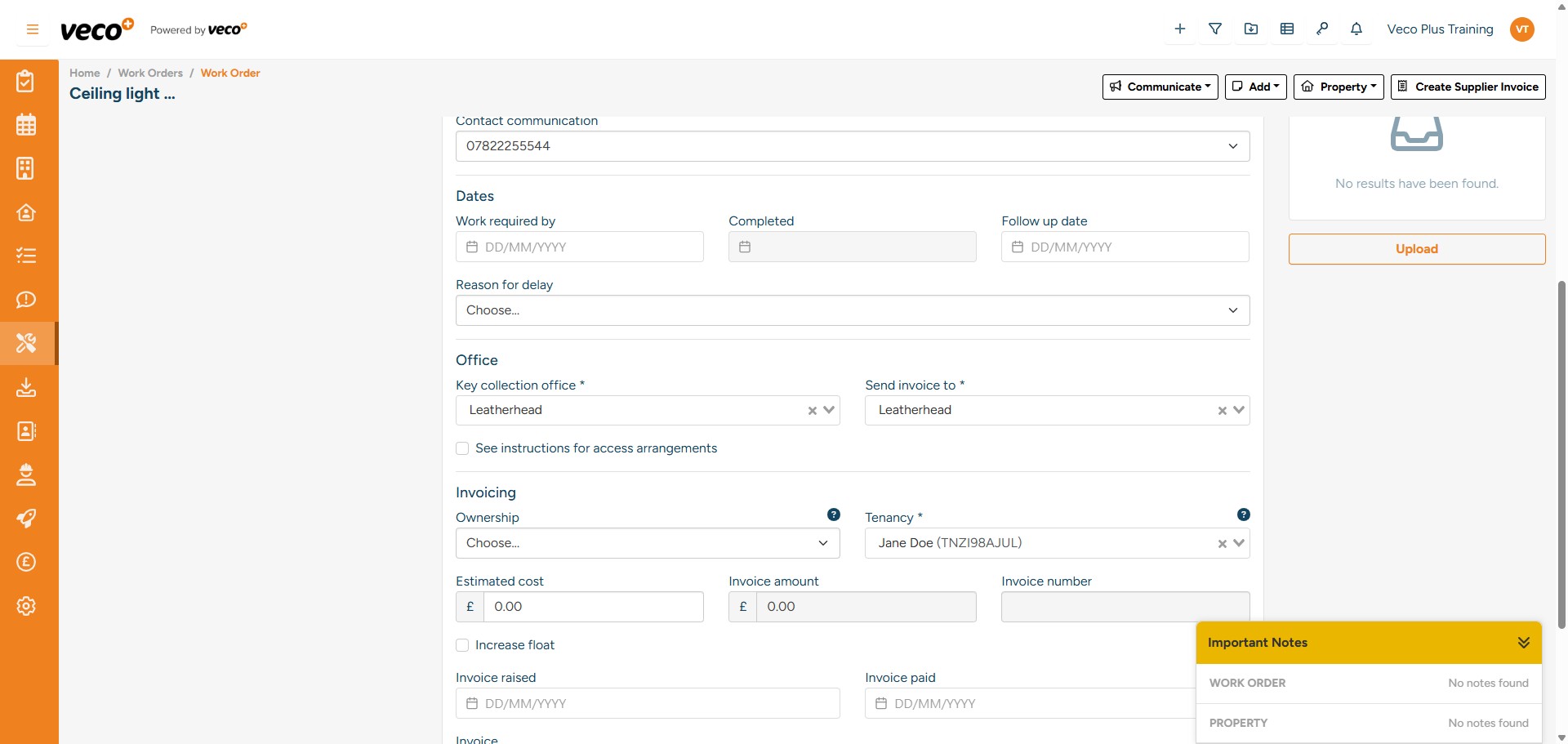
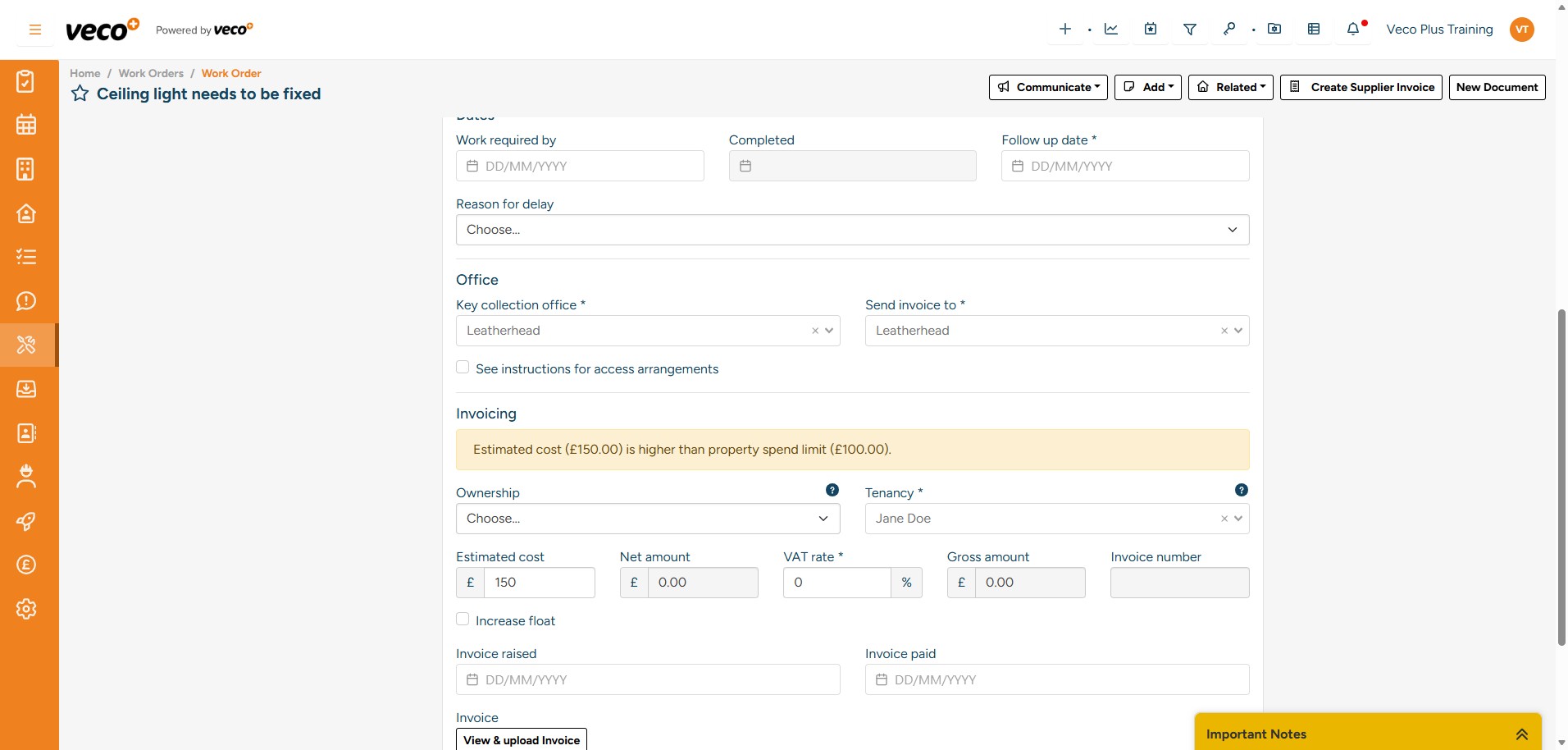
If you have set a spend limit in the property record's maintenance details, you will see an alert if you enter an estimated cost which exceeds that limit
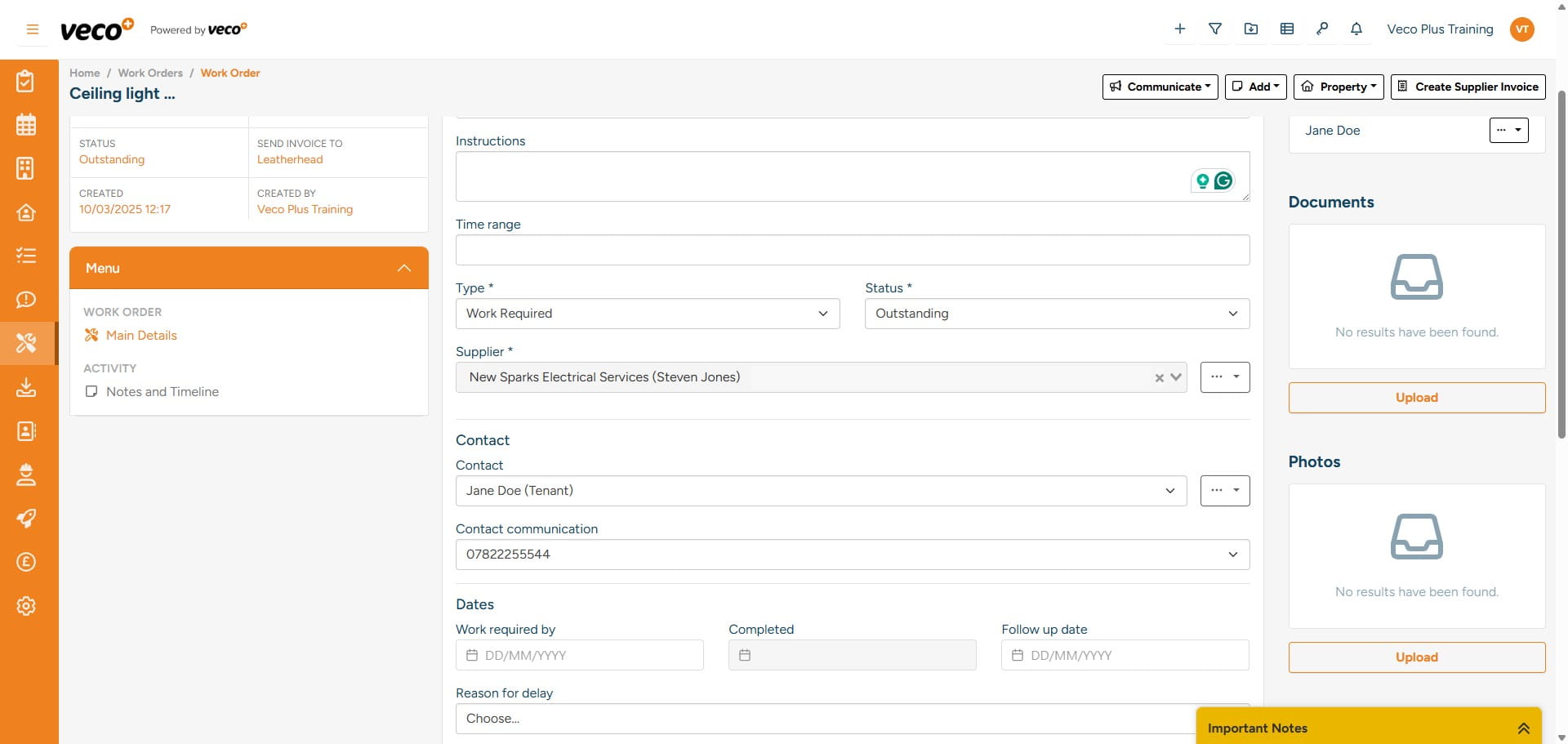
To add documents or photos, select ‘Upload’ on the right side of the ‘Work Order’
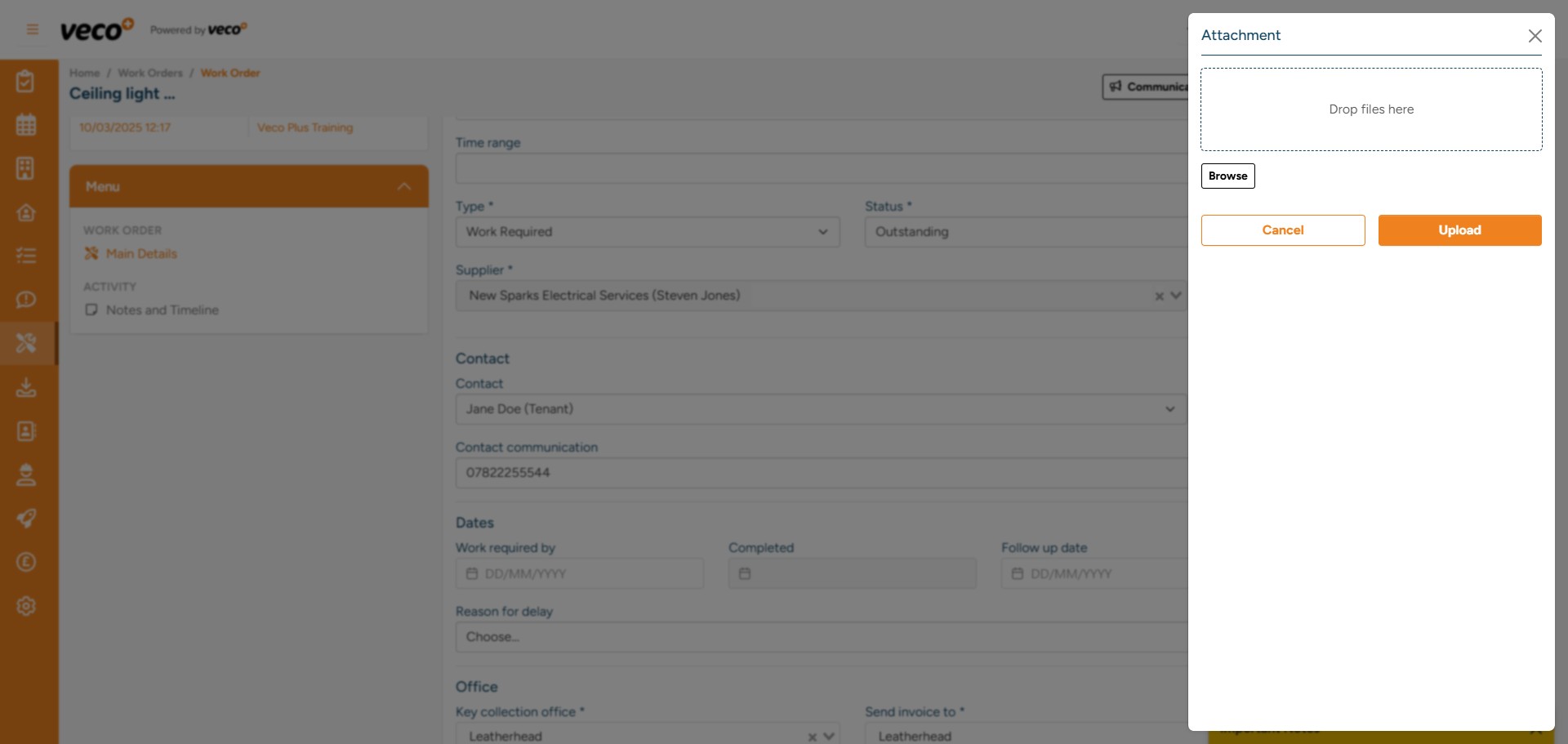
Once you select ‘Upload’, you will then be able to browse documents/photos or drag and drop them into the box ‘Drop Files Here’ Then select ‘Upload’
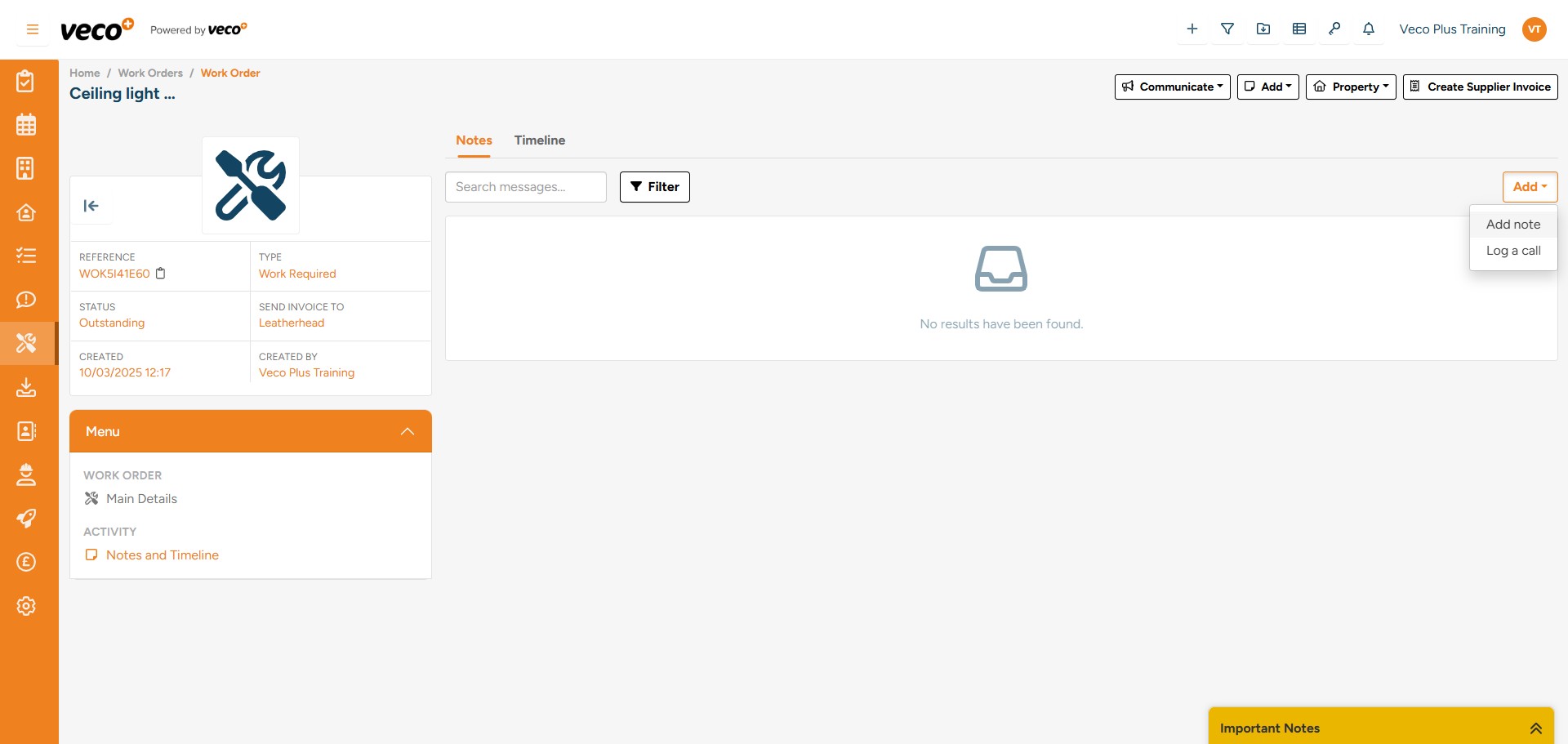
Notes regarding the ‘Work Order’ can be added from ‘Notes and Timeline’ in the menu, then selecting ‘Add’ on the right side of the page. Then select either ‘Add Note’ or ‘Log a call’