logo

Marketing a Property

Click here to edit the description

1

To market a property, select ‘Marketing’ on the lower left menu of the property record
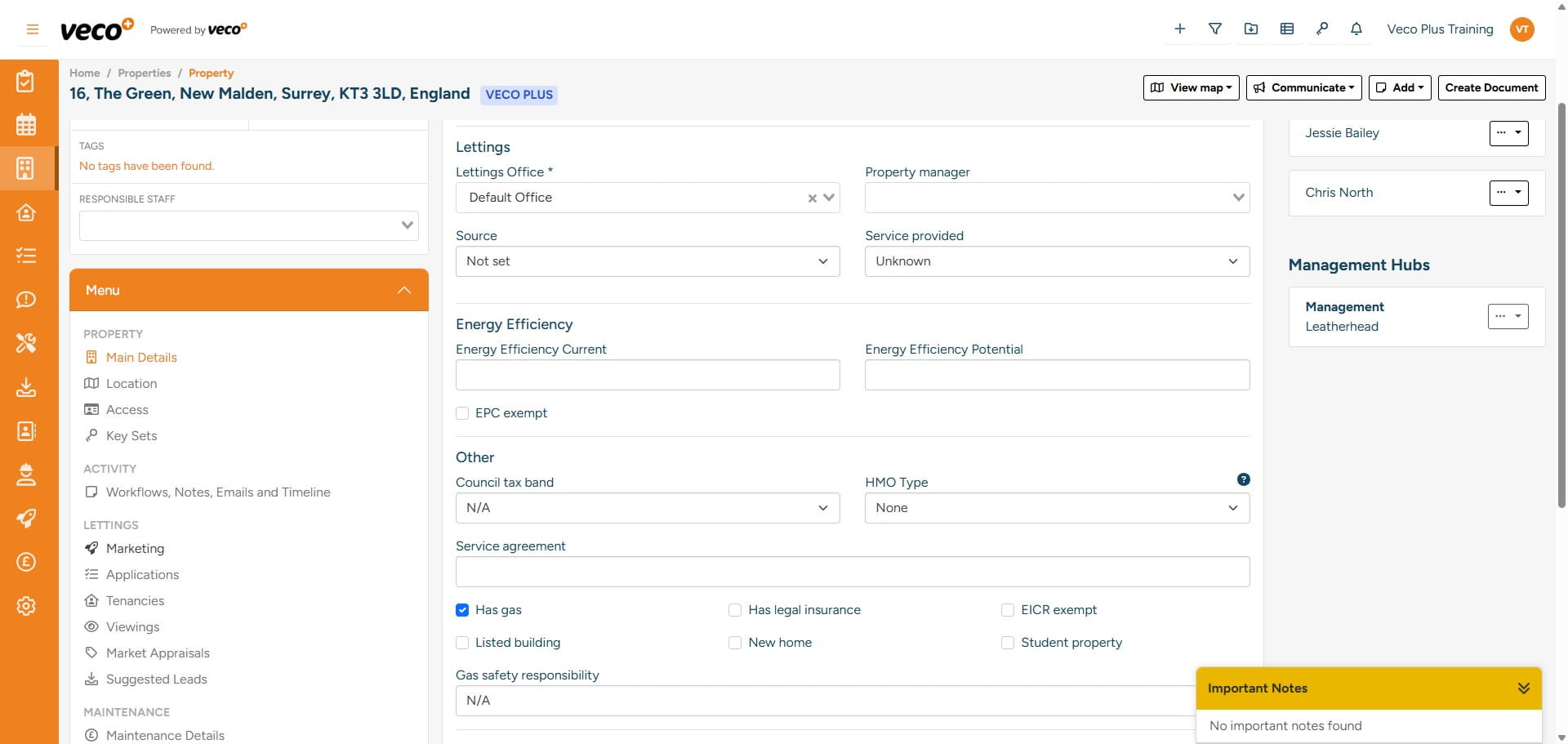
To market a property, select ‘Marketing’ on the lower left menu of the property record
2

Then select ‘New Marketing Record’ in the upper right corner
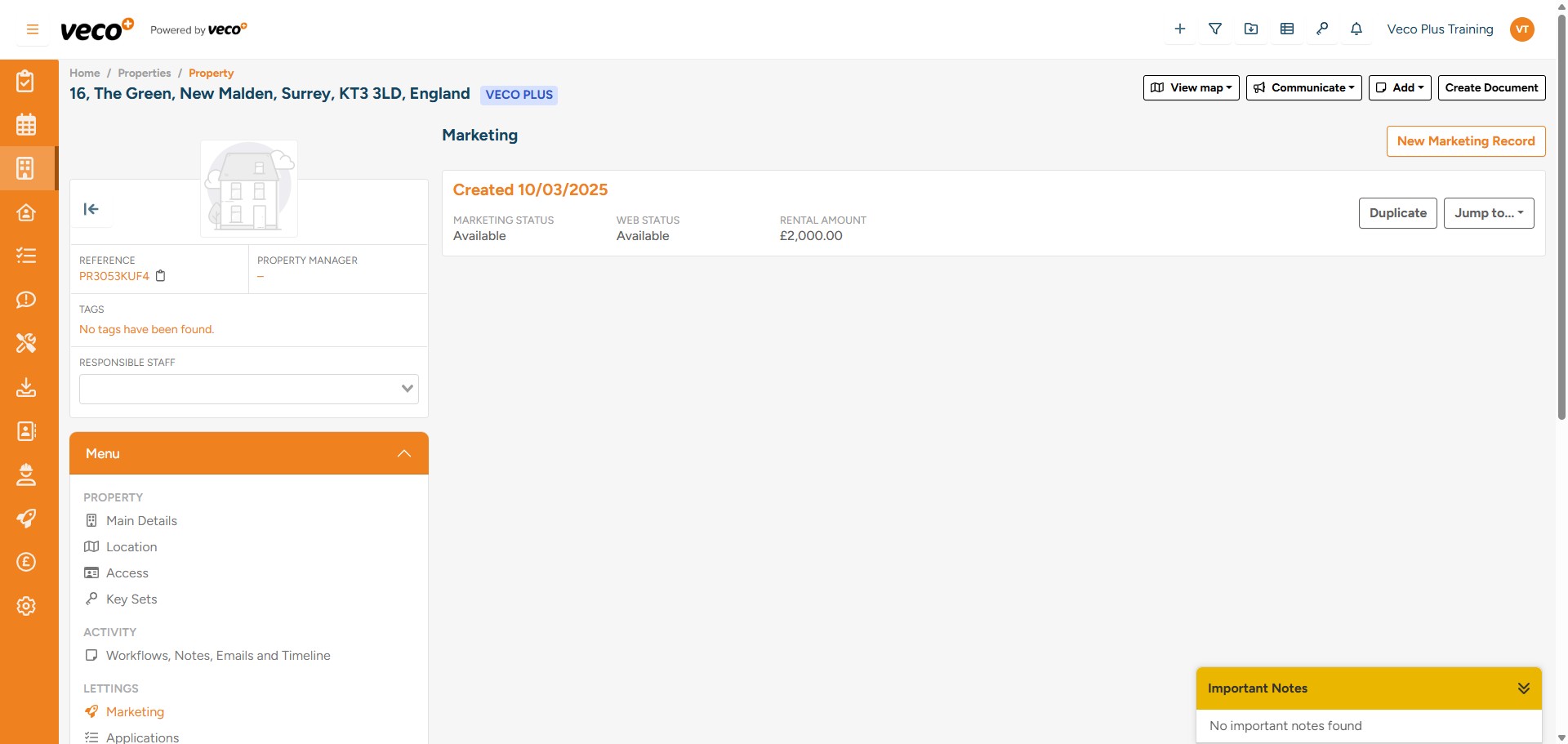
Then select ‘New Marketing Record’ in the upper right corner
3

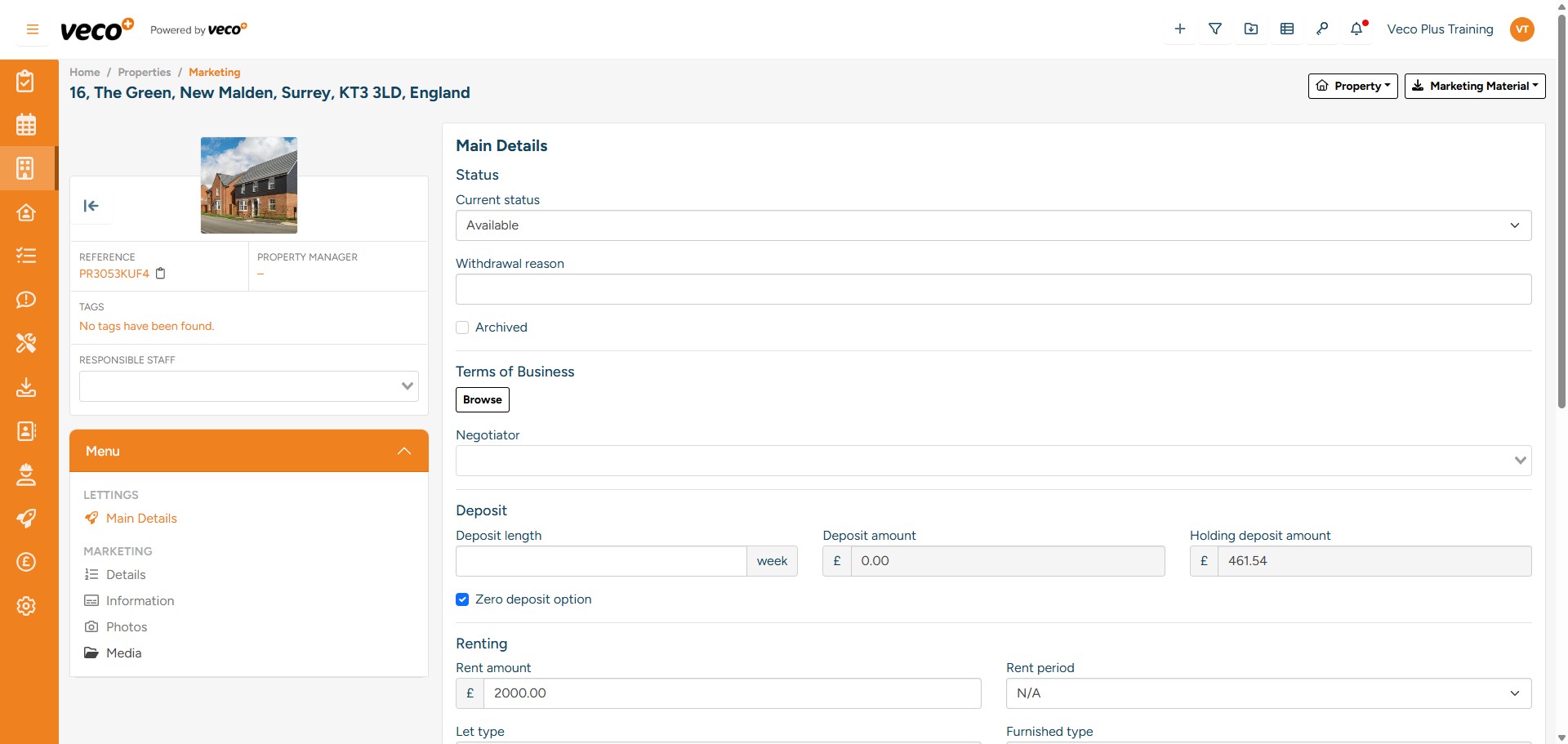
On 'Main Details' from the 'Menu', enter the relevant information such as holding deposit, rental amount and deposit amount
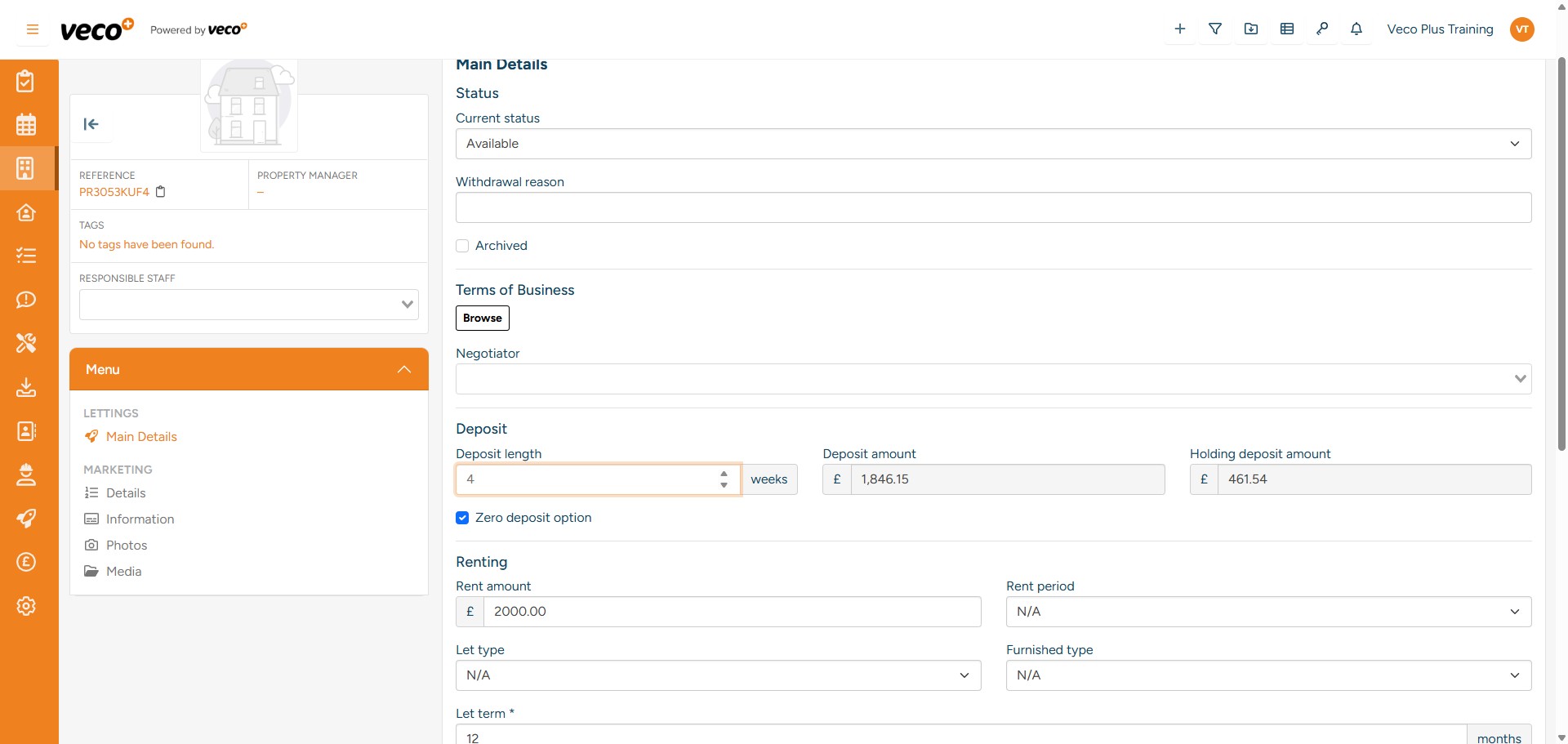
On 'Main Details' from the 'Menu', enter the relevant information such as holding deposit, rental amount and deposit amount
4

On ‘Details’ you will need to enter the relevant information
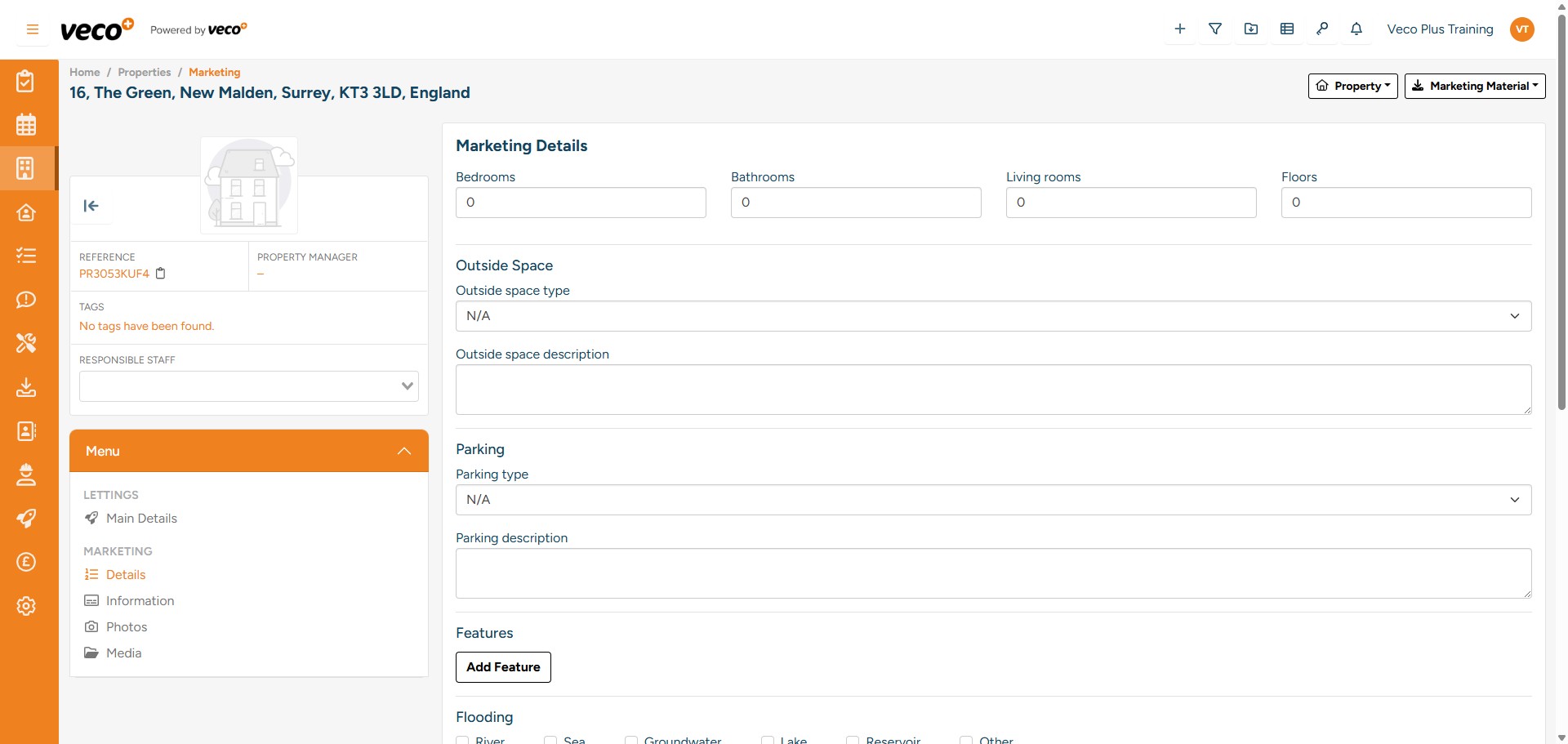
On ‘Details’ you will need to enter the relevant information
5

Including any Material B & C information
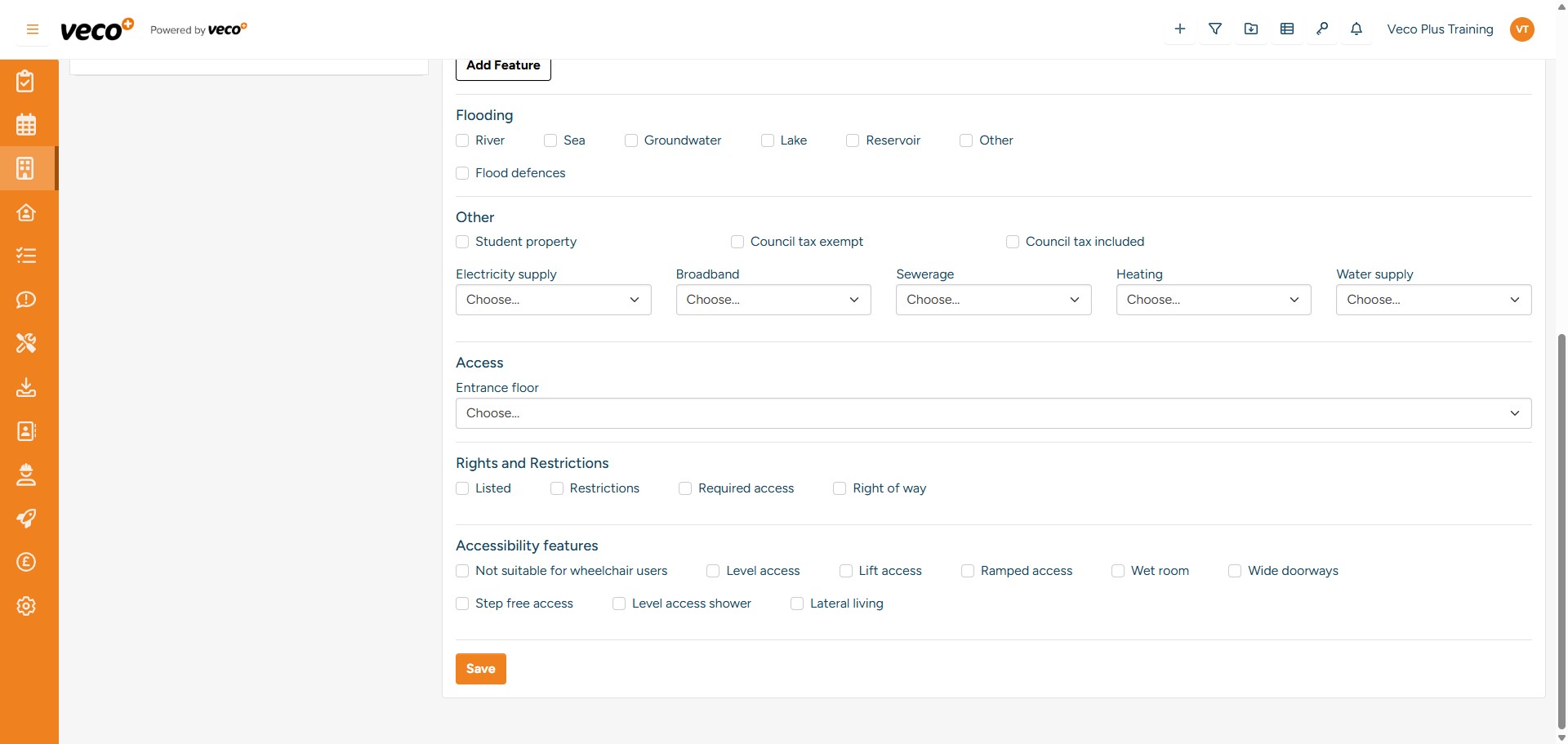
Including any Material B & C information
6

On ‘Information’, you will need to enter the marketing information and descriptions
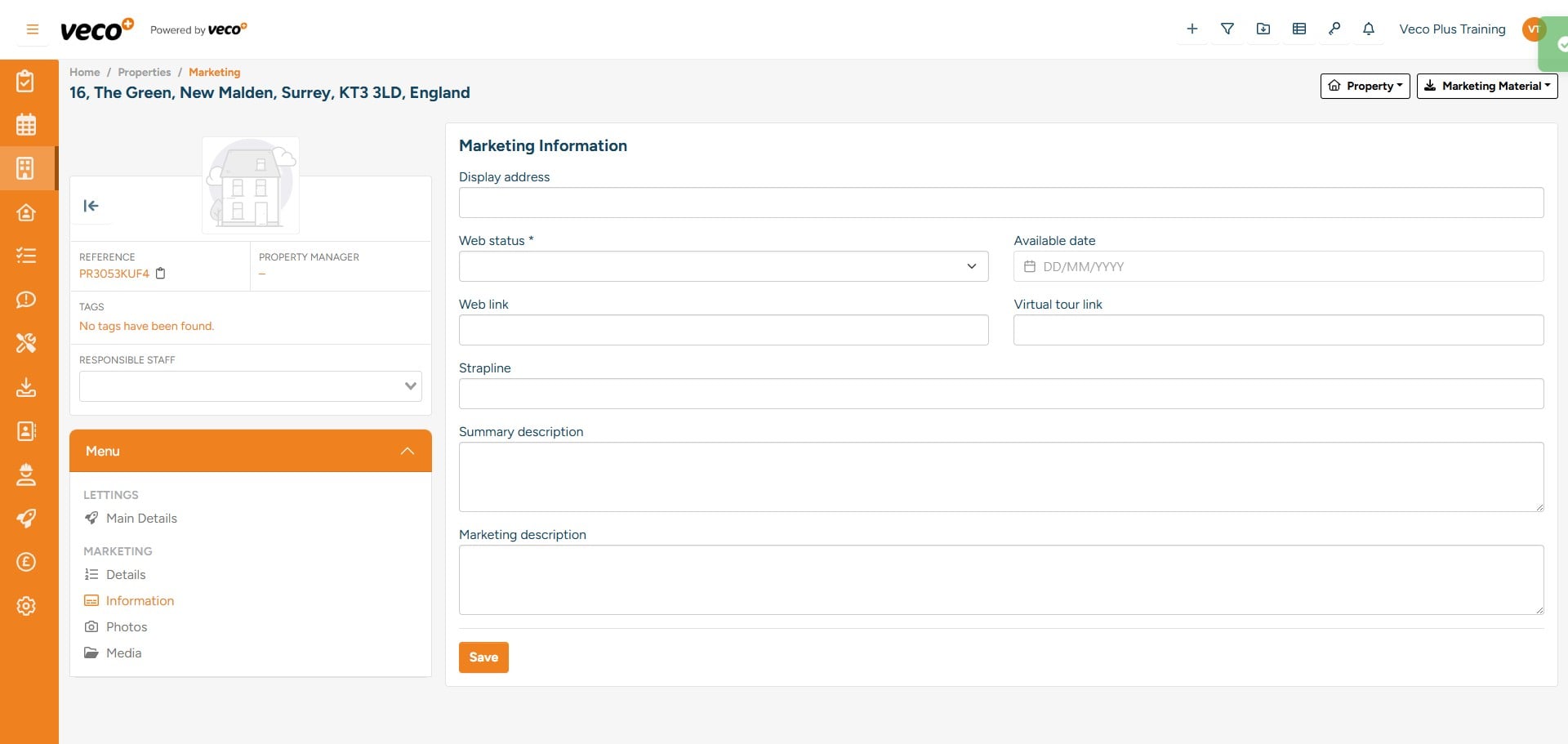
On ‘Information’, you will need to enter the marketing information and descriptions
7

Once you have published the property online, the Web link will automatically populate
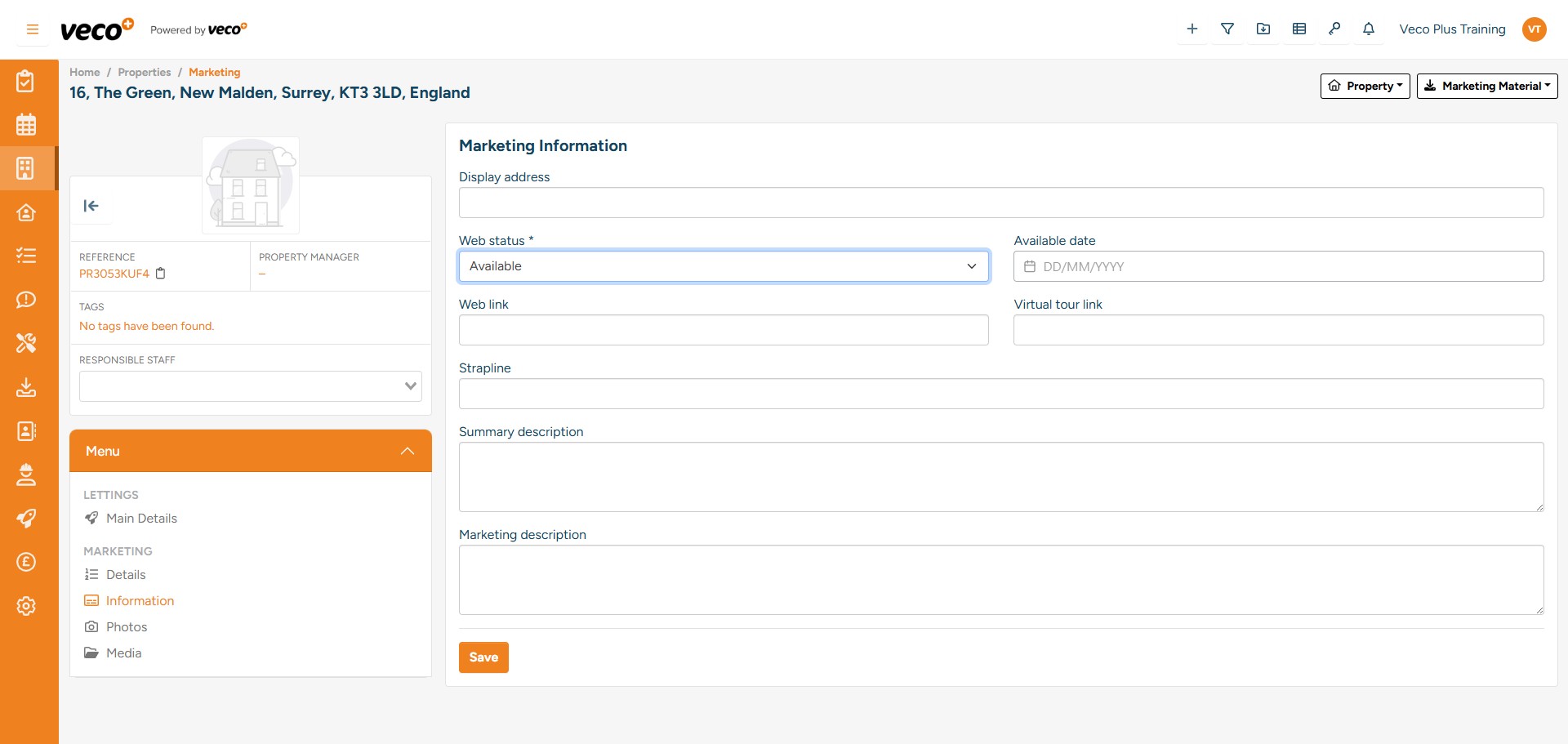
Once you have published the property online, the Web link will automatically populate
8

On ‘Photos’, to upload photos, select ‘Upload Image’
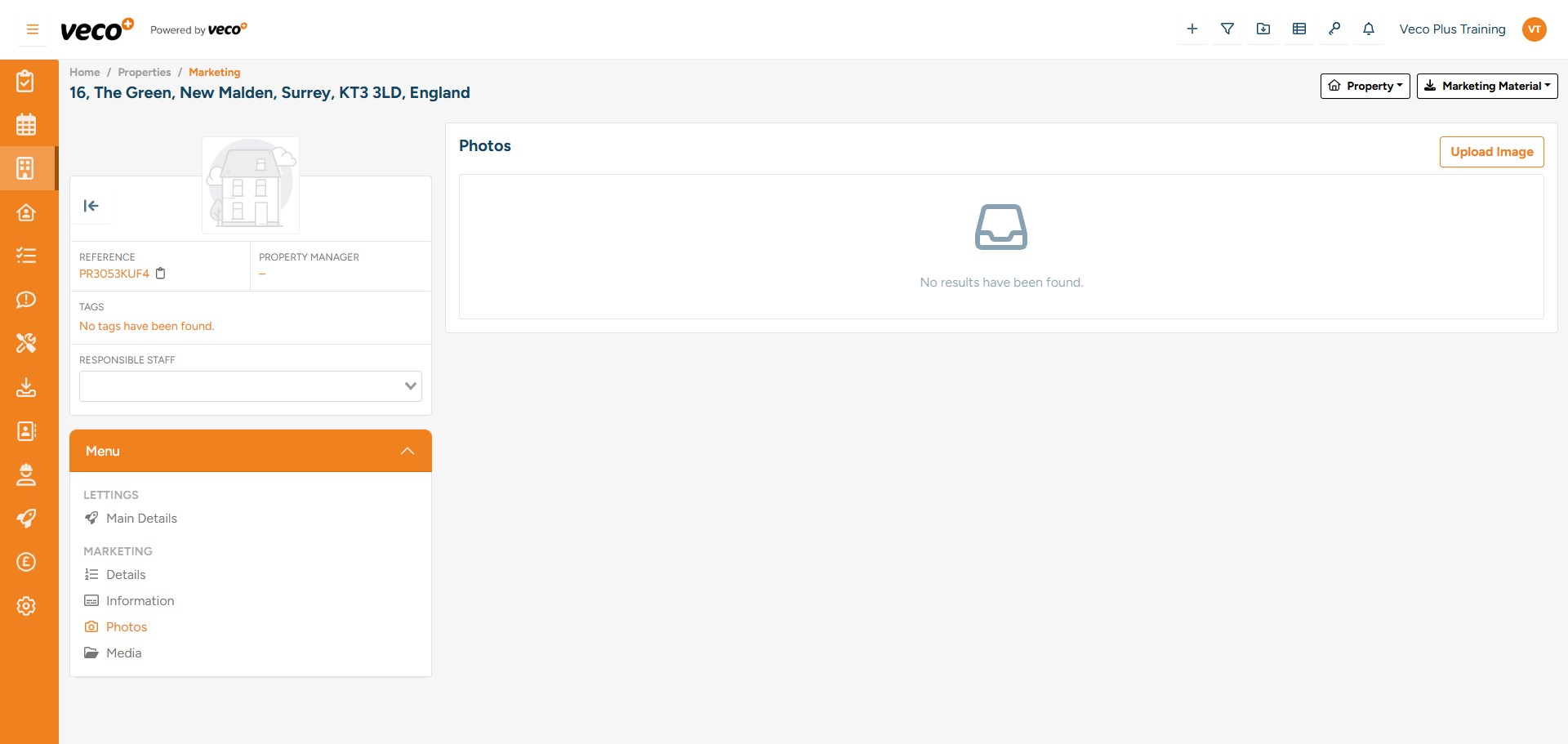
On ‘Photos’, to upload photos, select ‘Upload Image’
9

You can browse for multiple photos at once. Once all photos have been selected, select ‘Save’
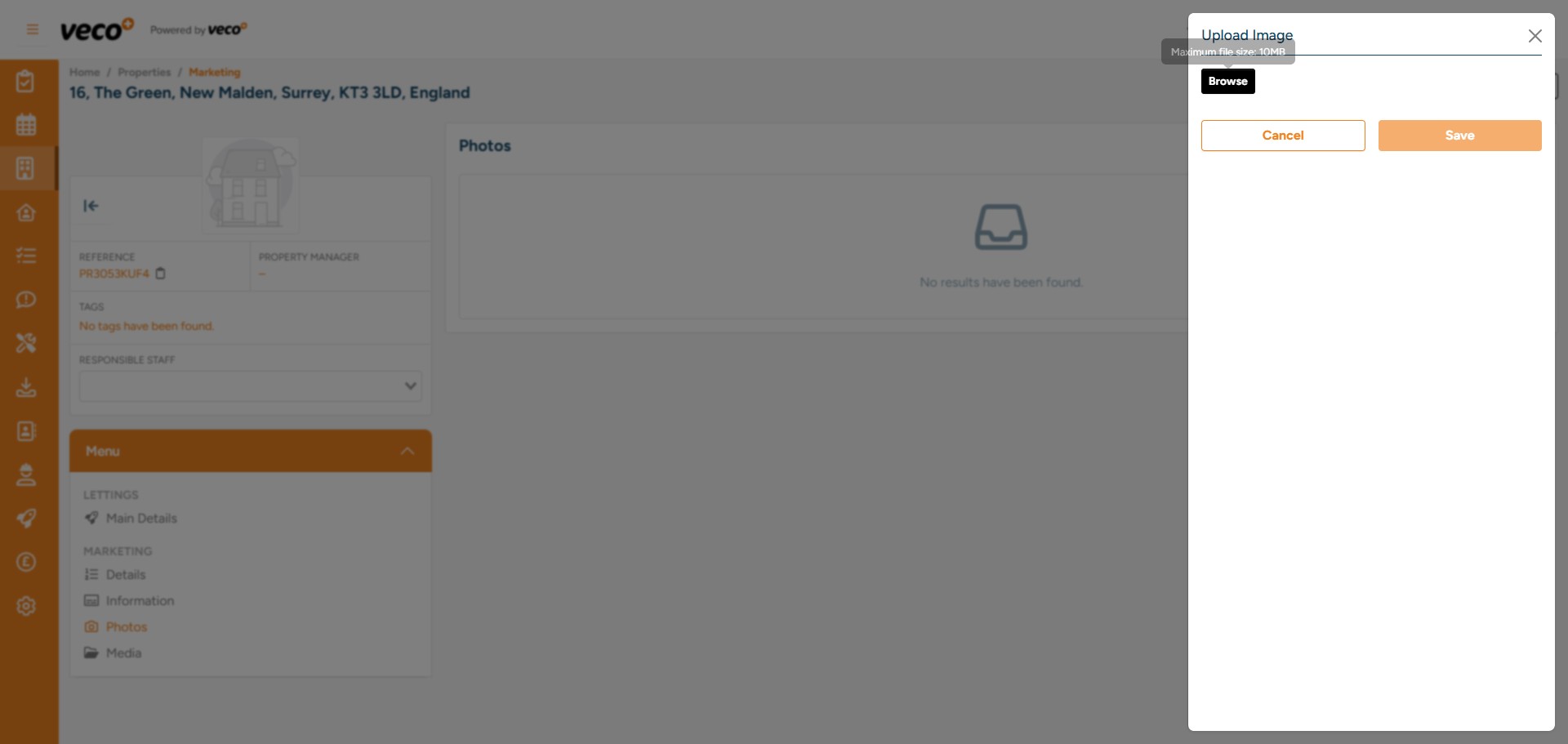
You can browse for multiple photos at once. Once all photos have been selected, select ‘Save’
10

Once added, you can re-arrange the order of photos by selecting a photo and dragging it to the desired place
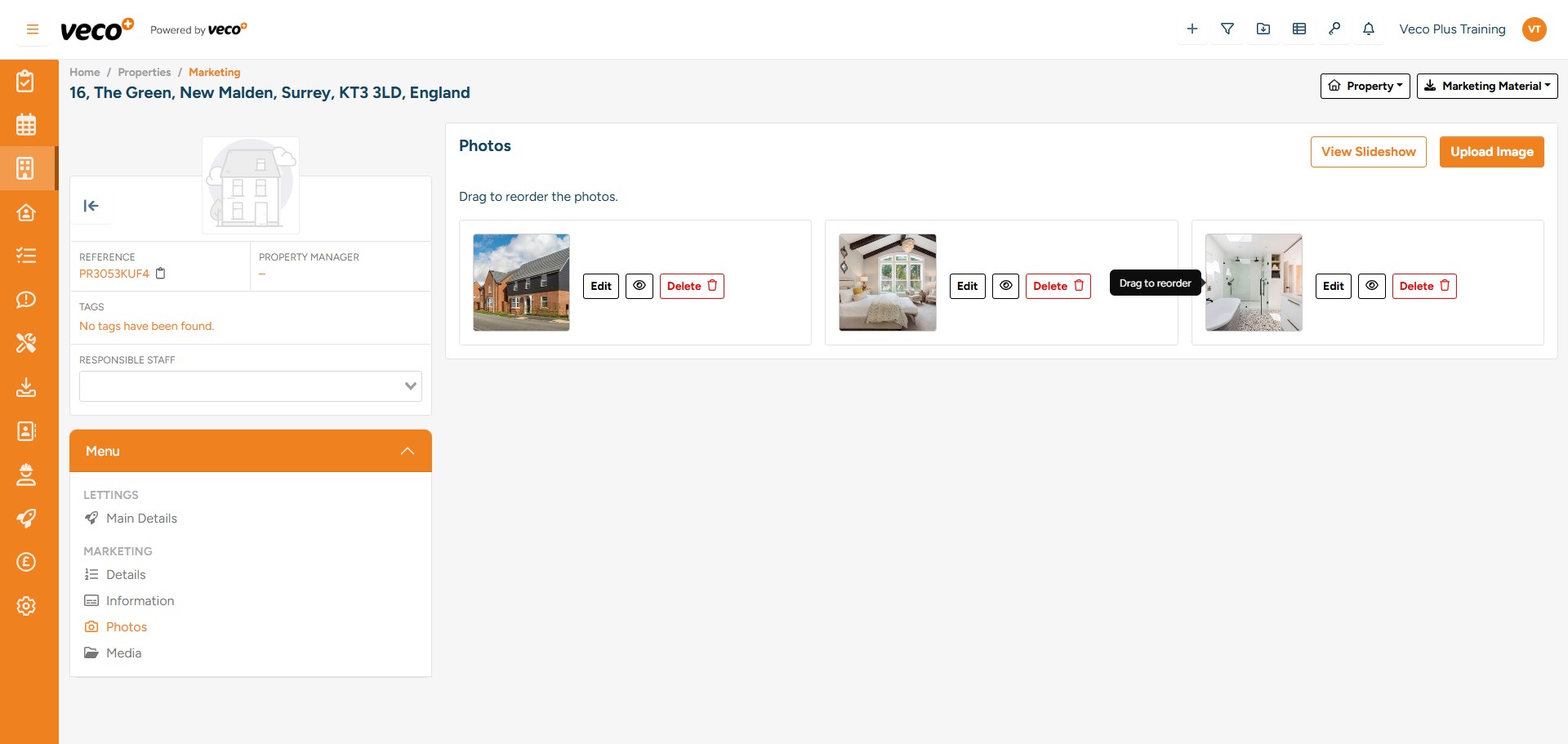
Once added, you can re-arrange the order of photos by selecting a photo and dragging it to the desired place
11

By selecting 'Edit' on a photo, you can select a 'Type'
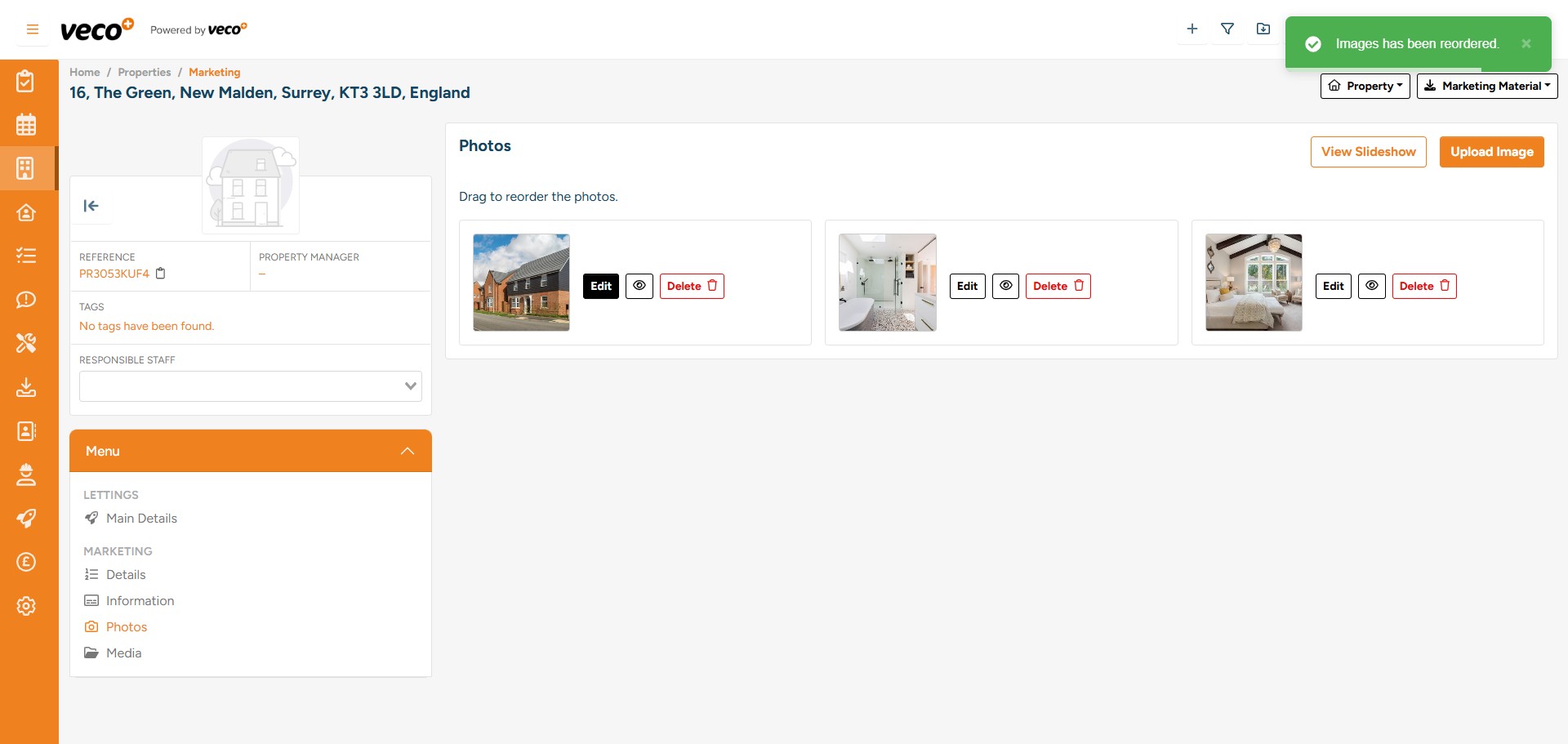
By selecting 'Edit' on a photo, you can select a 'Type'
12

As well as a description and the room dimensions
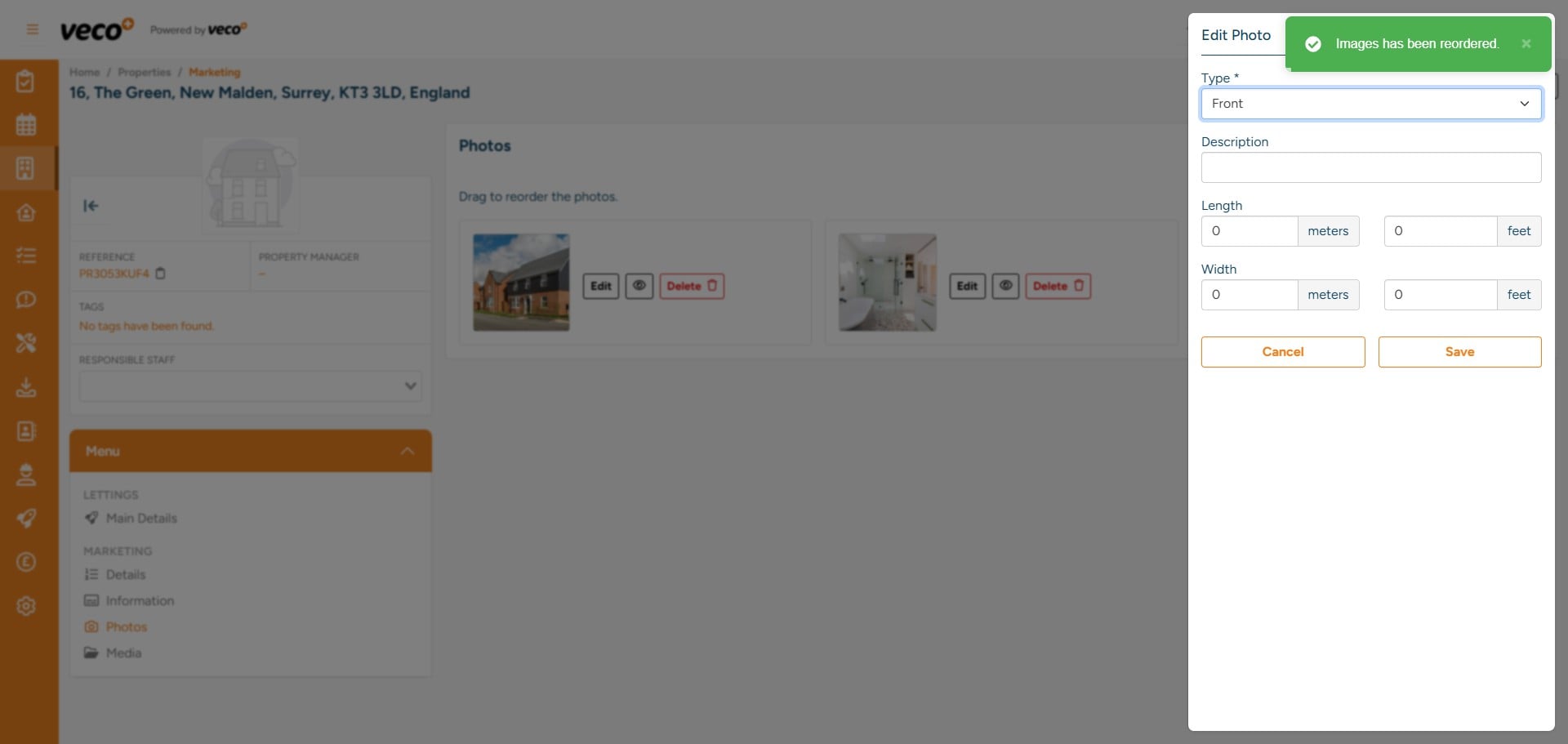
As well as a description and the room dimensions
13

To add a brochure select 'Media'

To add a brochure select 'Media'
14

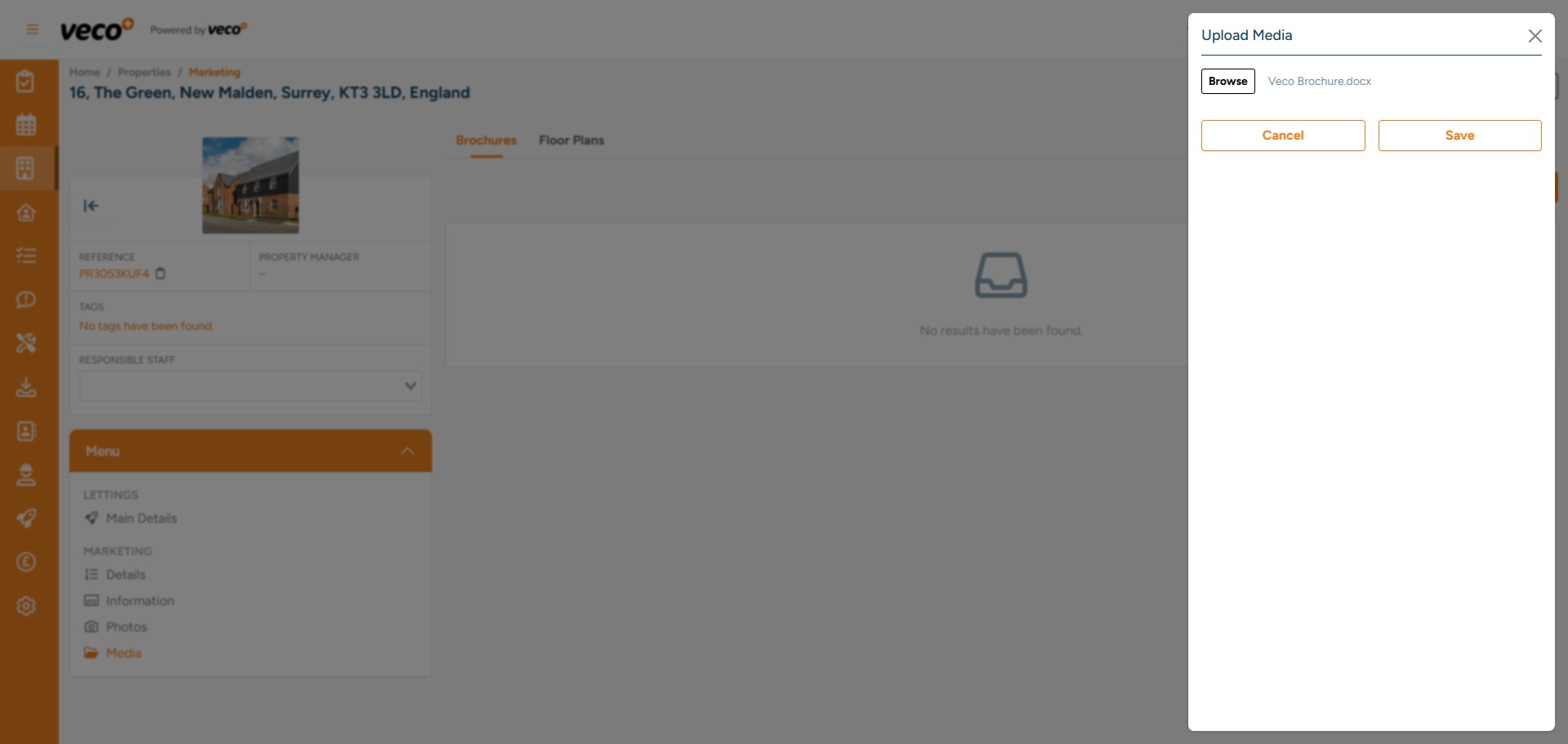
Then select ‘Upload Brochure’. You can browse and select multiple files at once. Once all files have been selected, select ‘Save’
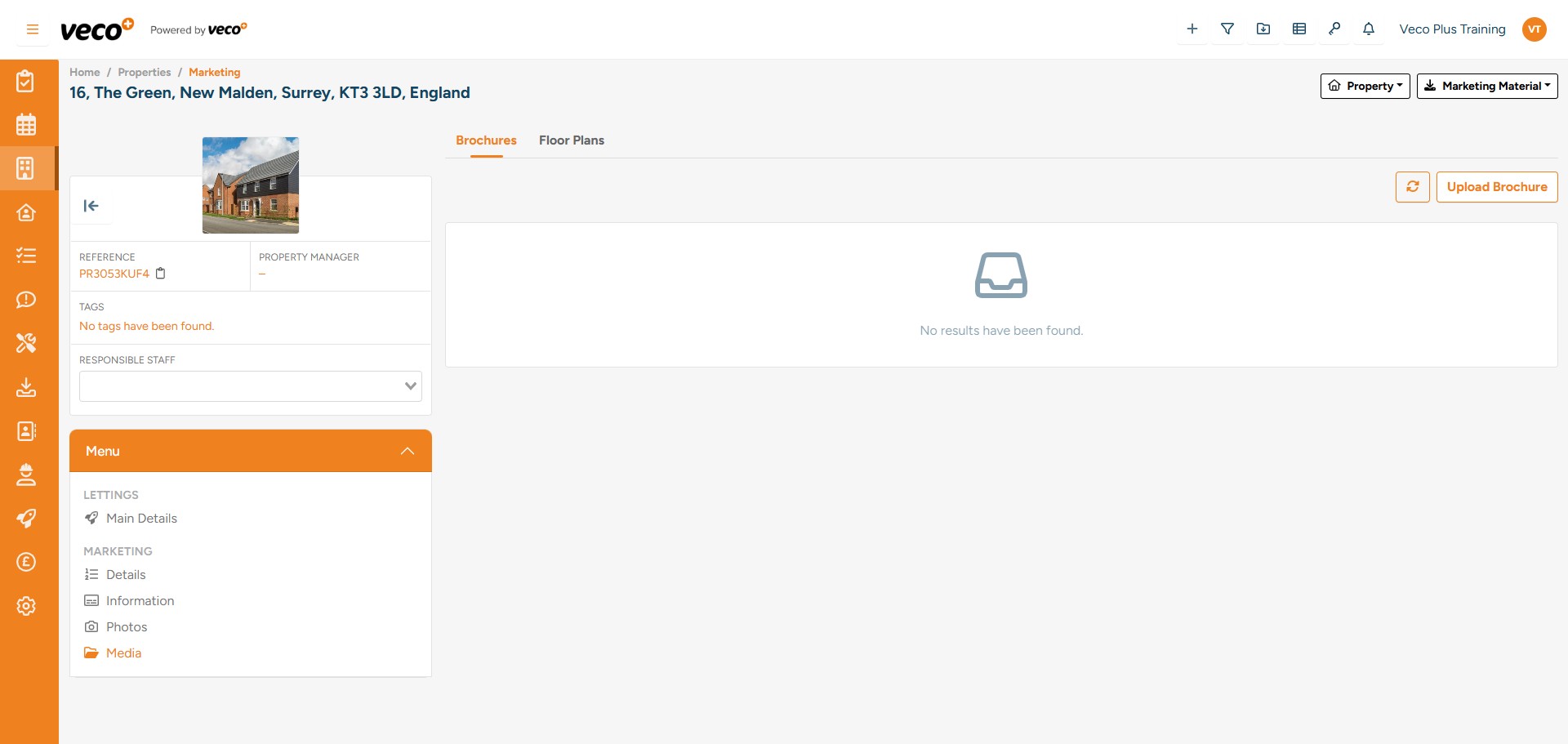
Then select ‘Upload Brochure’. You can browse and select multiple files at once. Once all files have been selected, select ‘Save’
15

You can browse and select multiple files at once. Once all files have been selected
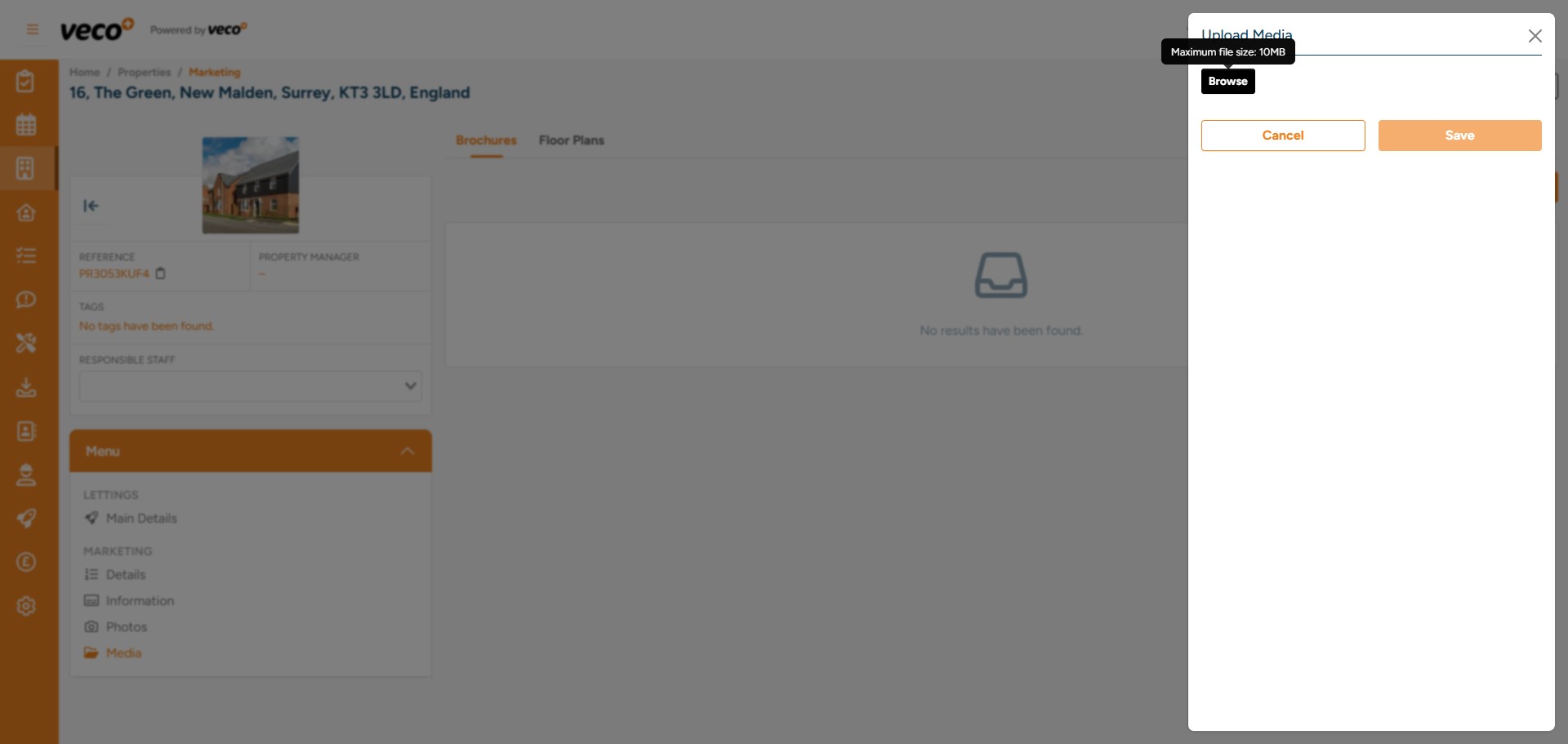
You can browse and select multiple files at once. Once all files have been selected
16

Select ‘Save’

Select ‘Save’
17

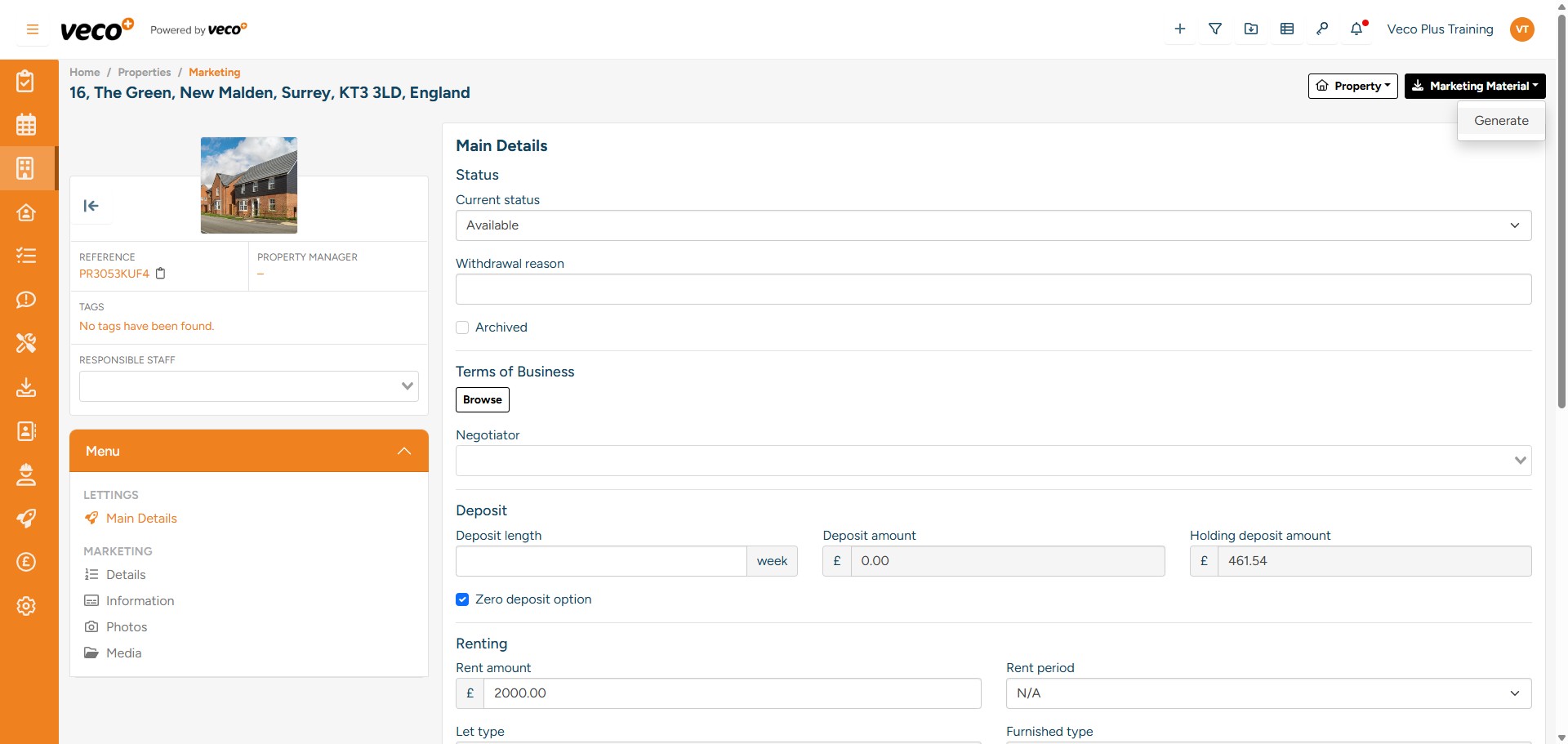
If you would like to generate a brochure, select ' Marketing Material'
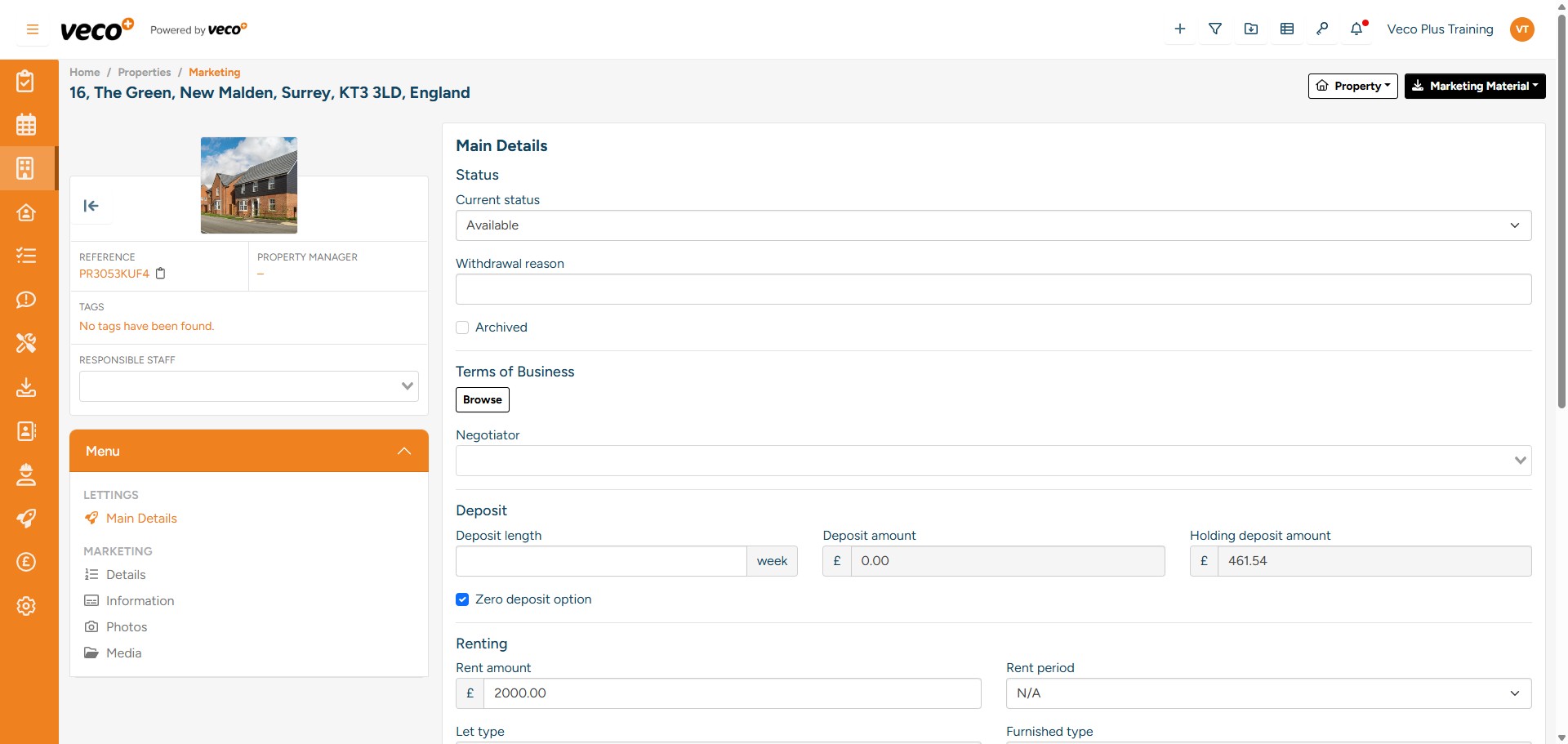
If you would like to generate a brochure, select ' Marketing Material'
18

Then 'Generate'

Then 'Generate'
19

You will then have 2 options 'Preview' or 'Generate'
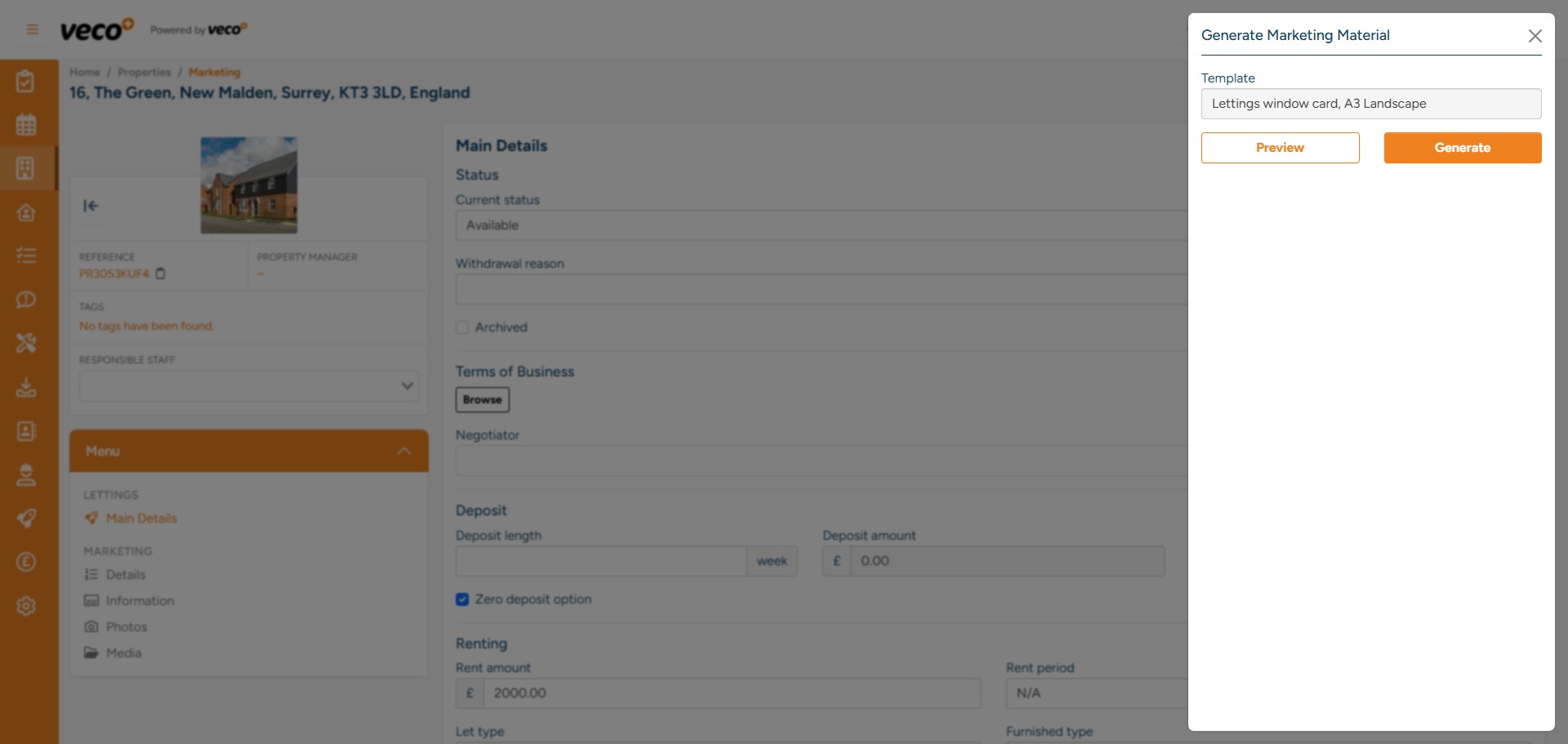
You will then have 2 options 'Preview' or 'Generate'
20

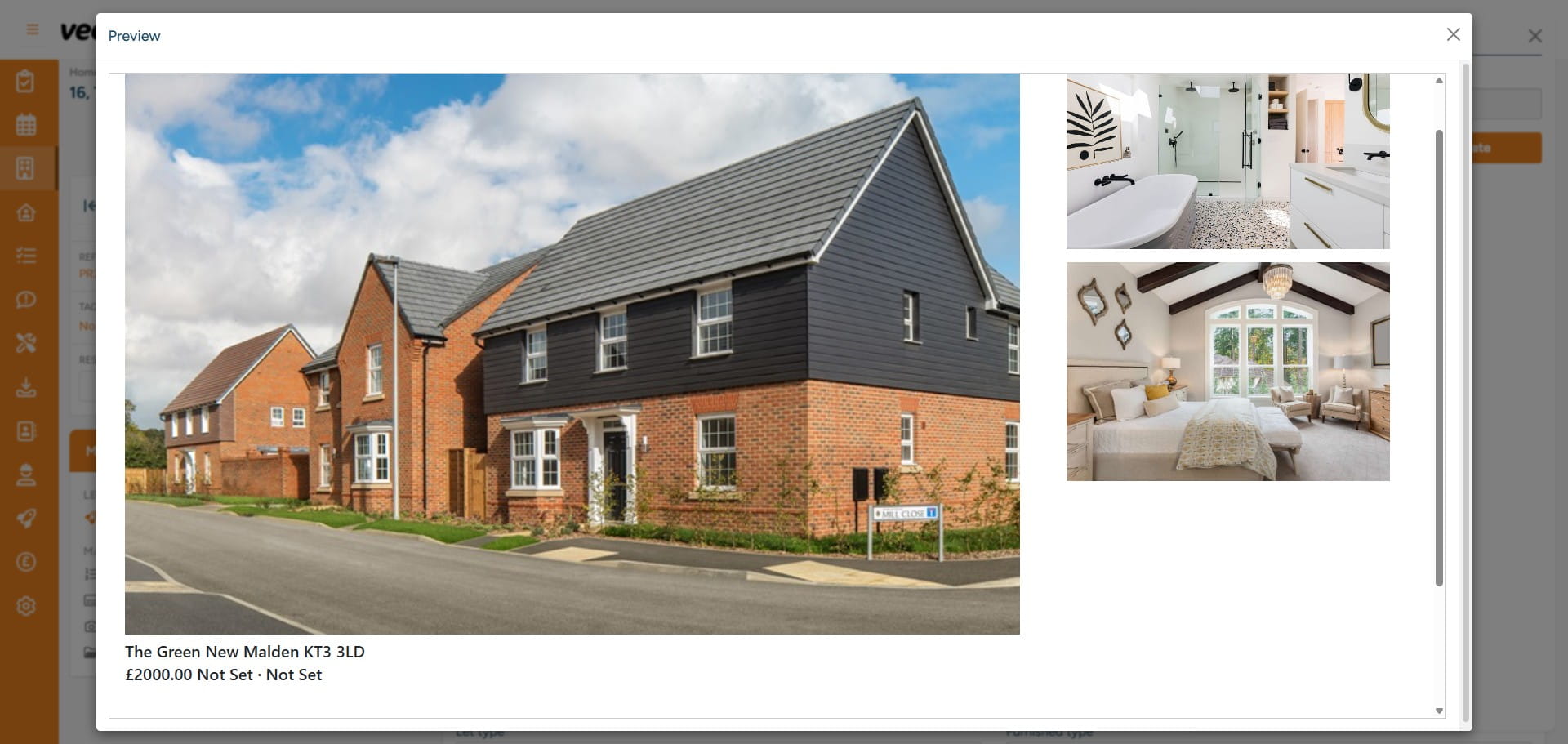
Below is a preview of the brochure

Below is a preview of the brochure
21

When you select 'Generate' you will see the below, and once the pdf has been created, you will be notified in the notification centre
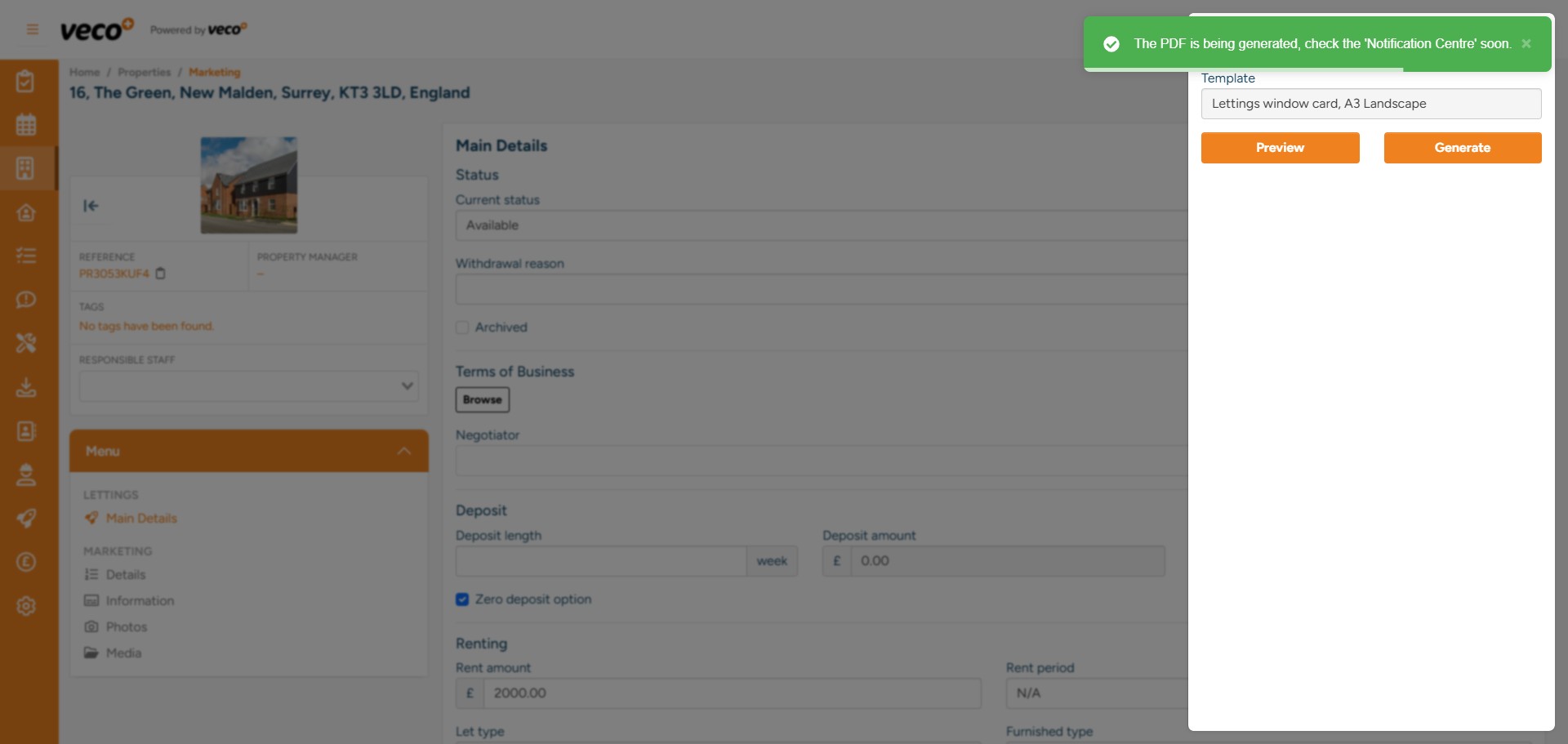
When you select 'Generate' you will see the below, and once the pdf has been created, you will be notified in the notification centre
22

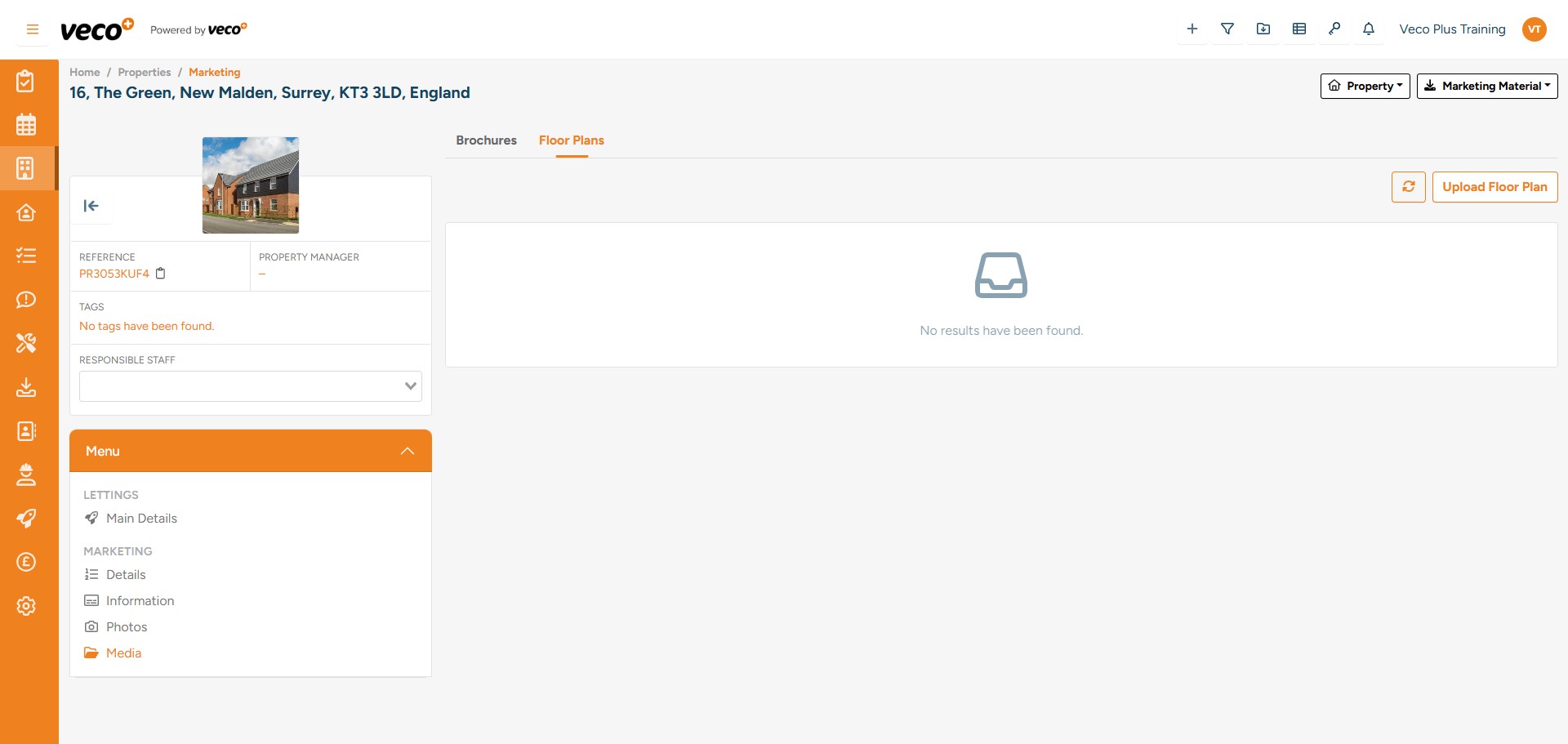
To add a floor plan, select 'Media', then select 'Floor Plans'
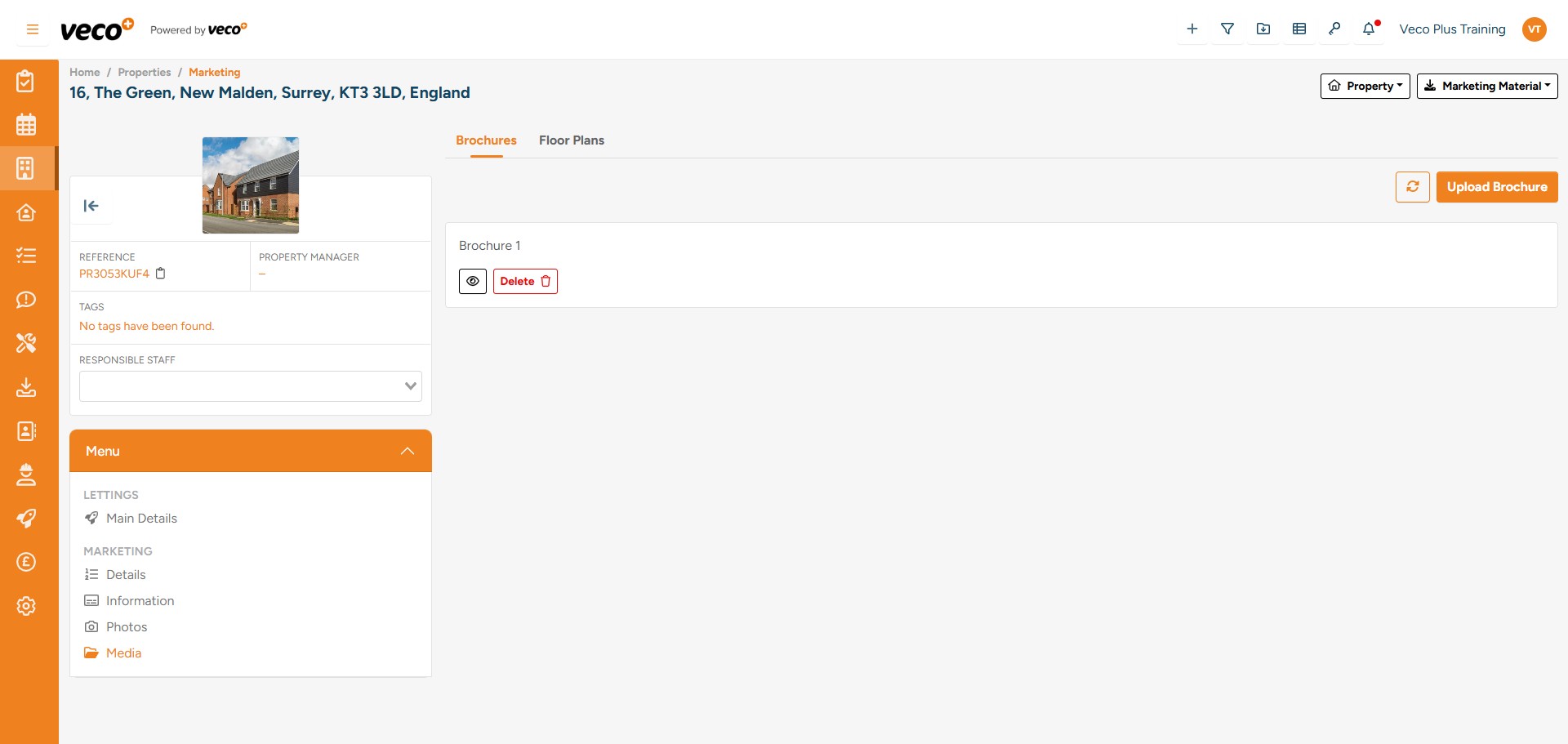
To add a floor plan, select 'Media', then select 'Floor Plans'
23

Select ' Upload Floor Plan'

Select ' Upload Floor Plan'
24

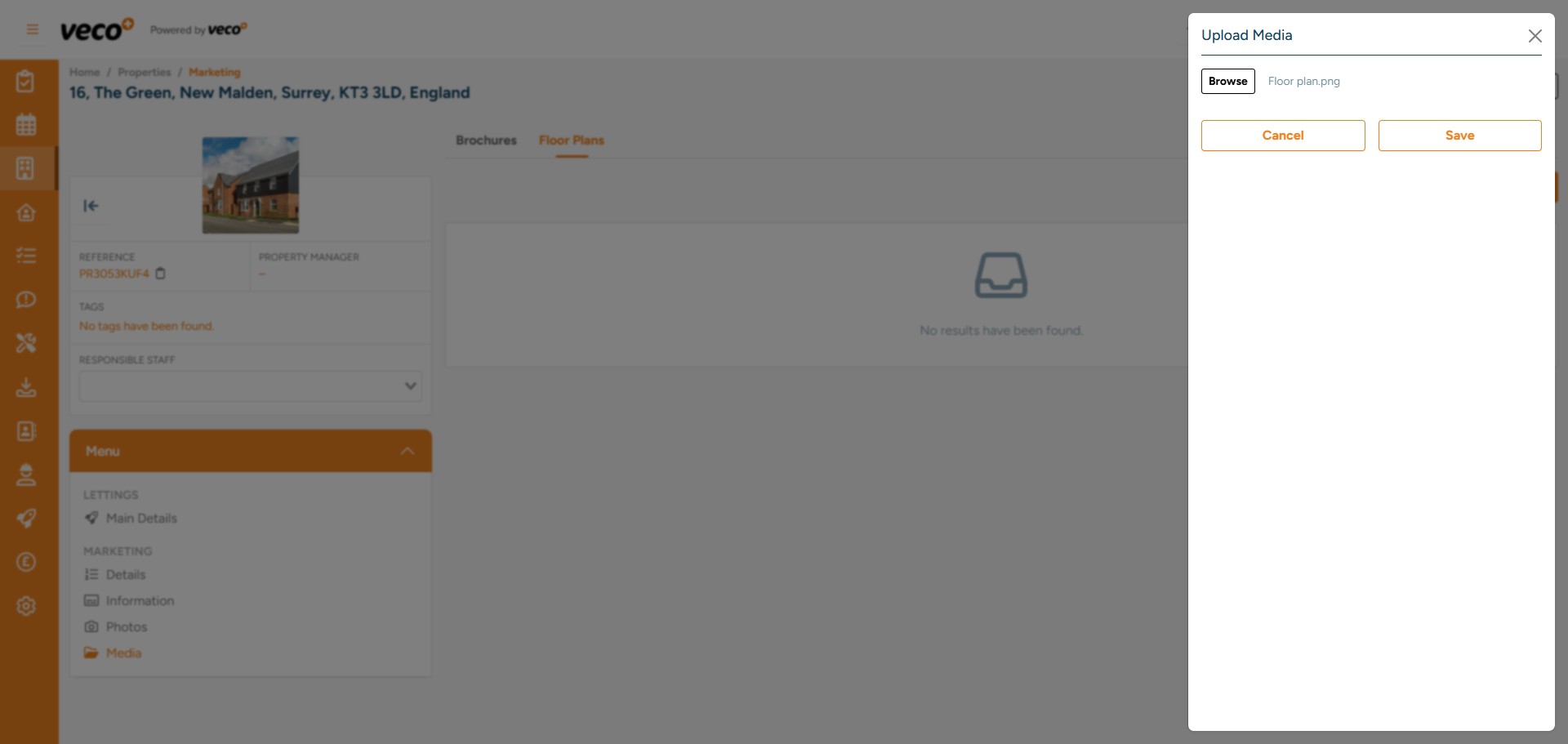
You can browse and select multiple floor plans at once
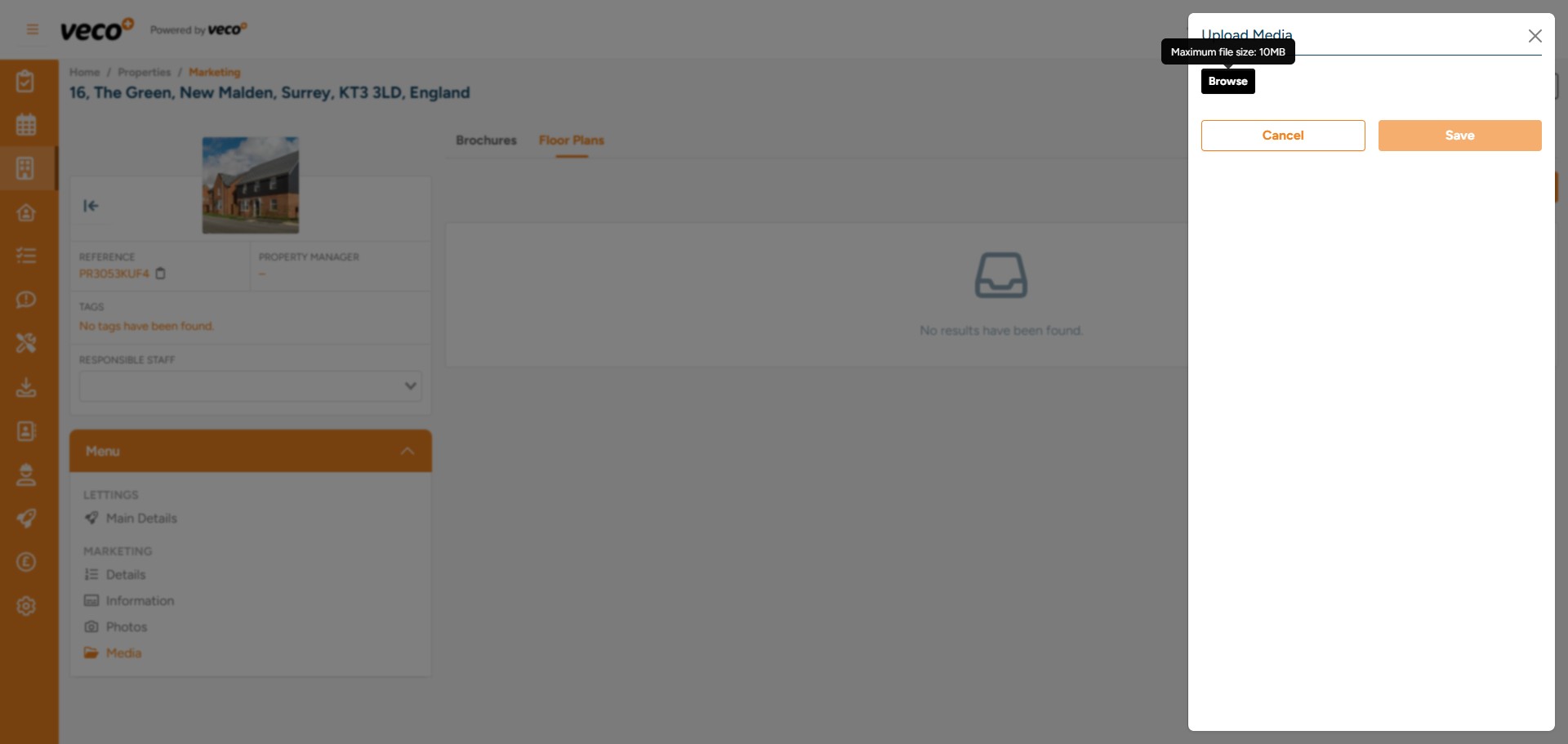
You can browse and select multiple floor plans at once
25

Select 'Save'

Select 'Save'
26

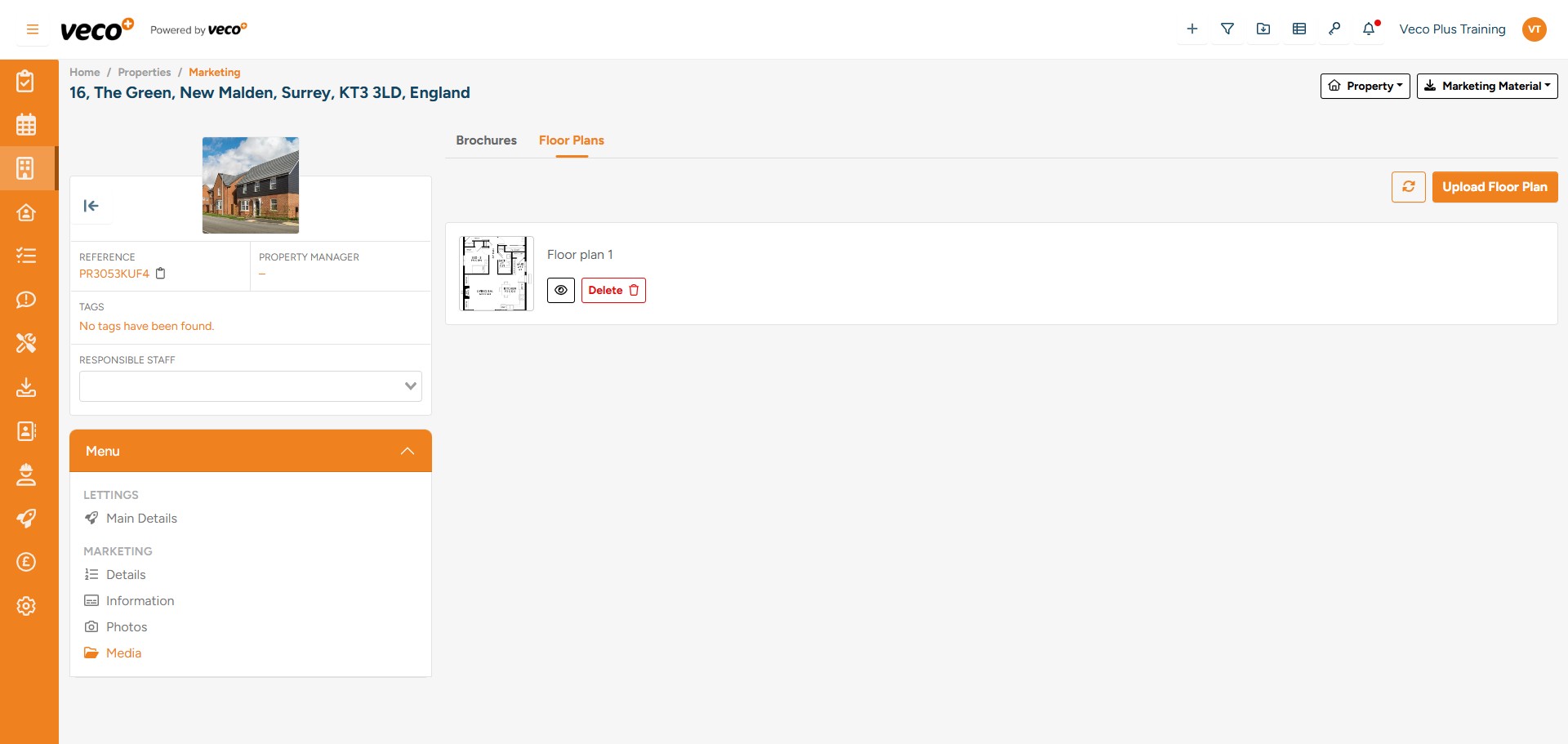
The floor plan will appear as below

The floor plan will appear as below
27

If your property has not successfully been published online, there may be an error message. This can be viewed on the ‘Advertising’ button on the navigation bar
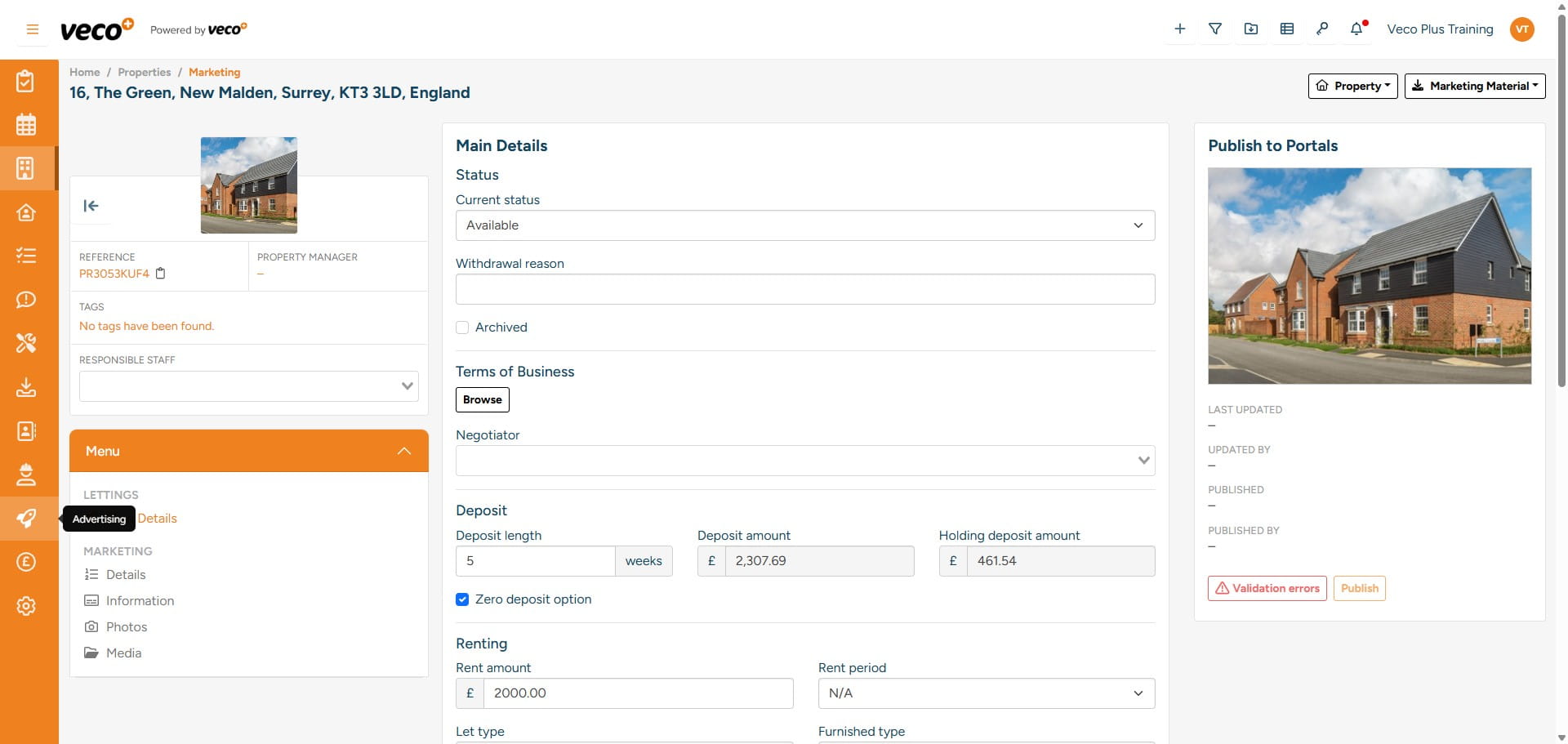
If your property has not successfully been published online, there may be an error message. This can be viewed on the ‘Advertising’ button on the navigation bar
28

You can check any validation errors or publish properties from this screen
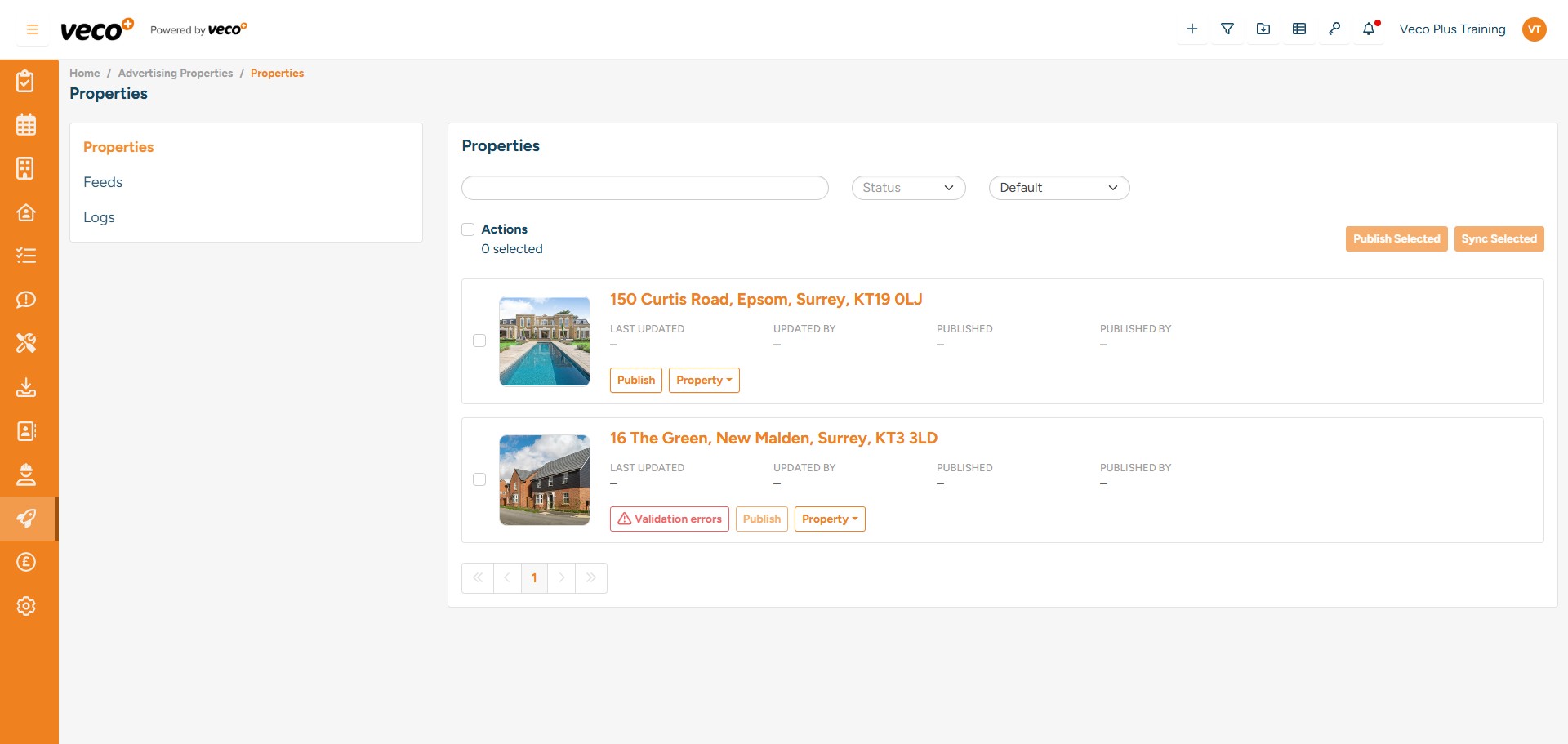
You can check any validation errors or publish properties from this screen
29

The history of all marketing records will be displayed within the property. If you were to re-market the property, you can use the ‘Duplicate’ button, which will copy the previous marketing record. You can then amend the data accordingly. For a new marketing record, select 'New Marketing Record'
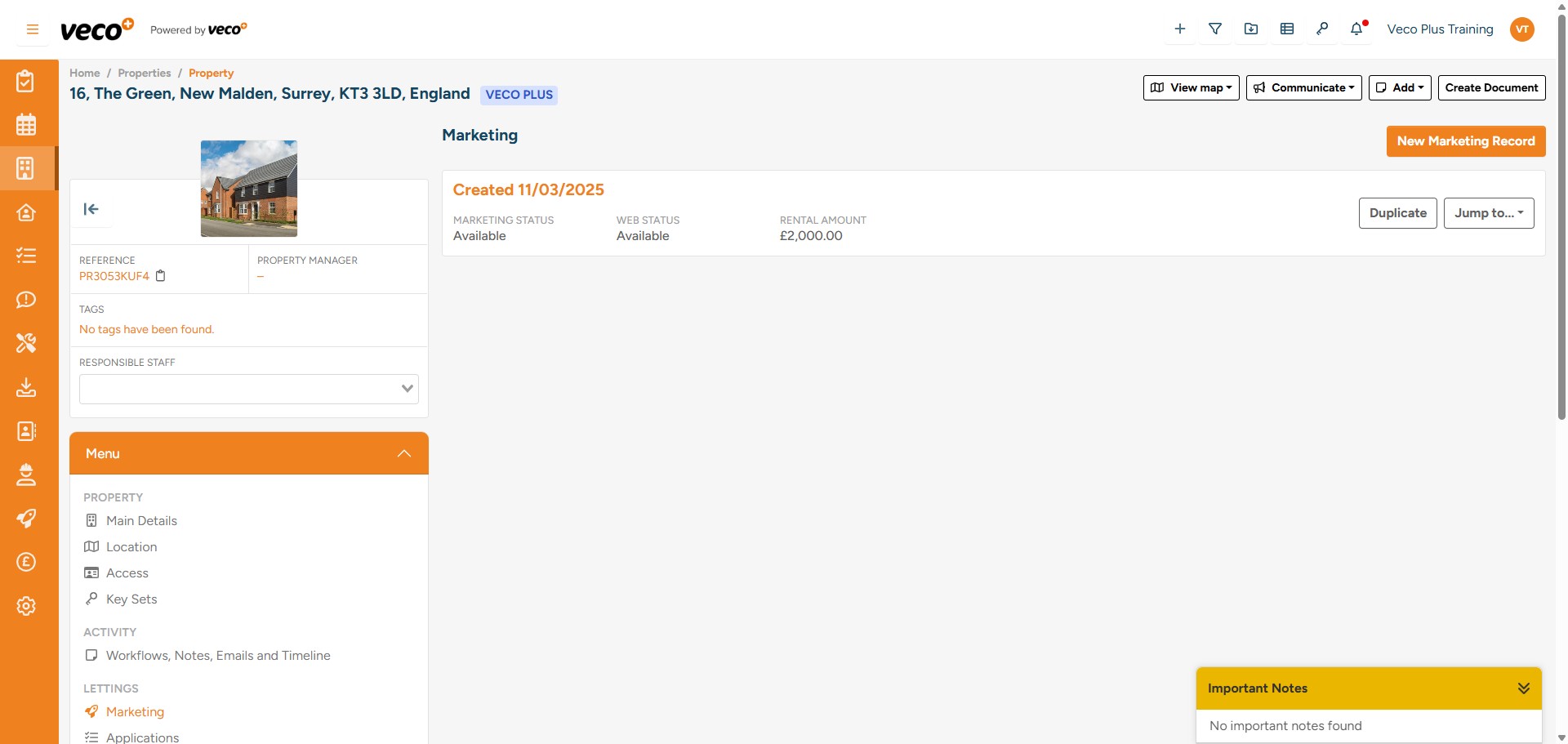
The history of all marketing records will be displayed within the property. If you were to re-market the property, you can use the ‘Duplicate’ button, which will copy the previous marketing record. You can then amend the data accordingly. For a new marketing record, select 'New Marketing Record'
30

Once you have entered all relevant information and saved, go back to the ‘Information’ area
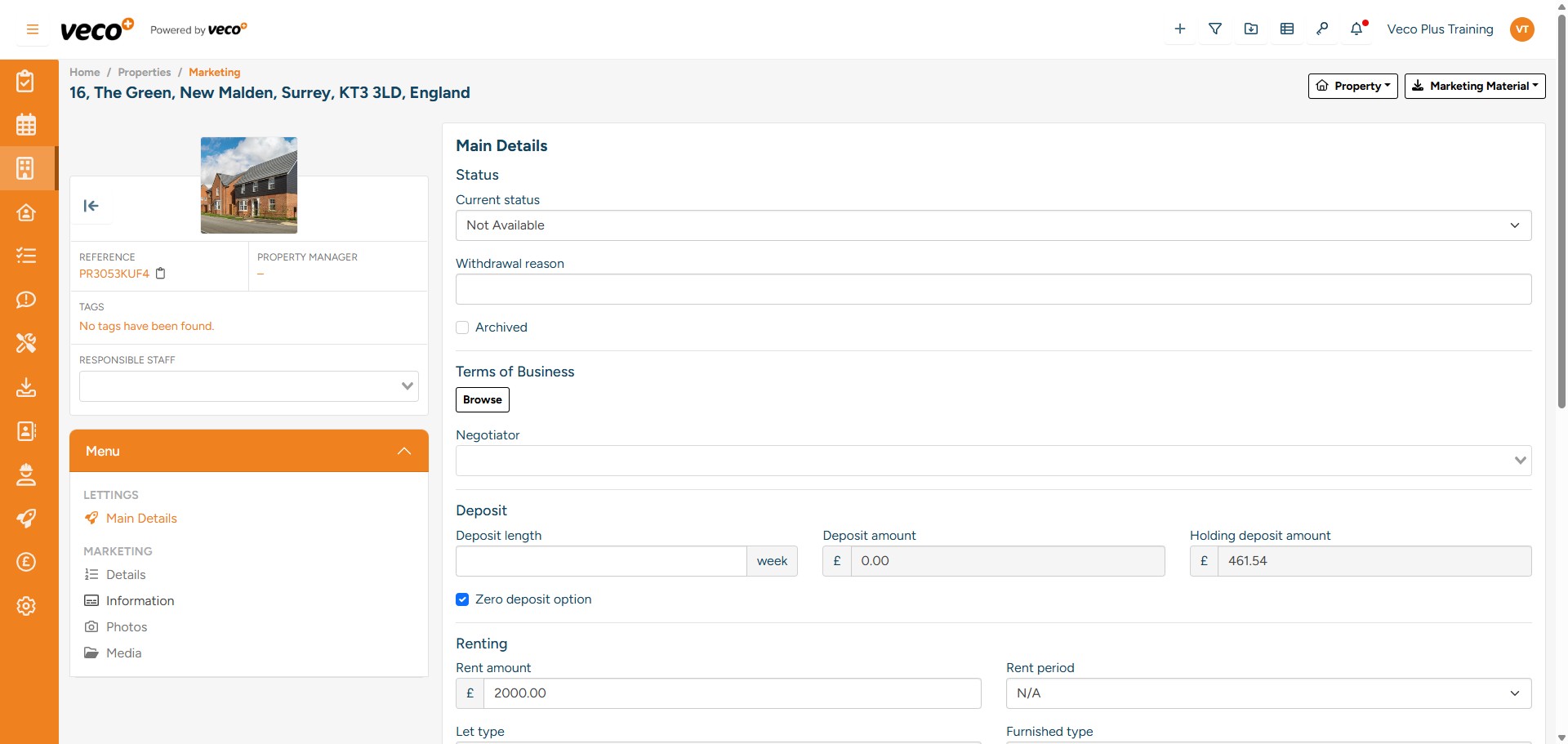
Once you have entered all relevant information and saved, go back to the ‘Information’ area
31

Change the ‘Web Status’ to ‘Available’ and select ‘Save’
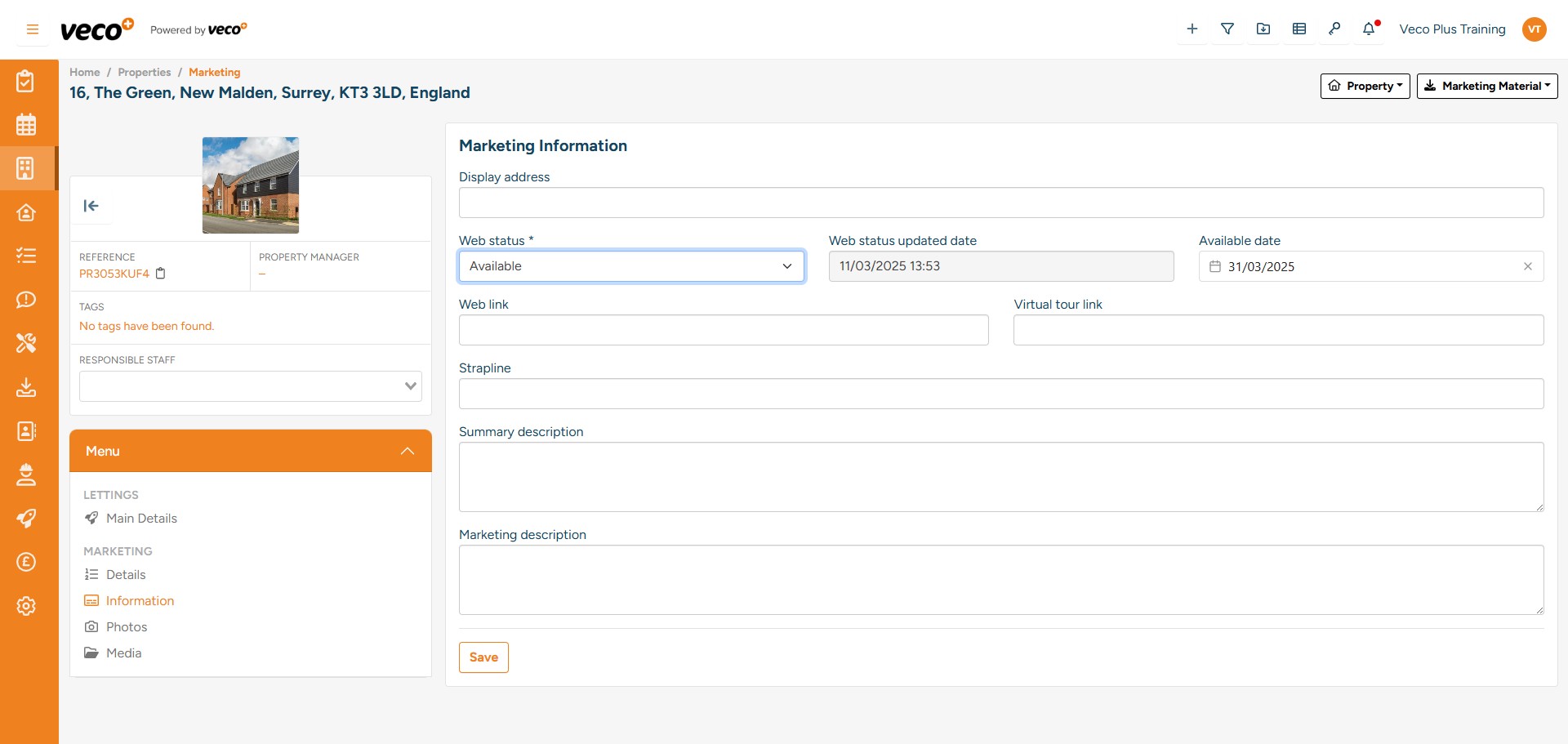
Change the ‘Web Status’ to ‘Available’ and select ‘Save’
32

You will then be prompted to publish the property to the portals and websites
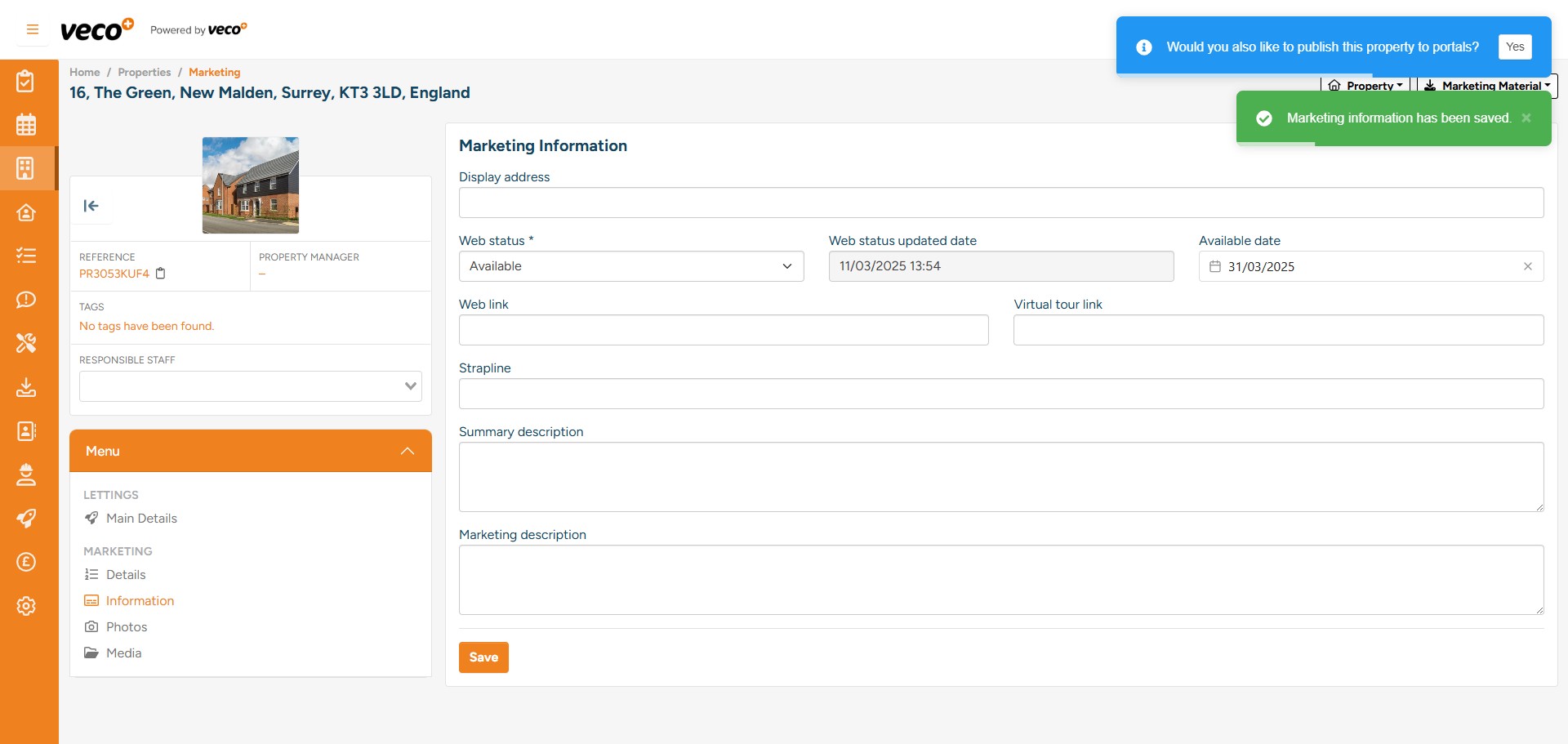
You will then be prompted to publish the property to the portals and websites