logo

Adding a Lead

1

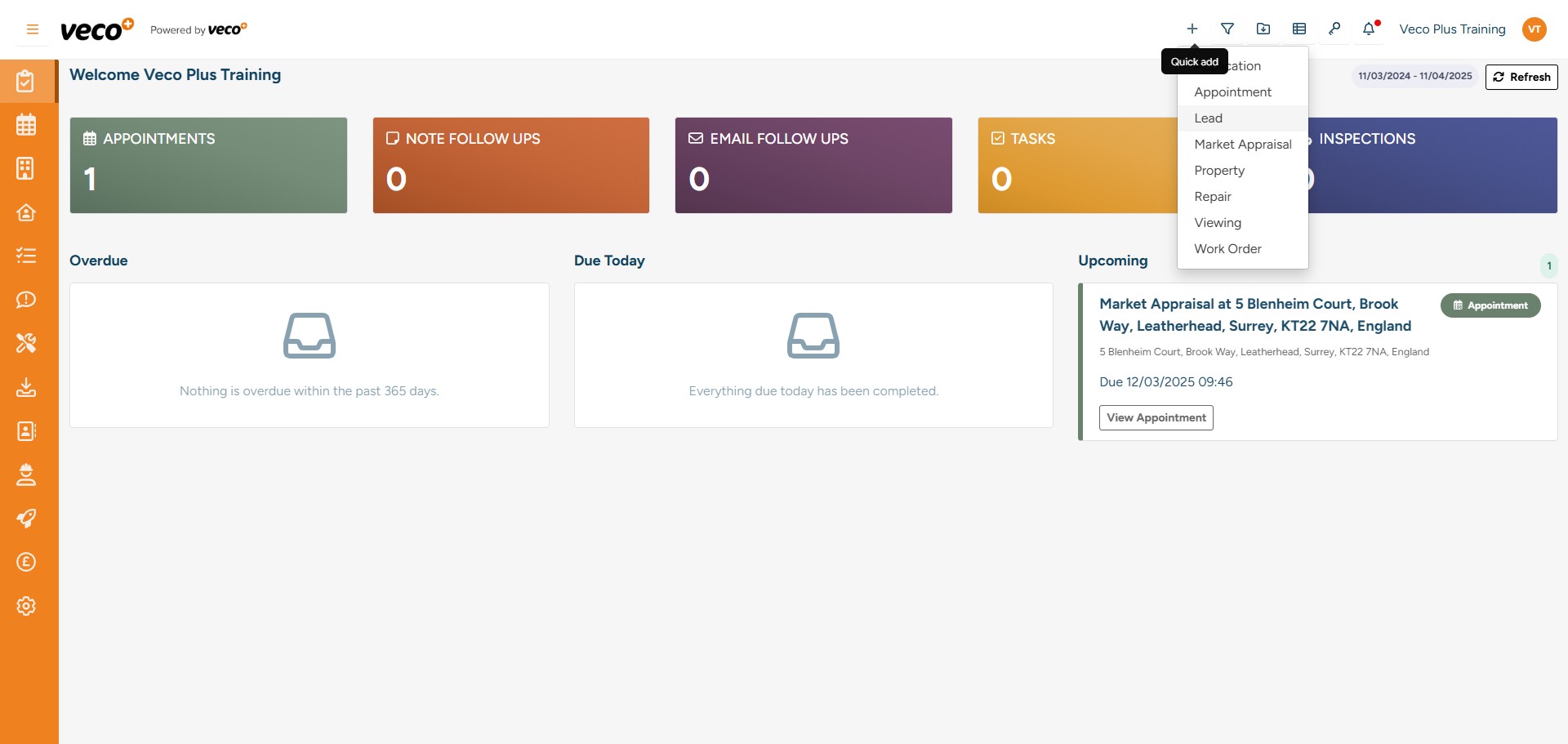
To create a Lead, click the ‘+’ icon located in the upper right corner
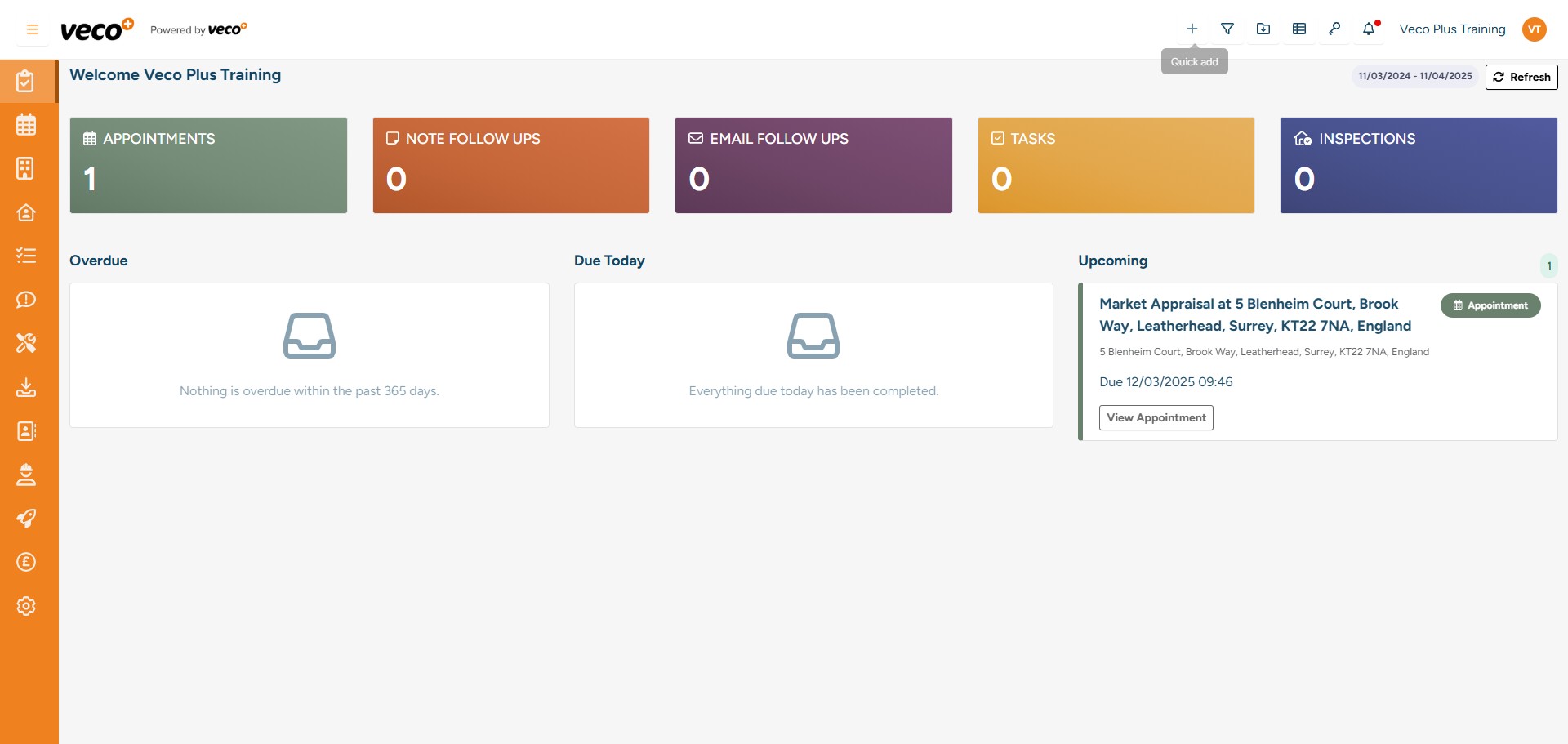
To create a Lead, click the ‘+’ icon located in the upper right corner
2

Next, select ‘Lead’ from the options

Next, select ‘Lead’ from the options
3

Please enter the required information and select ‘Save’
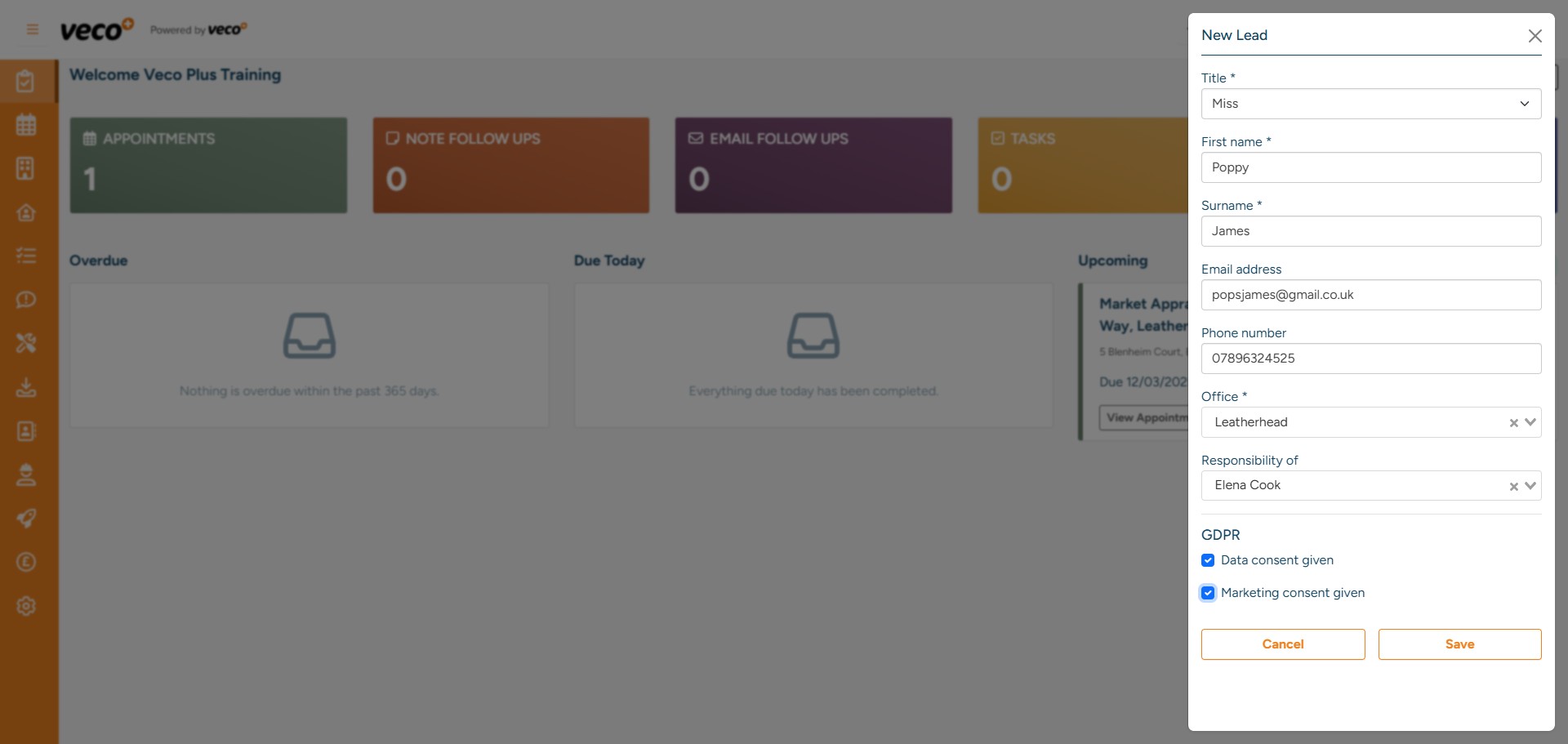
Please enter the required information and select ‘Save’
4

You can then open the Lead record from the notification. You can also search and find it from 'Leads' in the navigation bar
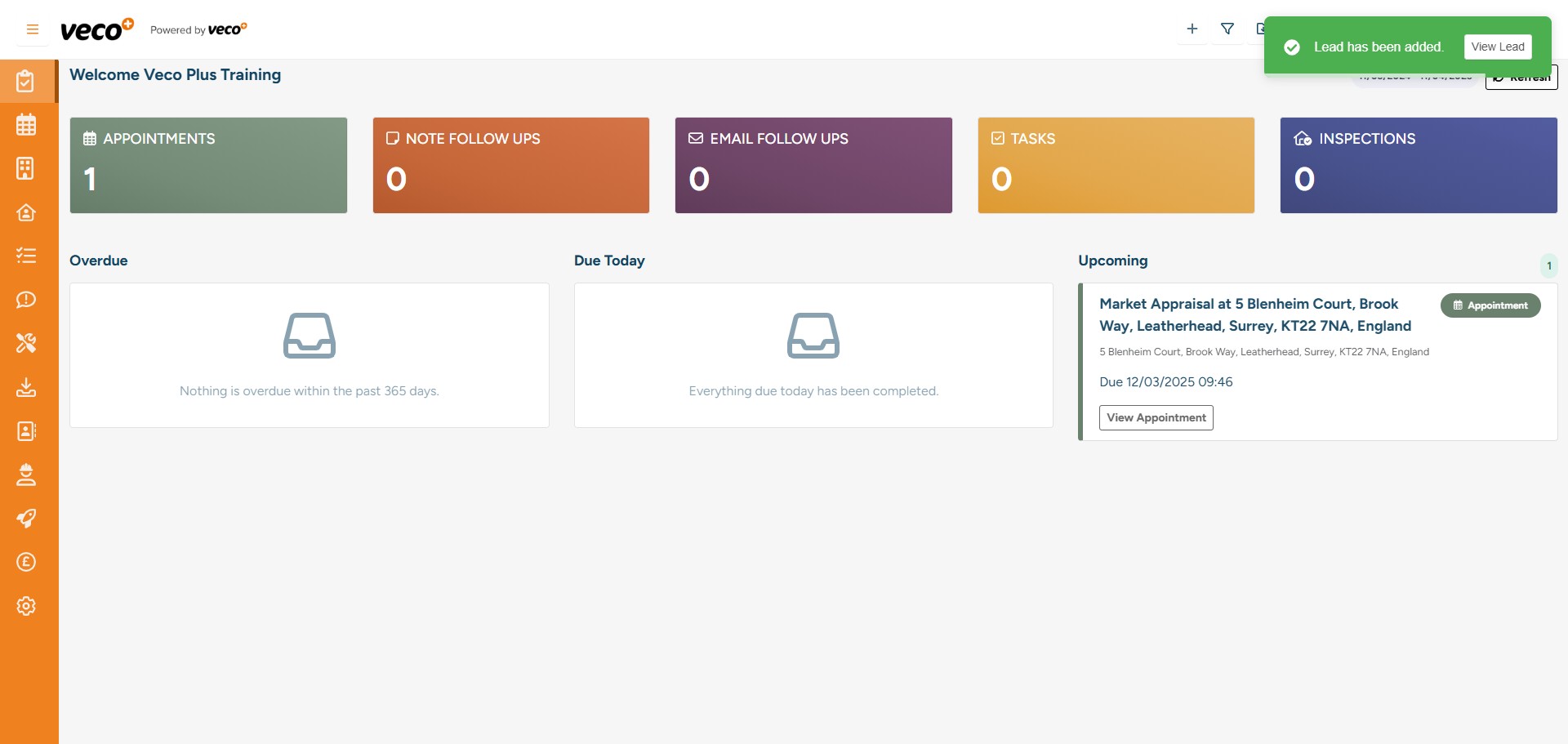
You can then open the Lead record from the notification. You can also search and find it from 'Leads' in the navigation bar
5

Under the contact details you can select 'Add'
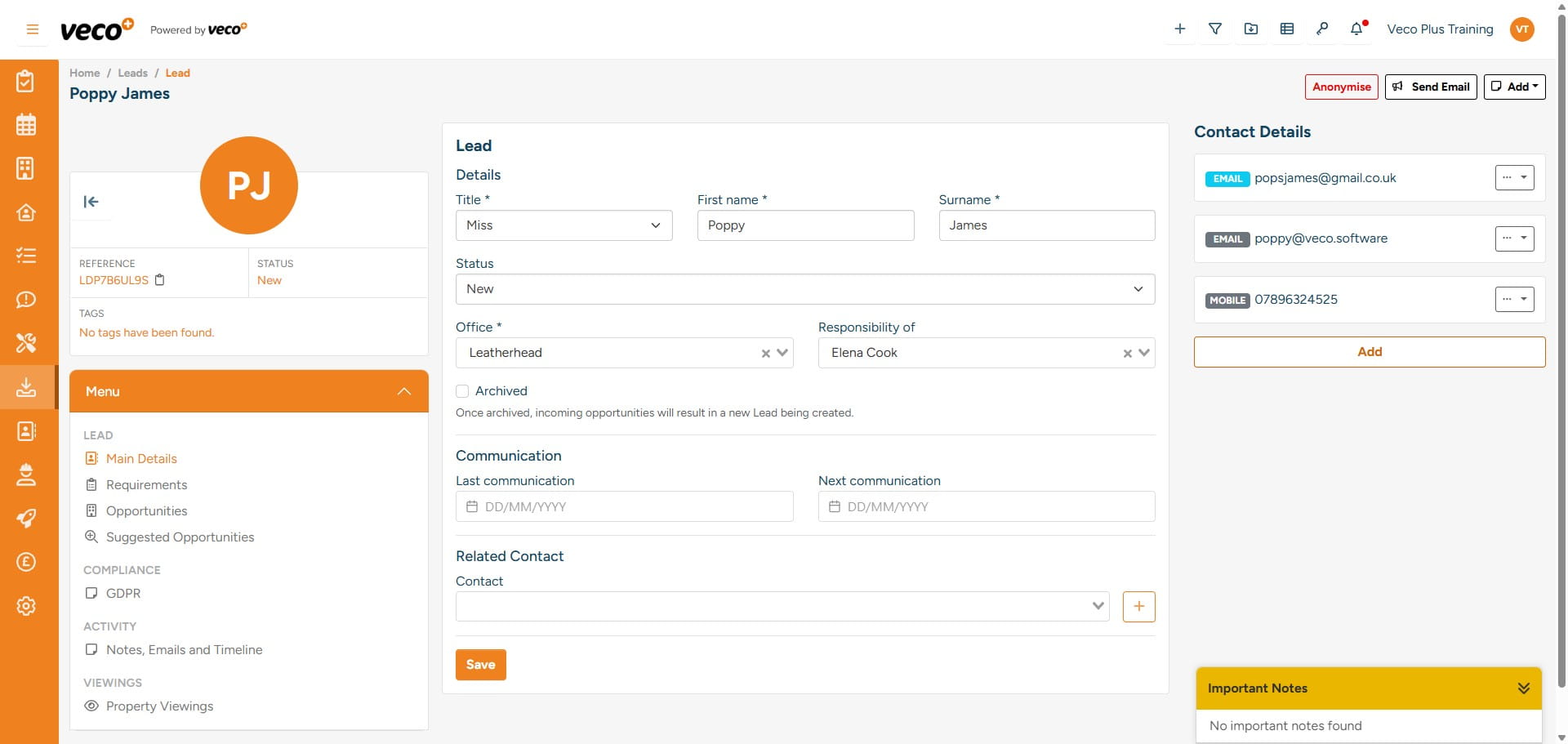
Under the contact details you can select 'Add'
6

This will allow you to add additional communications for the Lead as well as adding a priority order
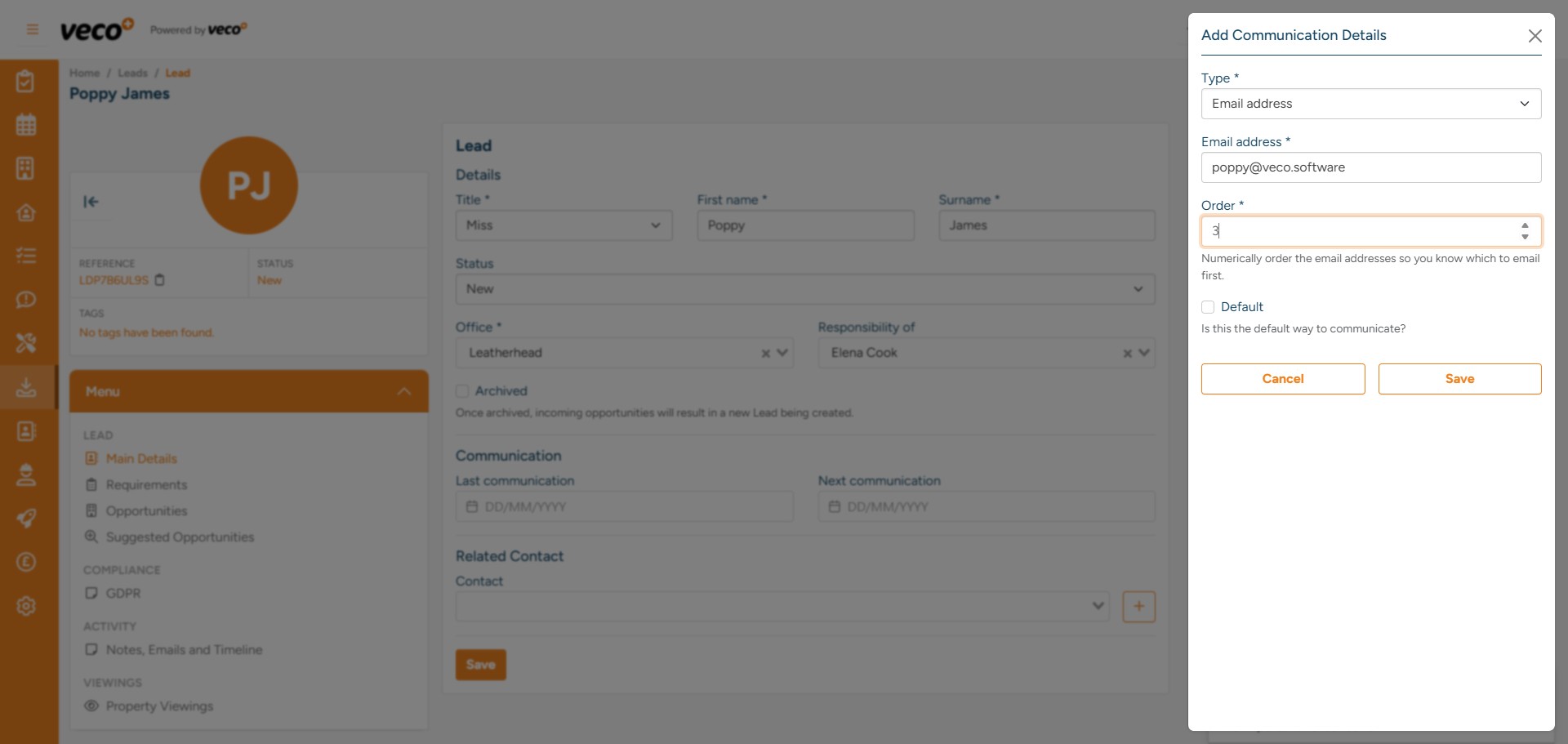
This will allow you to add additional communications for the Lead as well as adding a priority order
7

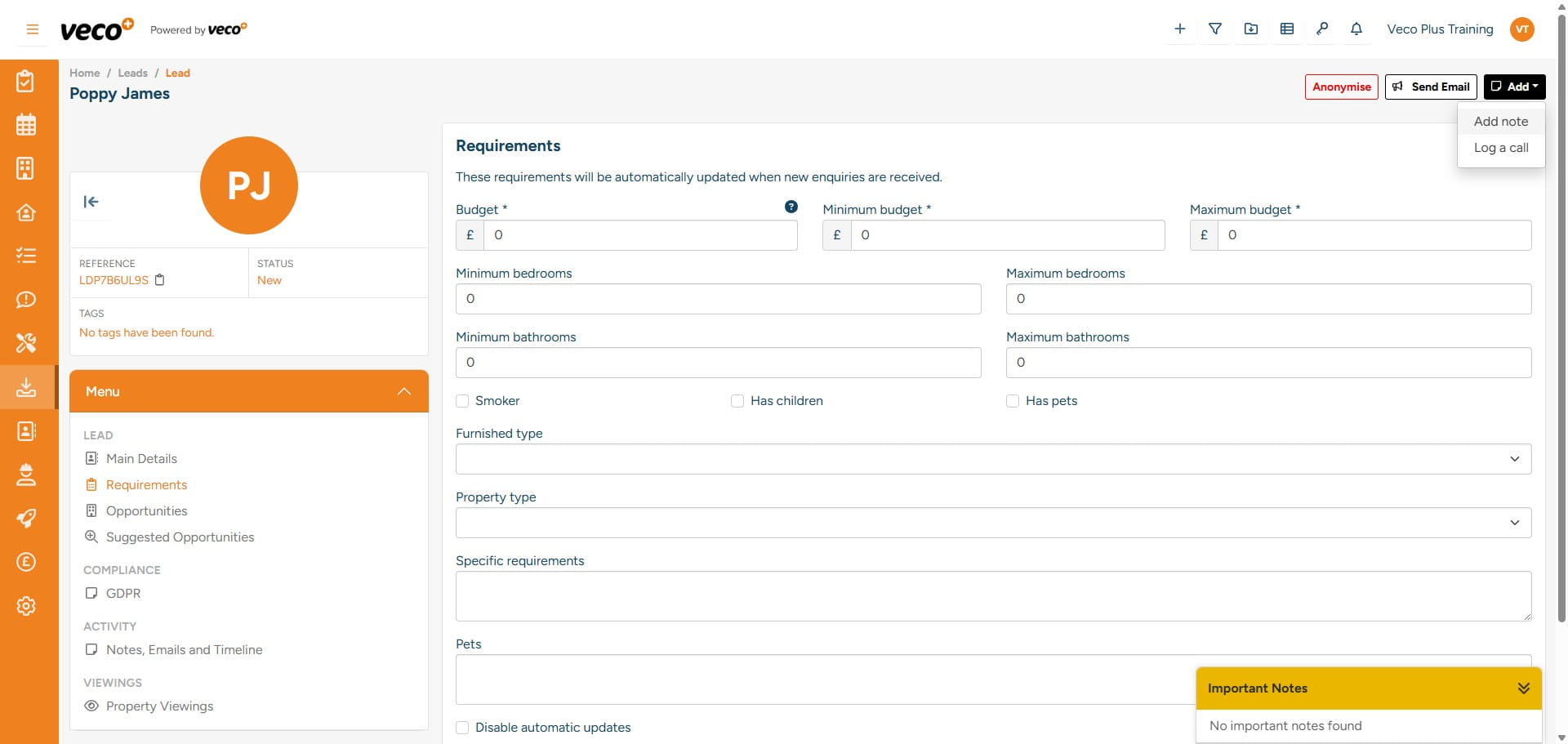
Following that, you should input the Lead's 'Requirements,' accessible from the ‘Menu’ located in the lower left corner. After entering the requirements, select ‘Save'
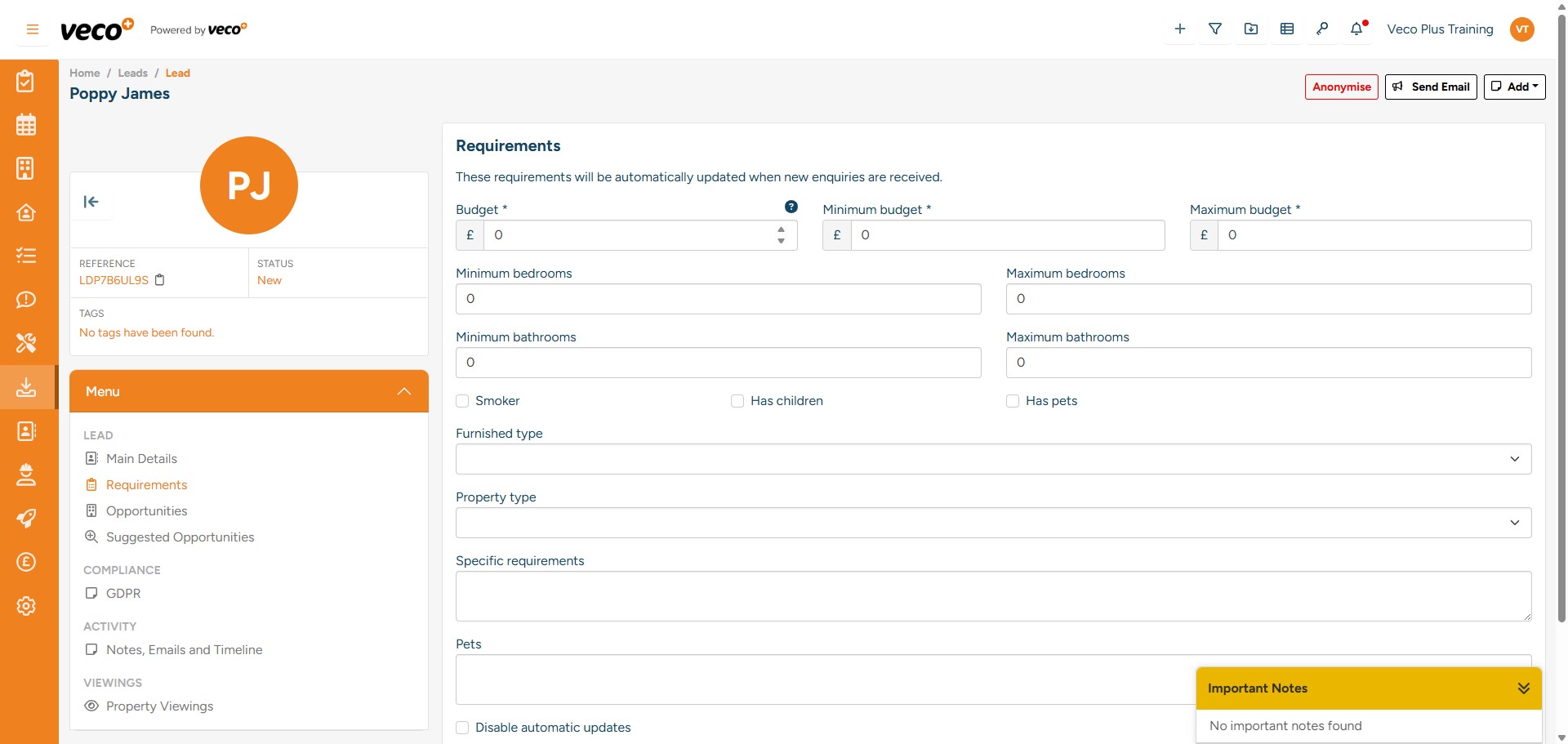
Following that, you should input the Lead's 'Requirements,' accessible from the ‘Menu’ located in the lower left corner. After entering the requirements, select ‘Save'
8

If you would like to include additional information about the Lead, you can add a note using the add button
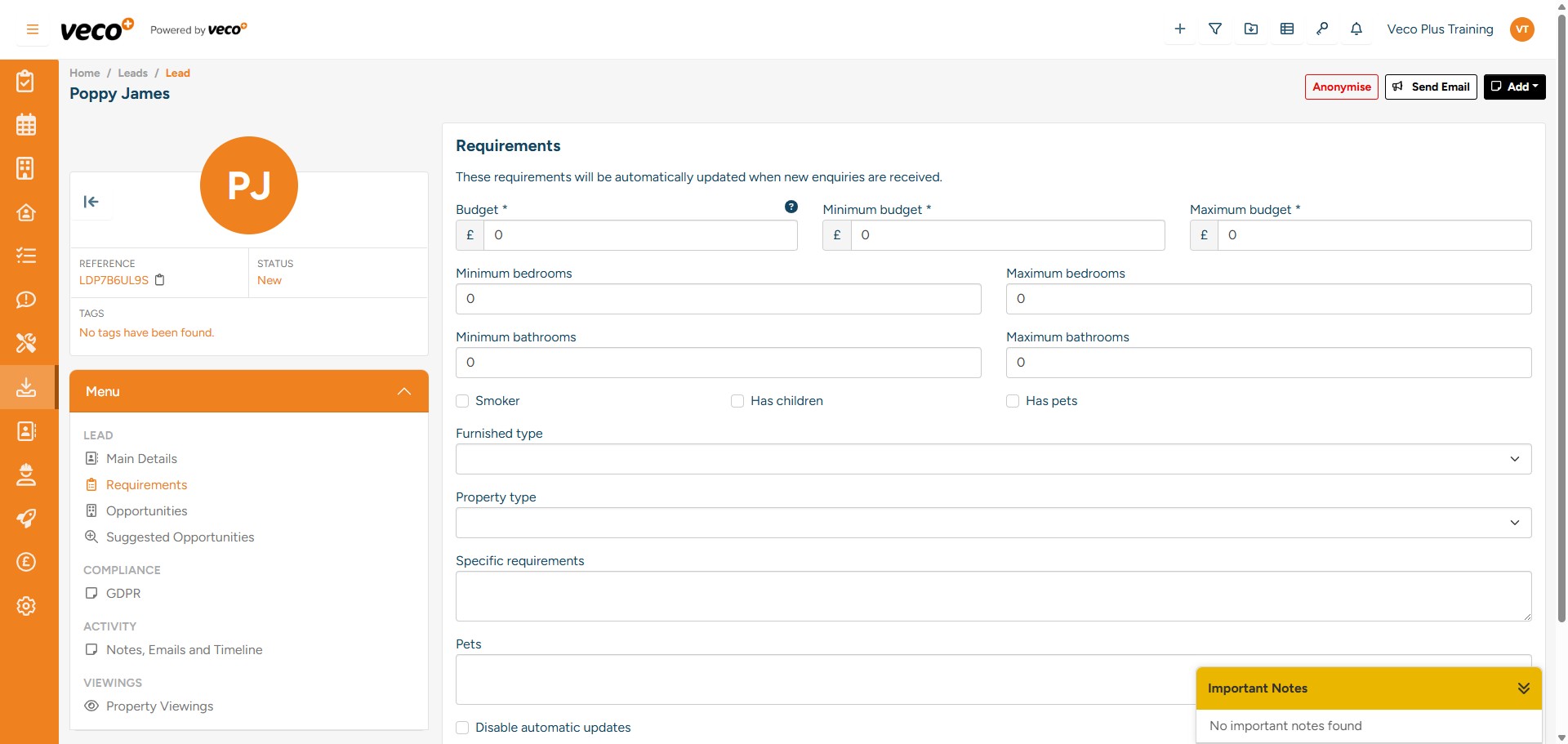
If you would like to include additional information about the Lead, you can add a note using the add button
9

Then select' Add note'

Then select' Add note'
10

Within the same menu you will see ‘Opportunities'
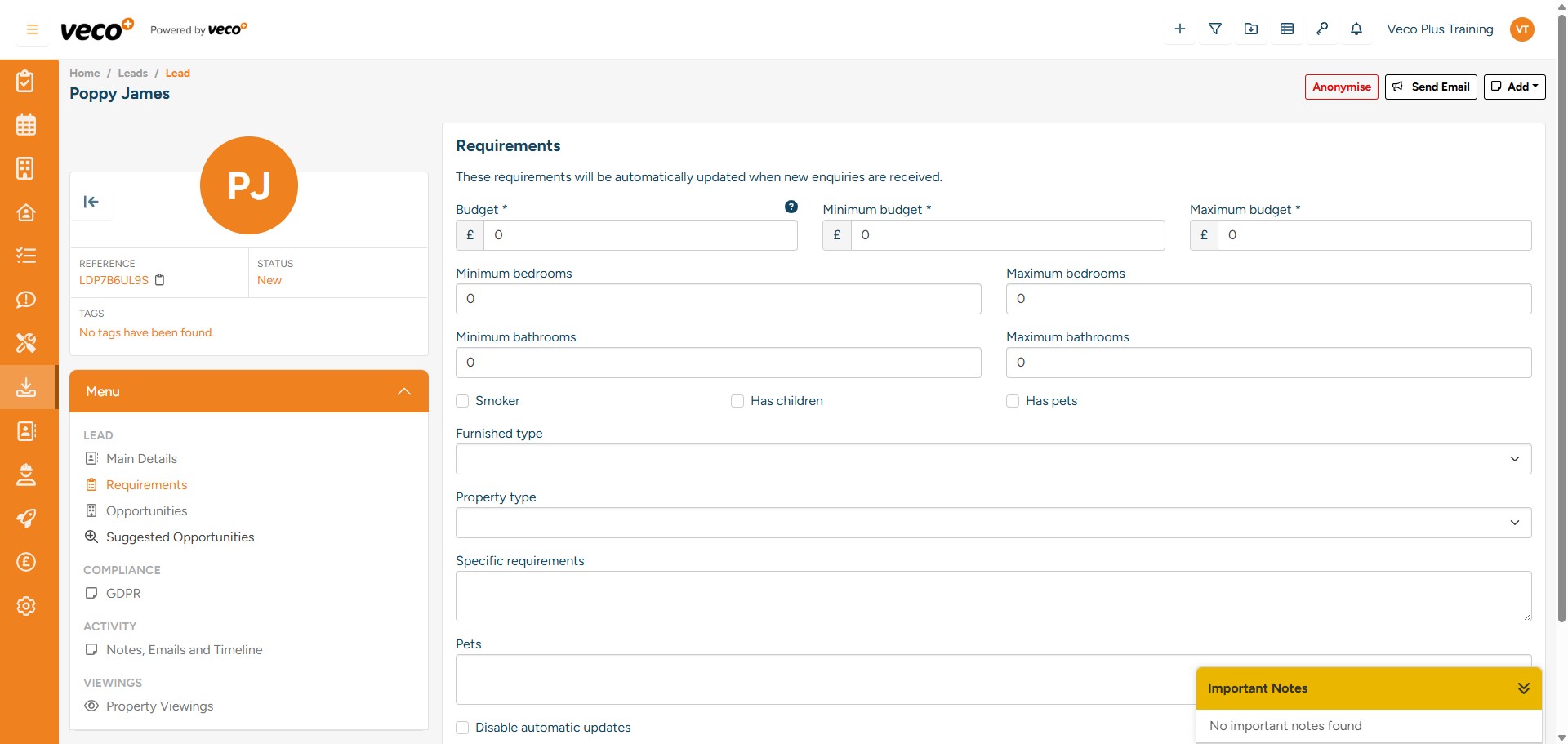
Within the same menu you will see ‘Opportunities'
11

Select 'New Opportunities'. This is where you can add any properties that you would like to present to the Lead
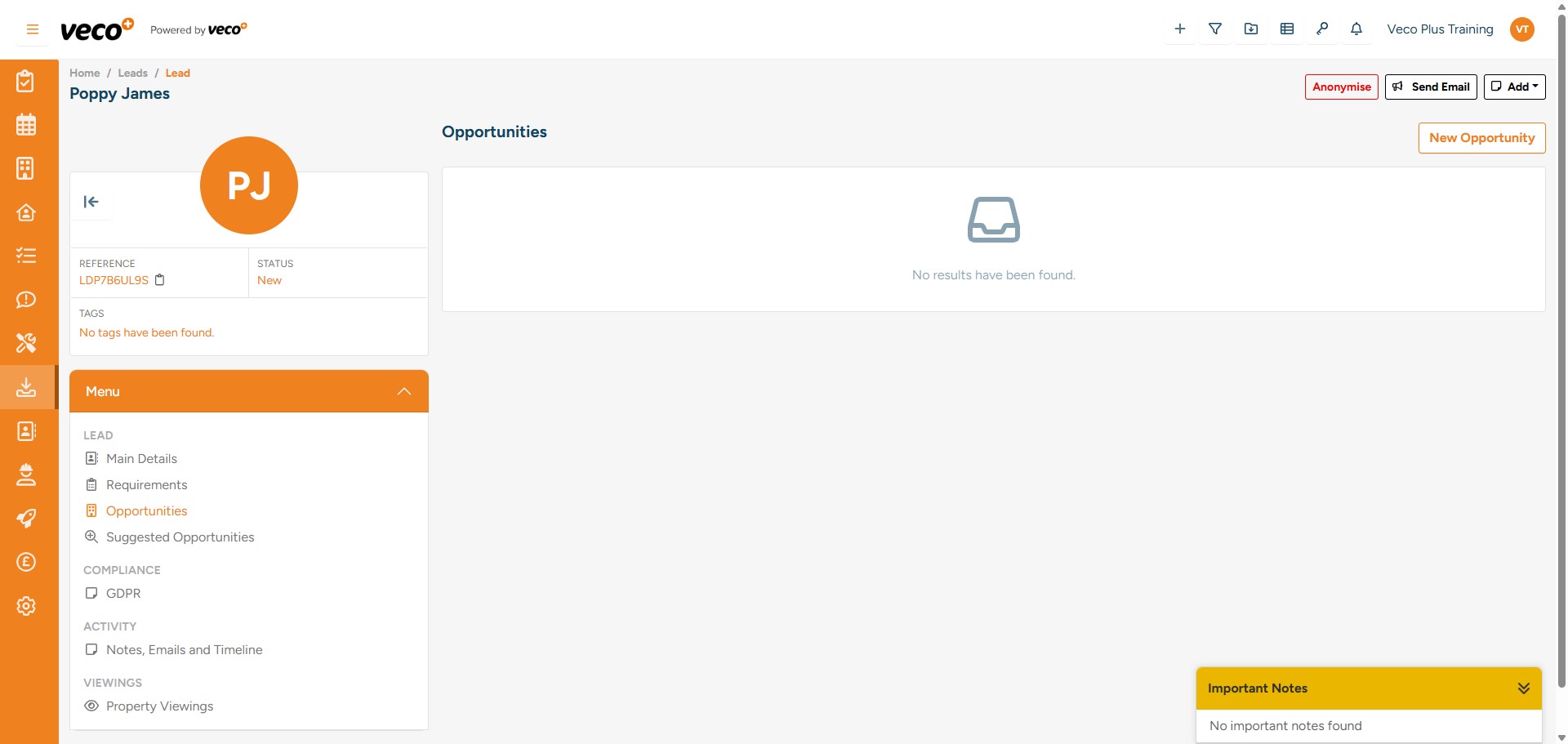
Select 'New Opportunities'. This is where you can add any properties that you would like to present to the Lead
12

Search for the property you would like to add
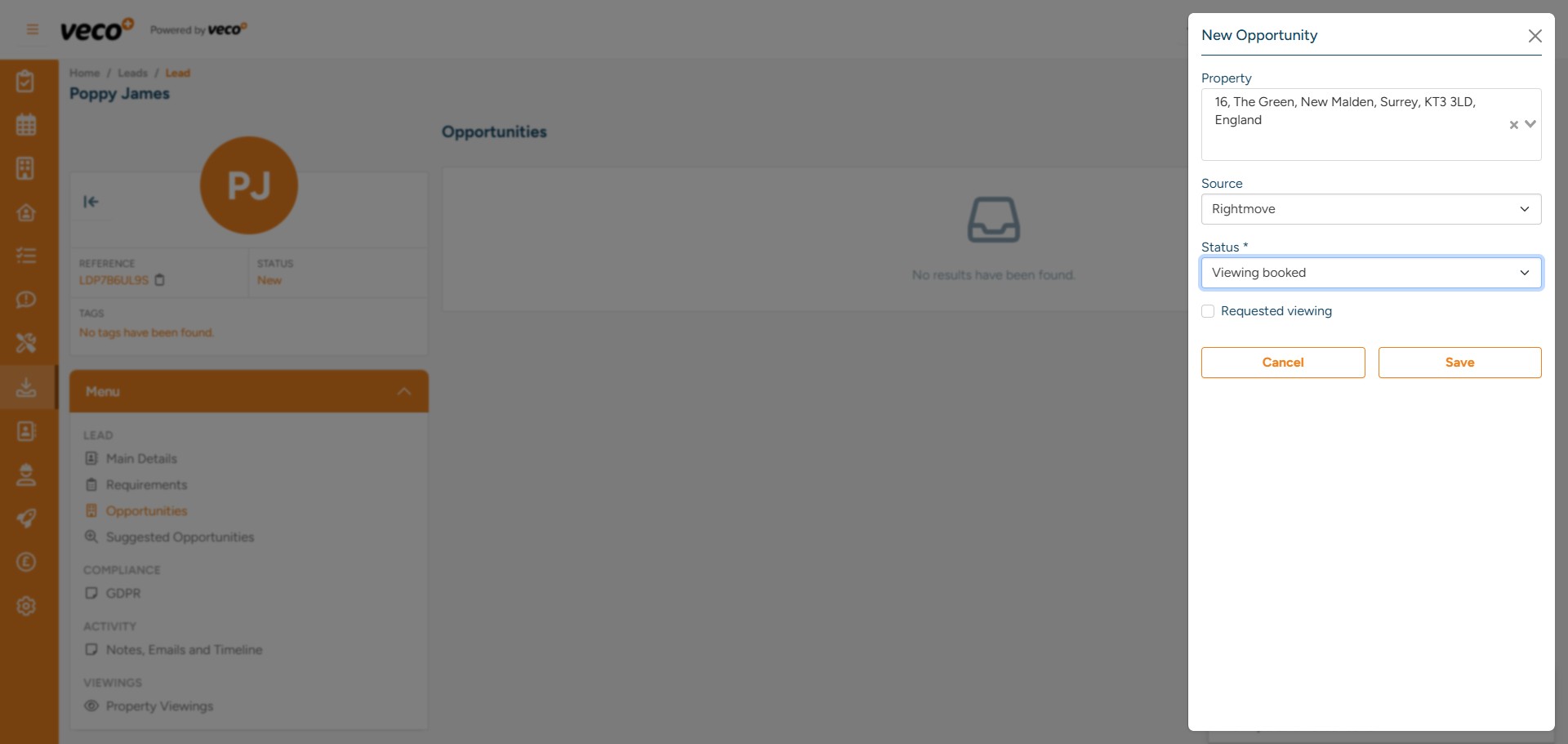
Search for the property you would like to add
13

Once you have selected 'Save', the property will appear on a list, from here you can select 'Actions'
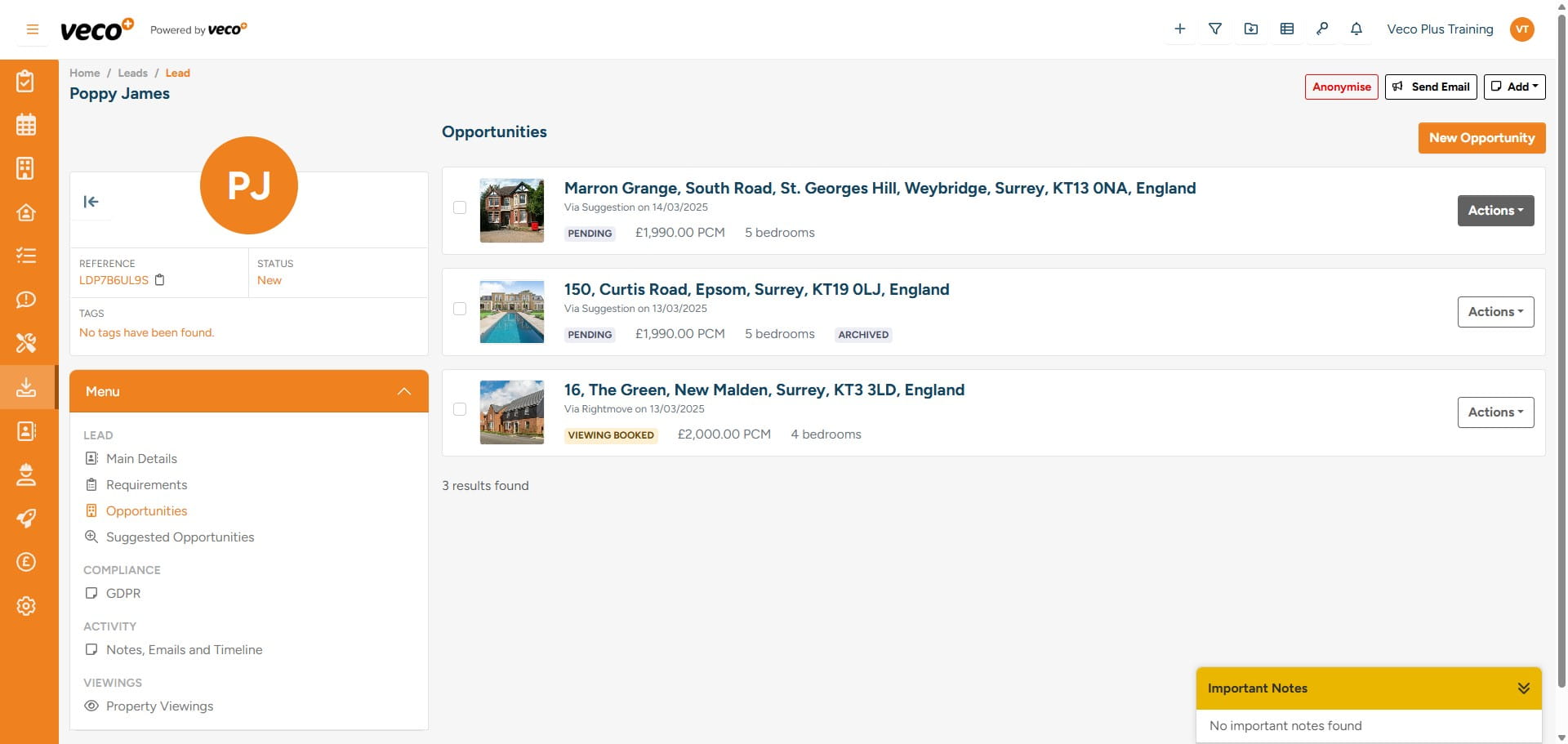
Once you have selected 'Save', the property will appear on a list, from here you can select 'Actions'
14

This will allow you to view the property record, book a viewing, add an application and mark it as 'Won' or 'Lost'
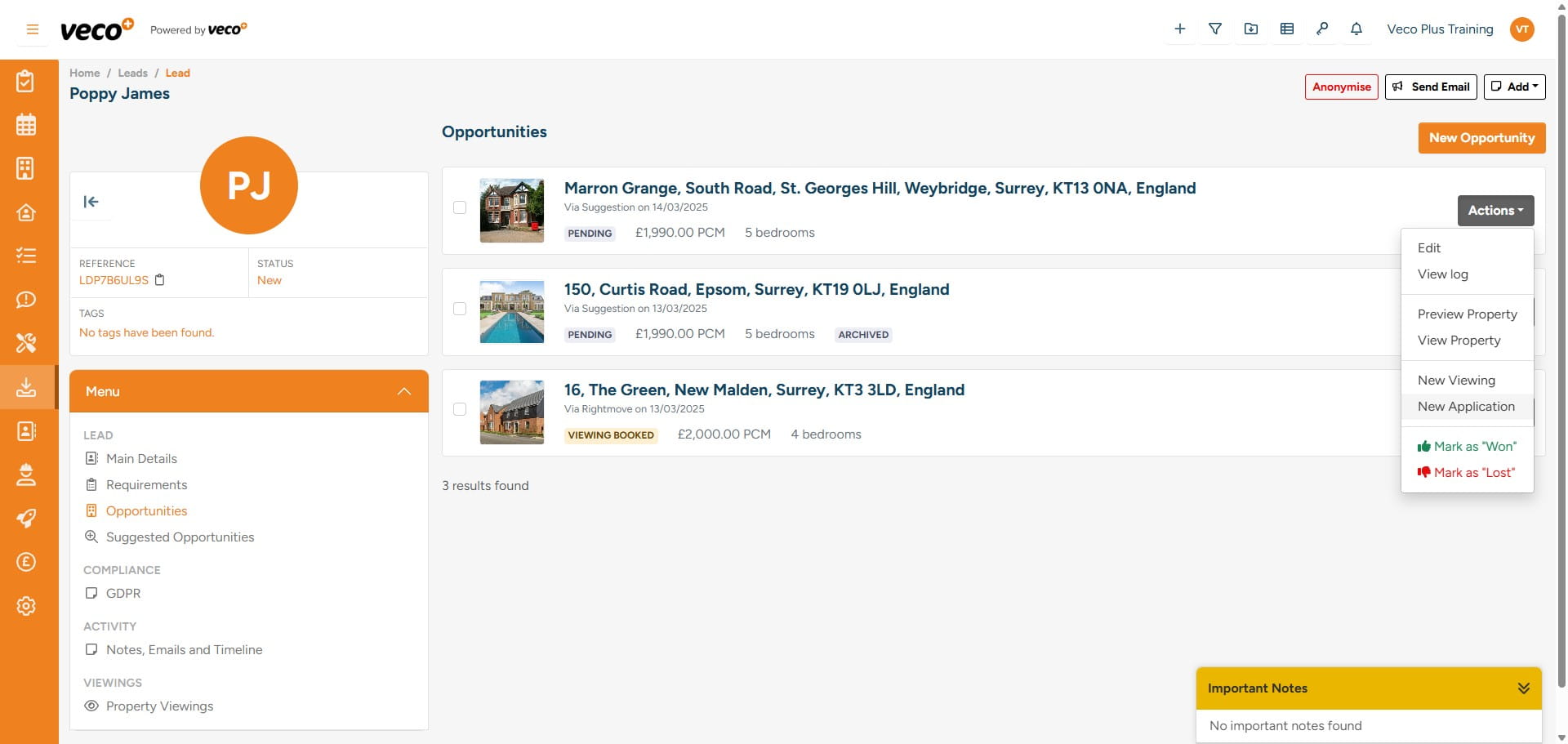
This will allow you to view the property record, book a viewing, add an application and mark it as 'Won' or 'Lost'
15

You will also be able to select 'Suggested Opportunities'
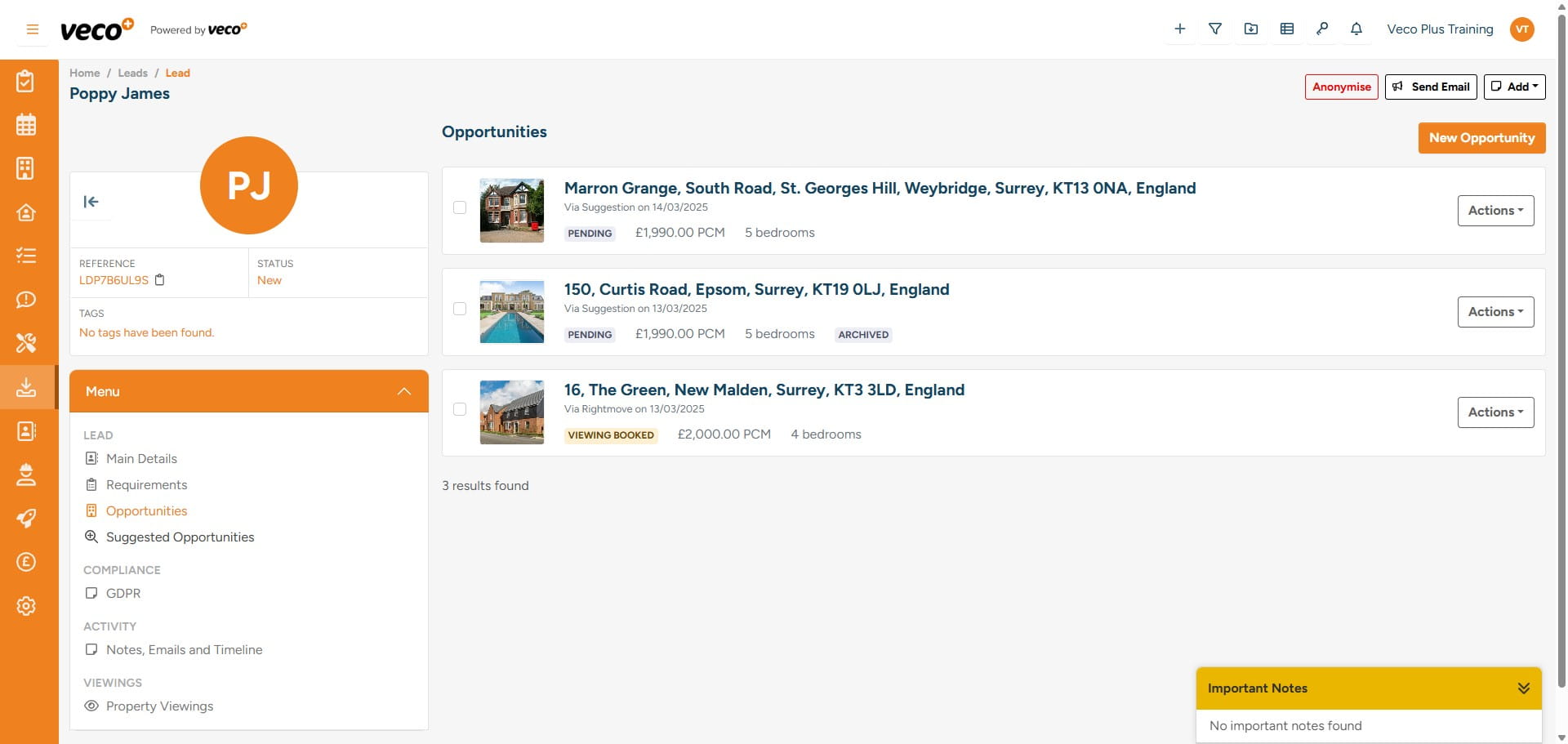
You will also be able to select 'Suggested Opportunities'
16

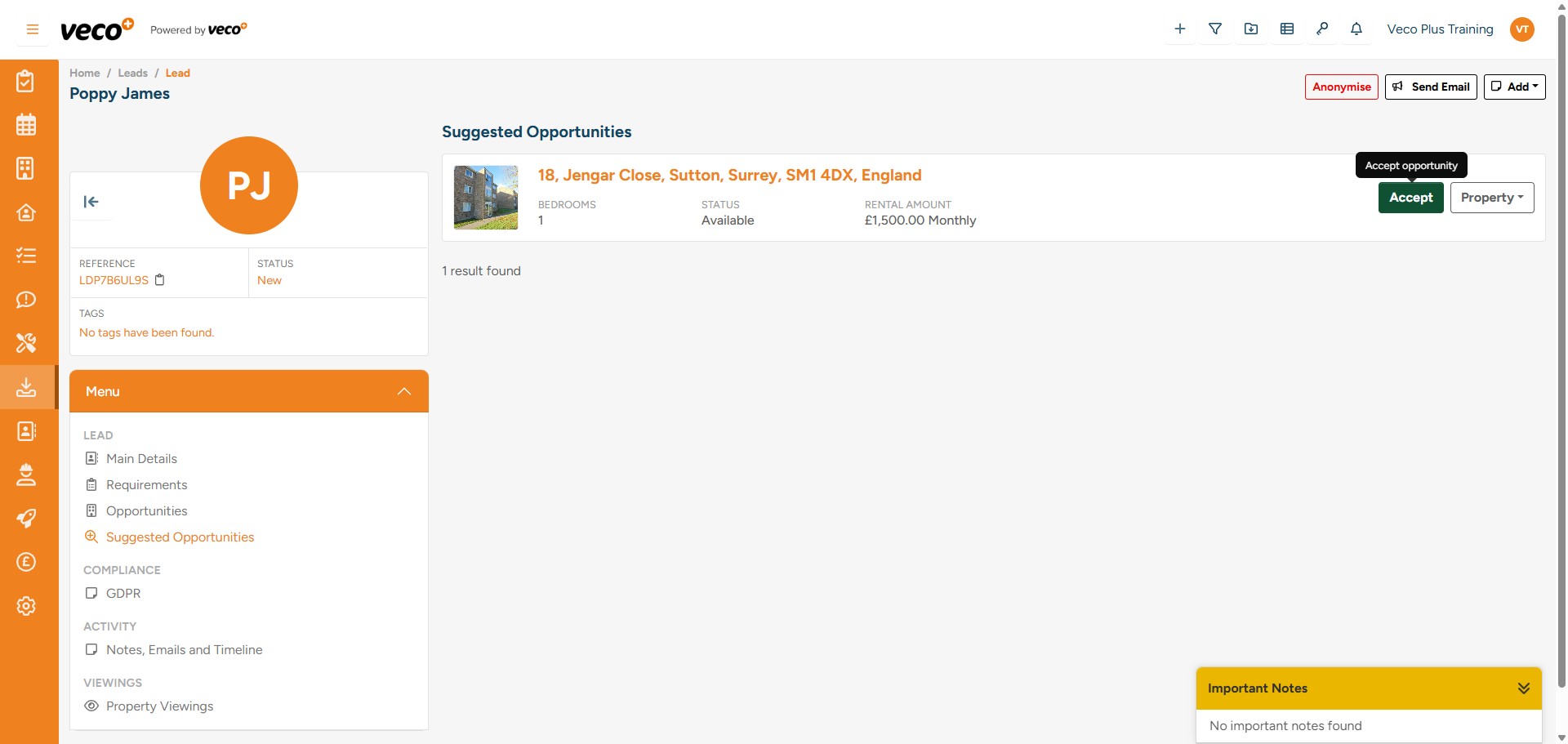
This will list properties you can suggest, based on the Lead's requirements. If you select 'Accept' the property will appear in the 'Opportunites'
This will list properties you can suggest, based on the Lead's requirements. If you select 'Accept' the property will appear in the 'Opportunites'
17

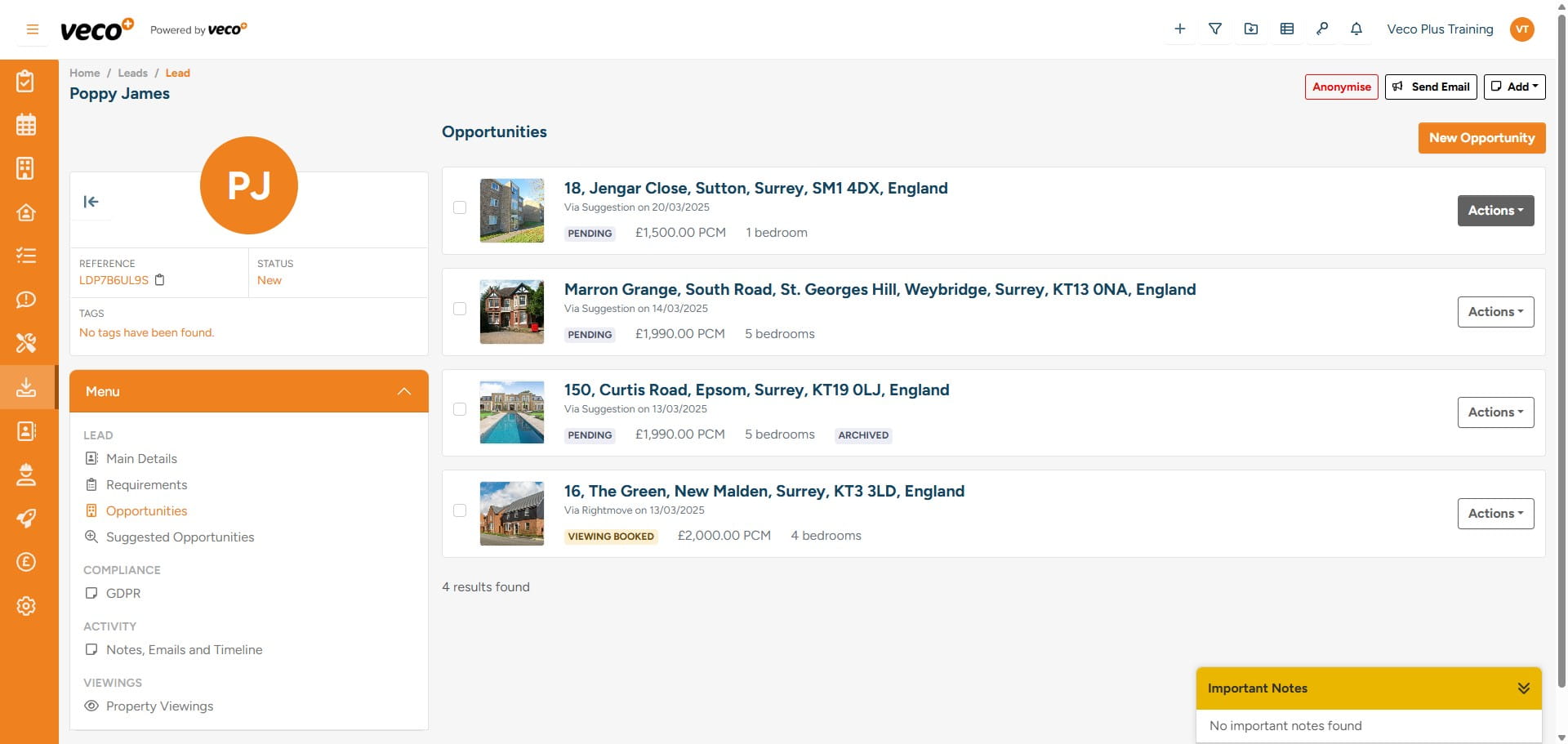
Along with other properties that you may have added manually
Along with other properties that you may have added manually
18

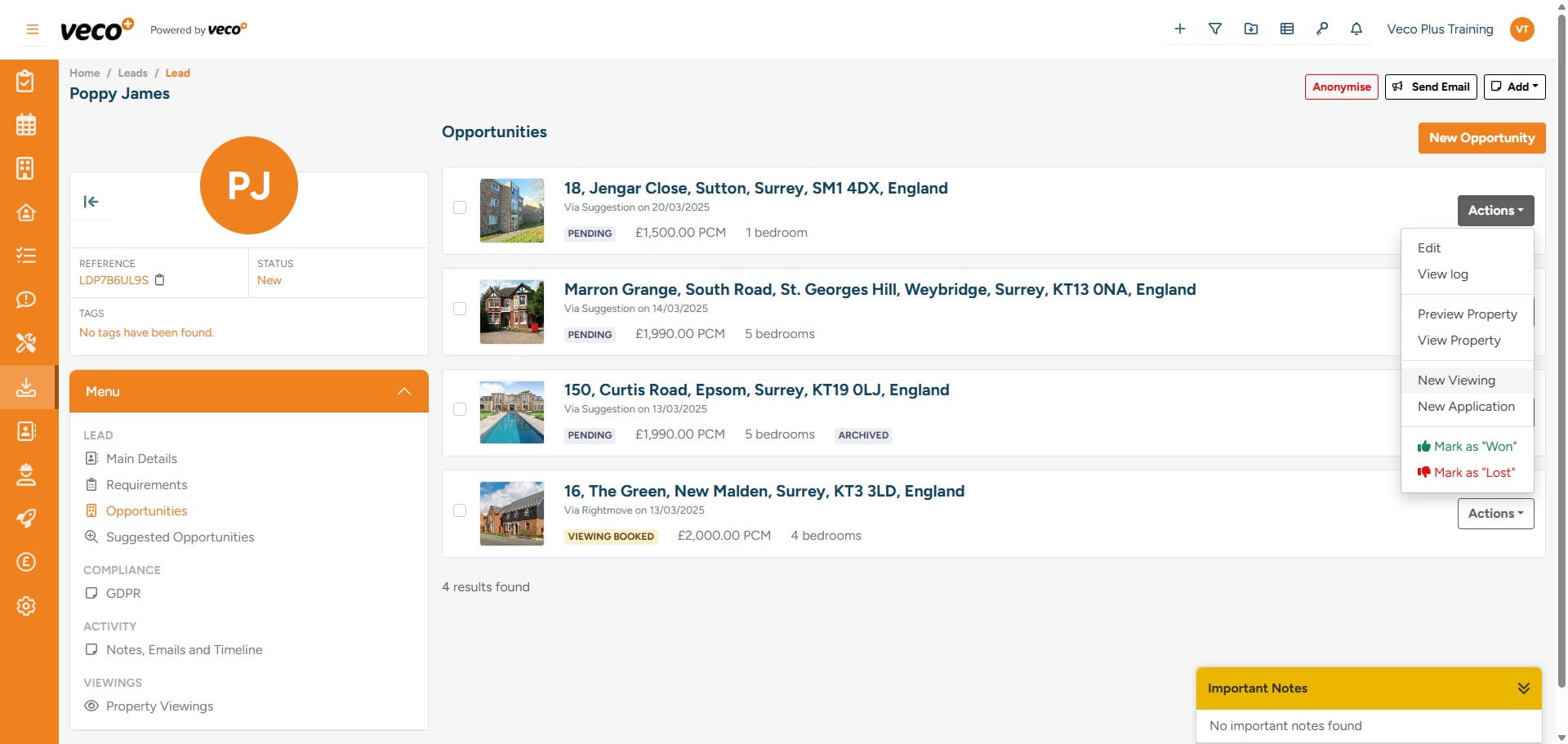
The ‘Action’ button provides options for navigating to different areas of the system, as outlined below. If you would like to schedule a ‘Viewing’ or if the Lead is interested in the property, you can create a new ‘Application’
The ‘Action’ button provides options for navigating to different areas of the system, as outlined below. If you would like to schedule a ‘Viewing’ or if the Lead is interested in the property, you can create a new ‘Application’
19

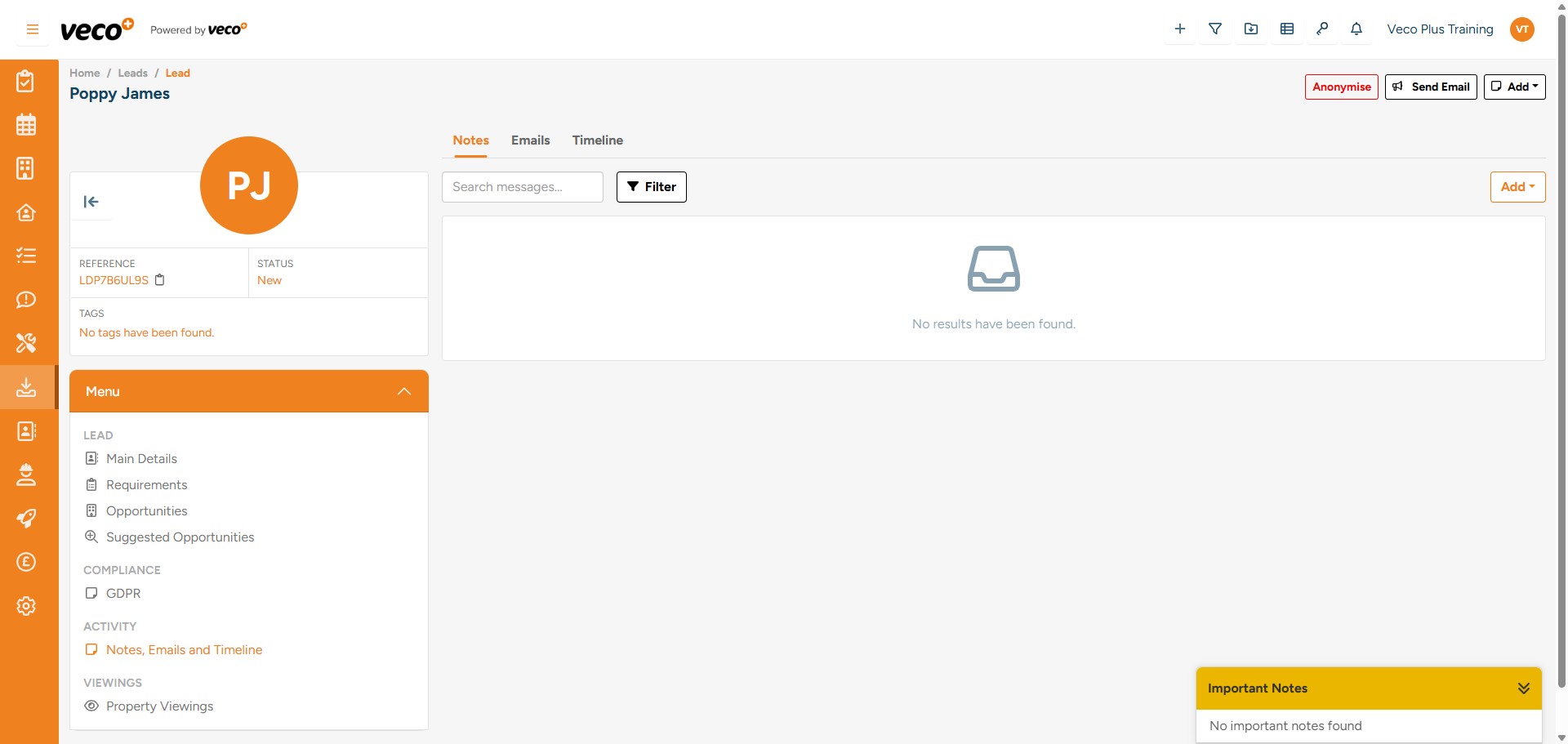
On the ‘Menu’ in the lower left corner, you can view all ‘Notes, Emails and Timeline’ for this record
On the ‘Menu’ in the lower left corner, you can view all ‘Notes, Emails and Timeline’ for this record
20

Then select 'Add note' on the upper right corner
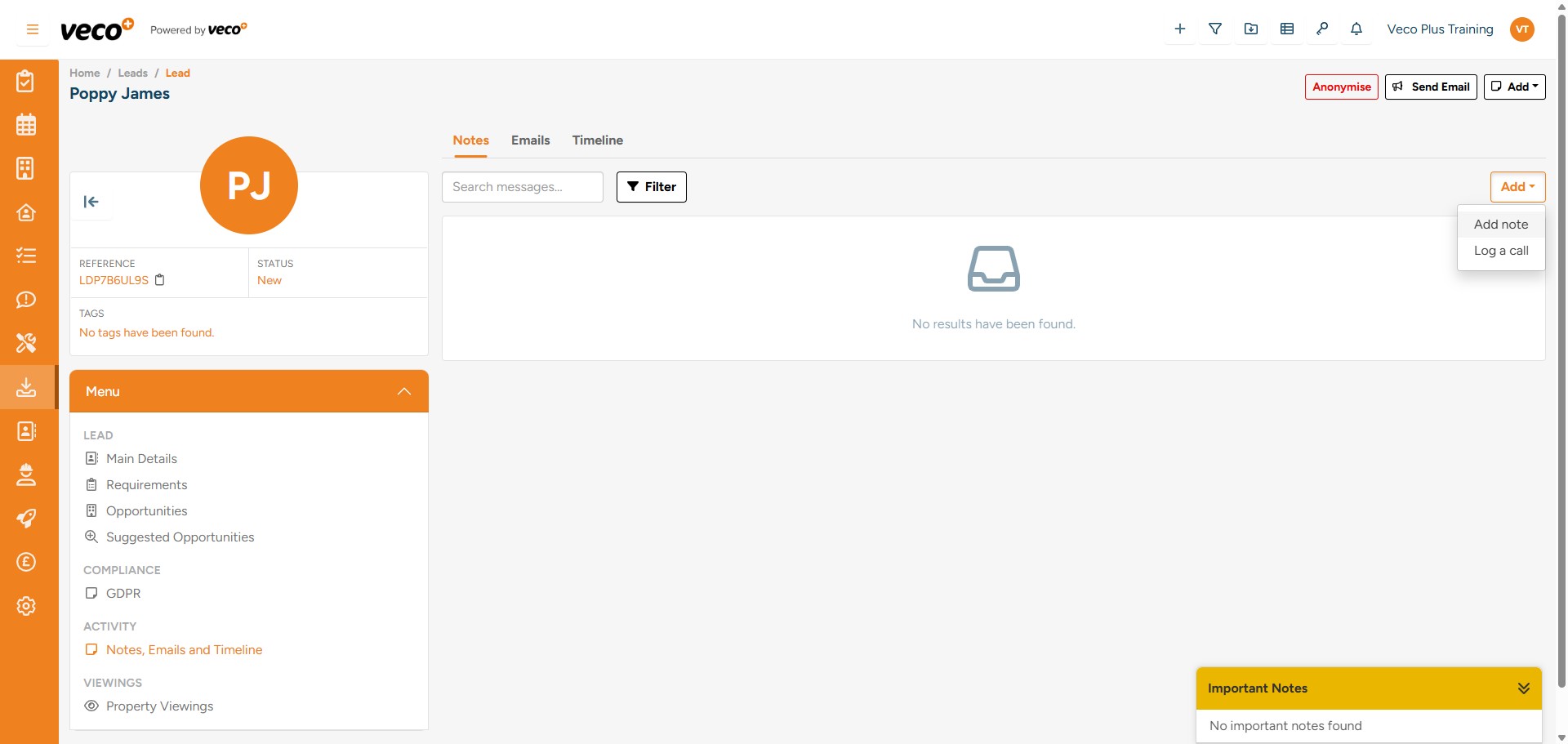
Then select 'Add note' on the upper right corner
21

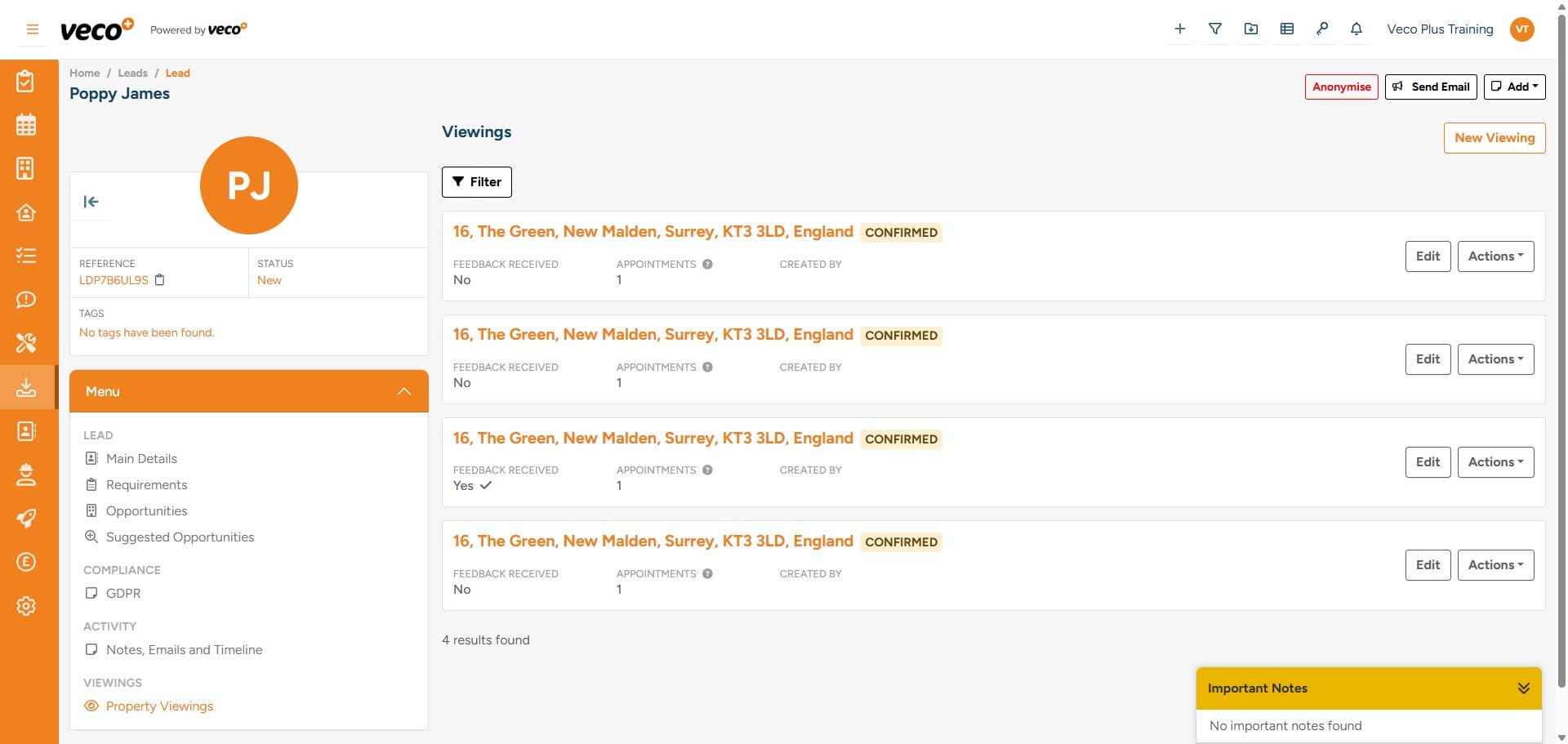
On the same menu, you can view a history of all ‘Viewings’ the Lead has attended by selecting ‘Property Viewings’
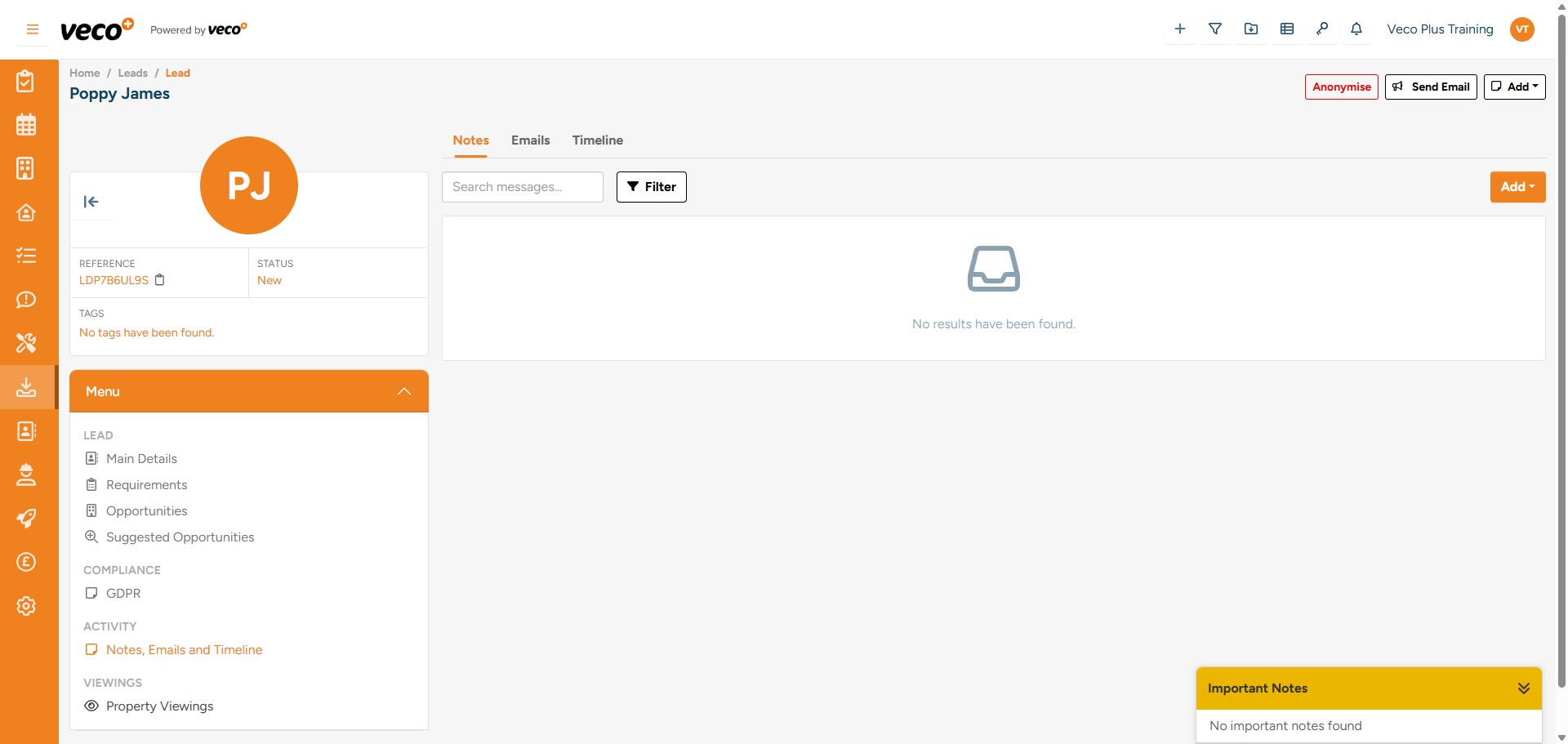
On the same menu, you can view a history of all ‘Viewings’ the Lead has attended by selecting ‘Property Viewings’
22

The list will appear as below

The list will appear as below