E-Payments
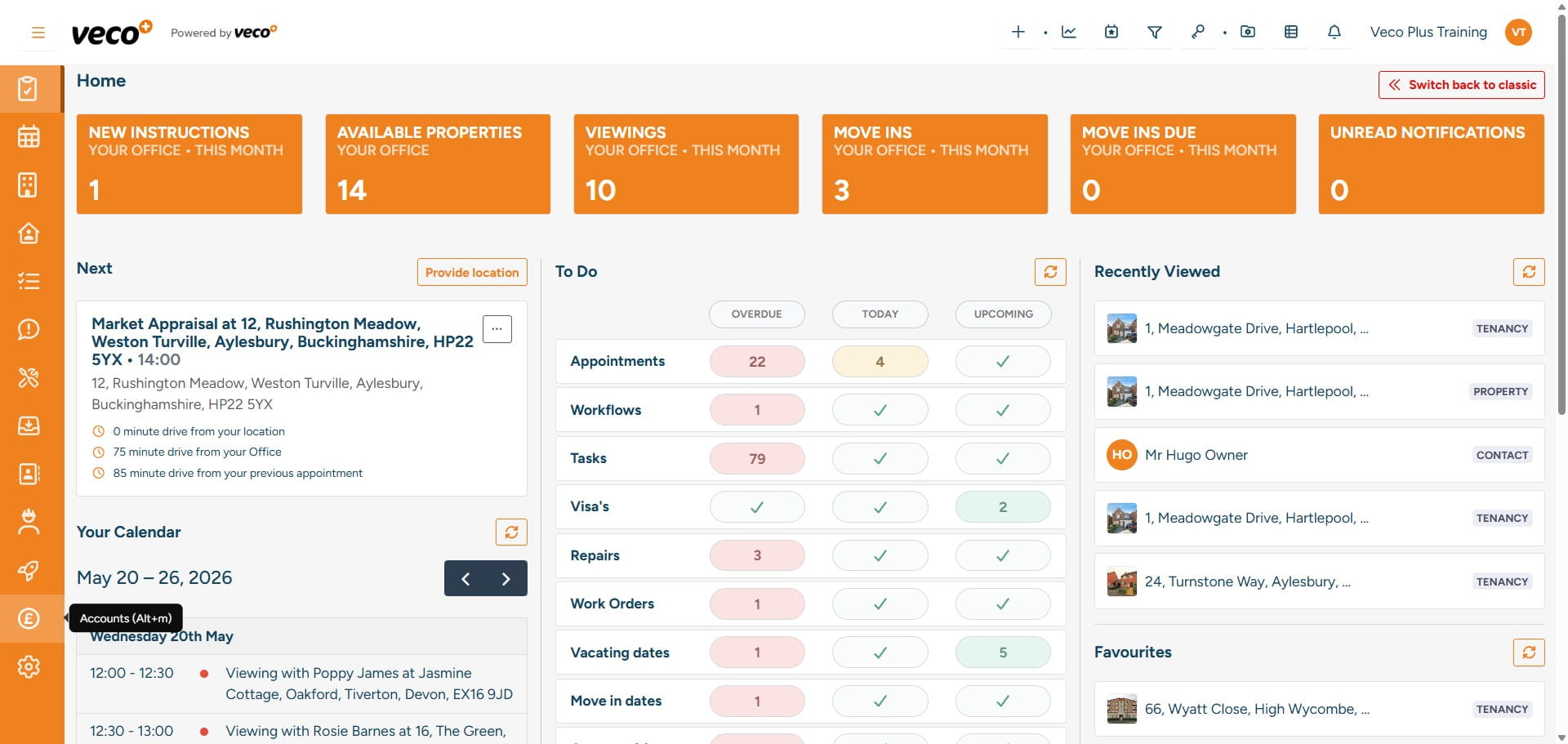
Select 'Accounts' on the navigation bar
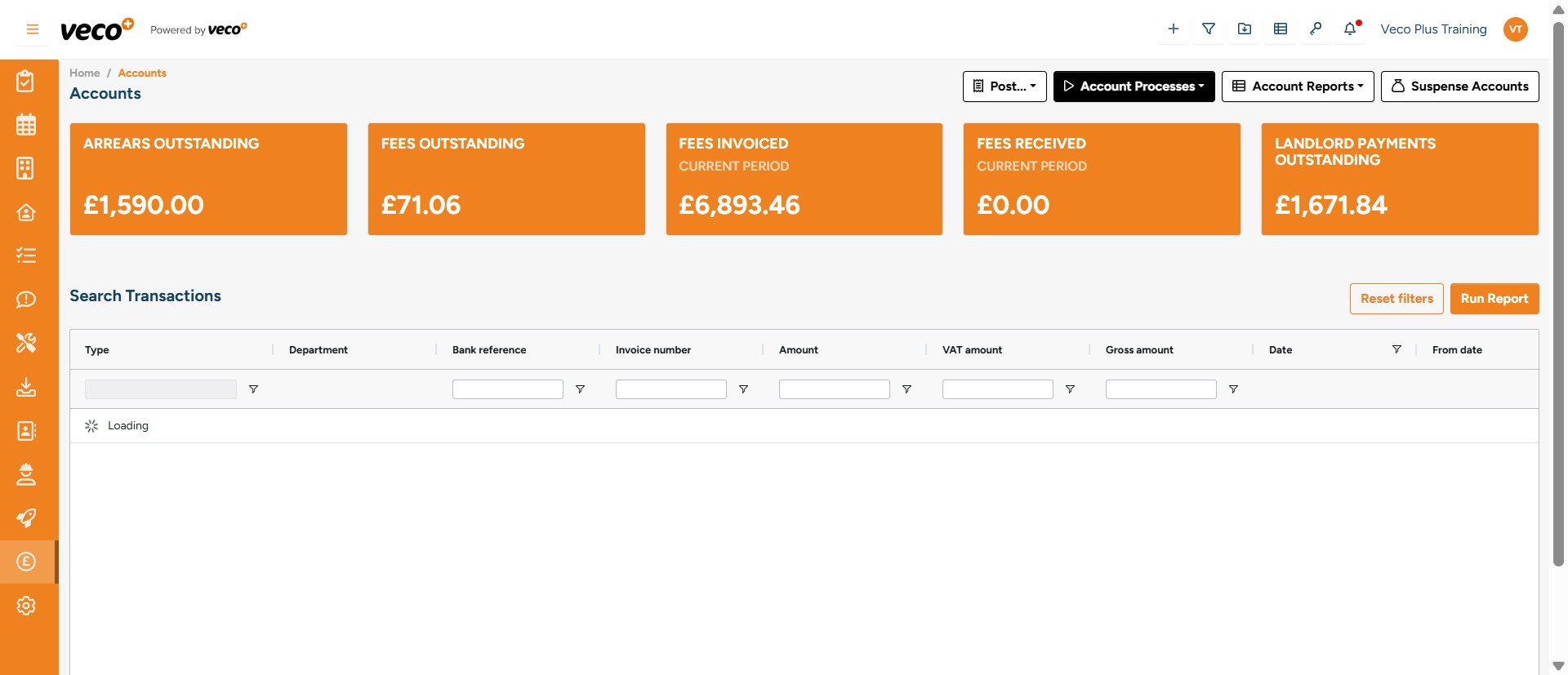
Select 'Account Processes'
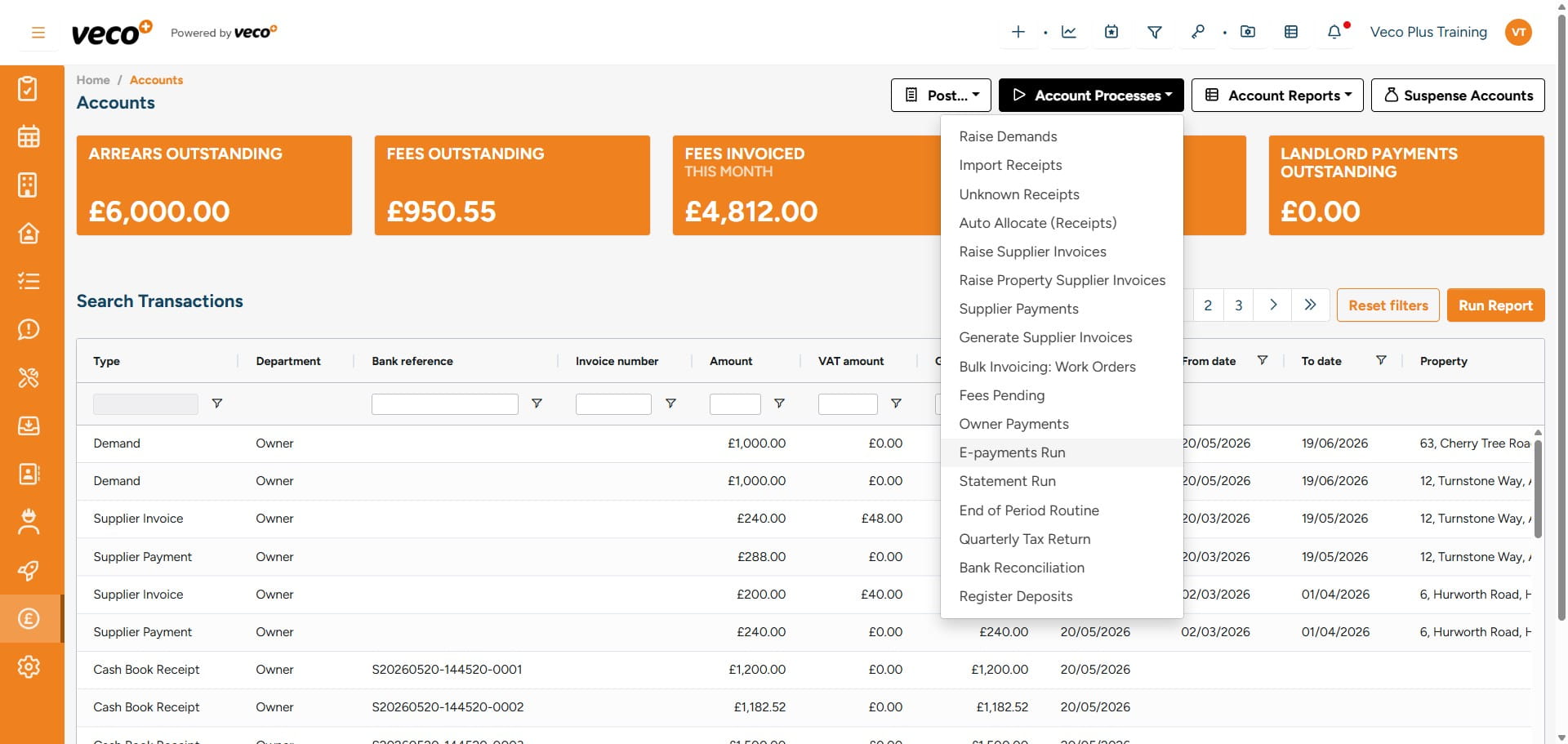
Select 'E-payments Run'
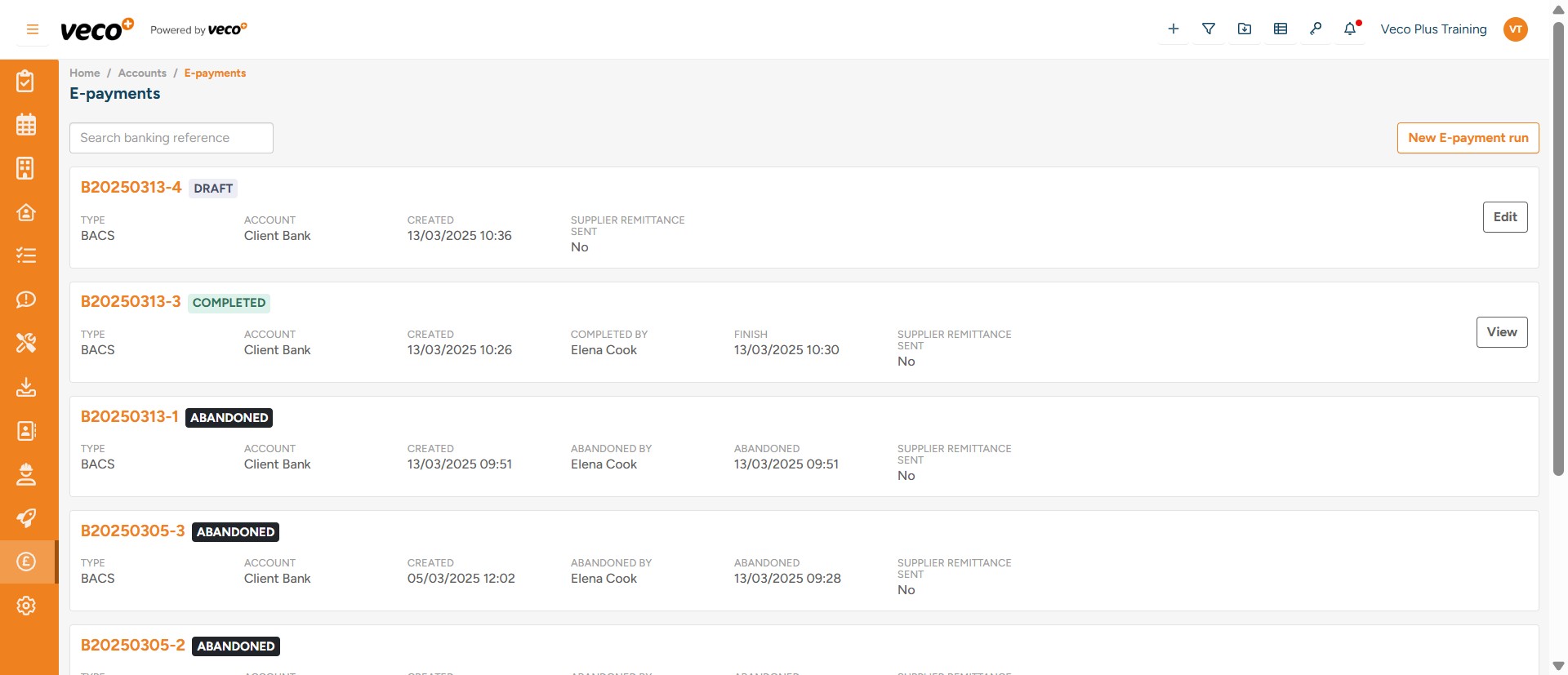
Select 'New E-payment run'
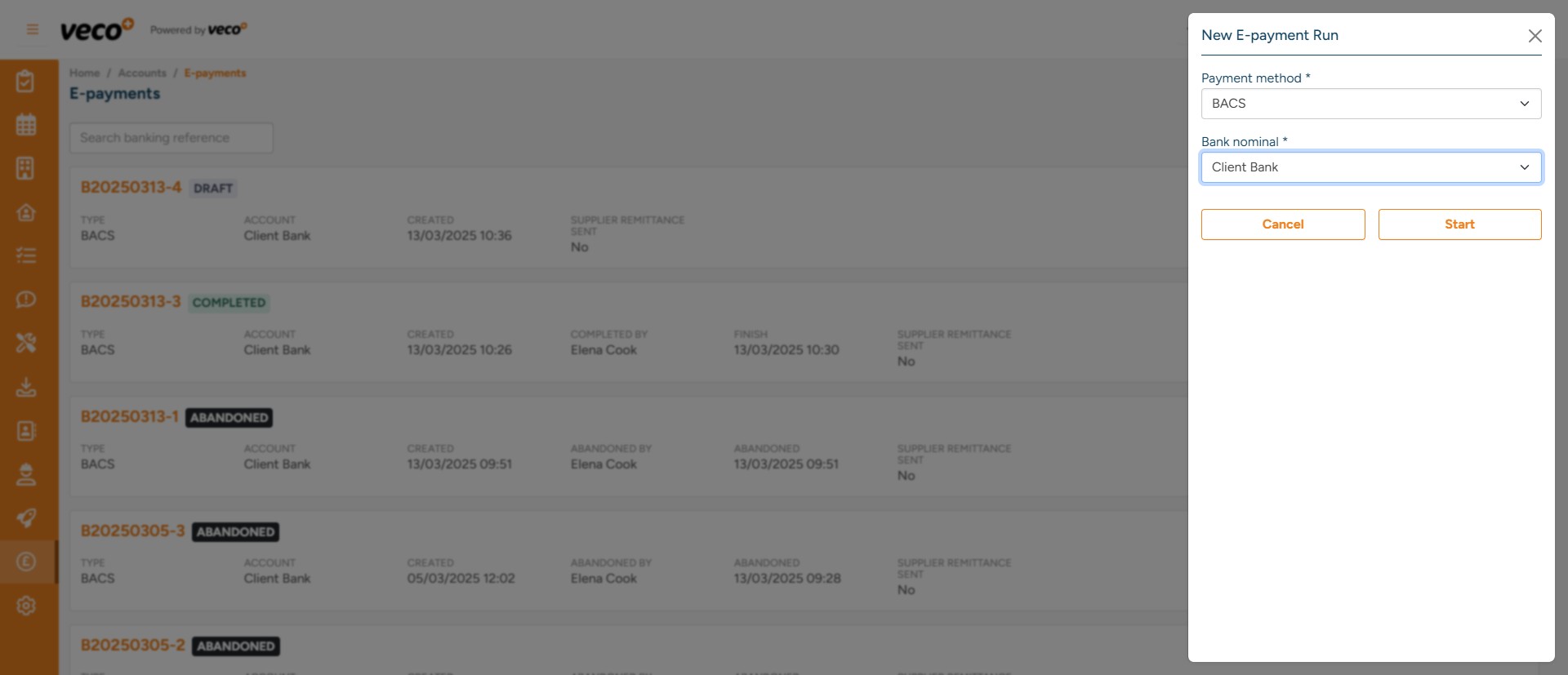
Select the 'Payment method' and the 'Bank nominal' that you would like to process the E-payments run for, then select 'Start'
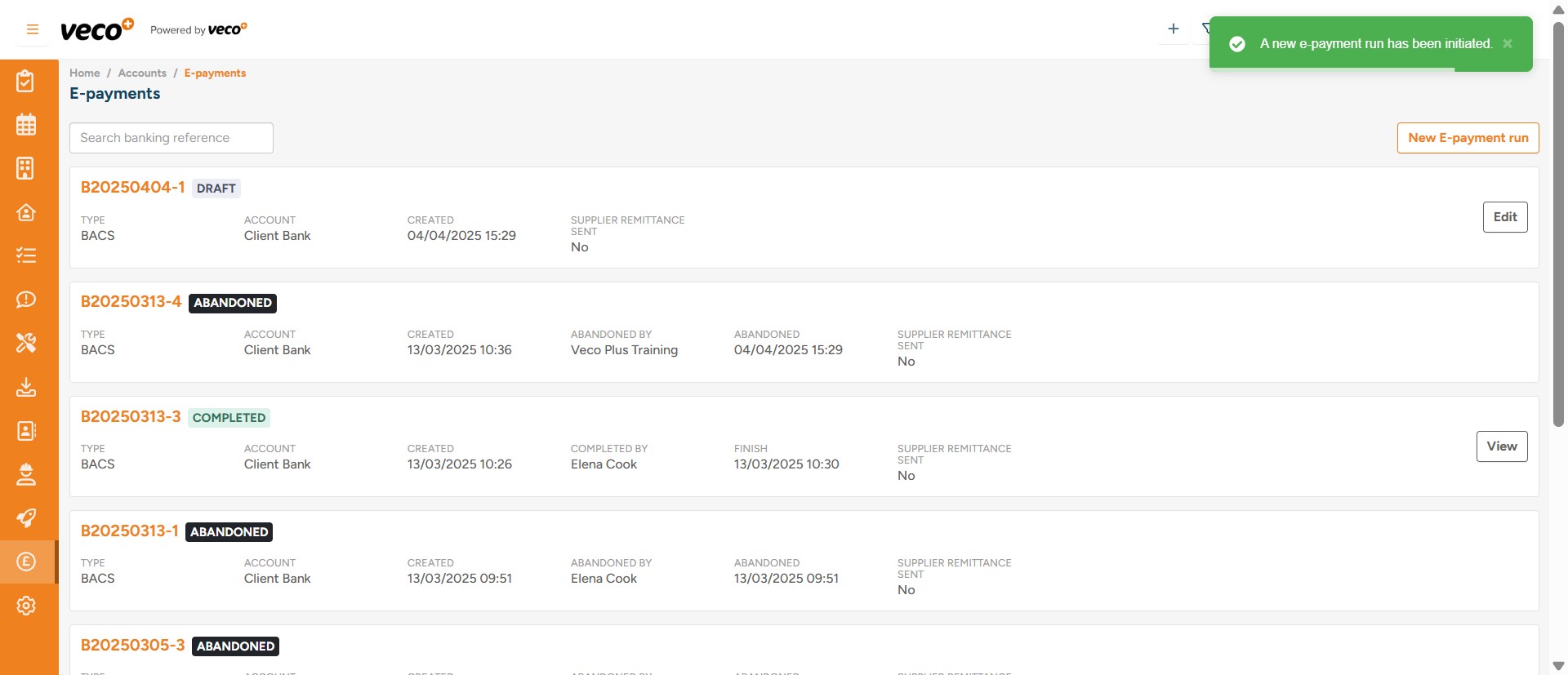
This will initiate the E-payment run as a draft
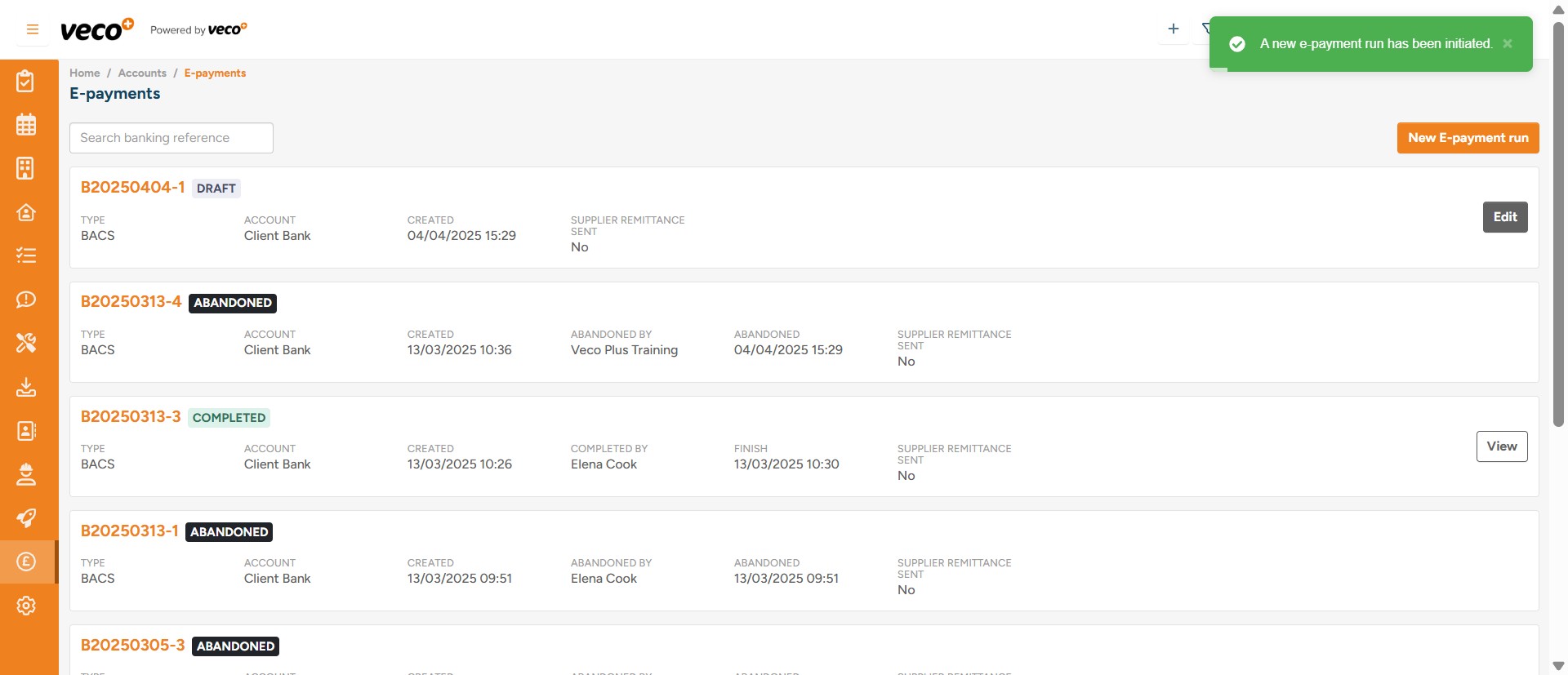
By selecting 'Edit' on the draft, you will be able to view all the payments in the batch
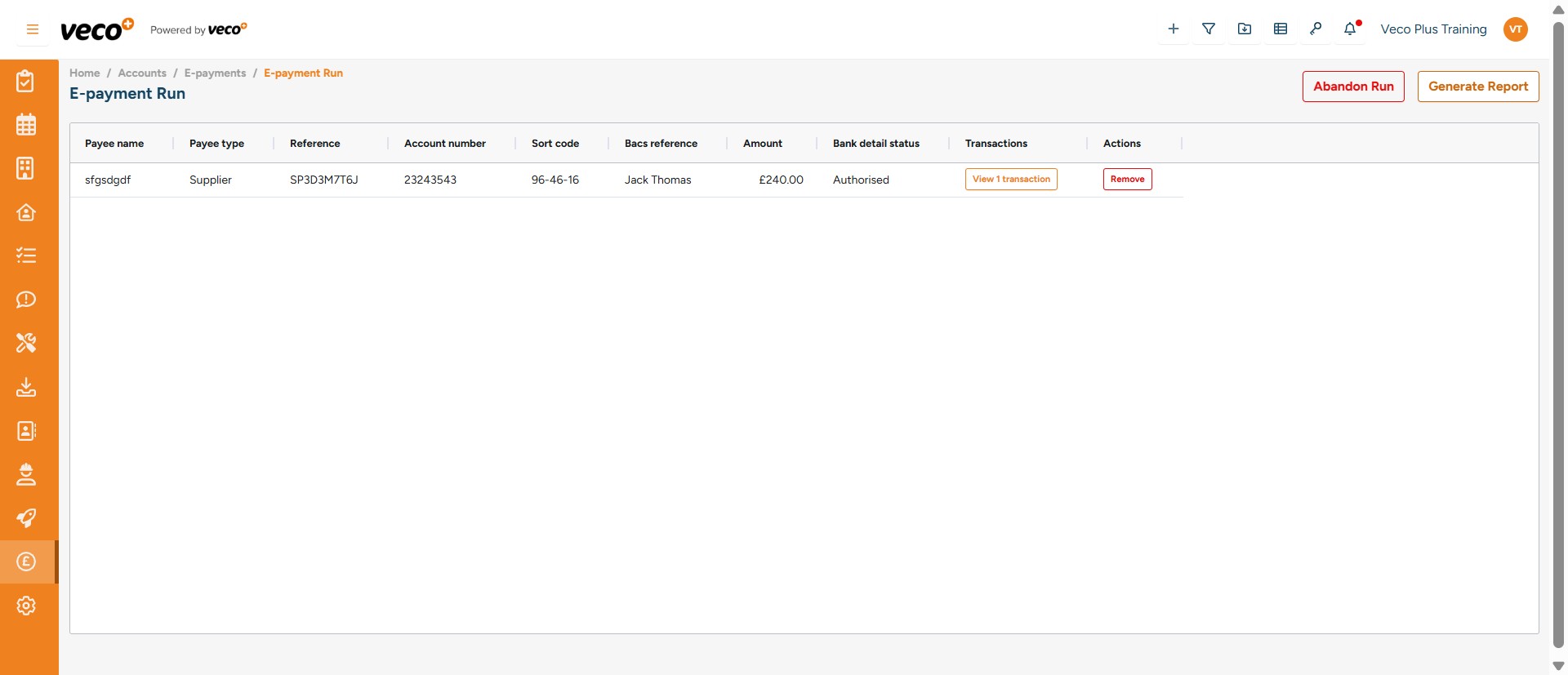
Here, you can either 'View' or 'Remove' a transaction in this batch. If you remove a transaction, it will be included in the next run that you initiate
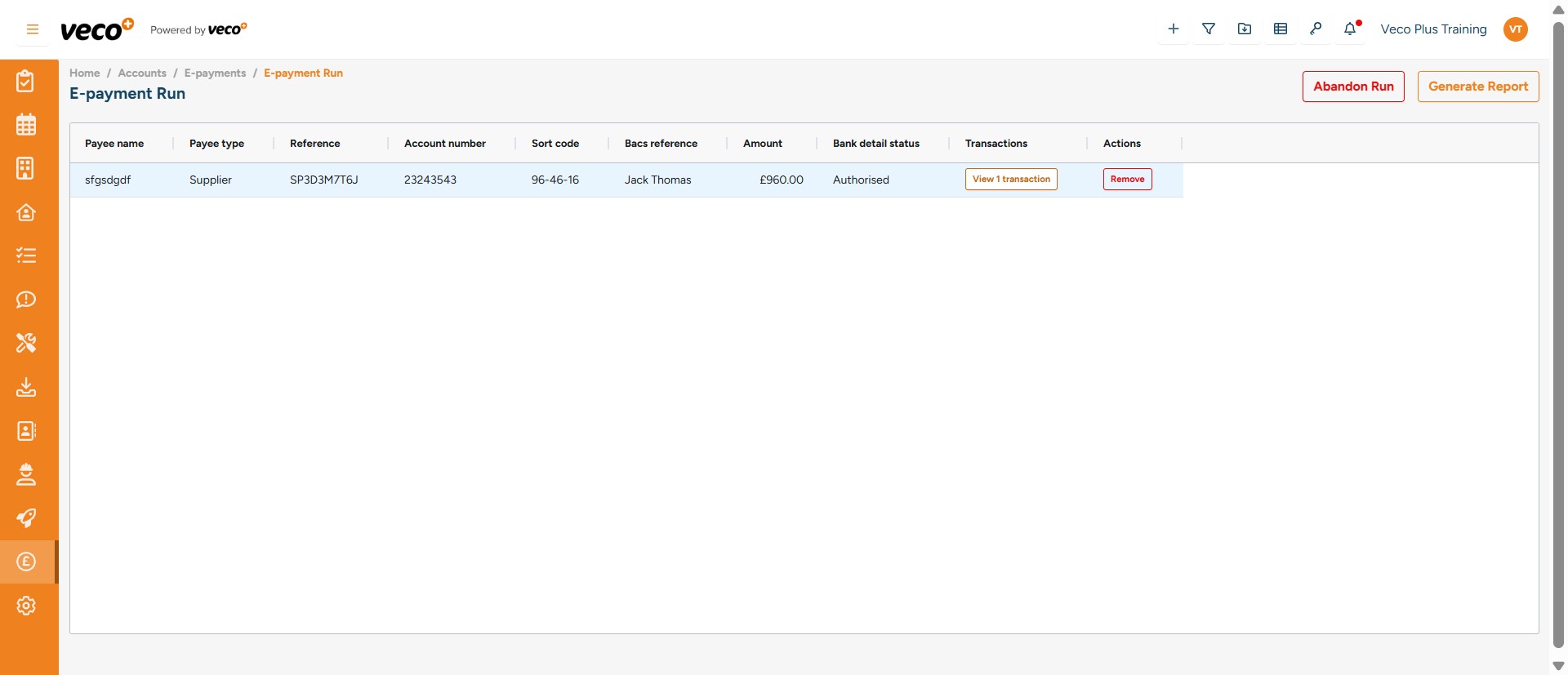
If you do not want to process this batch you can select 'Adandon Run'
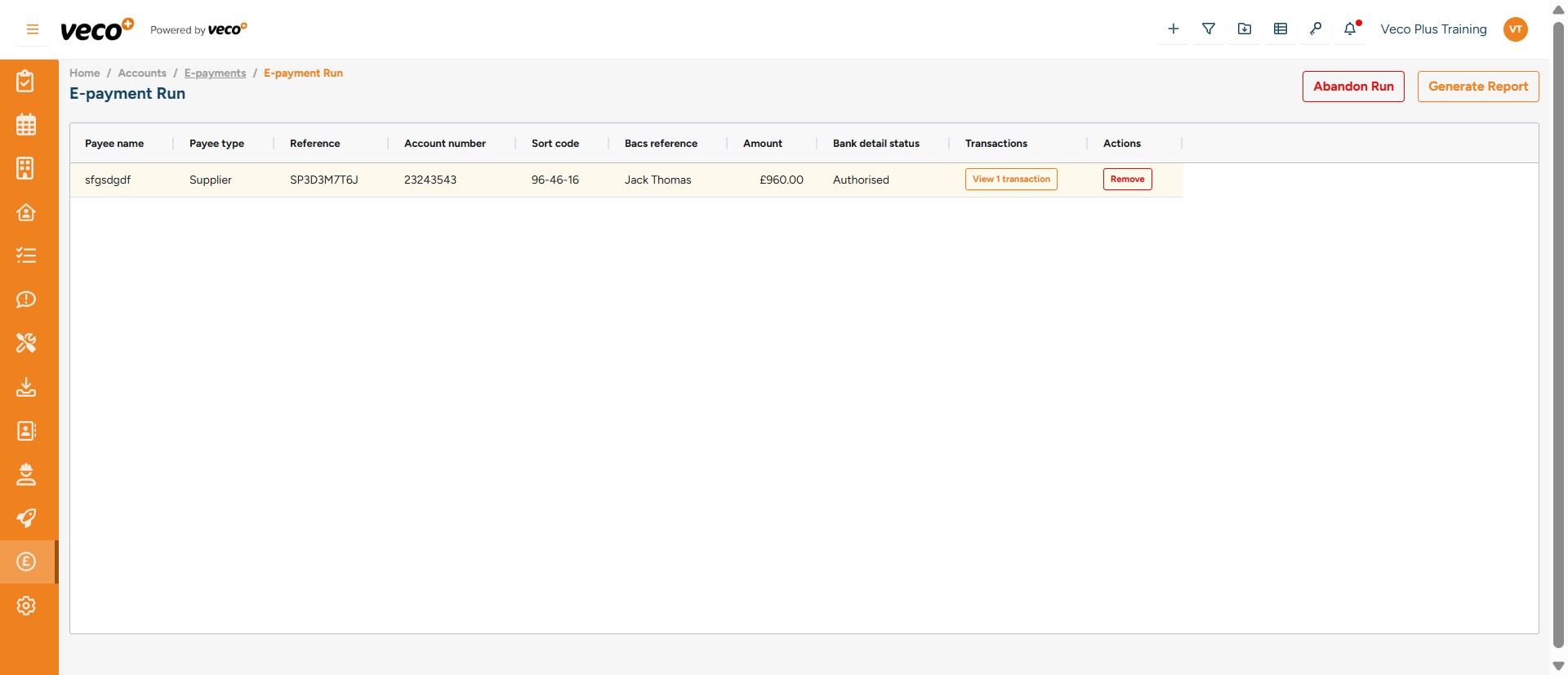
Once you have checked the payments and you are happy to process them, select ' Generate Report'
The E-payments will then begin to process with a status of 'Processing'
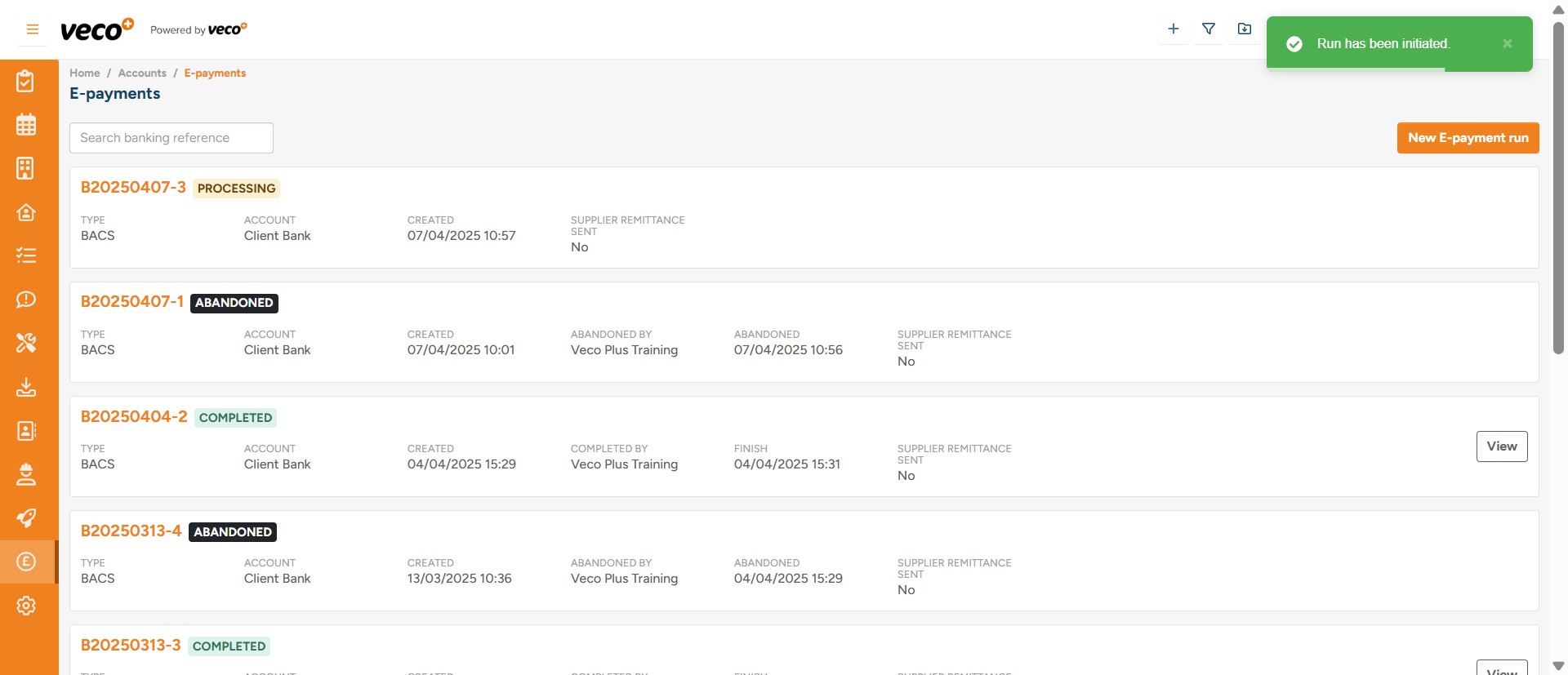
The status will change to 'Completed' once the process is complete
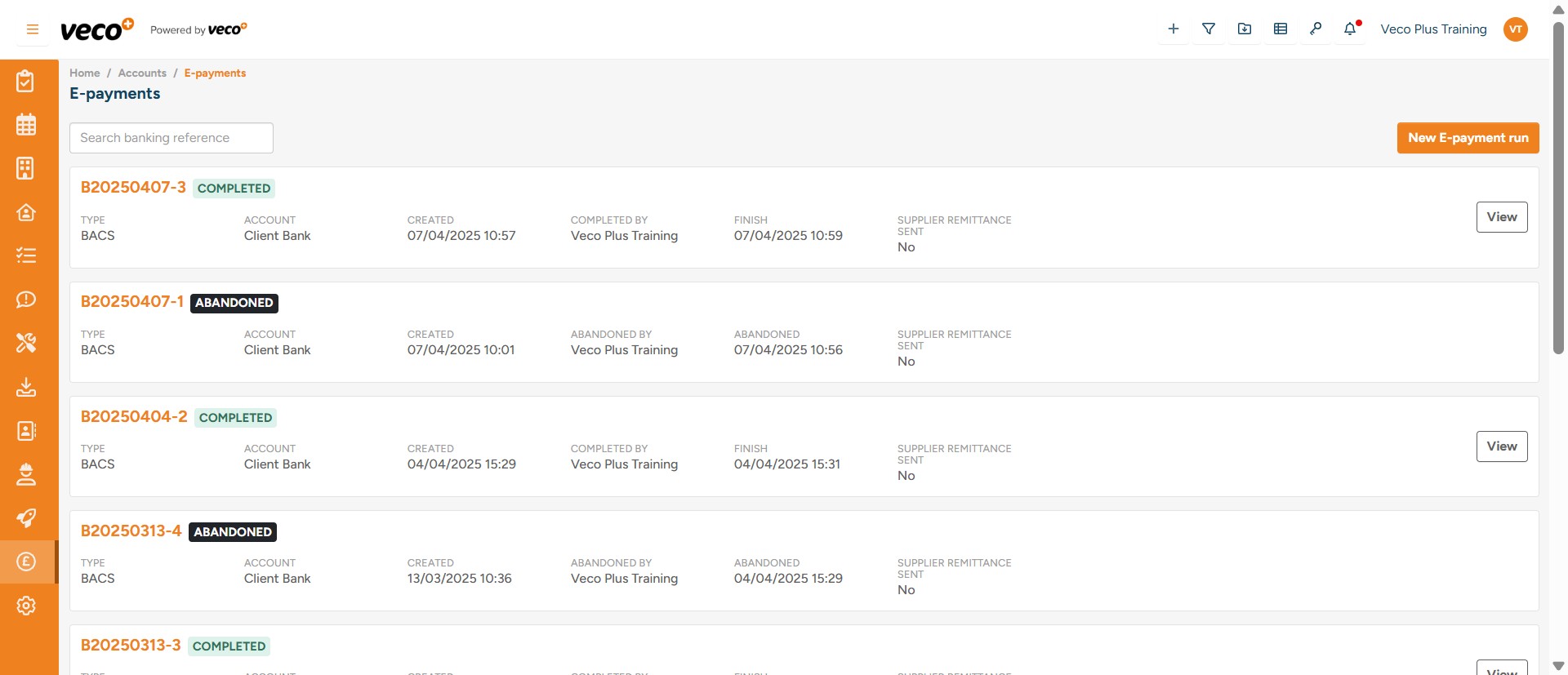
You will also be notified once the process has been completed in the Notification Centre, via a red dot showing next to the icon
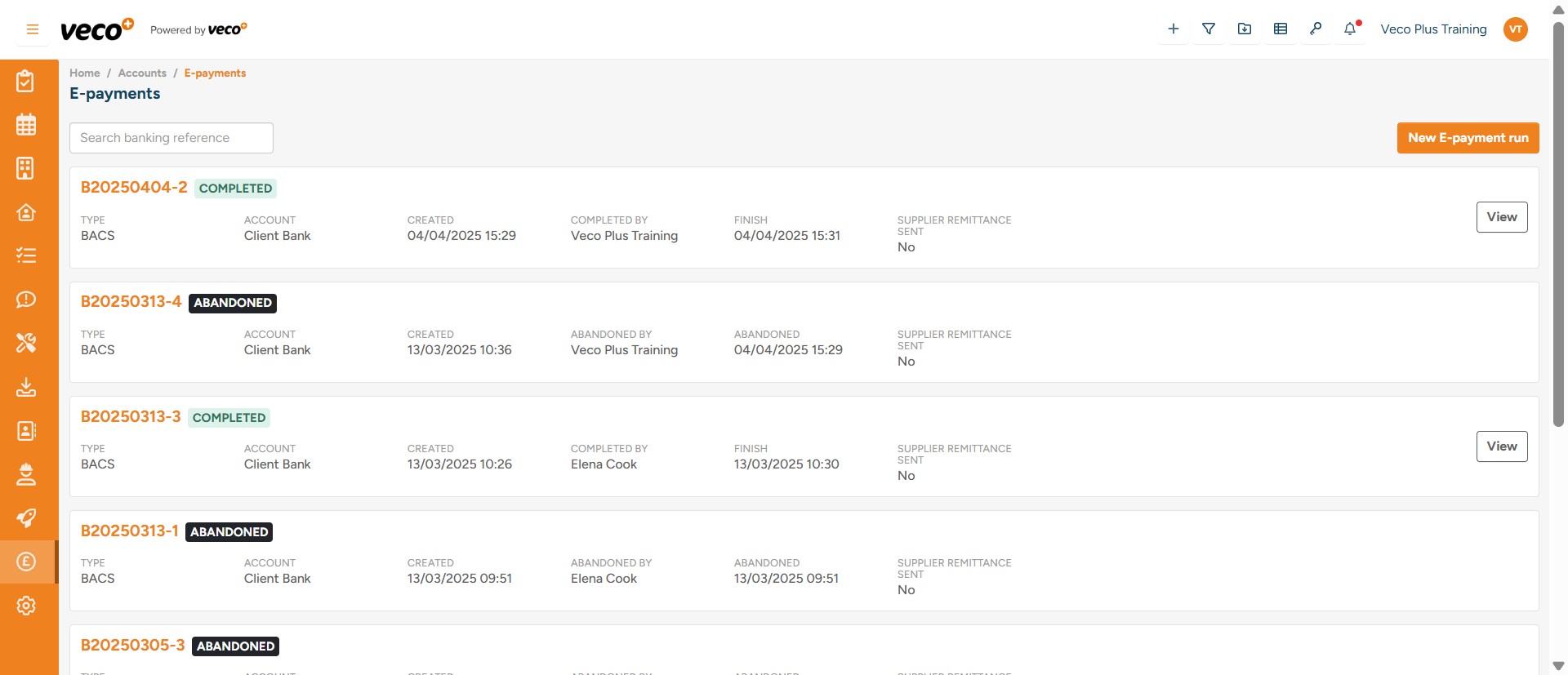
In the Notification Centre, select 'Actions' where you can either 'Mark Read' or 'Delete' the notification
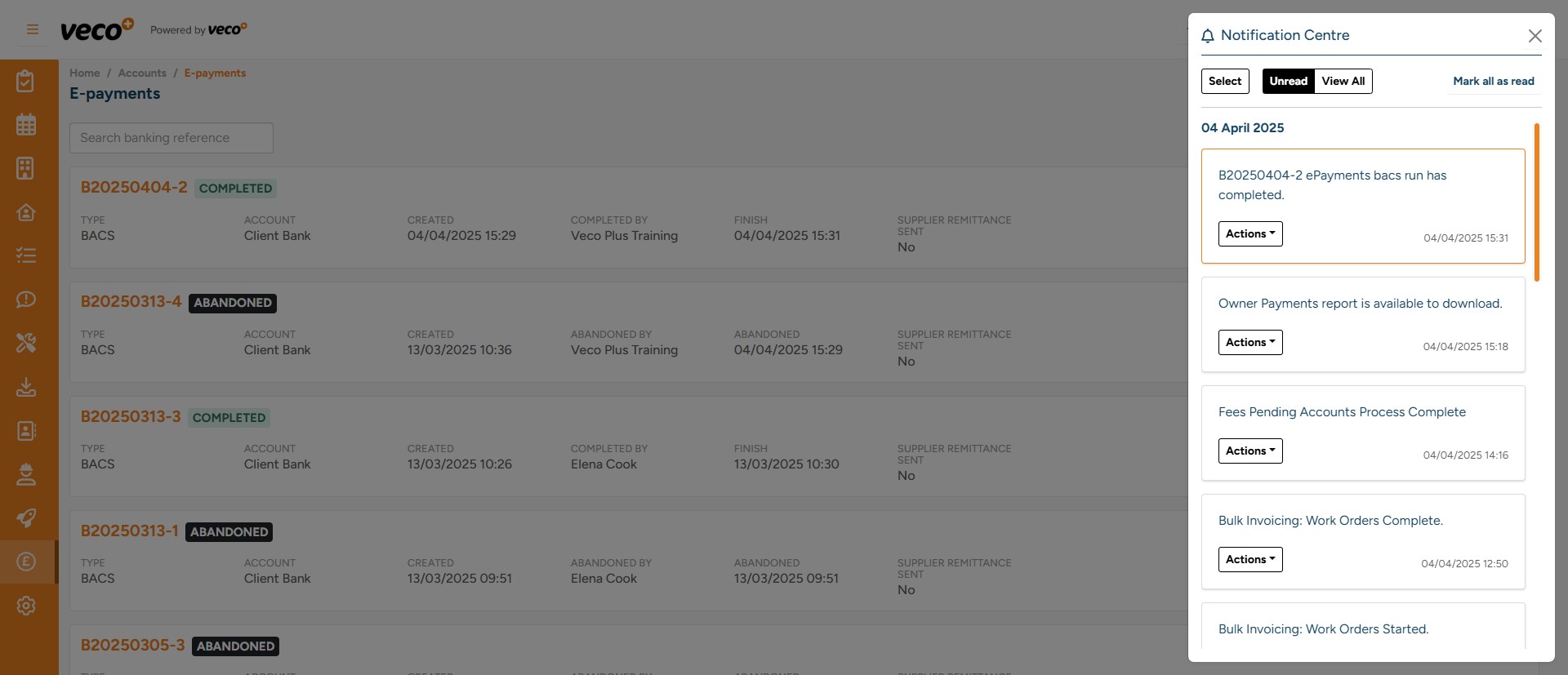
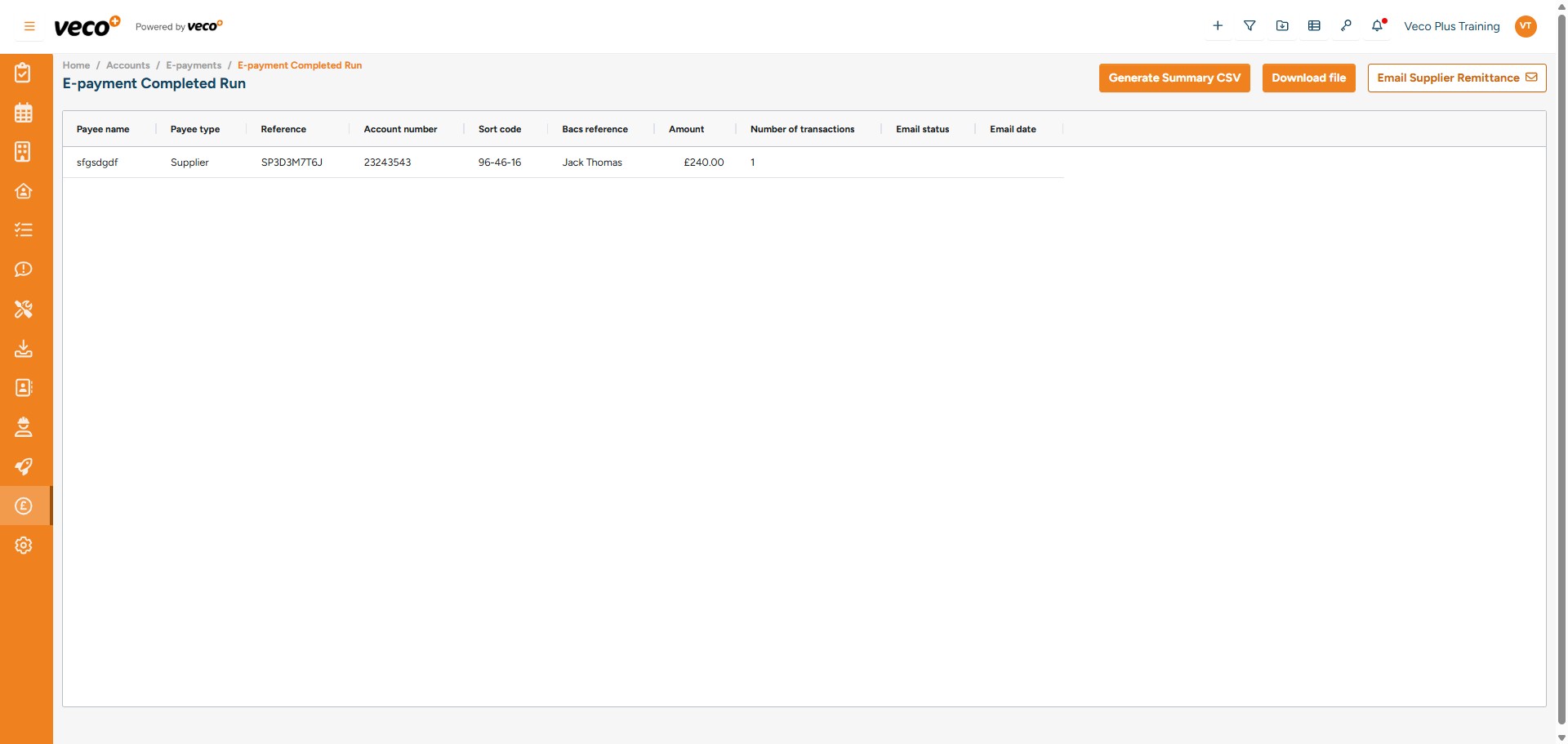
Once the E-payment run has completed, you can select 'View'
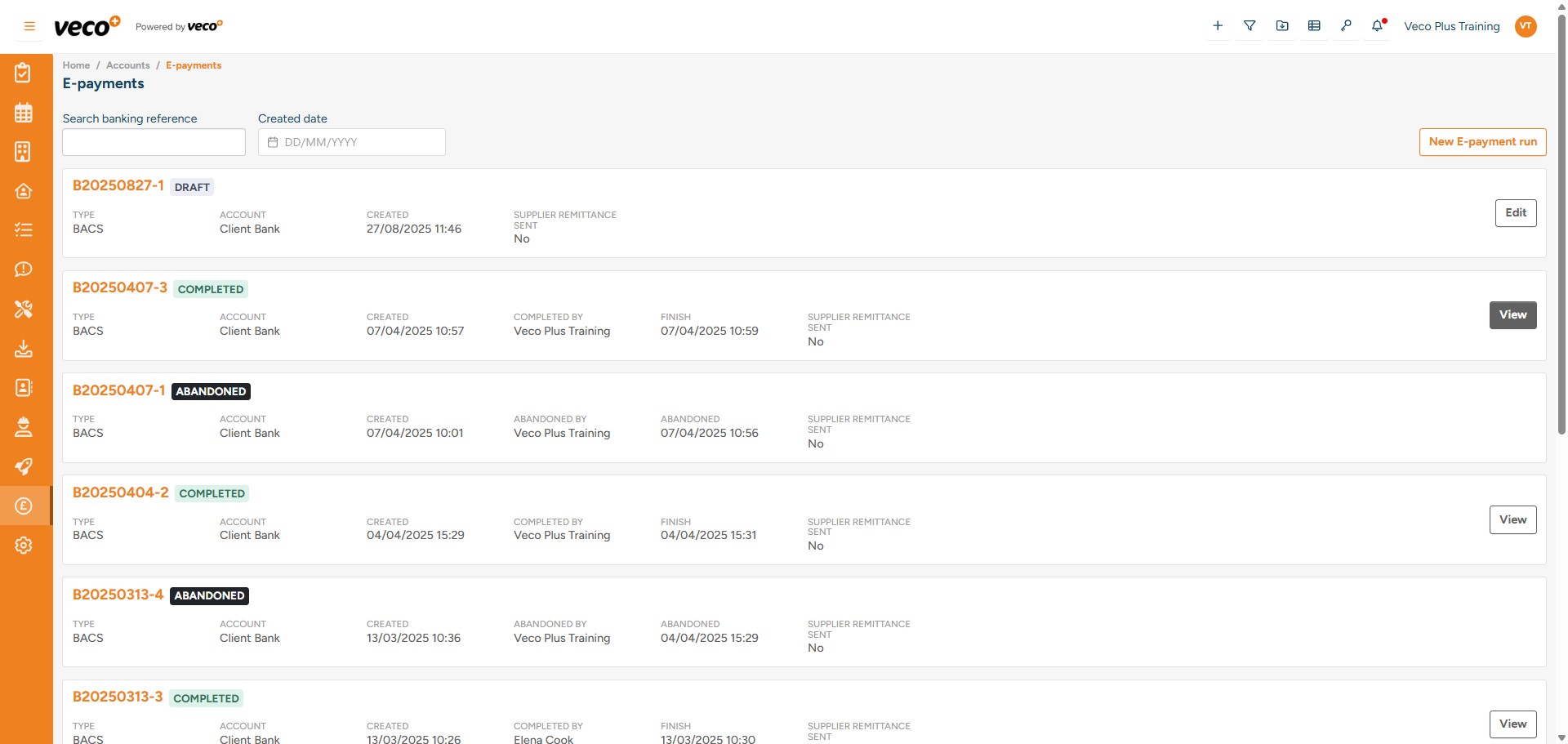
In the upper right corner, you can select 'Email Supplier Remittance' which will send a Remittance to any Suppliers that have been paid in this batch