How to use the Manuals
When first opening a manual, it will open in the step by step format
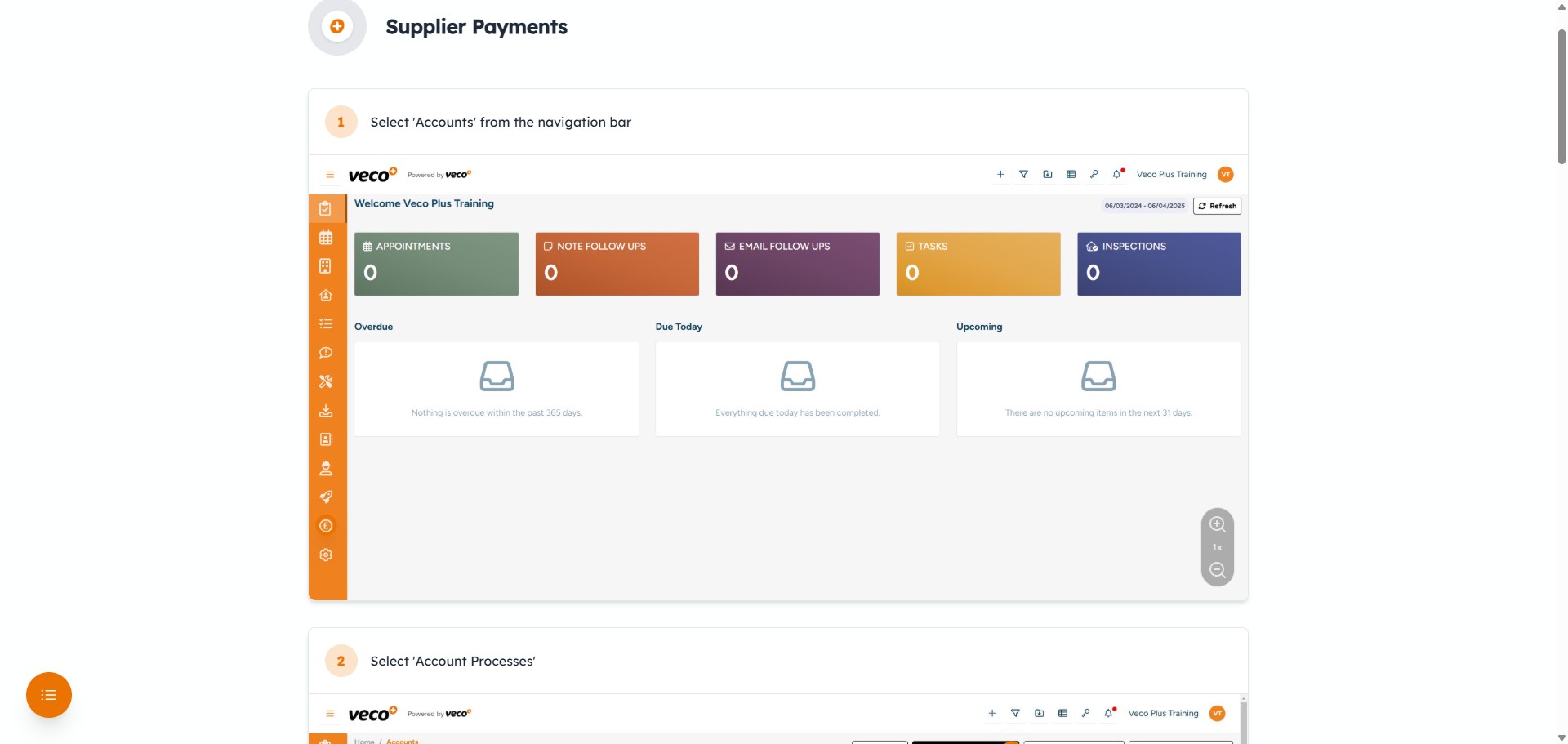
You can zoom in and out on any image in each step using the zoom buttons
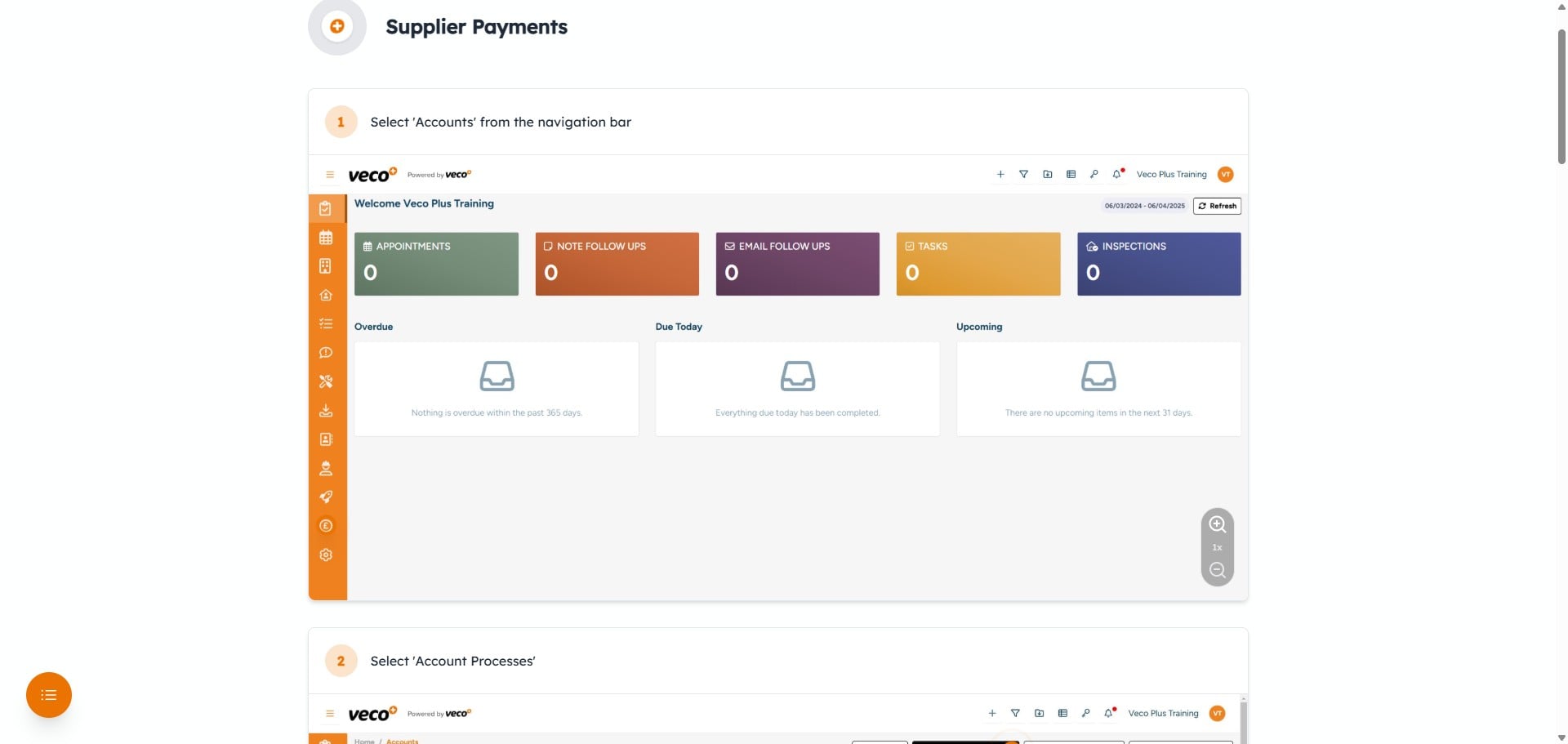
Zoom back out after zooming in with this icon
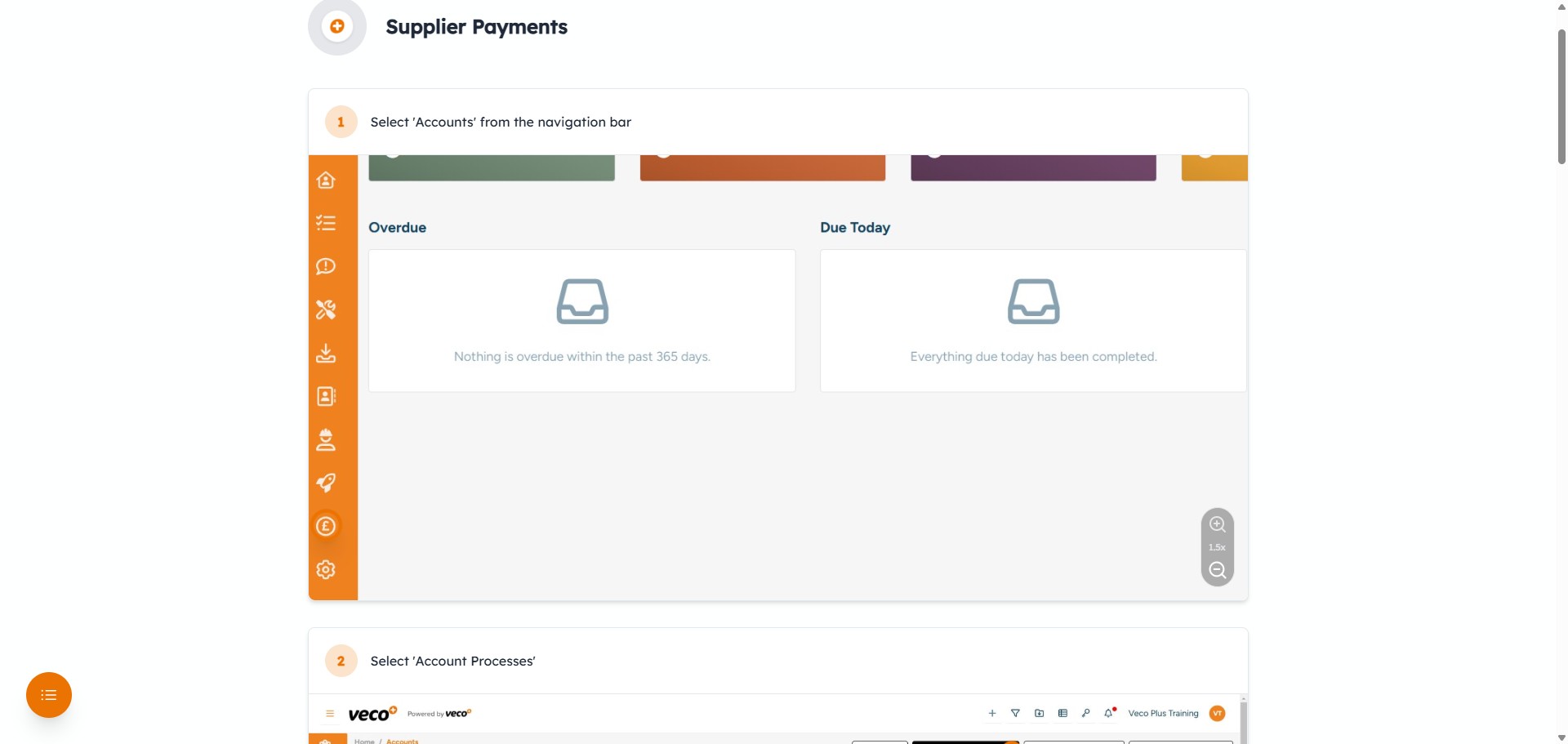
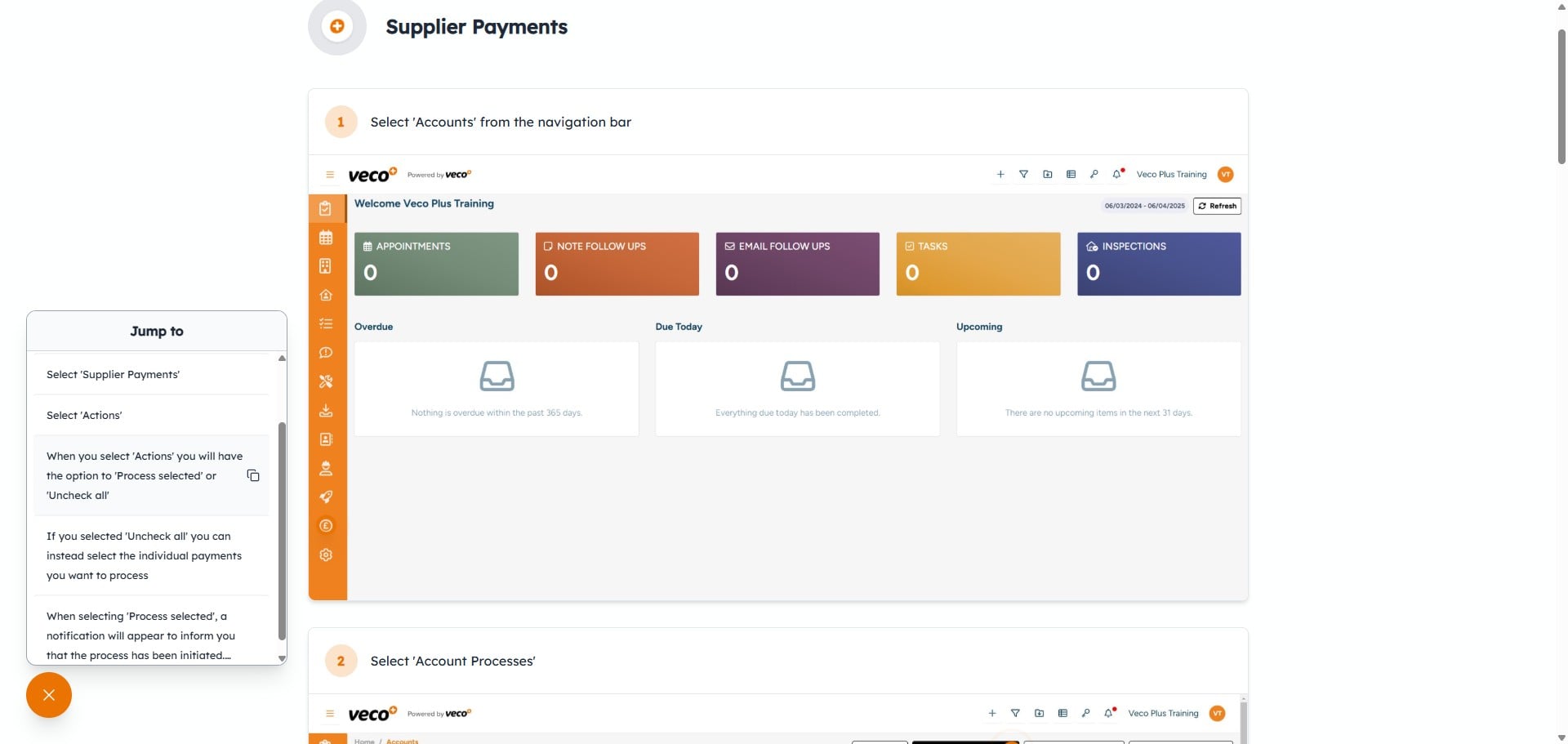
There is a steps menu in the lower left corner
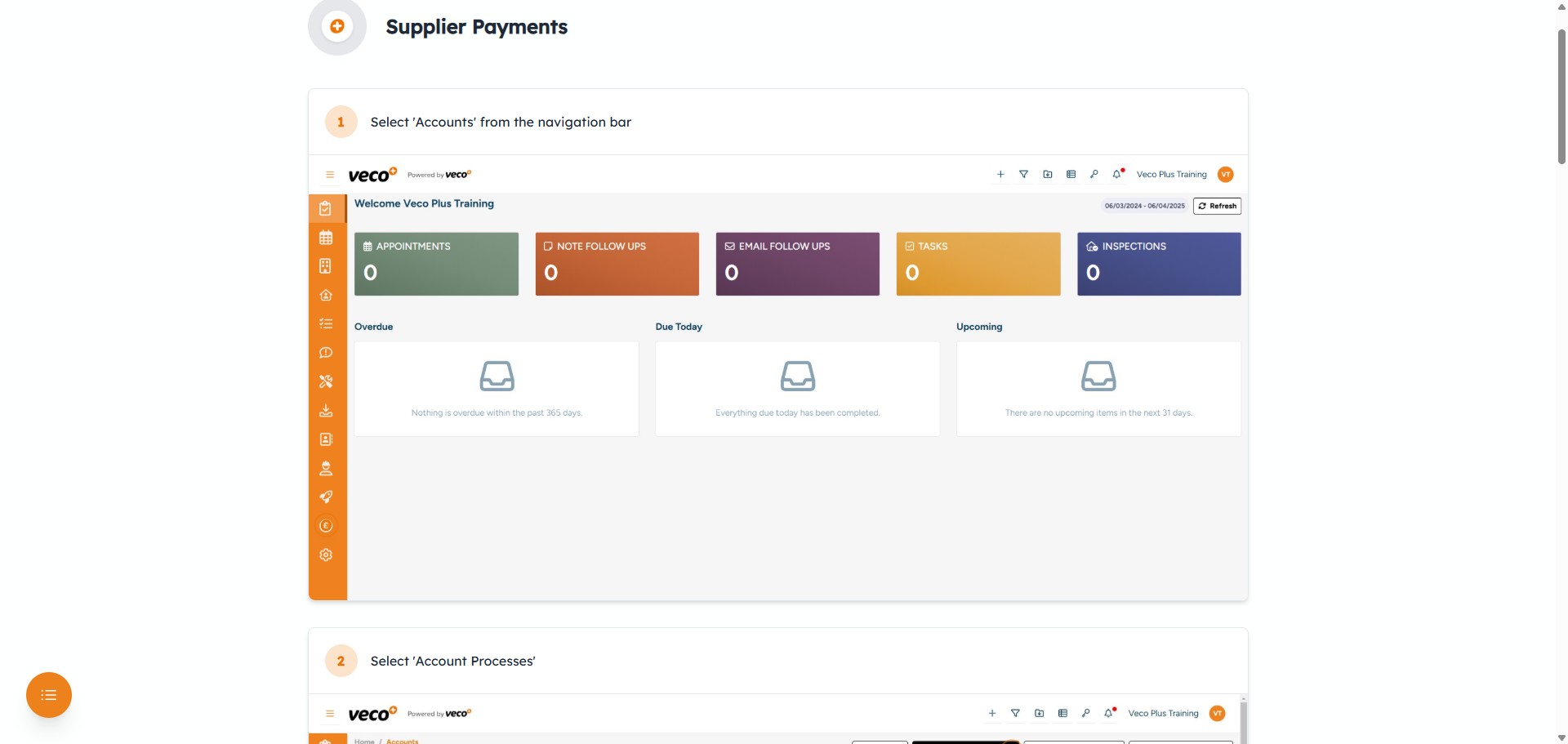
Select any step from the menu to go to that step
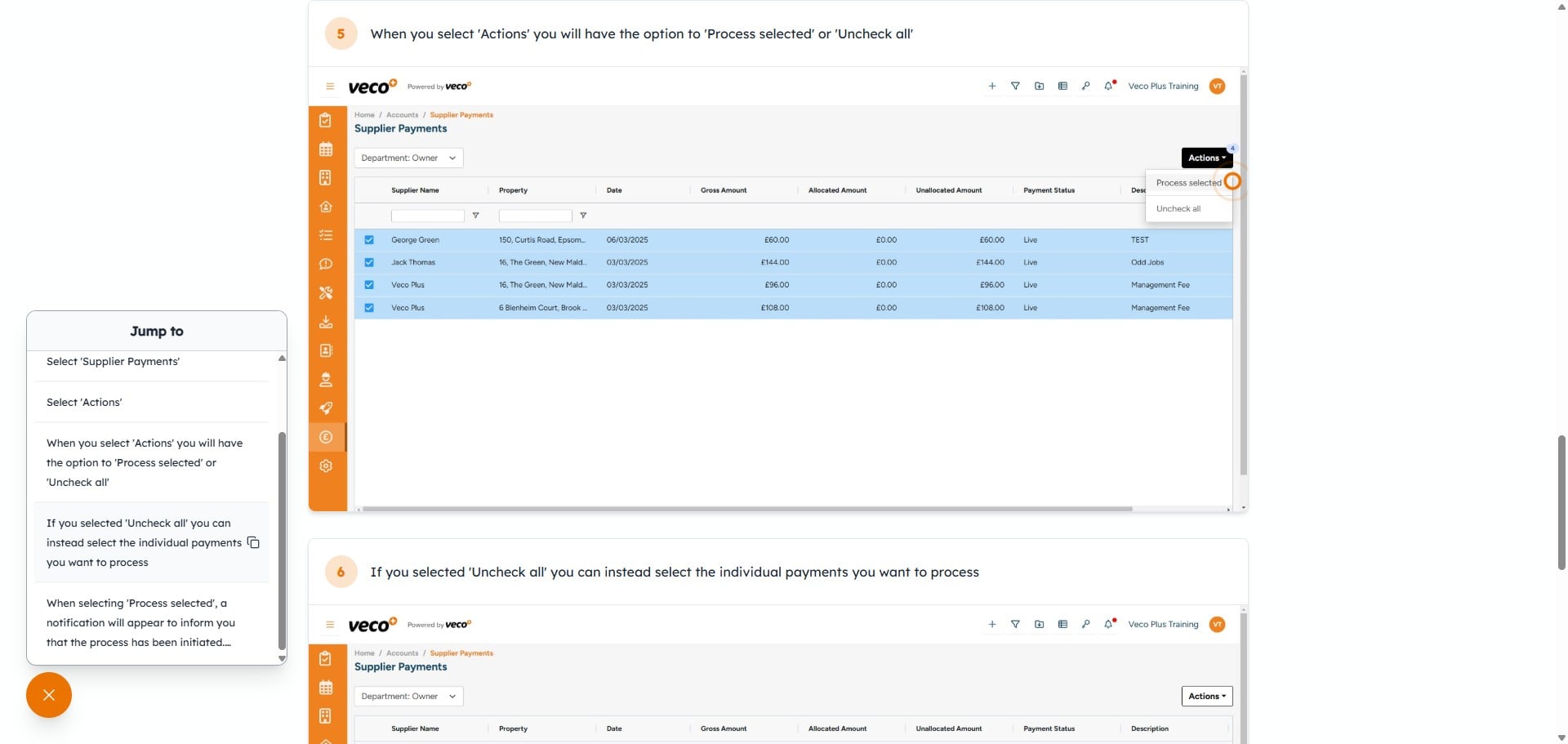
You can select the copy icon next to each step to generate a URL which will take you directly to that step when entered into a browser. This is useful for sending links to colleagues when they need to go to a specific step
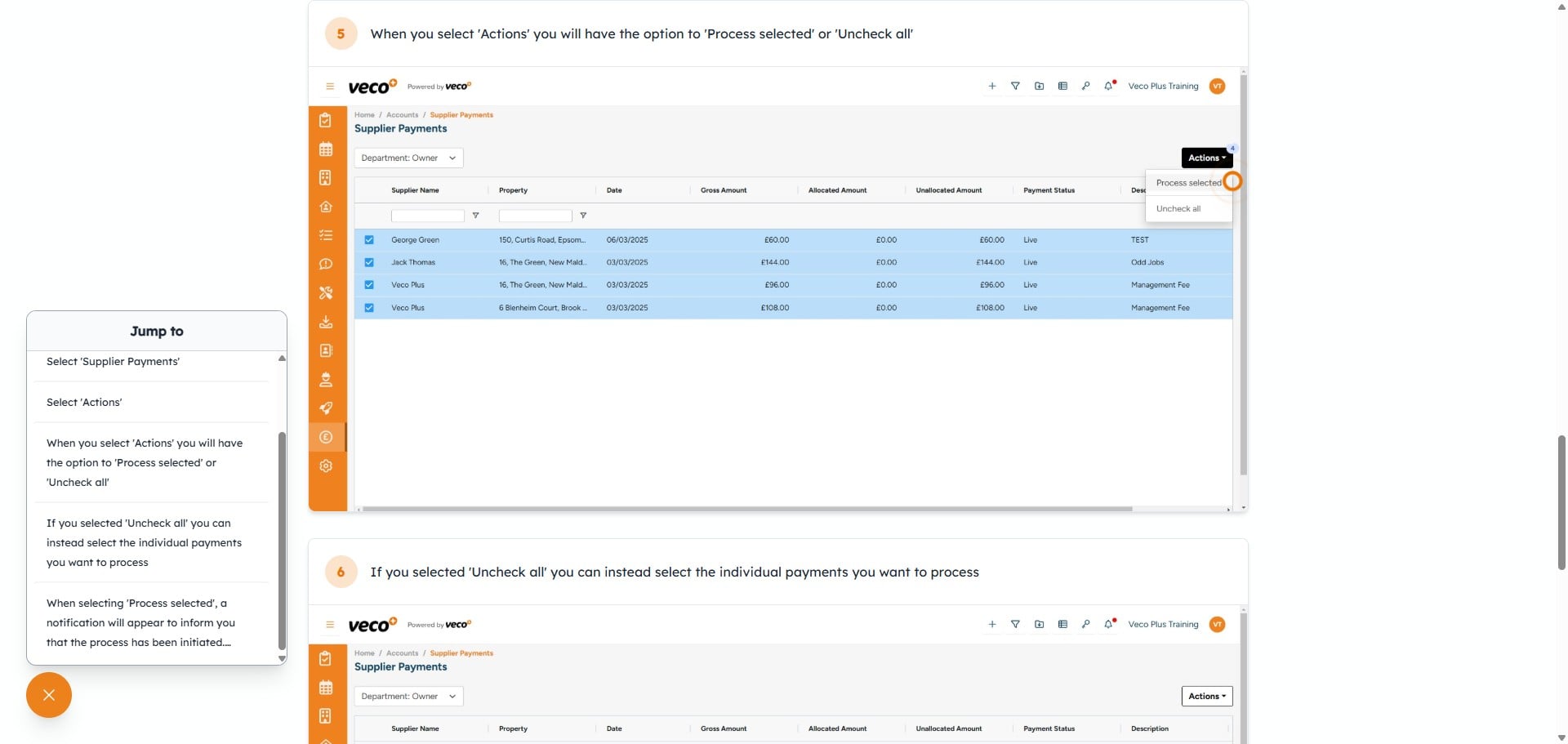
Select the close icon to close the steps menu
You can switch the viewing mode from step by step to interactive by selecting the interactive icon in the upper right corner
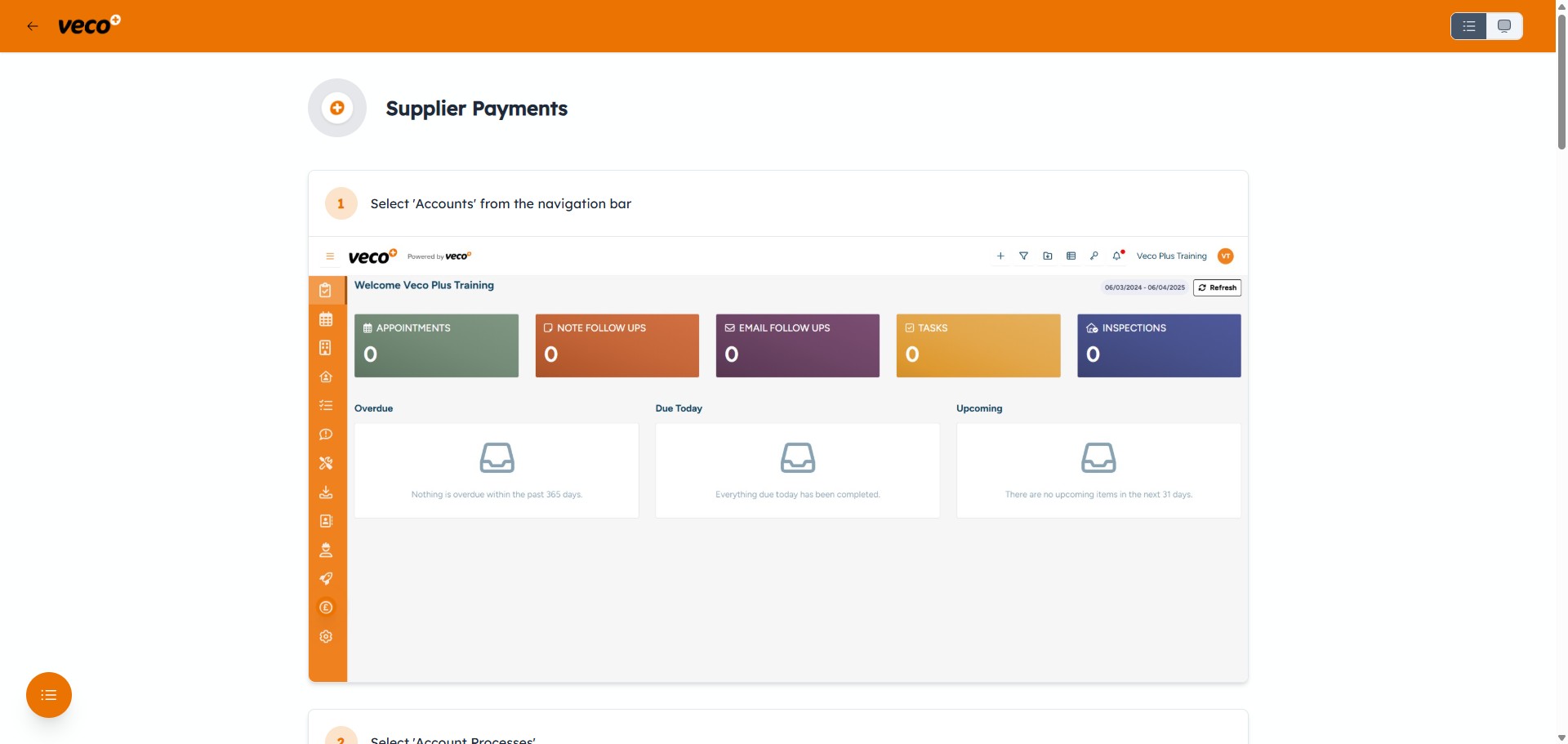
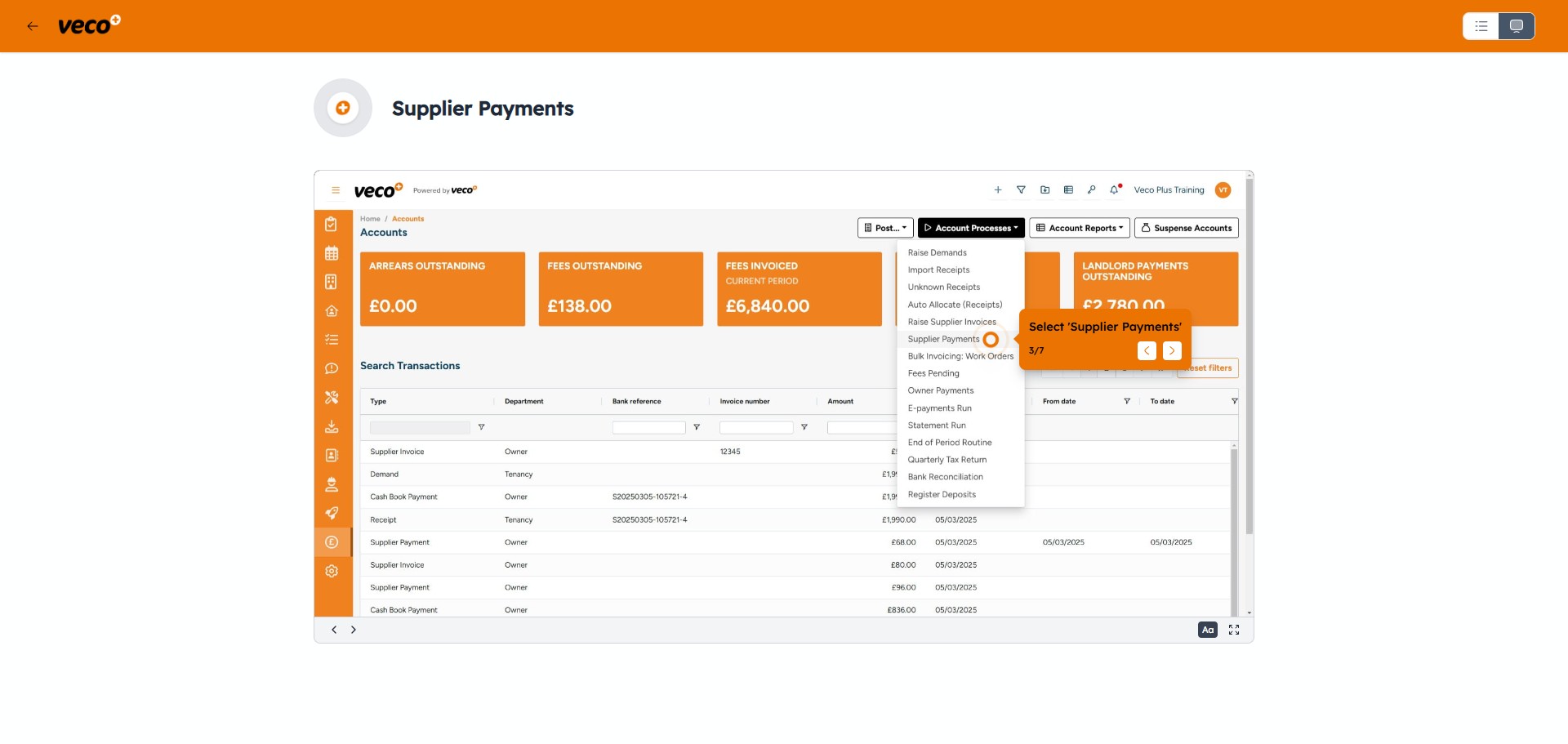
Interactive mode will walk you through each step by selecting the flashing orange cursor marker, as if you were running through the process in Veco Plus
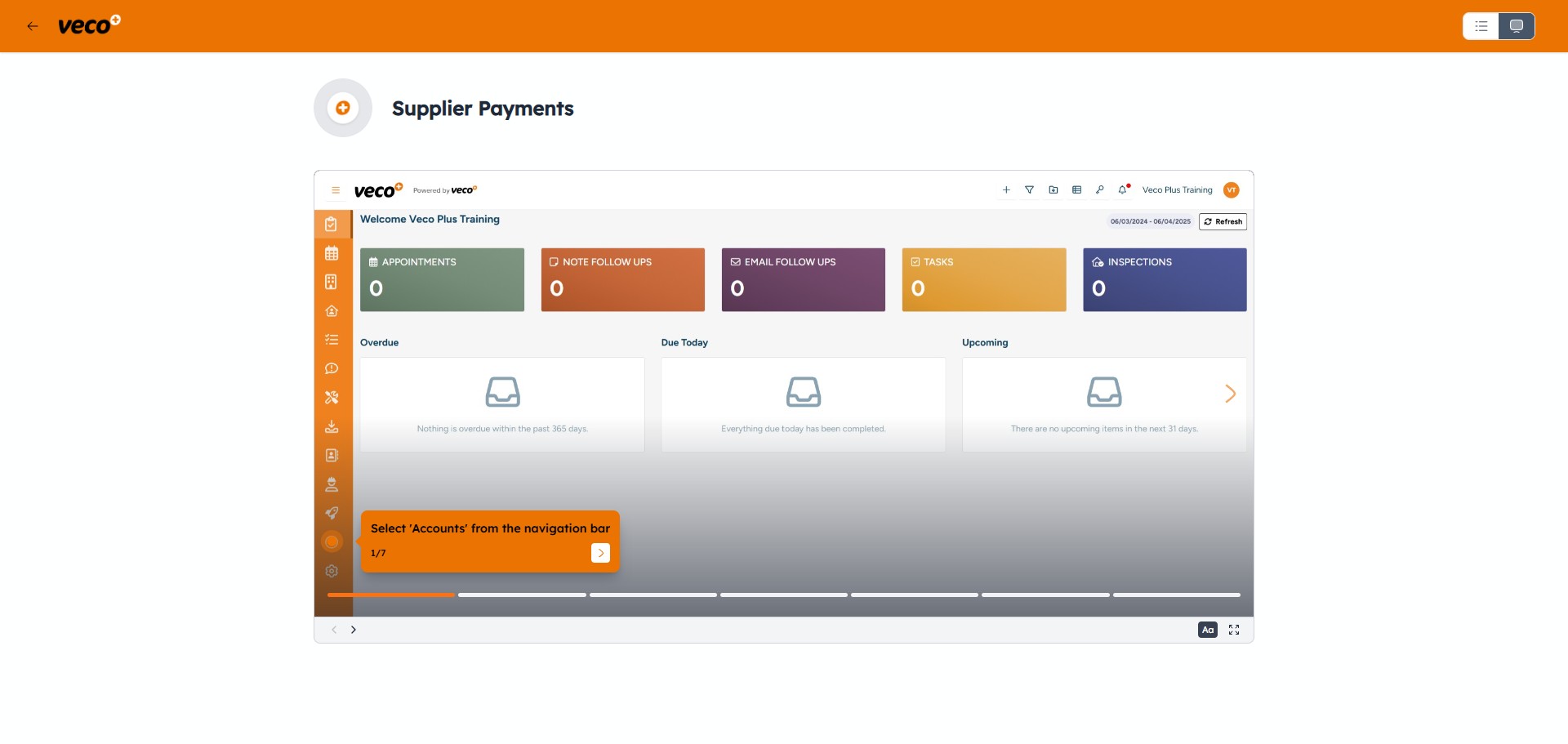
Select the "Aa" icon to hide or bring back the text prompt box
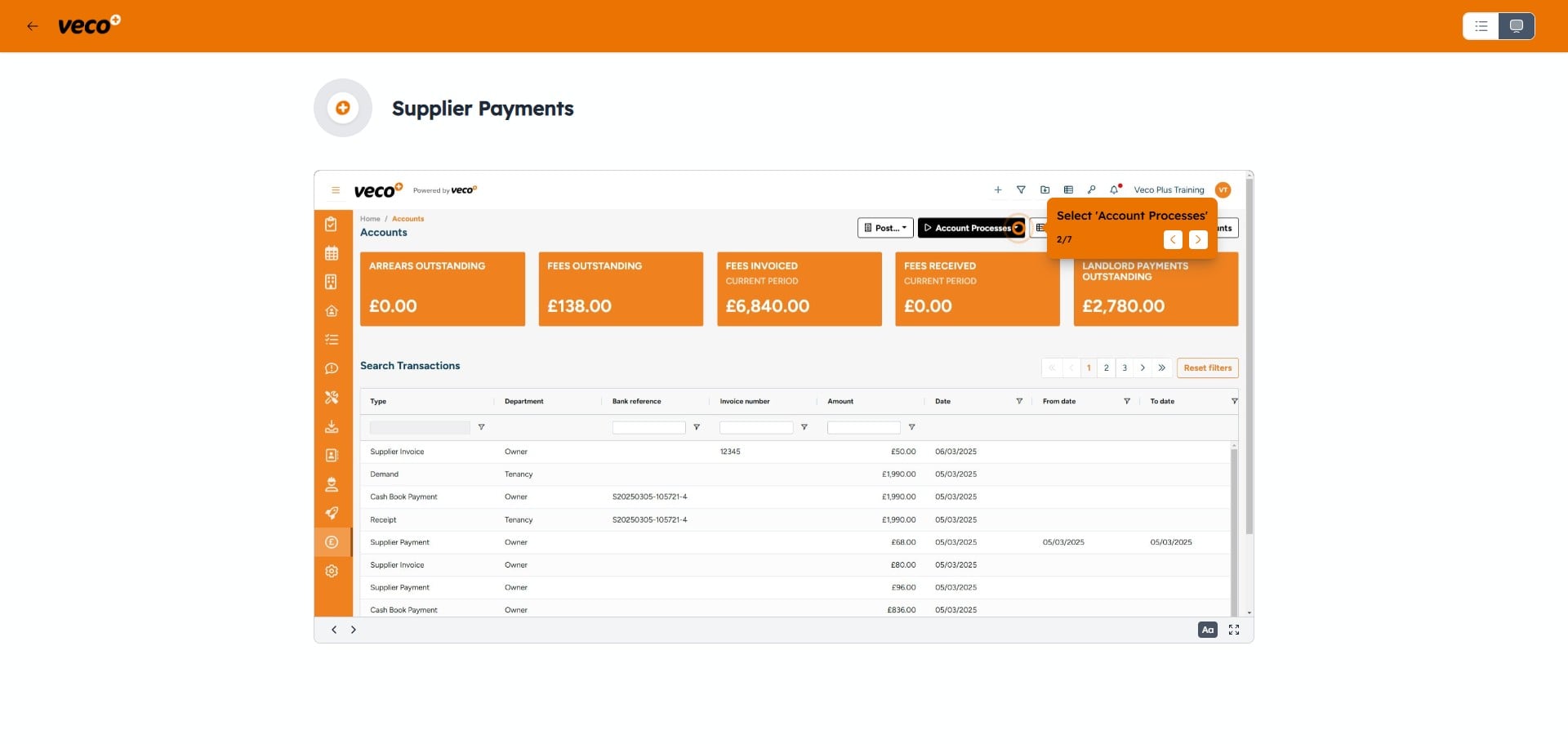
To view the interactive manual in full screen, select the full screen icon
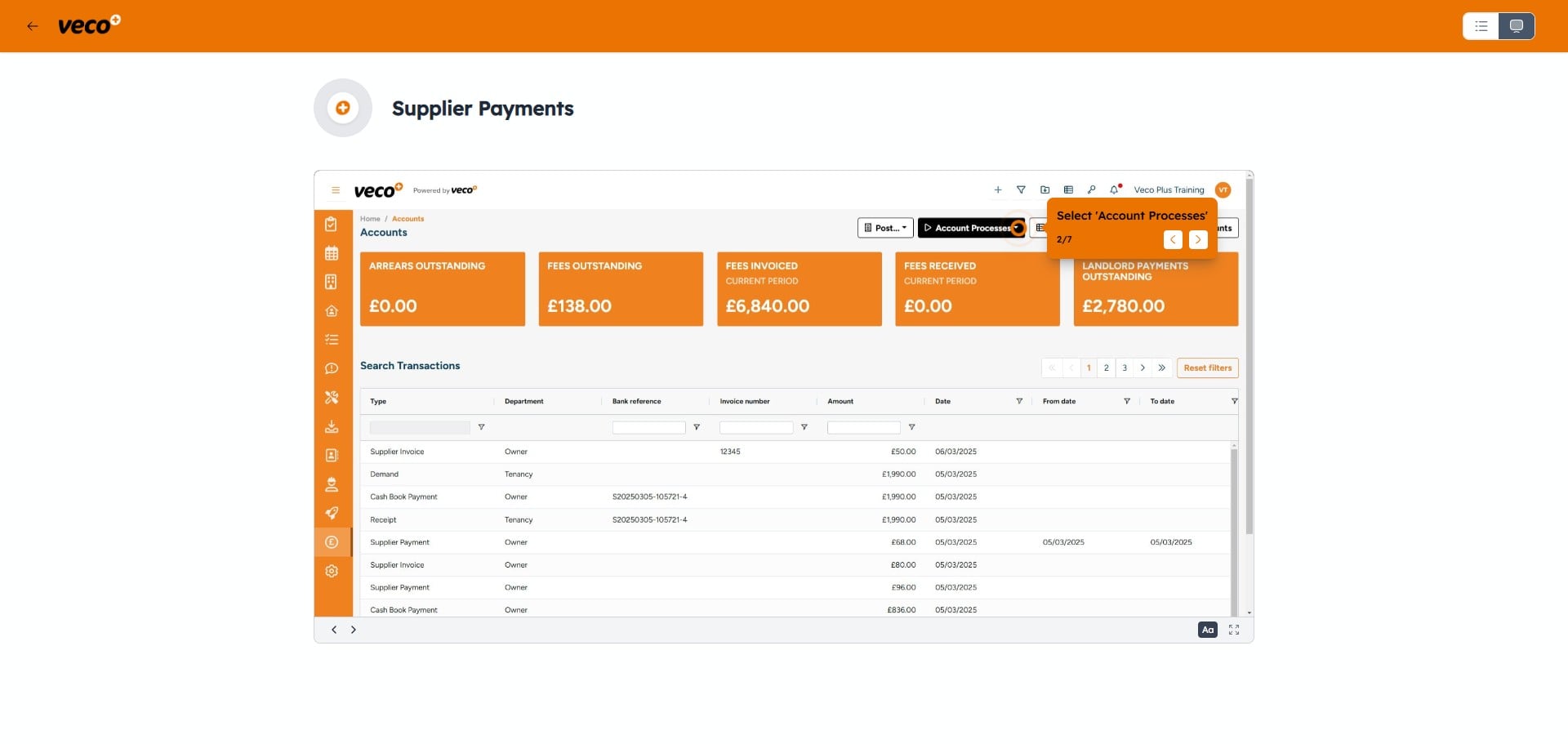
You can now continue with the interactive manual in full screen mode
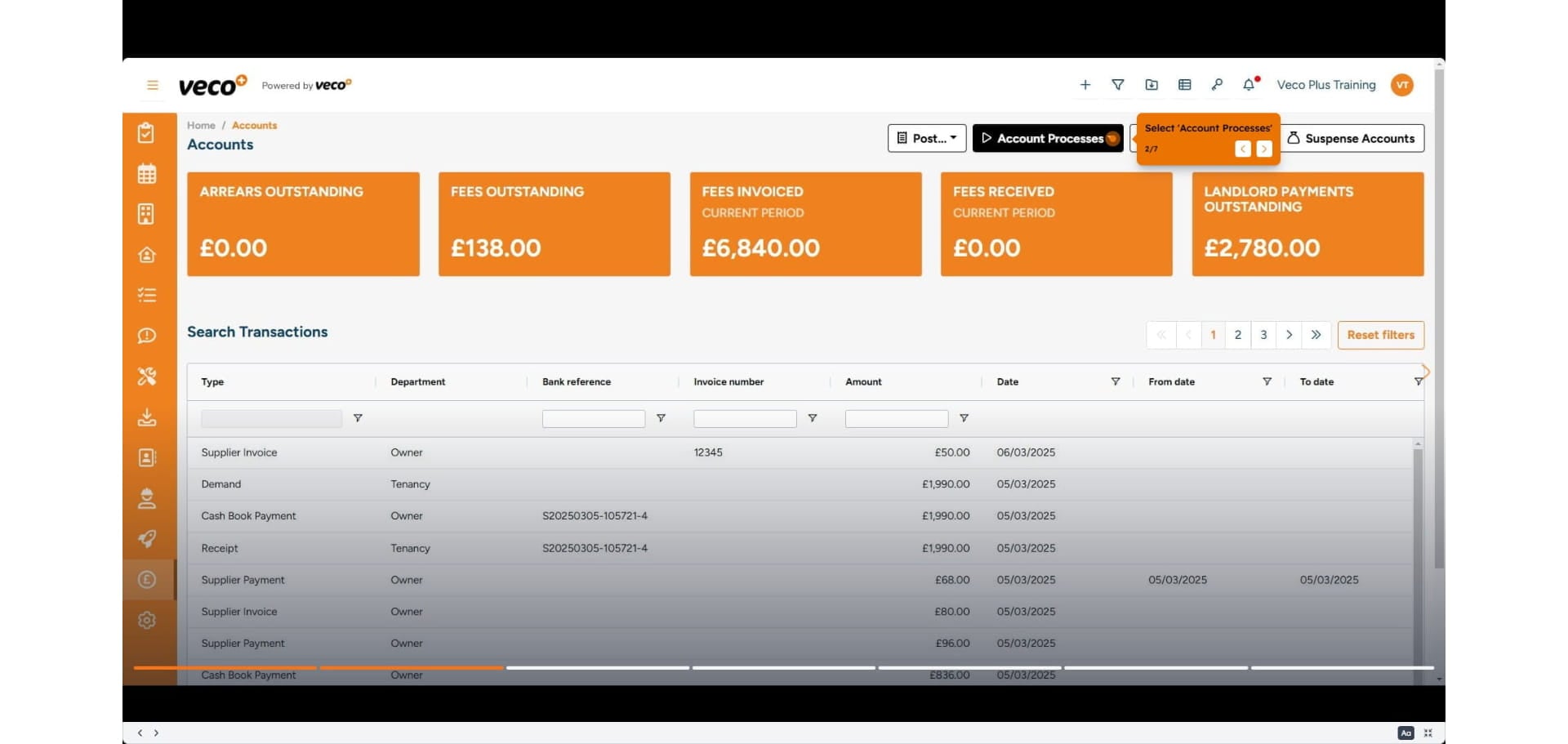
You can select the full screen icon again to bring it out of full screen mode
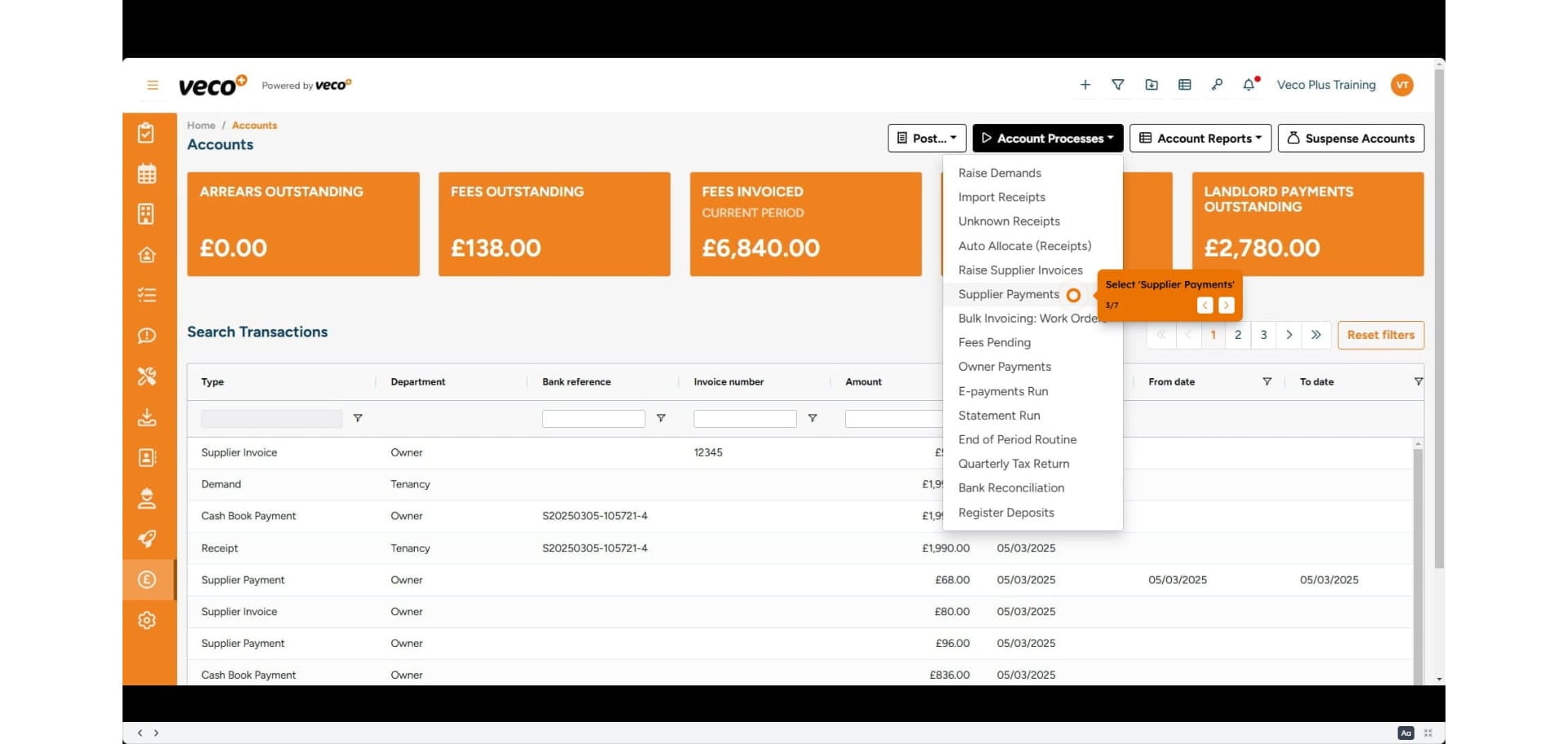
You can switch back to step by step mode at any time by selecting the step by step icon in the upper right corner