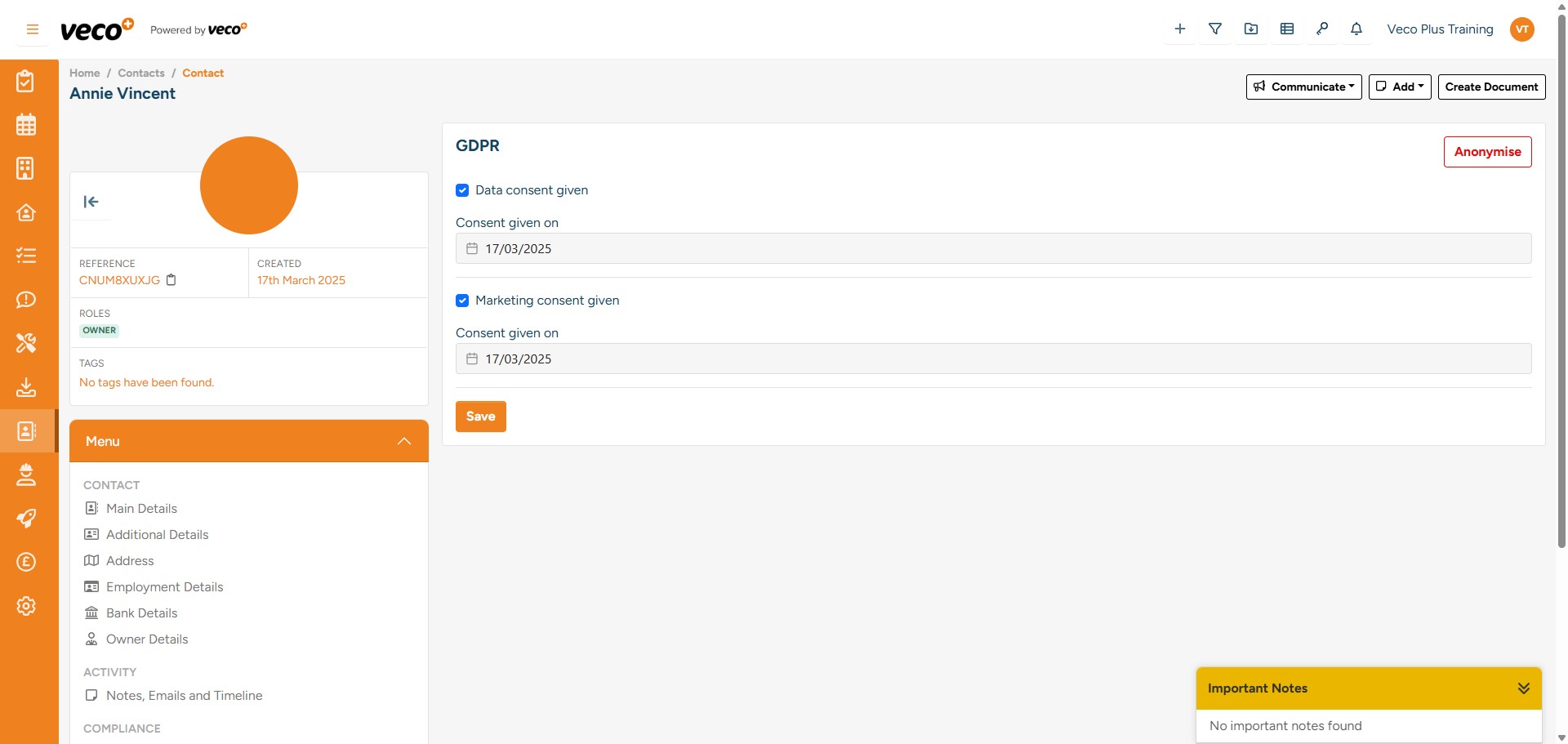
GDPR
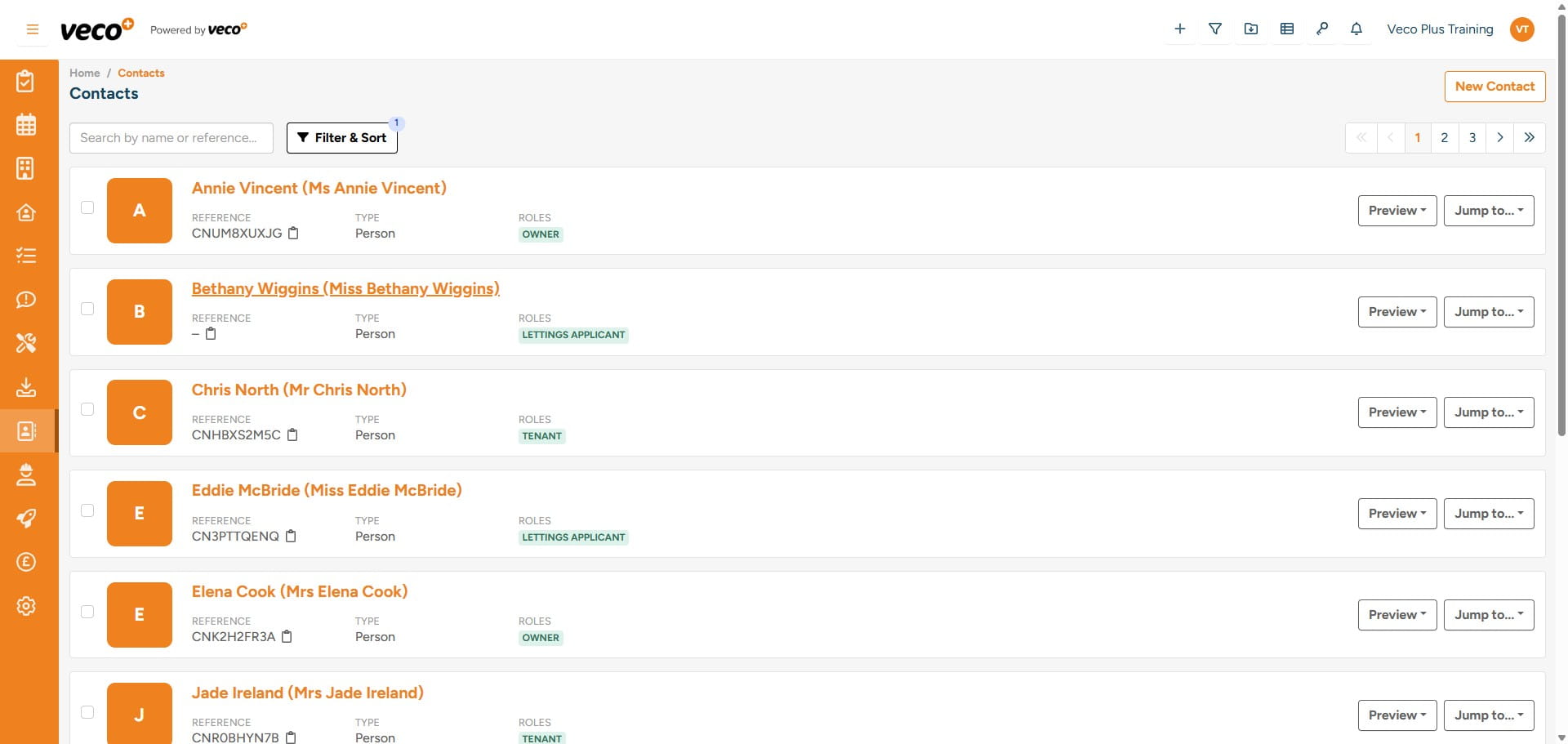
You can select or edit the GDPR consent details on either a new or existing contact. Select 'Contacts' from the navigation bar
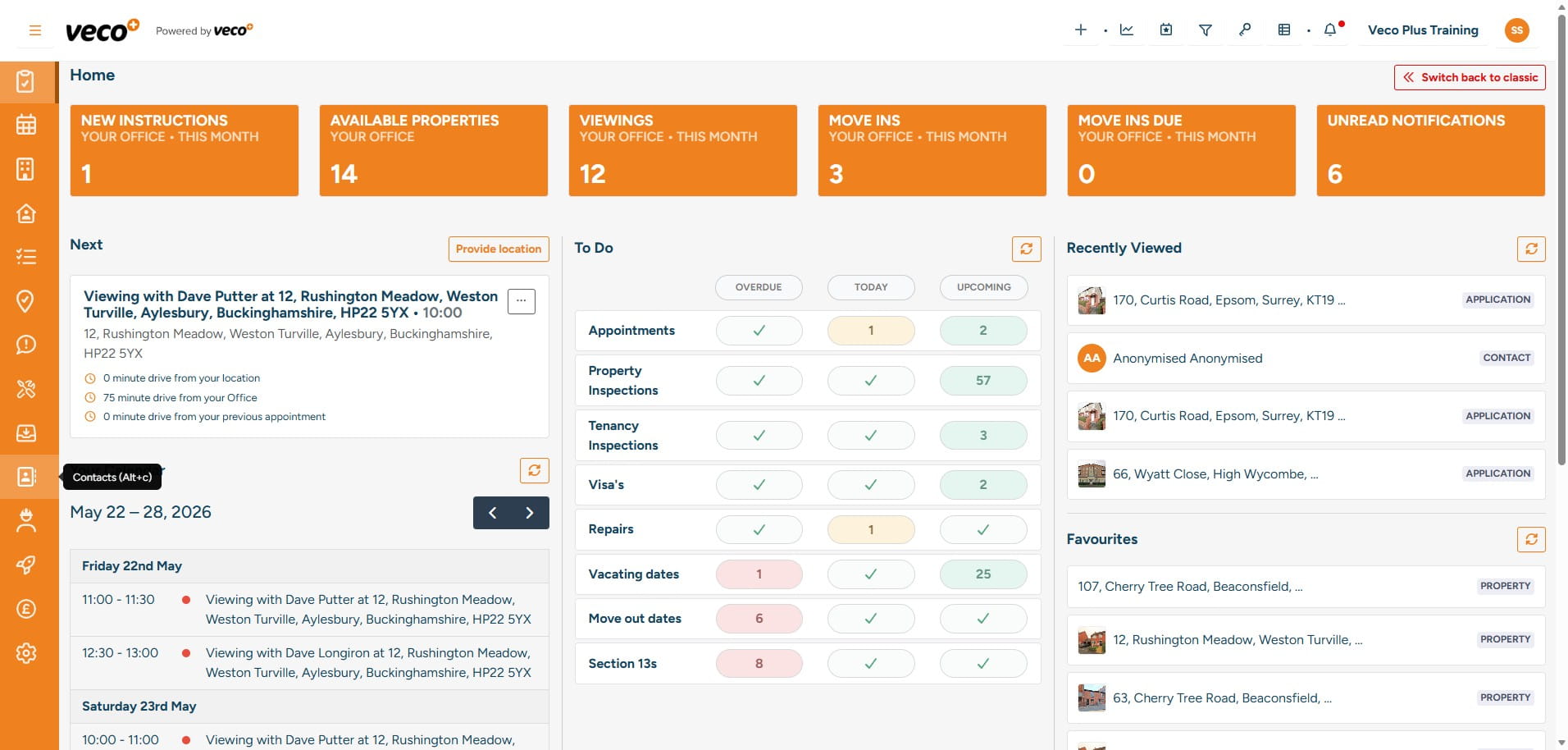
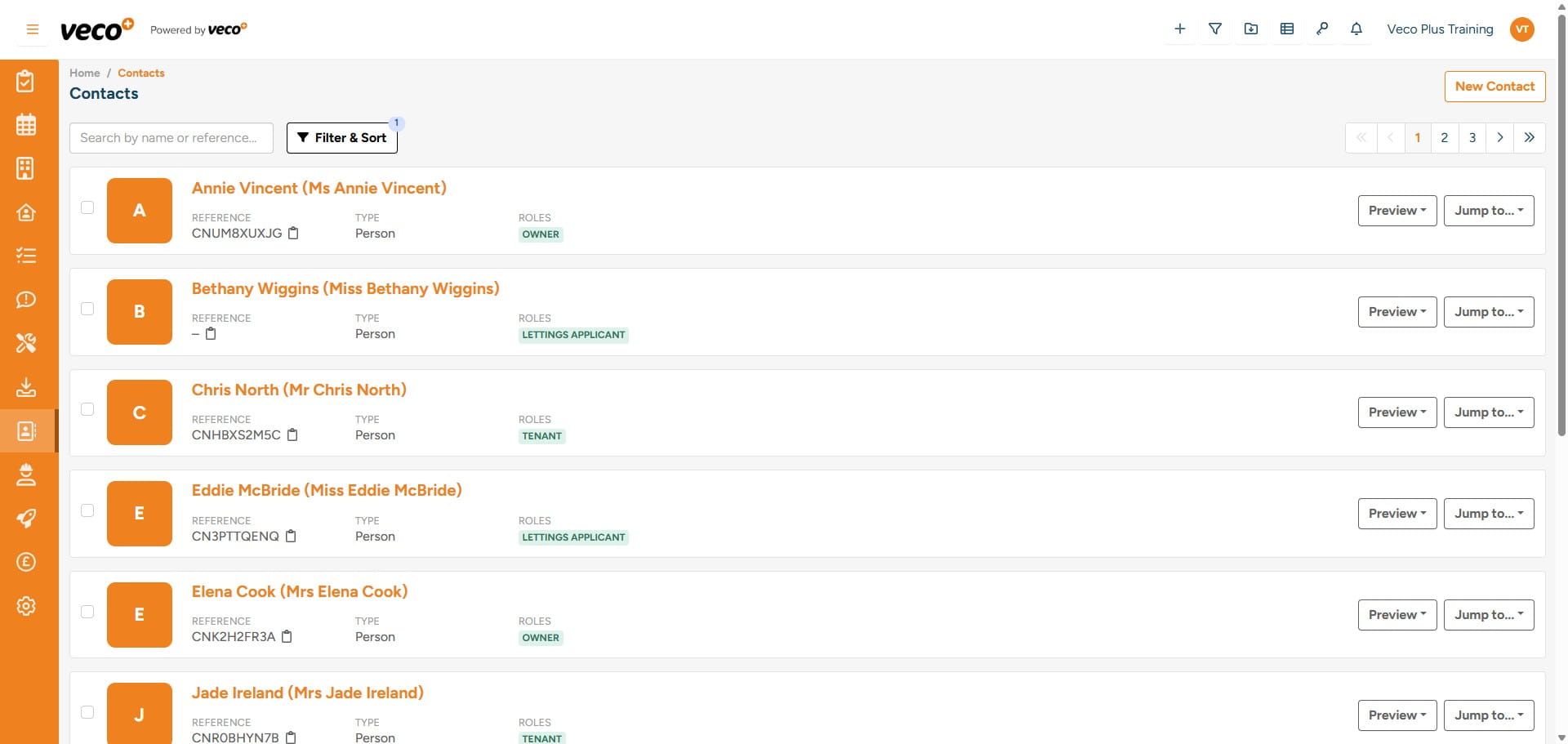
You can view an existing contact from this list as well as create a new contact. Select 'New Contact'
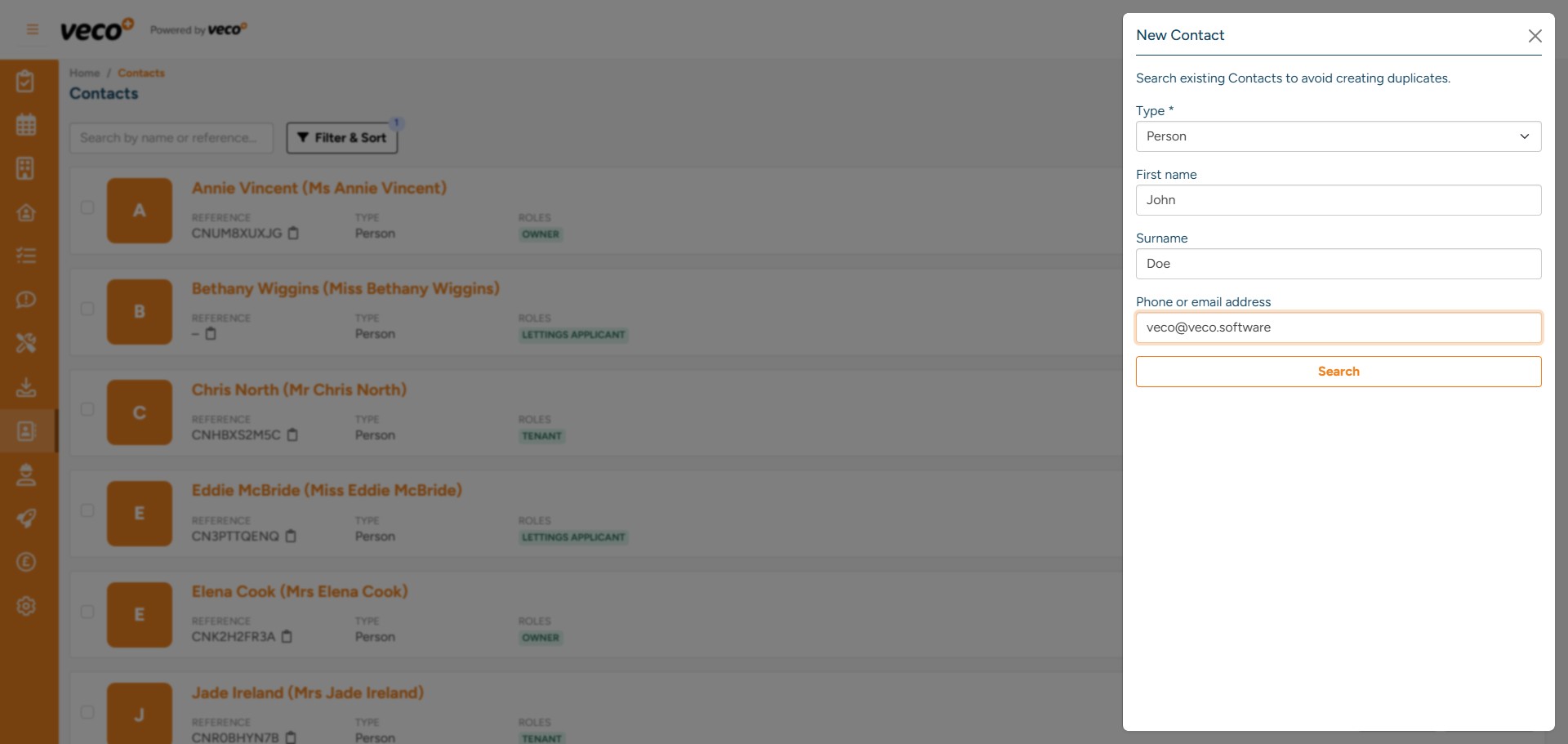
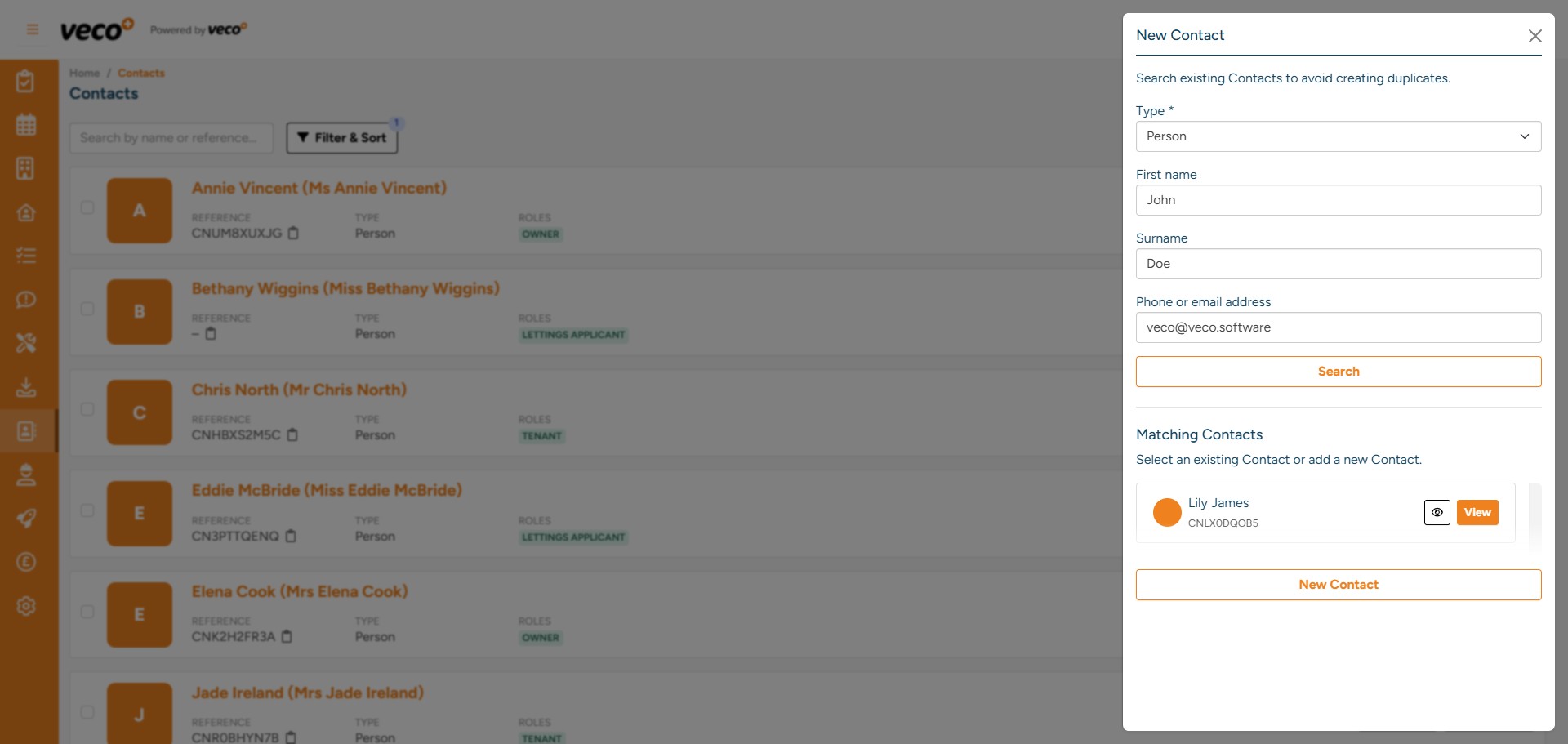
Veco Plus will want to search to ensure an existing contact doesn't exist already
Select 'New Contact'
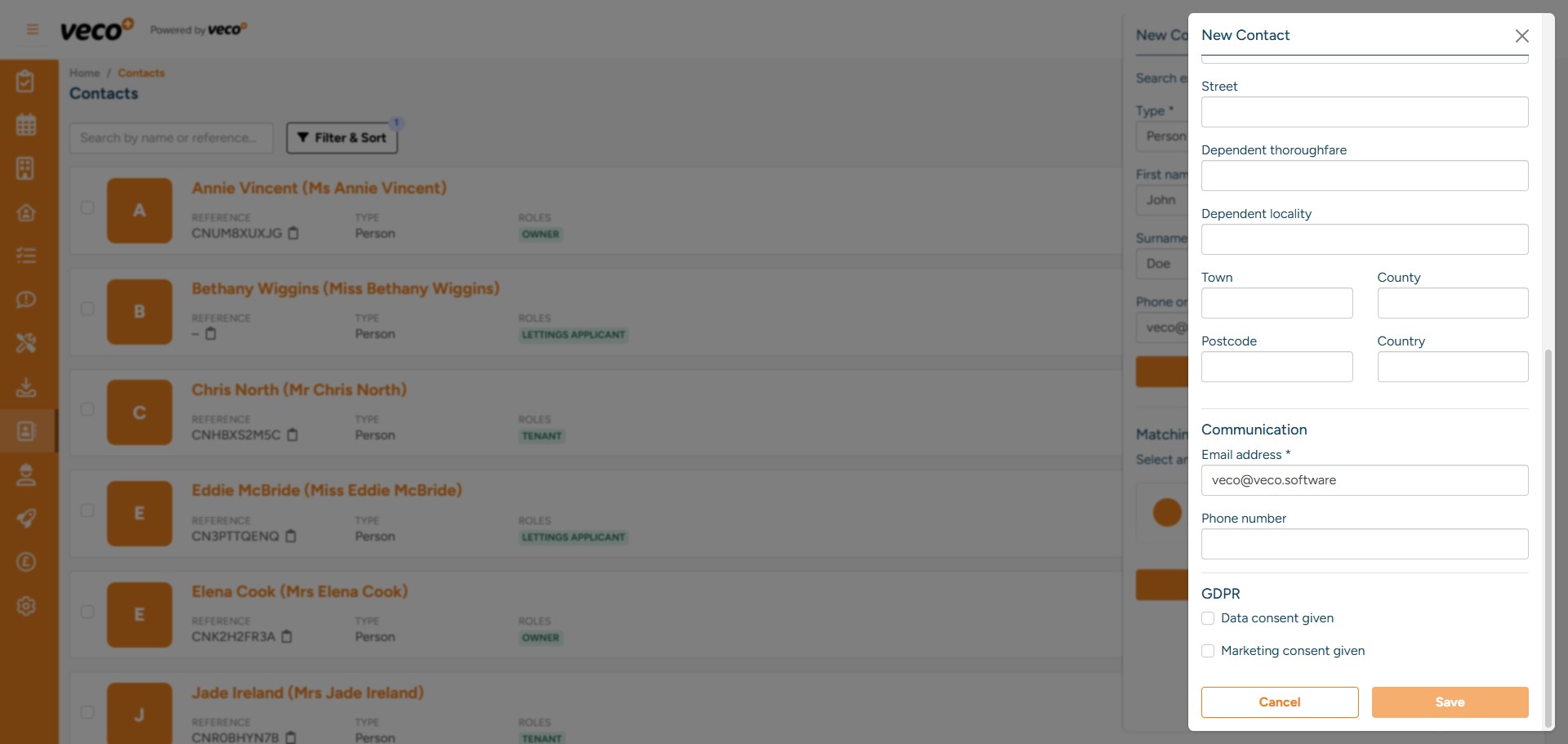
The GDPR consent tick boxes are located towards the bottom of the new contact form
To change existing GDPR consent or communication preferences on an existing contact, select a contact from the 'Contacts' area of the navigation bar
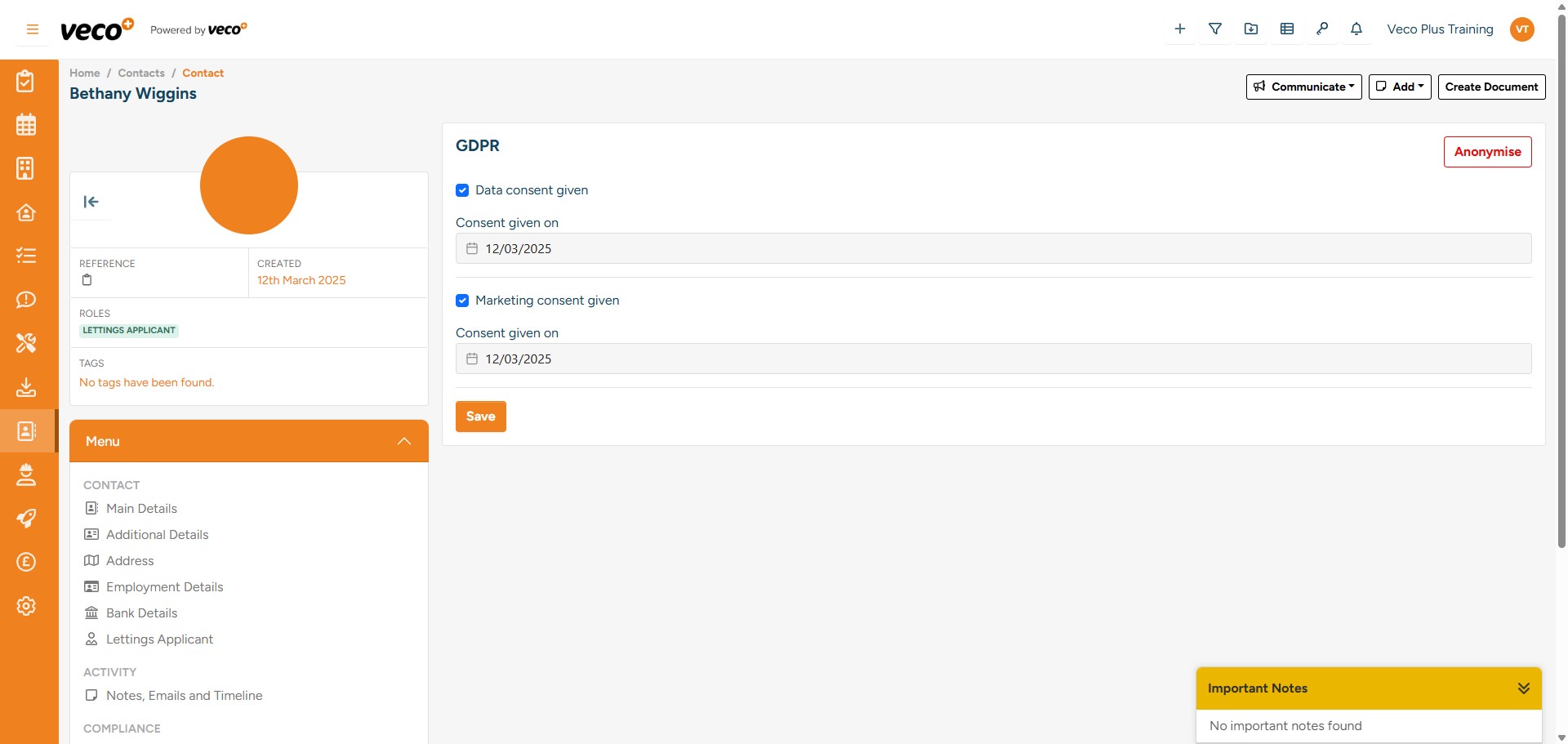
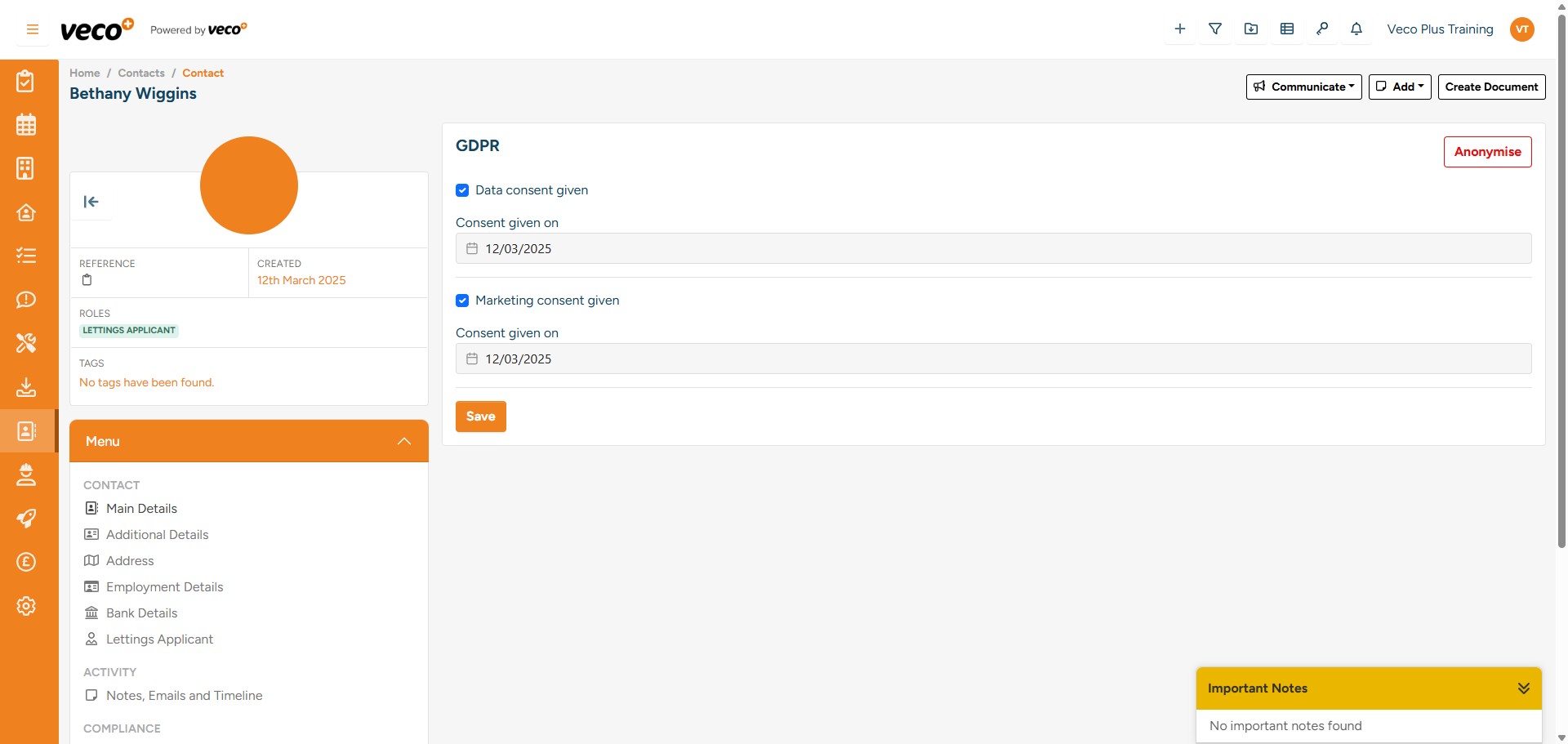
Select 'GDPR' from the 'Menu' on the left
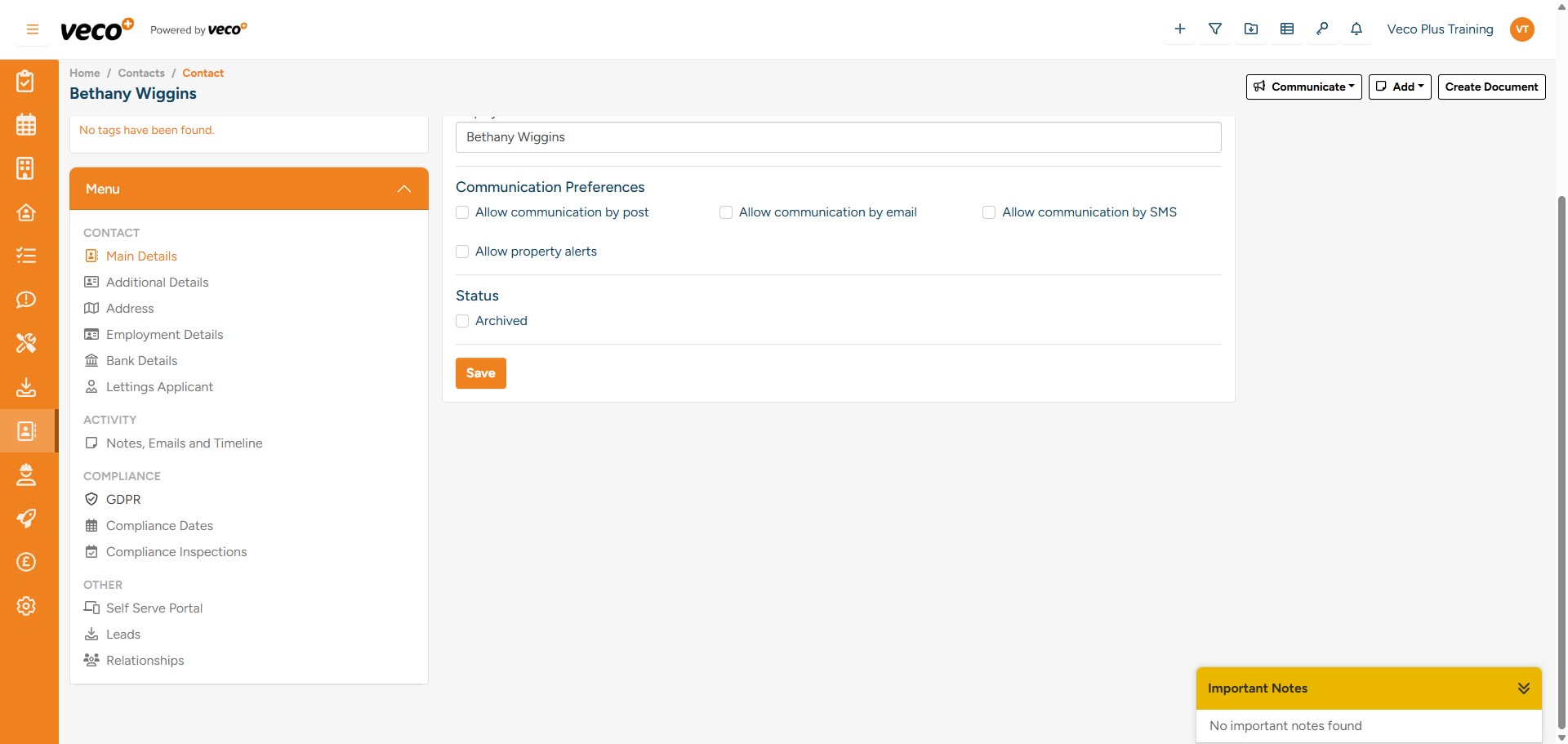
Here you can change 'Data consent given' and 'Marketing consent given'
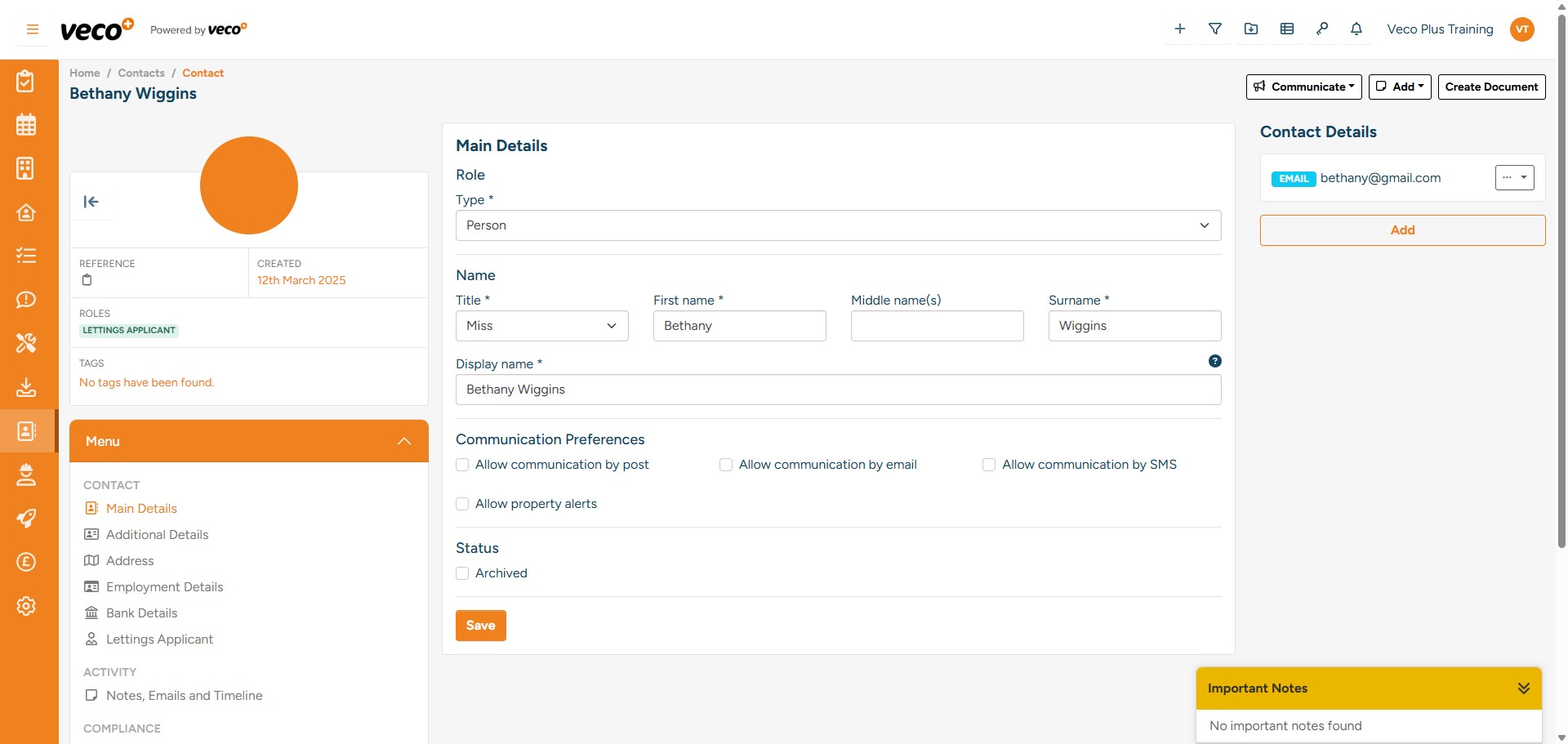
Under 'Main Details' of the 'Menu', you can change the communication preferences
You can select some, none or all of the options
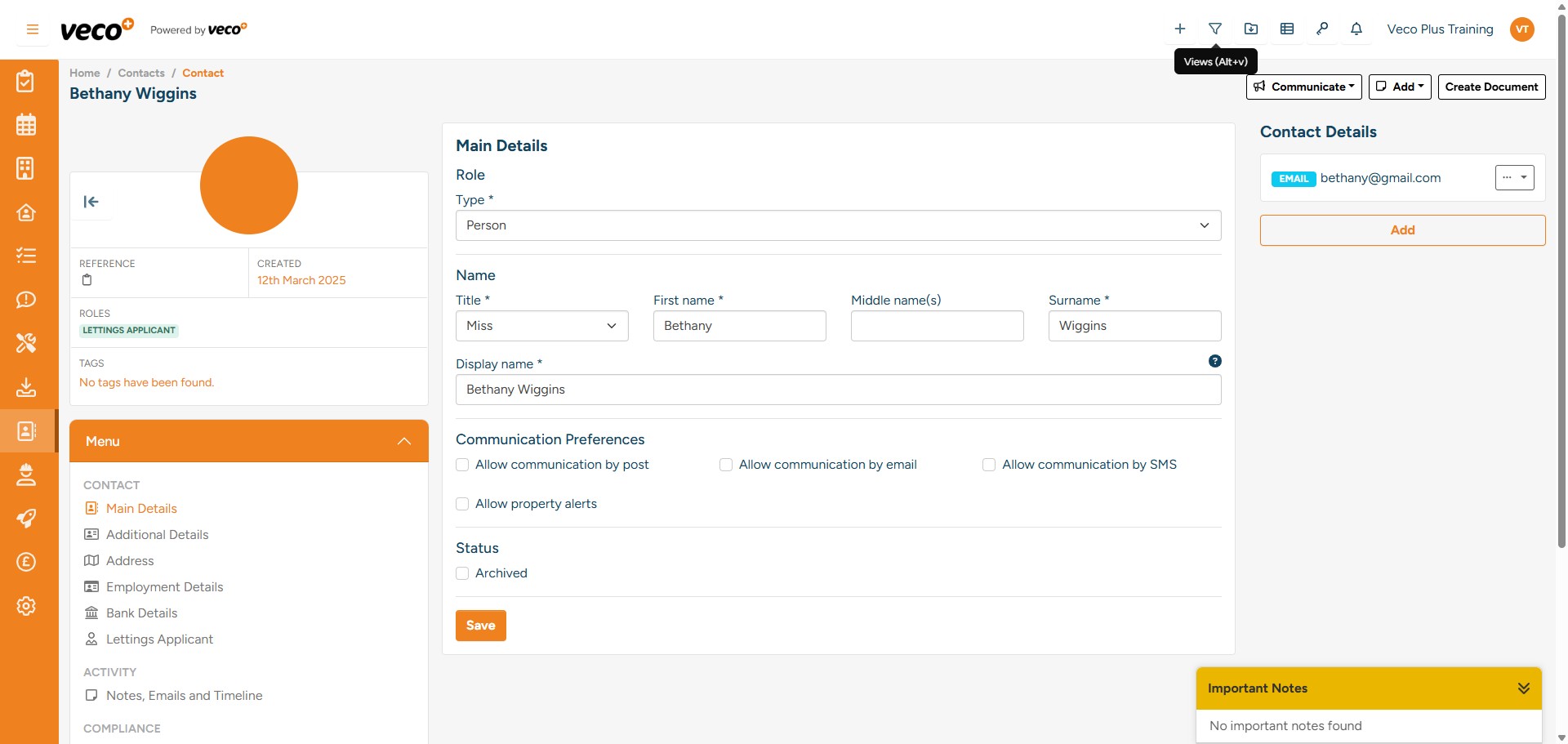
You can also view GDPR dates and consent from a contact view. Select 'Views'
Select a contact view such as 'Owners', 'Applicants' or 'Tenants'
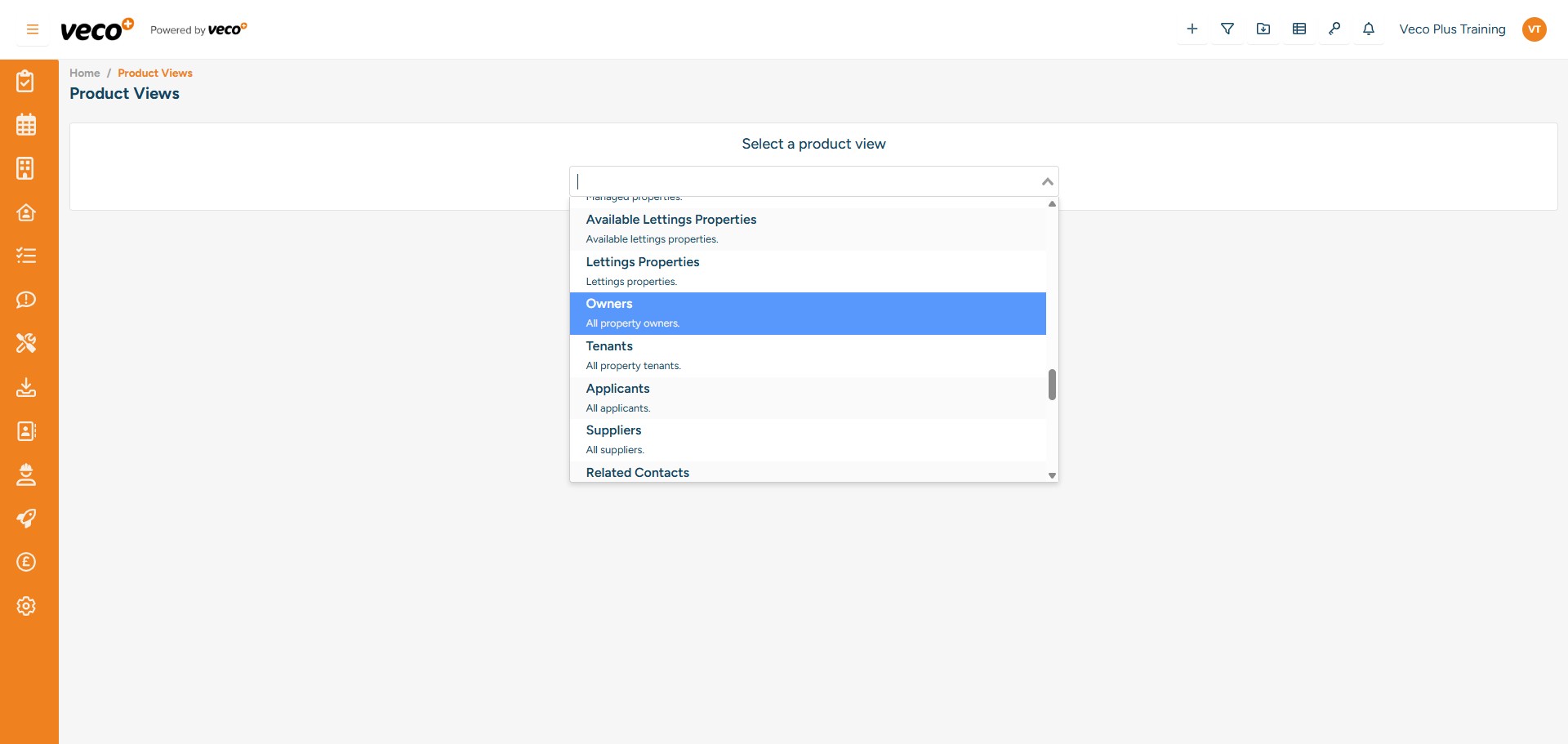
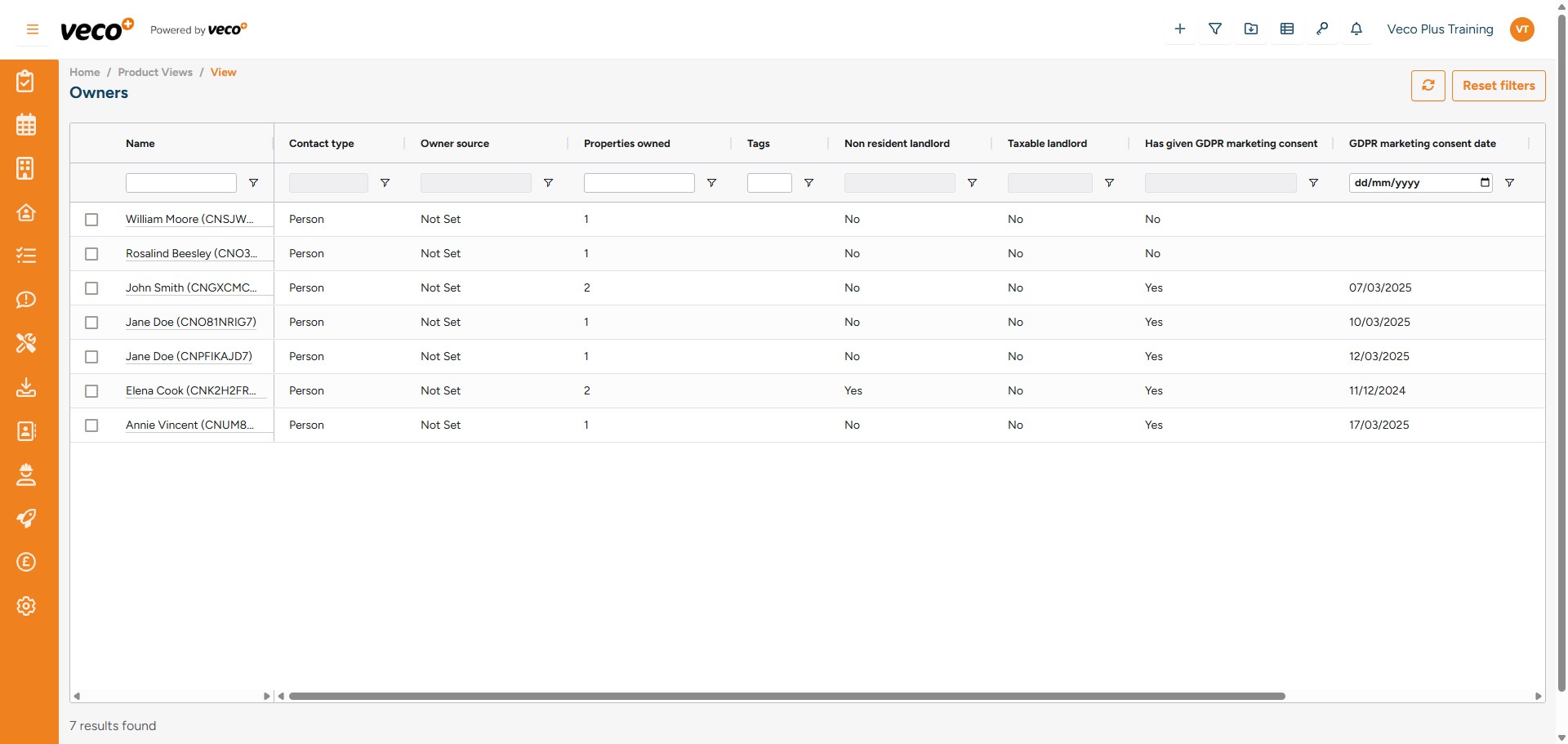
Here you can filter by consent or consent date
You can also anonymise an existing contact who whishes to be 'forgotten'. Under an existing Contact, select GDPR from the 'Menu' and select 'Anonymise' in the upper right corner. This can only be done by a staff user with the relevant permissions and Veco Plus will make validation checks first to ensure the contact has the right to be forgotten.