logo

Unknown Receipts

1

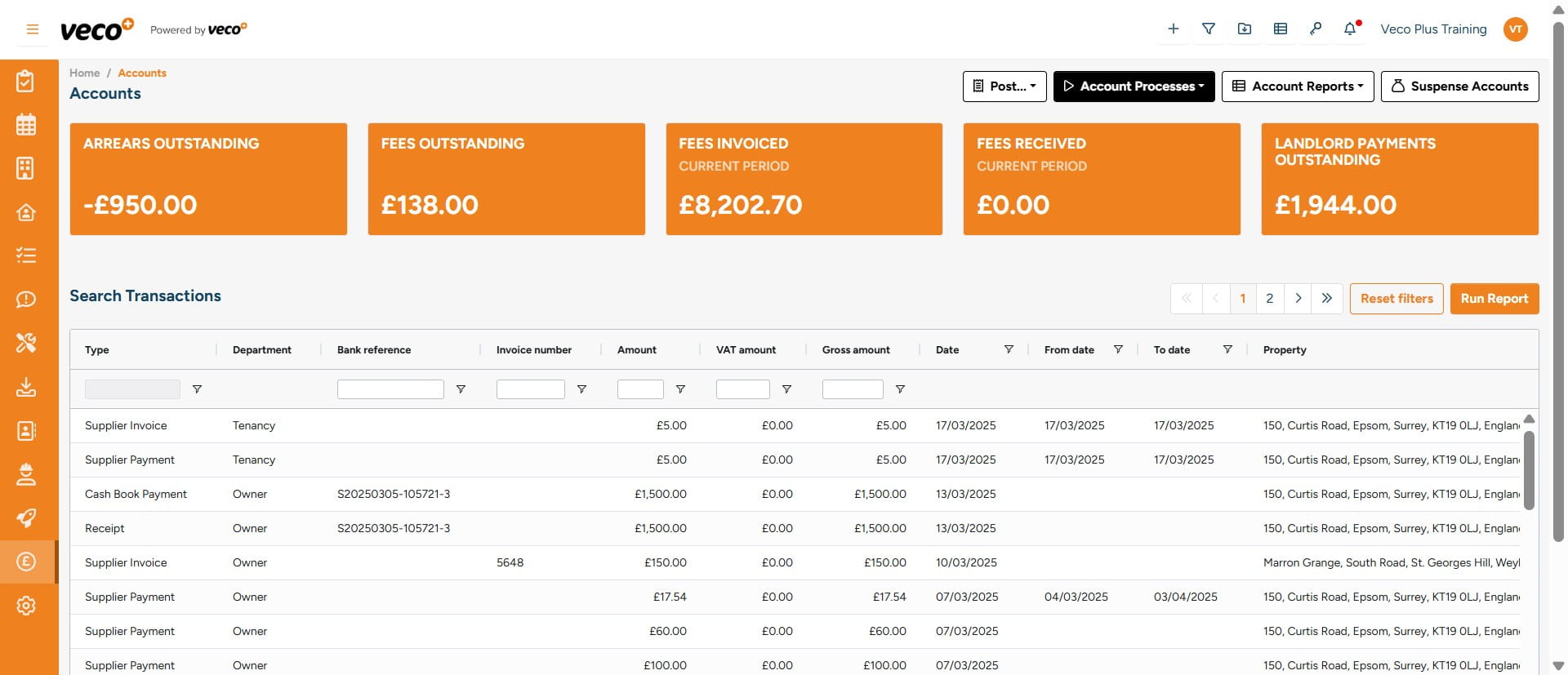
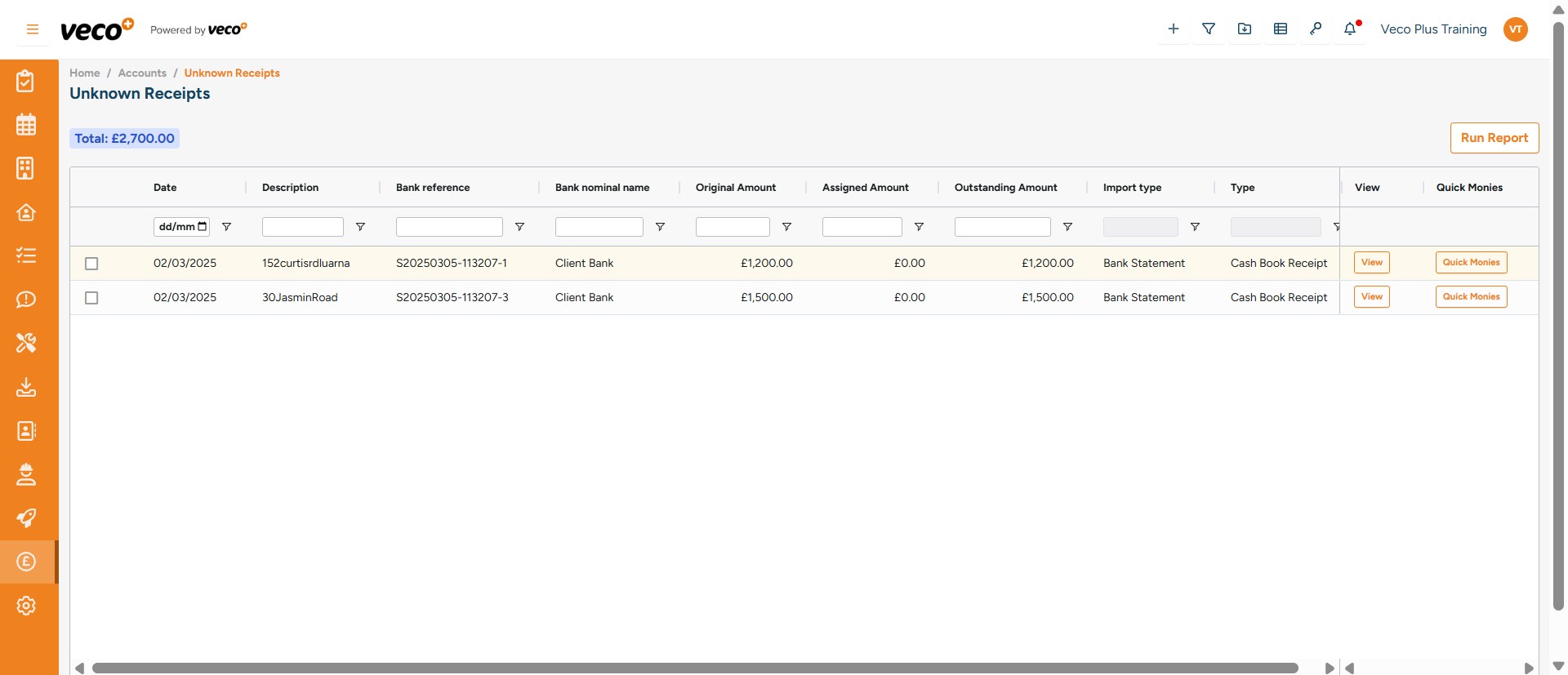
Select 'Accounts' on the navigation bar
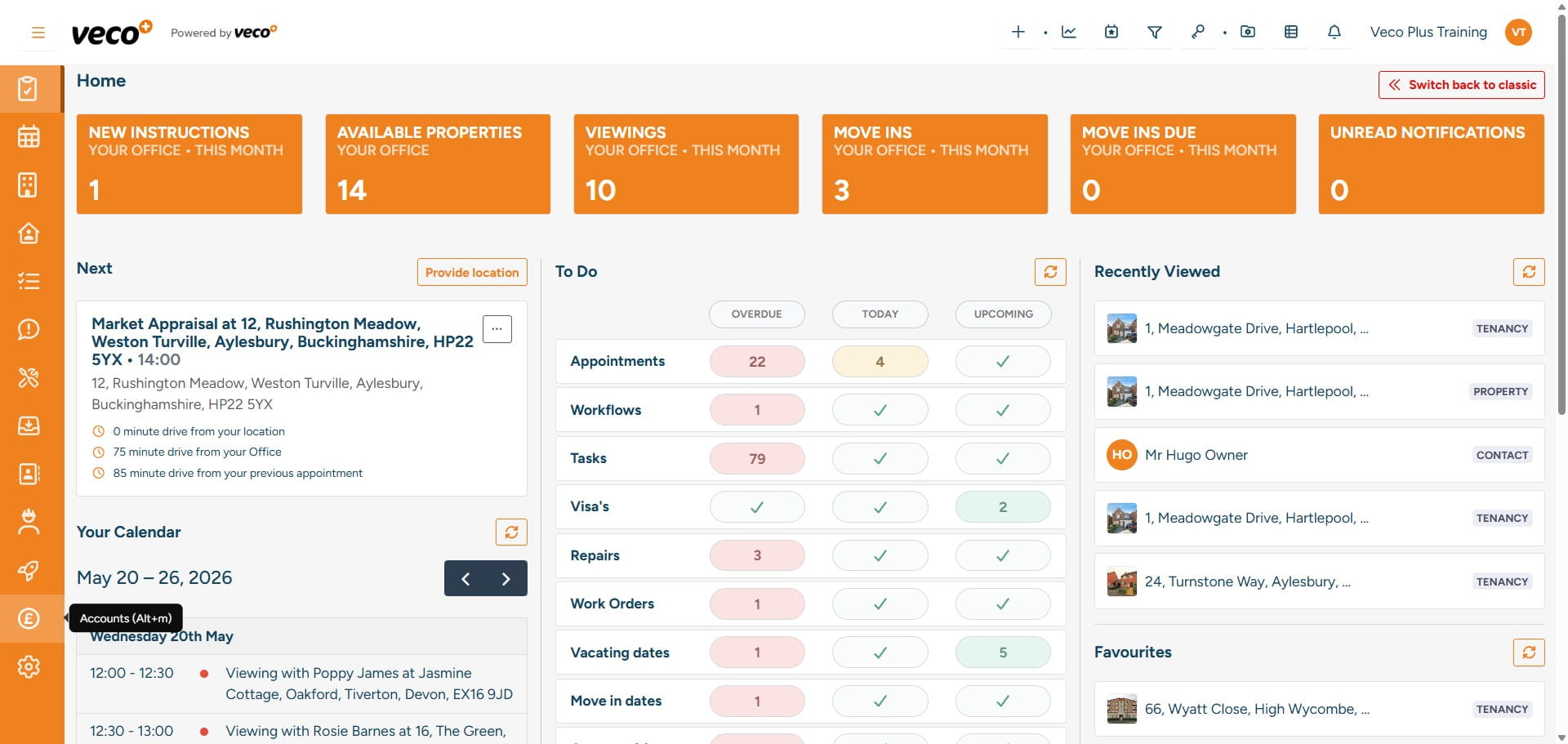
Select 'Accounts' on the navigation bar
2

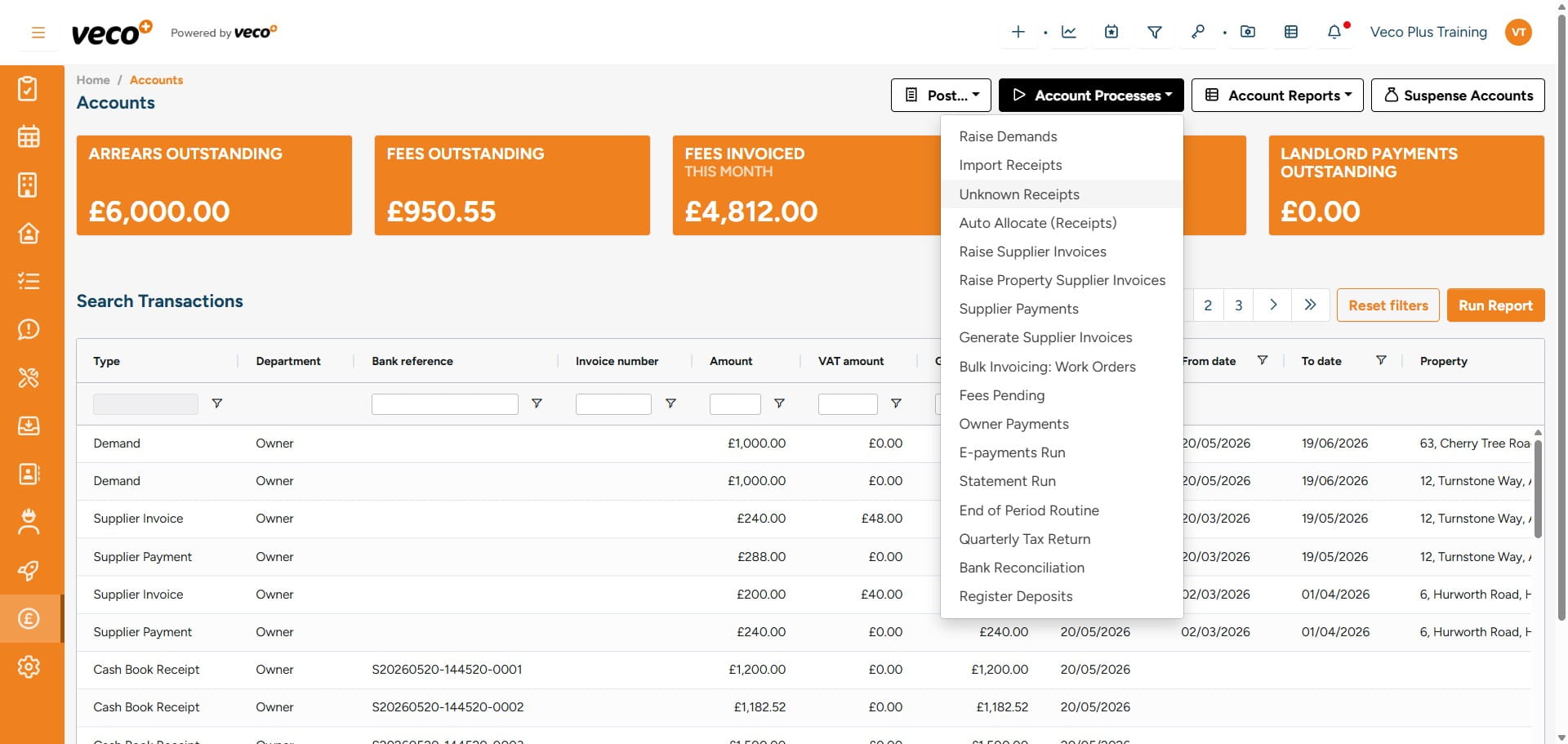
Select 'Account Processes'

Select 'Account Processes'
3

Then select 'Unknown Receipts'

Then select 'Unknown Receipts'
4

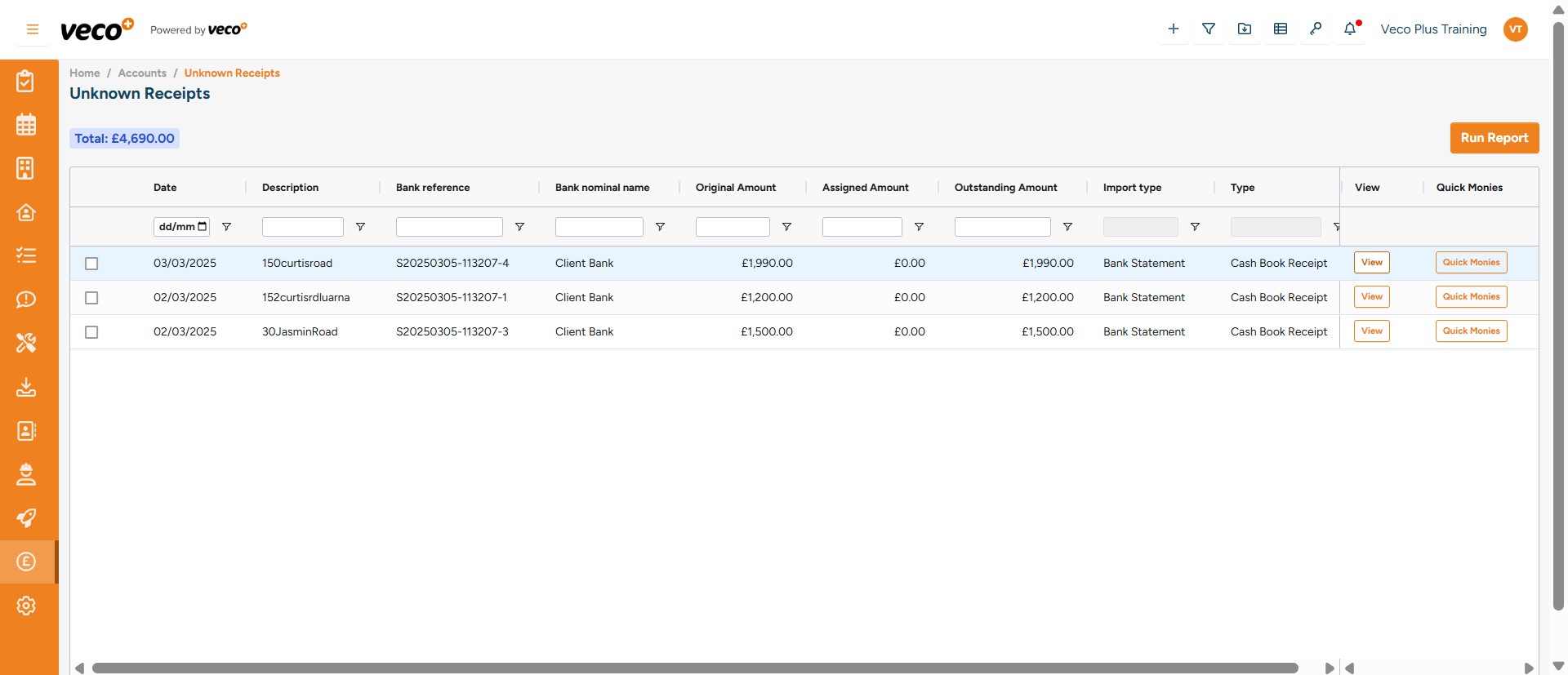
You will see a list of unmatched transactions that have been imported from either the bank statement or card statement
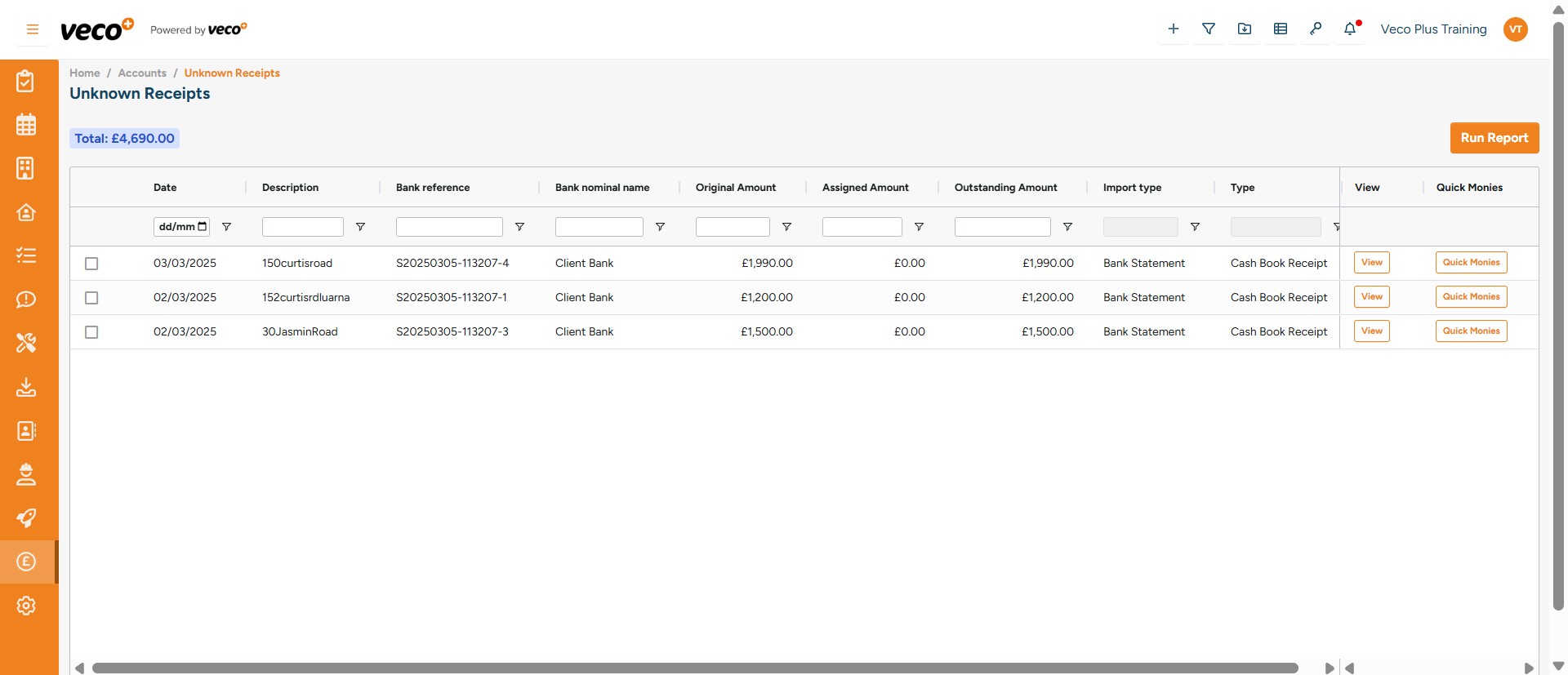
You will see a list of unmatched transactions that have been imported from either the bank statement or card statement
5

Select ' View' on a transaction

Select ' View' on a transaction
6

This will give you the ability to either 'Edit' or 'Reverse' the transaction
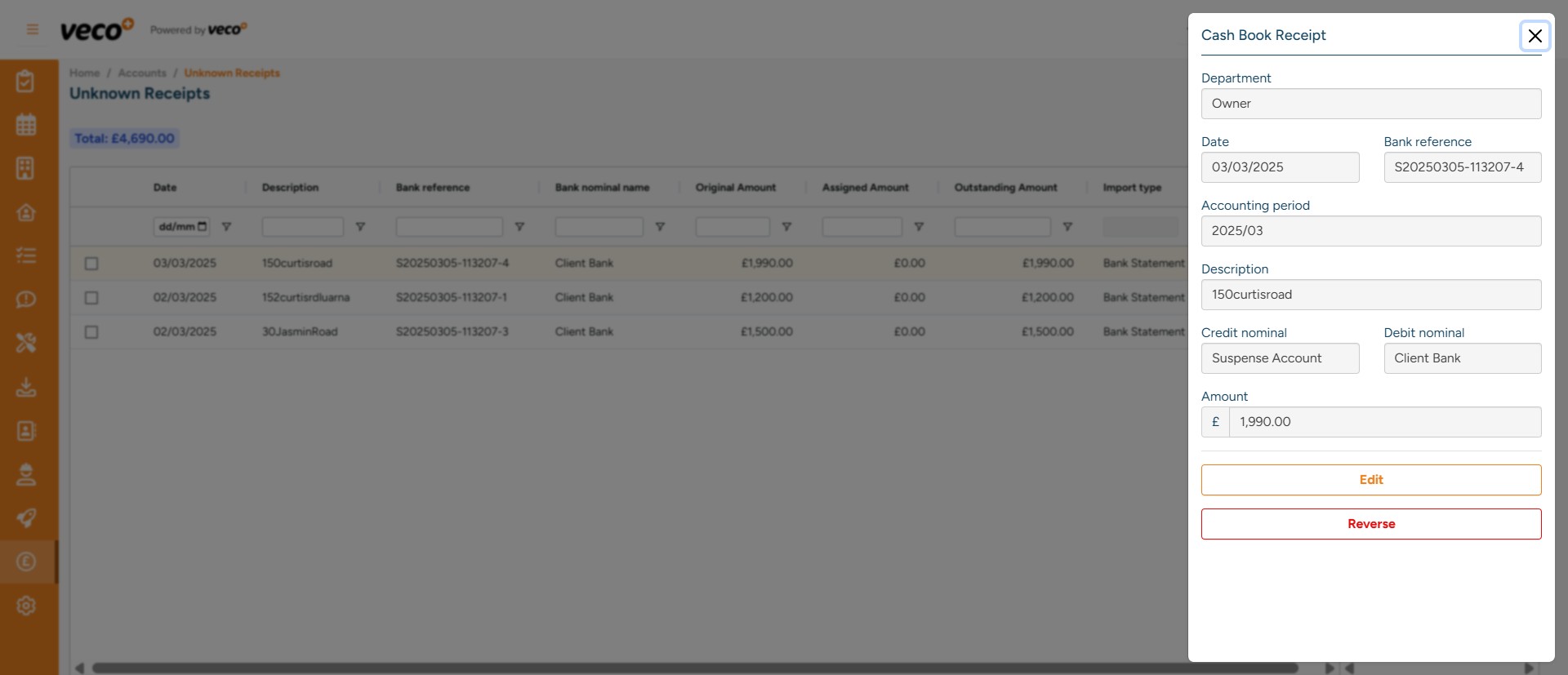
This will give you the ability to either 'Edit' or 'Reverse' the transaction
7

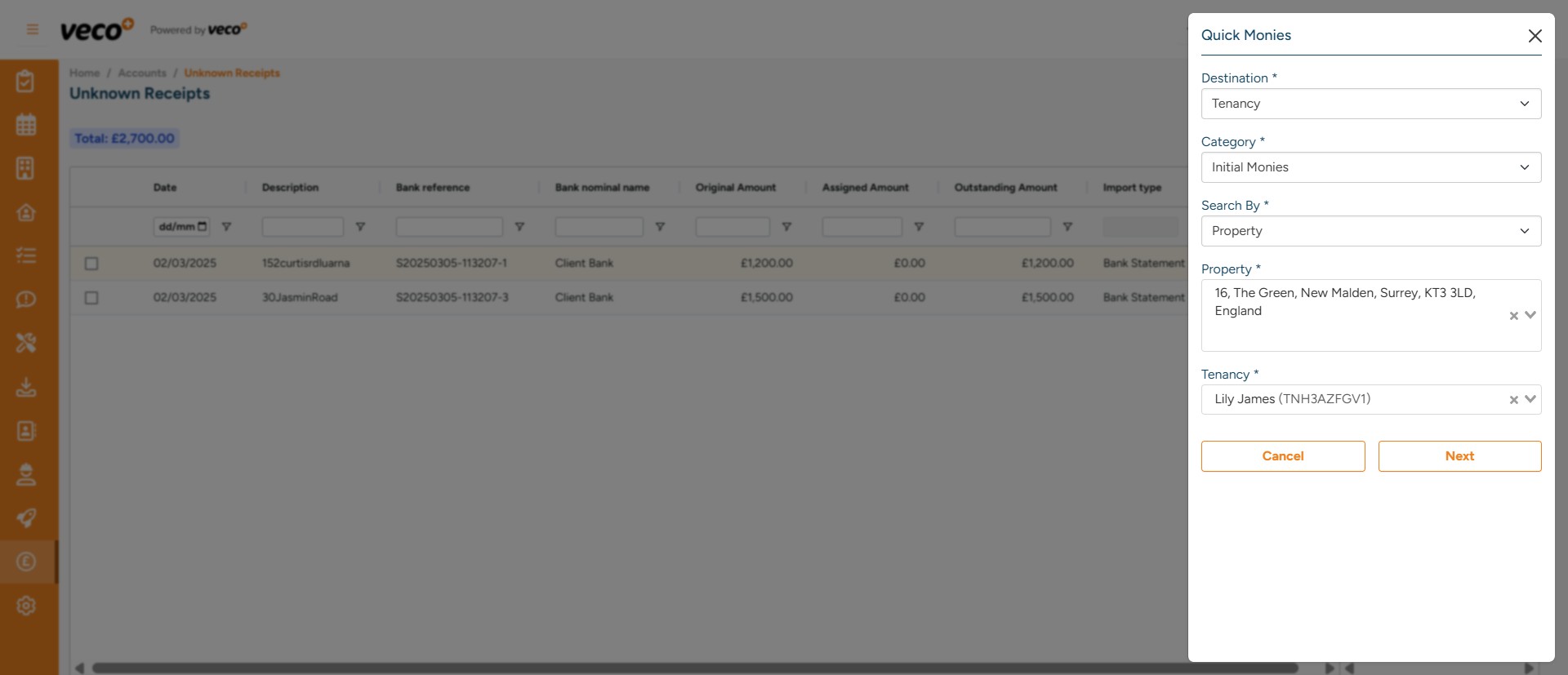
Select 'Quick Monies' if you know where this receipt needs to be posted
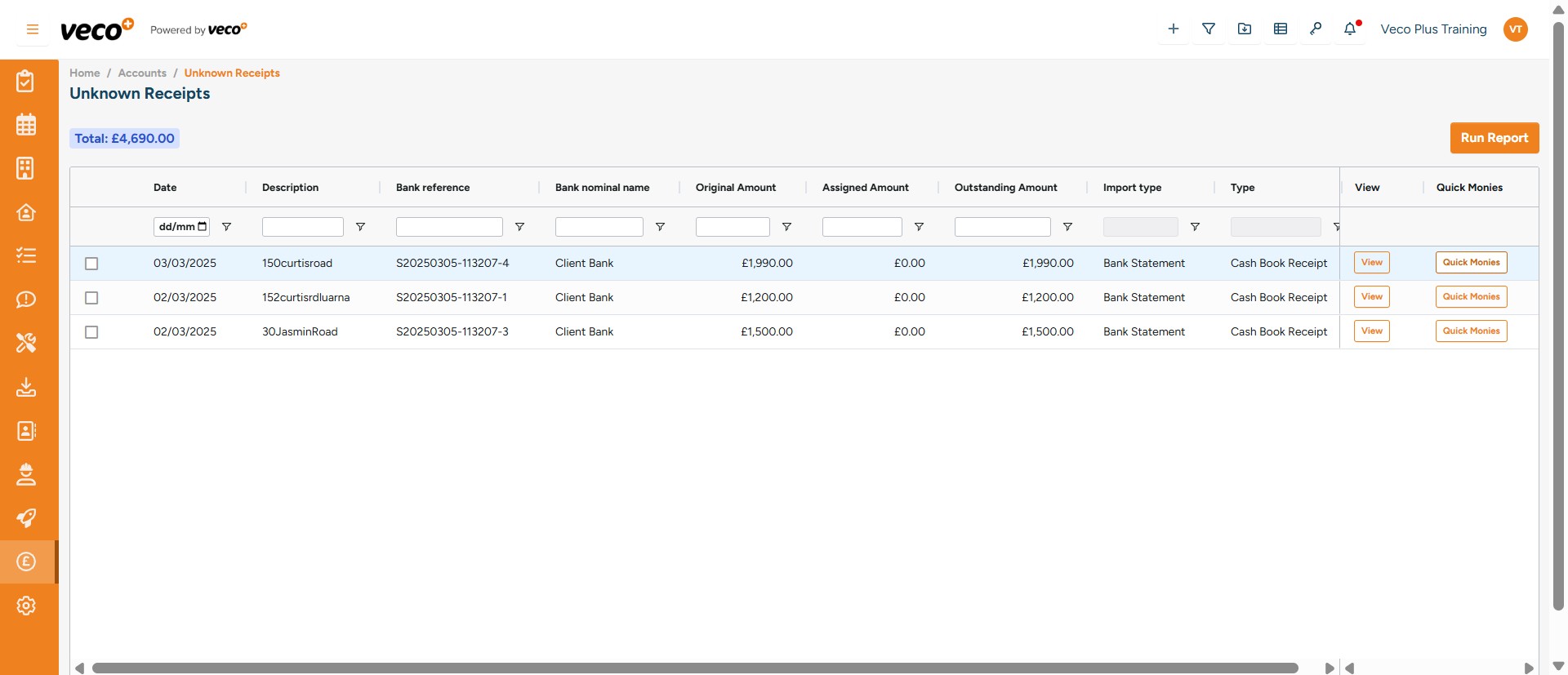
Select 'Quick Monies' if you know where this receipt needs to be posted
8

Select which Quick Monies 'Template' you would like, enter all other relevant information and then 'Save'
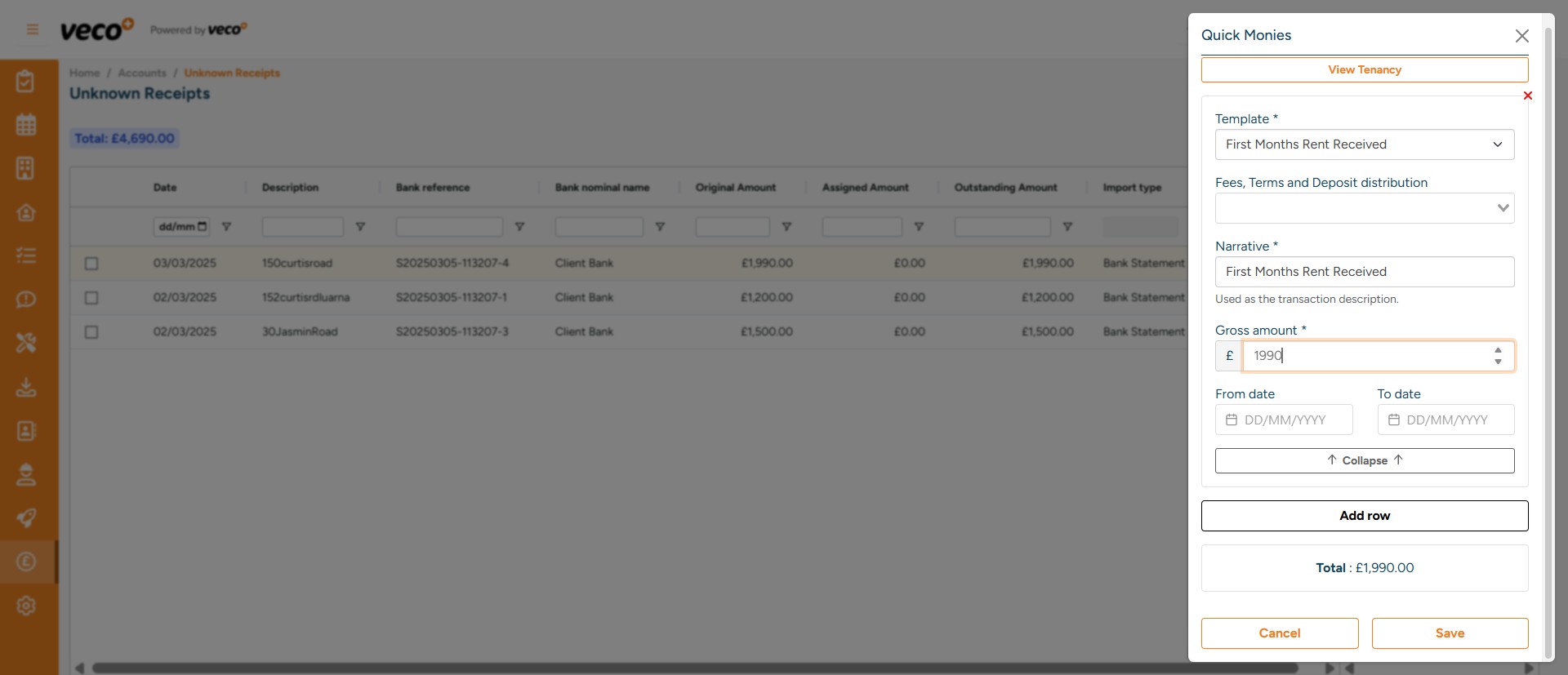
Select which Quick Monies 'Template' you would like, enter all other relevant information and then 'Save'
9

A notification will appear to state 'Transactions have been created'
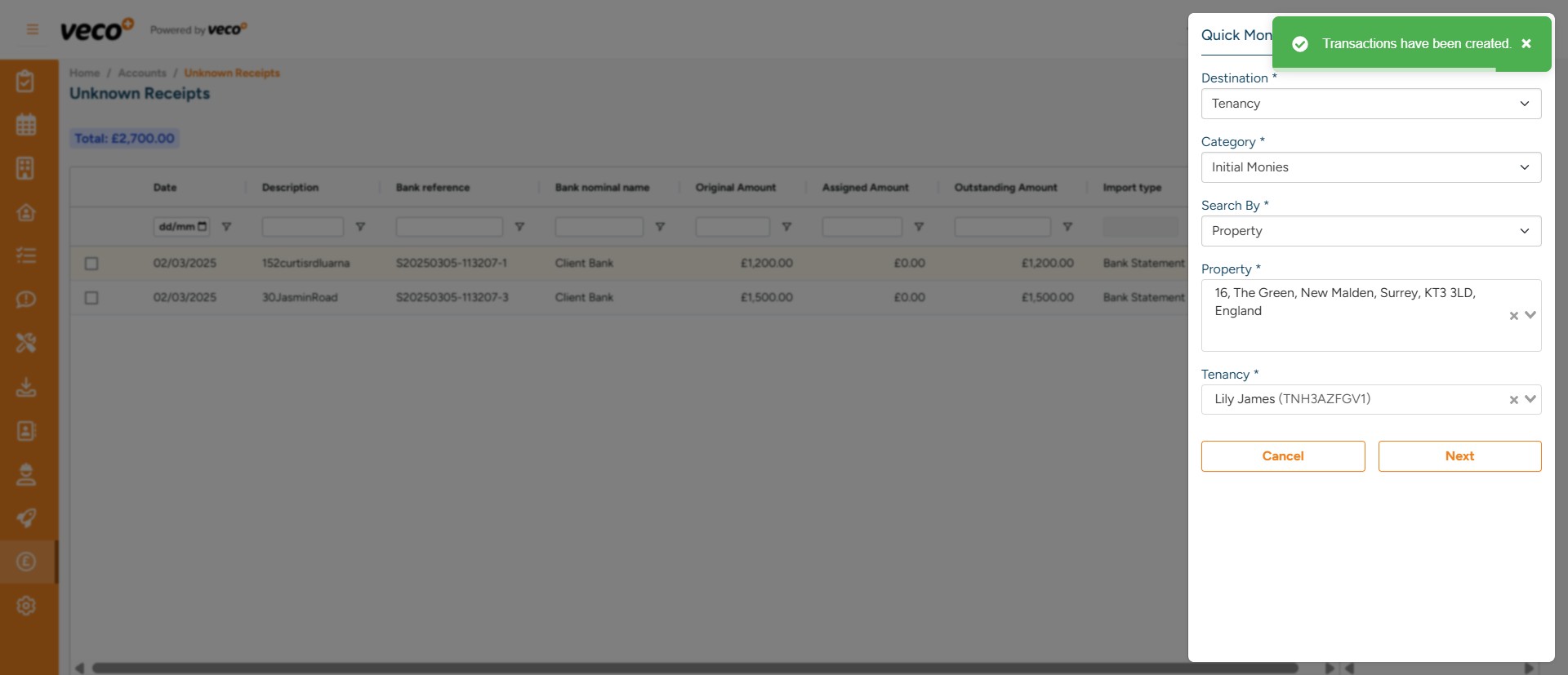
A notification will appear to state 'Transactions have been created'
10

Select the 'Close' icon

Select the 'Close' icon
11

This will then be posted as a transaction and no longer show on the 'Uknown Receipts' list
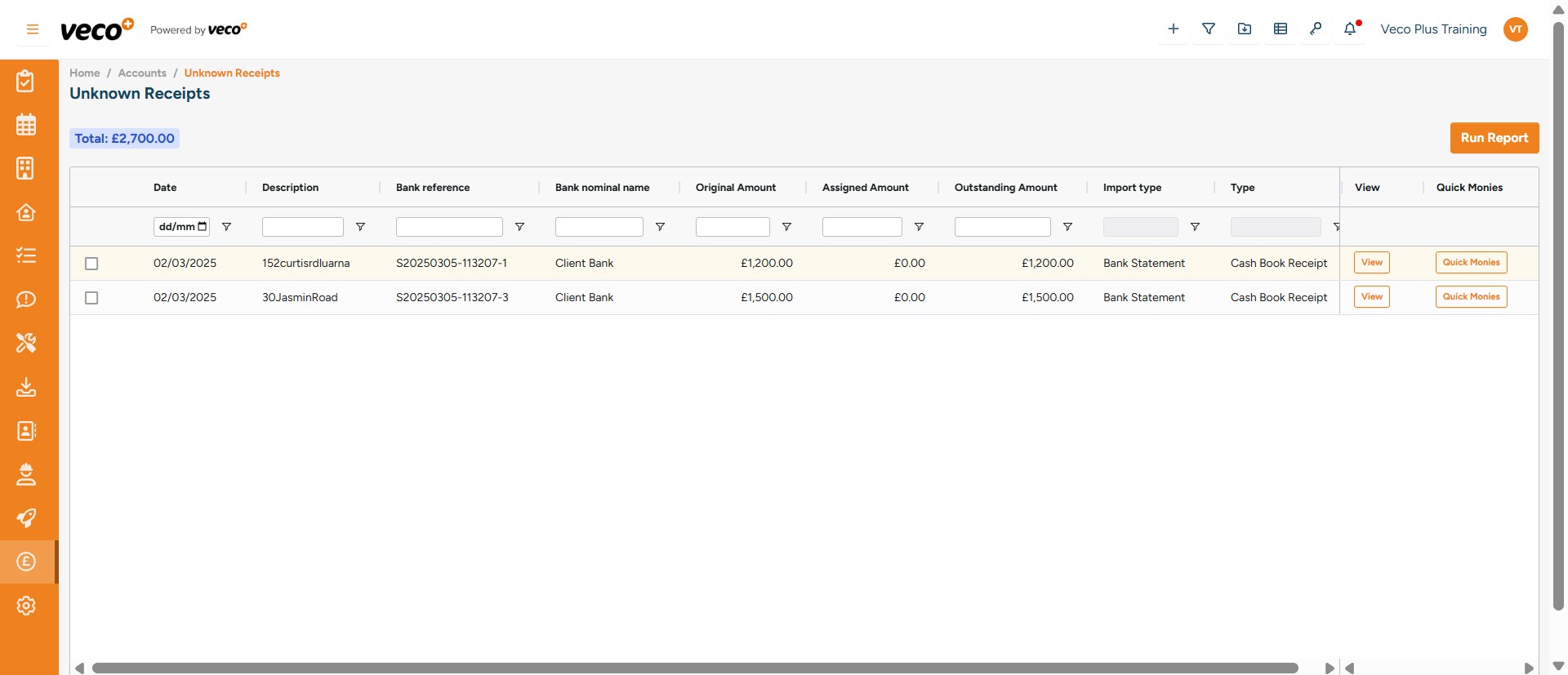
This will then be posted as a transaction and no longer show on the 'Uknown Receipts' list
12

If you select ' Run Report'

If you select ' Run Report'
13

You will then see a drop-down menu of reports that can be run
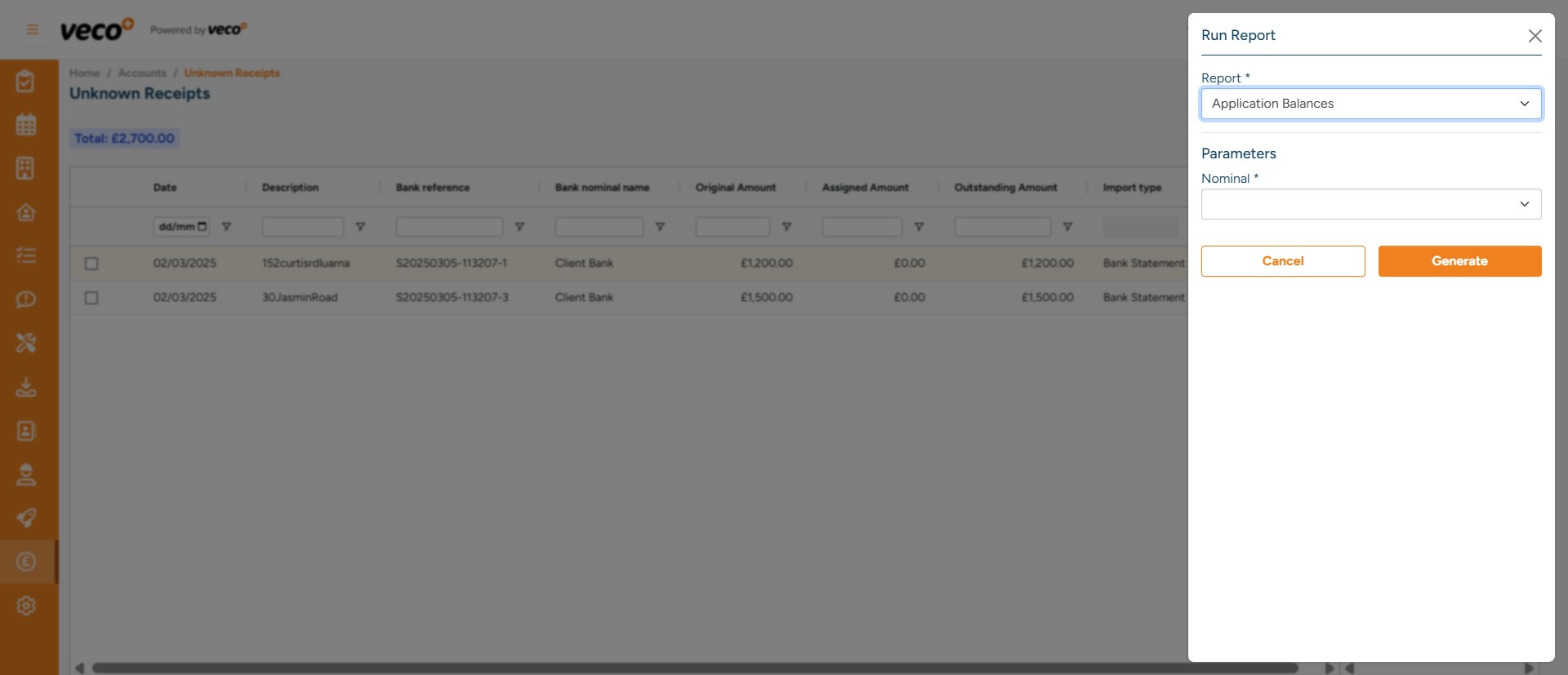
You will then see a drop-down menu of reports that can be run