logo

Compliance

1

Select 'Properties' from the navigation bar
Select 'Properties' from the navigation bar
2

To access ‘Compliance Dates’, open a property
To access ‘Compliance Dates’, open a property
3

Select ‘Compliance Dates’ from the Menu on the left side
Select ‘Compliance Dates’ from the Menu on the left side
4

Select ‘Add Compliance Date’

Select  ‘Add Compliance Date’
5

Select a ‘Type’ and add the expiry date, then select ‘Save’ or if you need to create a completed historical inspection select 'Create a historical completed inspection'
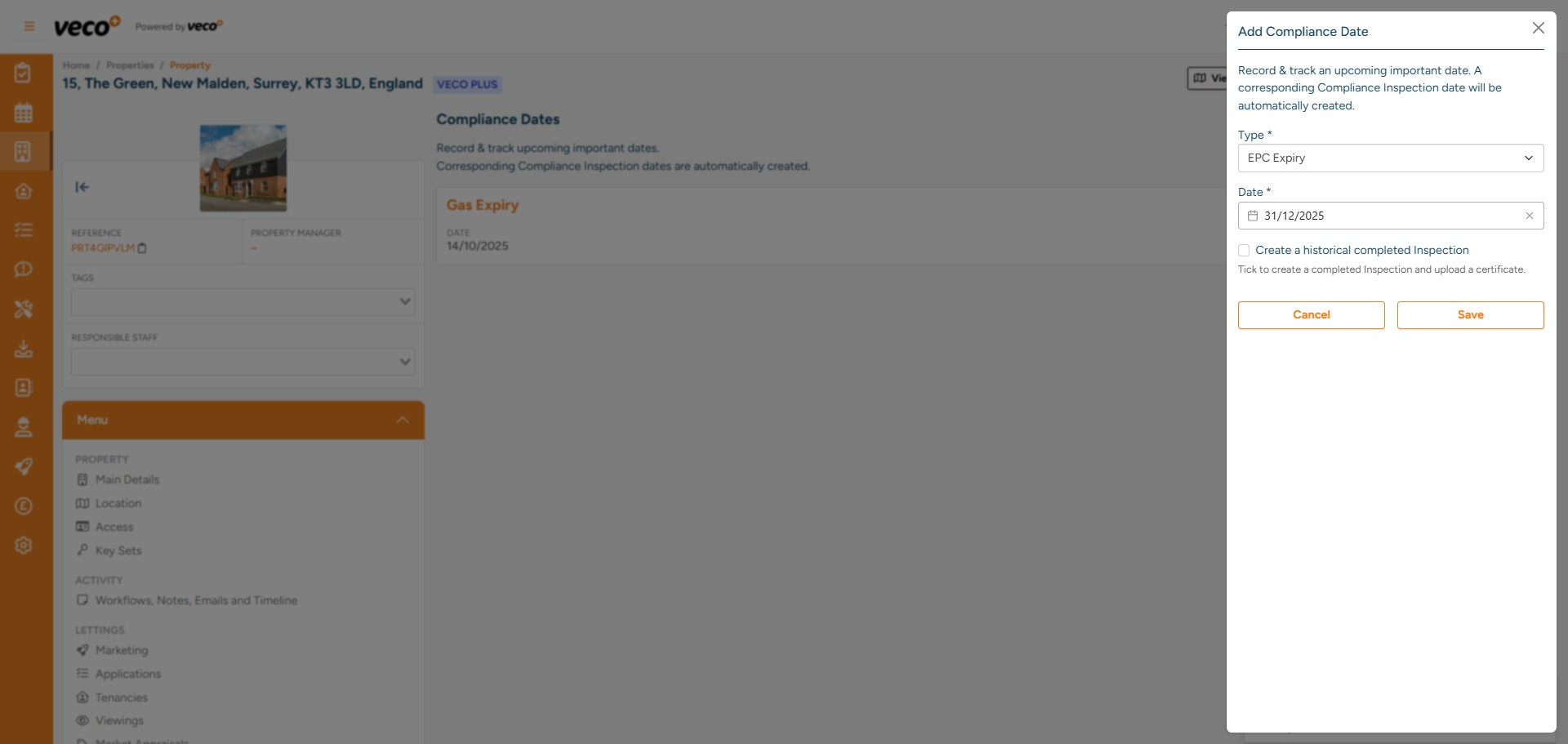
Select a ‘Type’ and add the expiry date, then select ‘Save’ or if you need to create a completed historical inspection select 'Create a historical completed inspection'
6

Once the compliance date has been saved, select the refresh button and then ‘Actions’ and ‘View related Inspection’
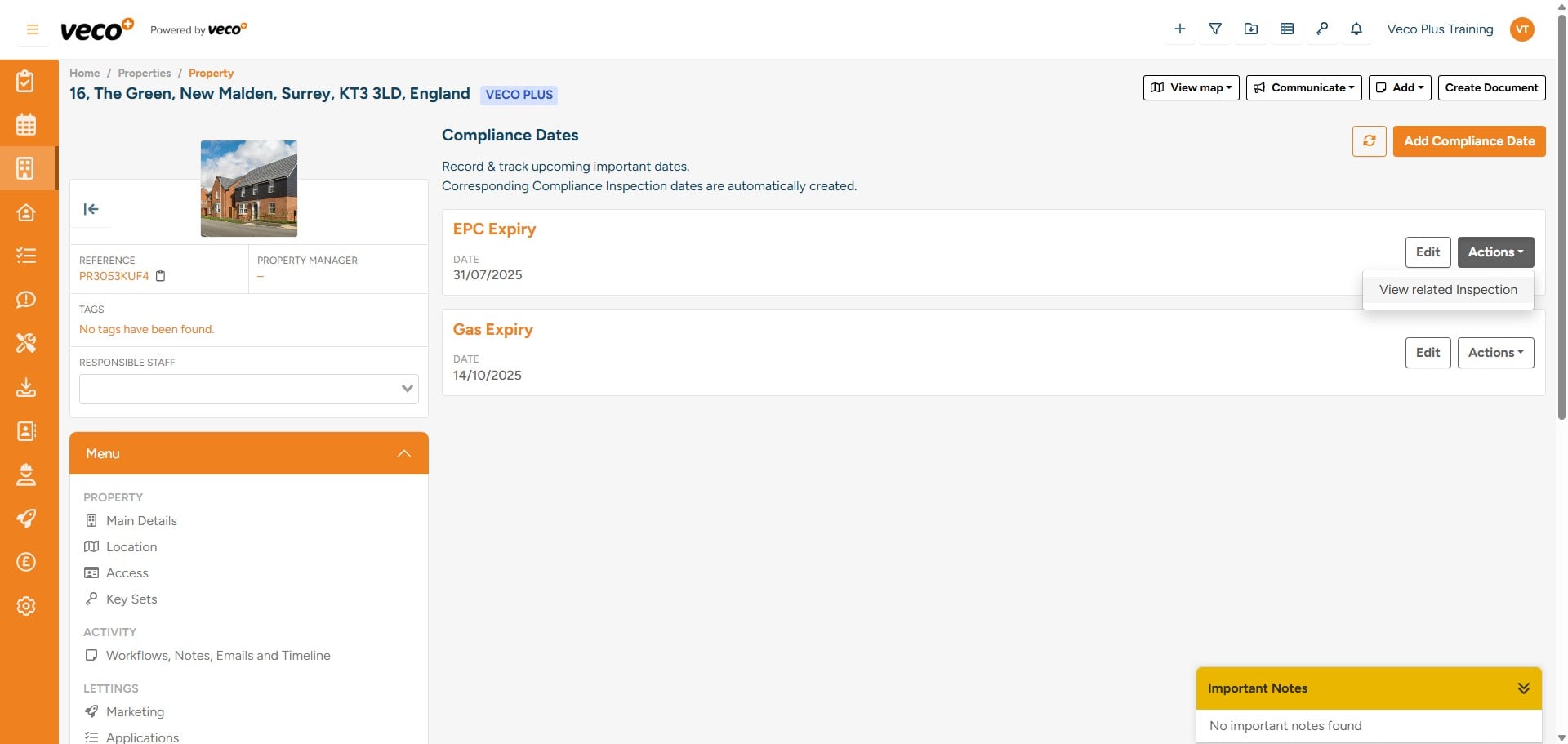
Once the compliance date has been saved, select the refresh button and then ‘Actions’ and ‘View related Inspection’
7

This window allows you to add Notes, Appointments and Works Orders relevant to the certificate. You can also give the inspection a status which can be managed by a 'View'
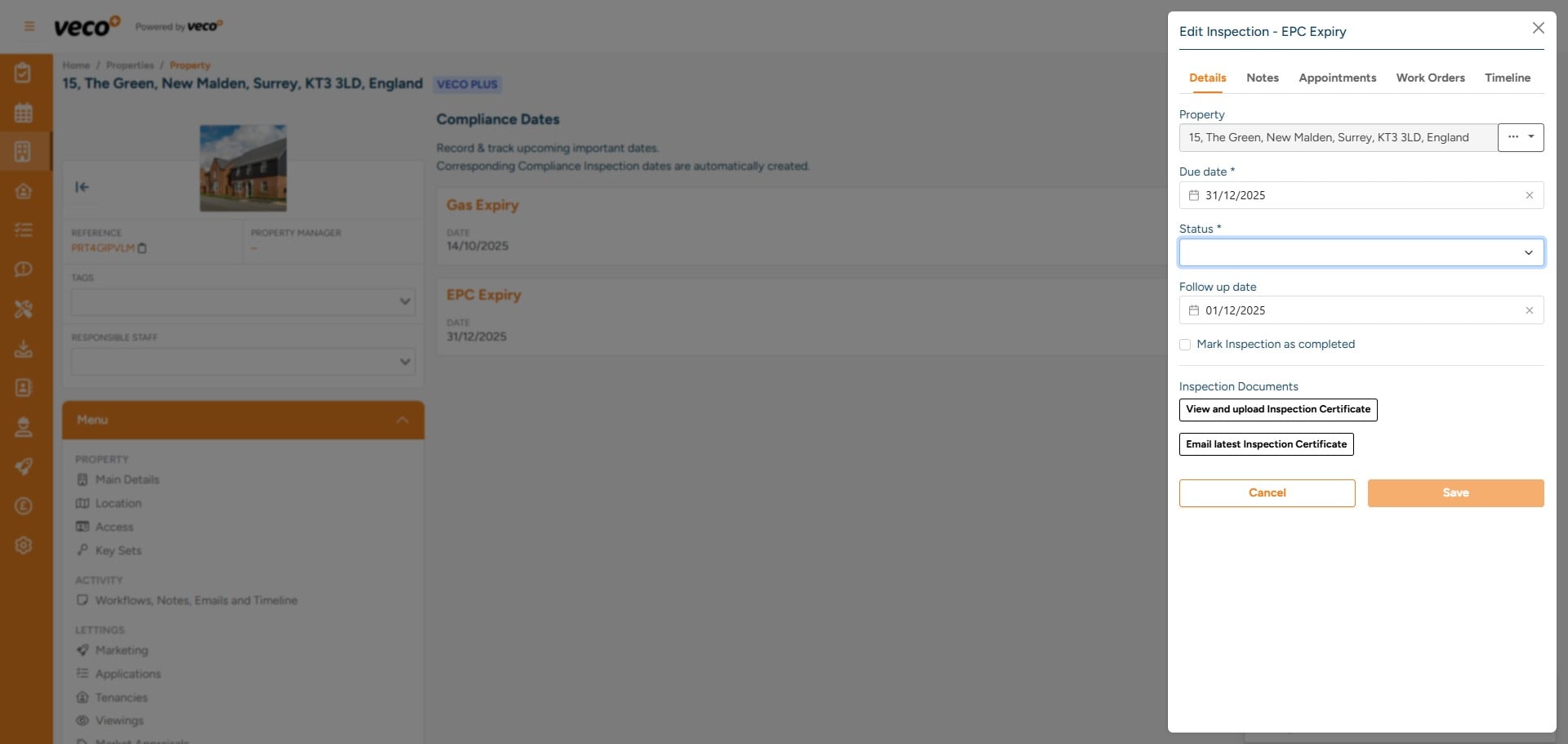
This window allows you to add Notes, Appointments and Works Orders relevant to the certificate. You can also give the inspection a status which can be managed by a 'View'
8

You can select 'View and upload Inspection Certificate'

You can select 'View and upload Inspection Certificate'
9

This will show you any certificates that have been uploaded already, or as below, you can either select 'Browse' to search for the document or you can use the drag and drop function
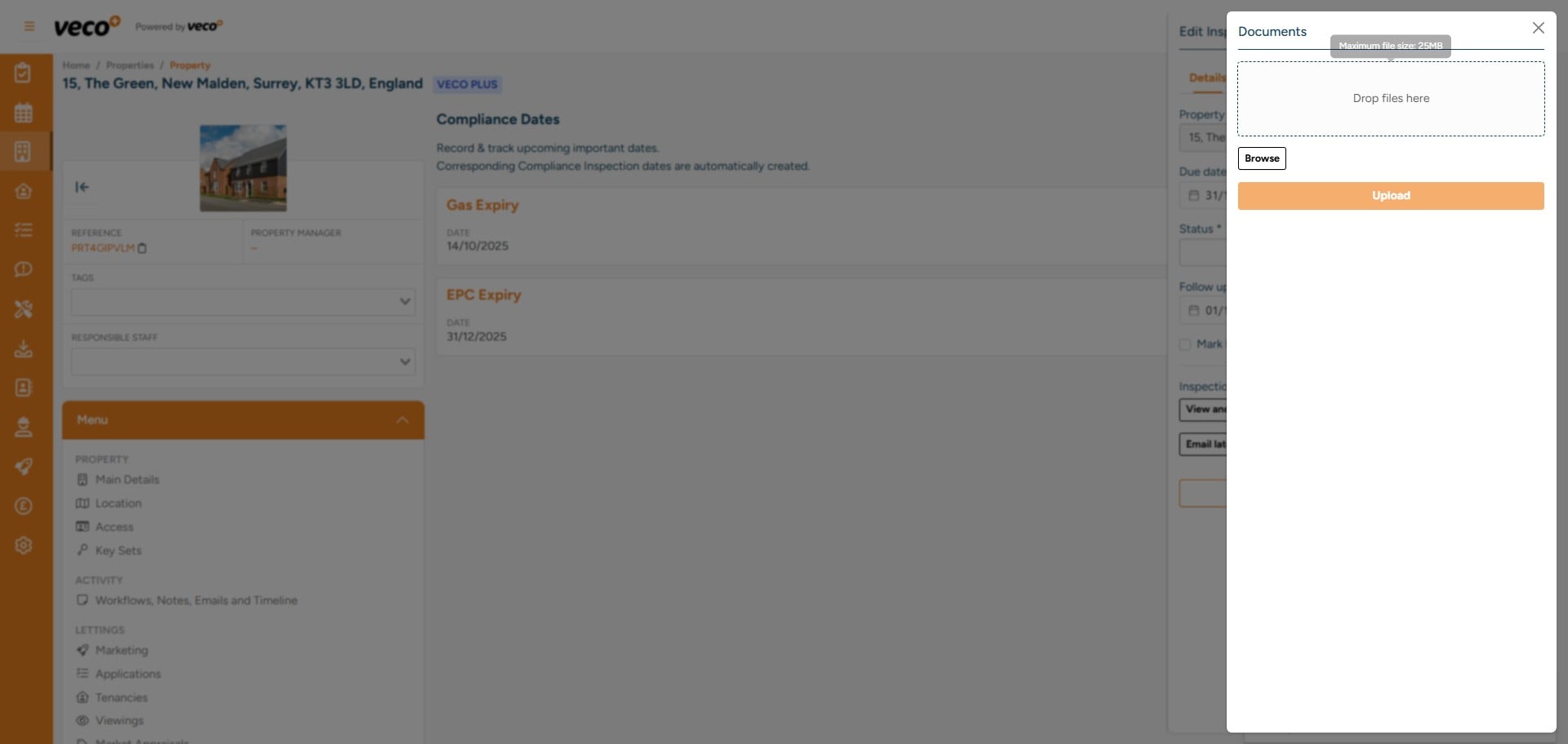
This will show you any certificates that have been uploaded already, or as below, you can either select 'Browse' to search for the document or  you can use the drag and drop function
10

There is an option to 'Email latest Inspection Certificate' this can be to either the Owner or the Tenant
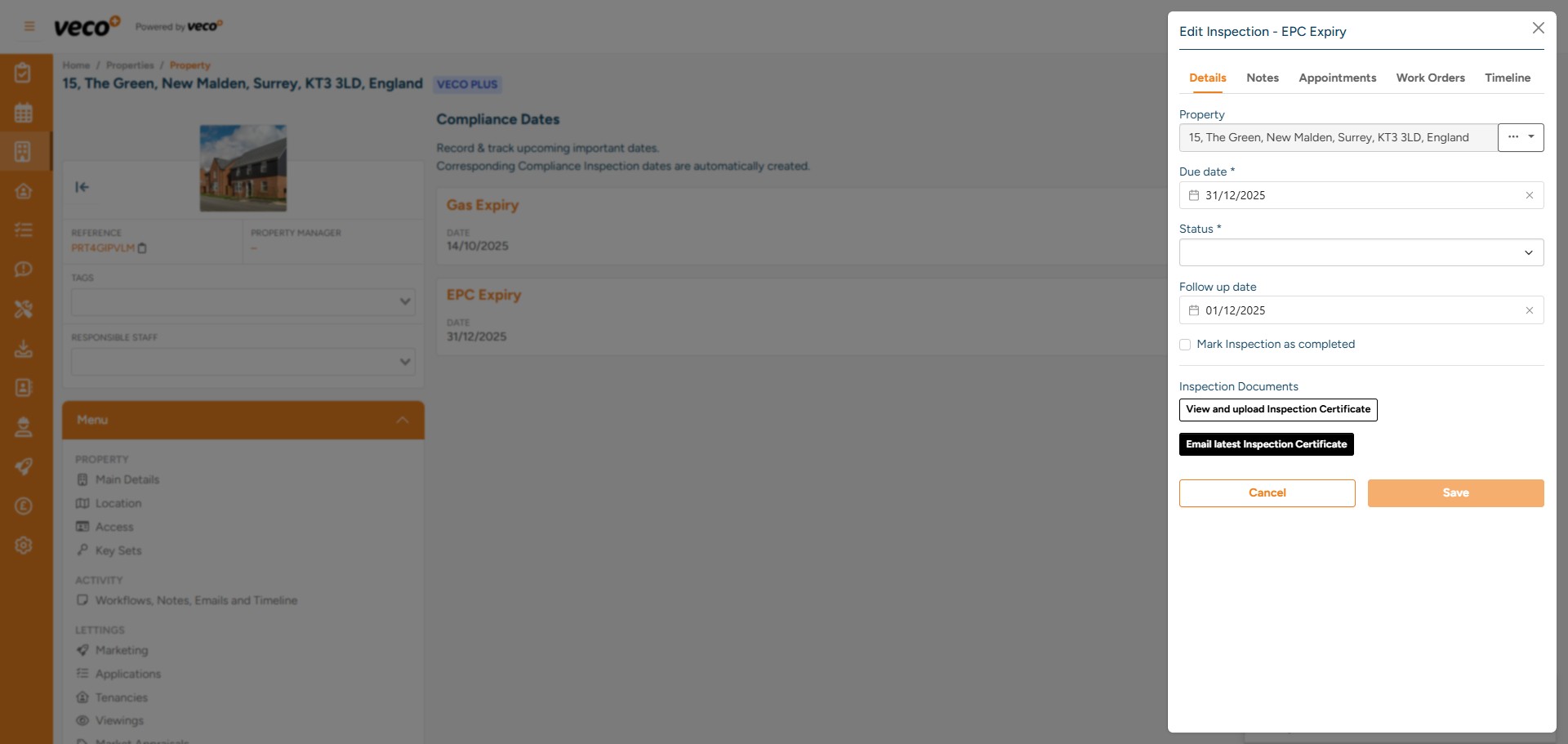
There is an option to 'Email latest Inspection Certificate' this can be to either the Owner or the Tenant
11

To access previous compliance inspections on the property record, select ‘Compliance inspections’ on the left side 'Menu'
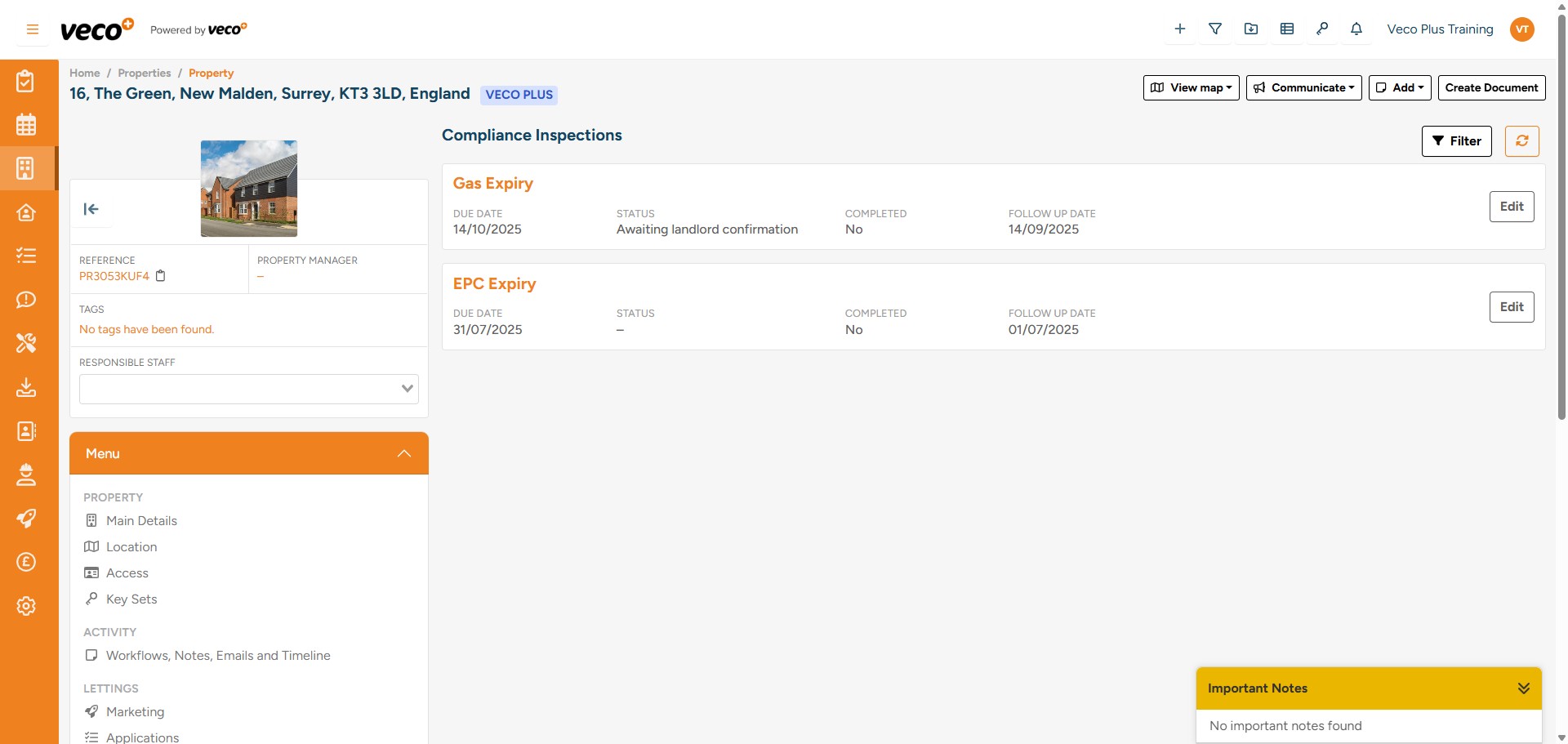
To access previous compliance inspections on the property record, select ‘Compliance inspections’ on the left side 'Menu'
12

The compliance dates can also be viewed in a list format via the ‘Views’ symbol
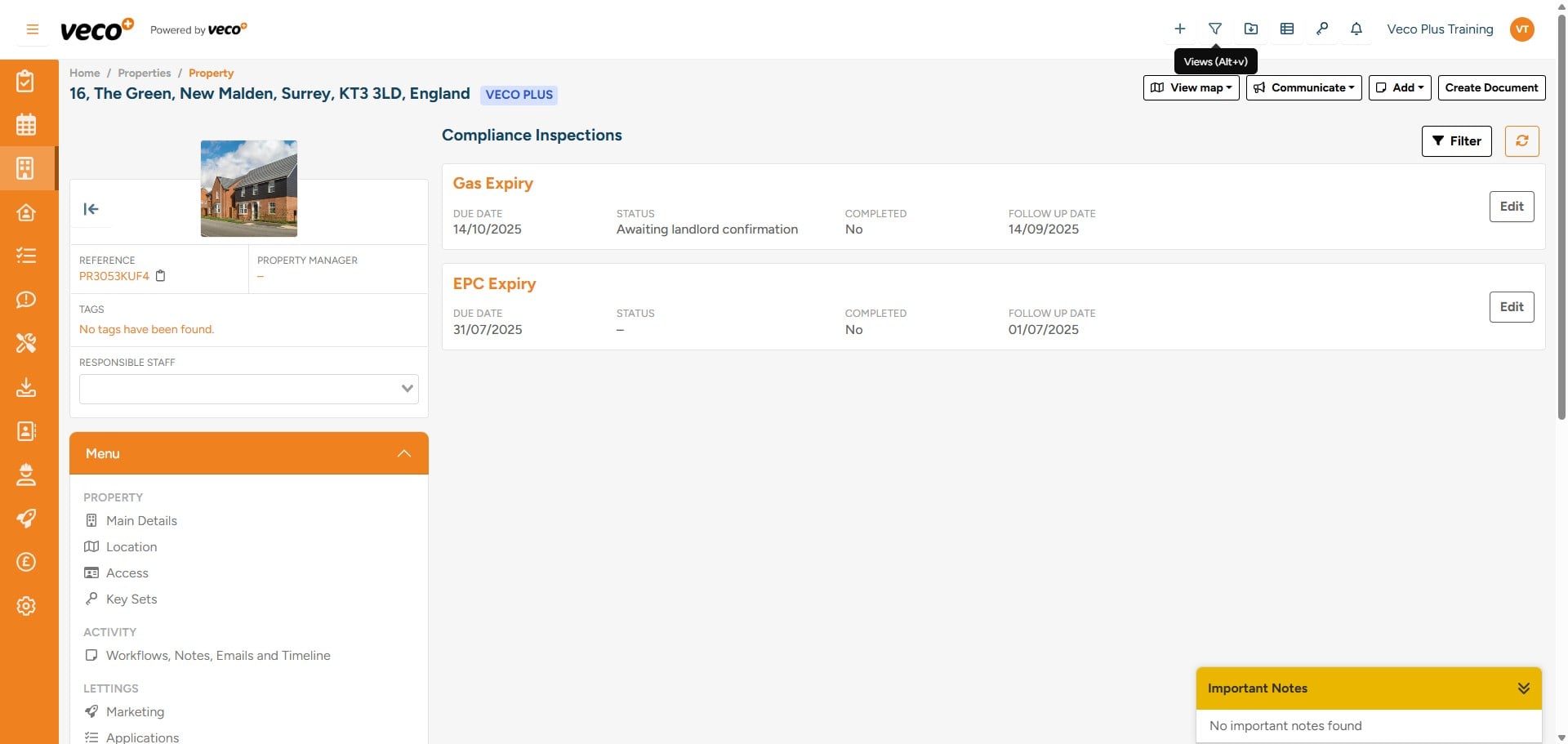
The compliance dates can also be viewed in a list format via the ‘Views’ symbol
13

Search and select the View you want to open
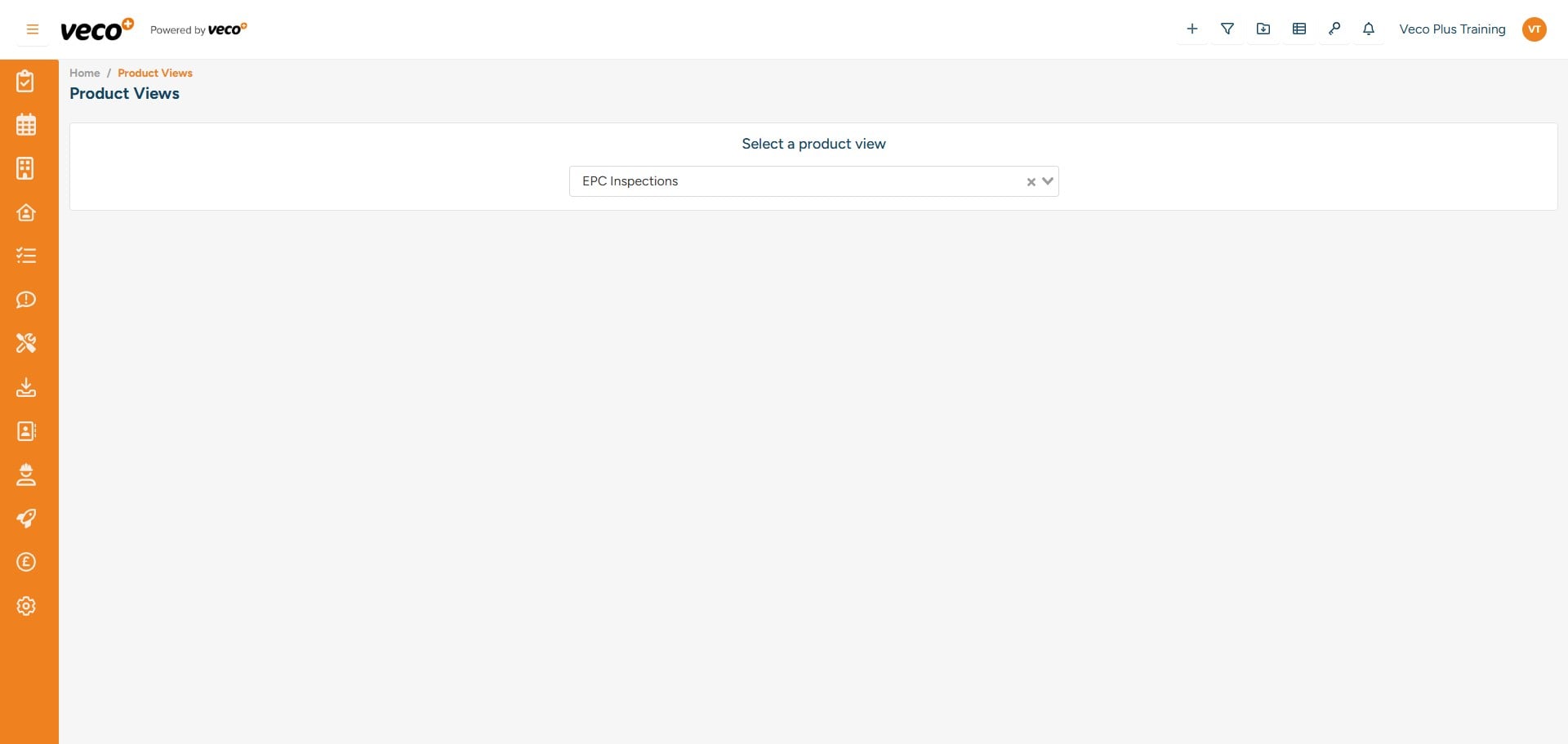
Search and select the View you want to open
14

From the list below you can select 'View Inspection' which will open the inspcections
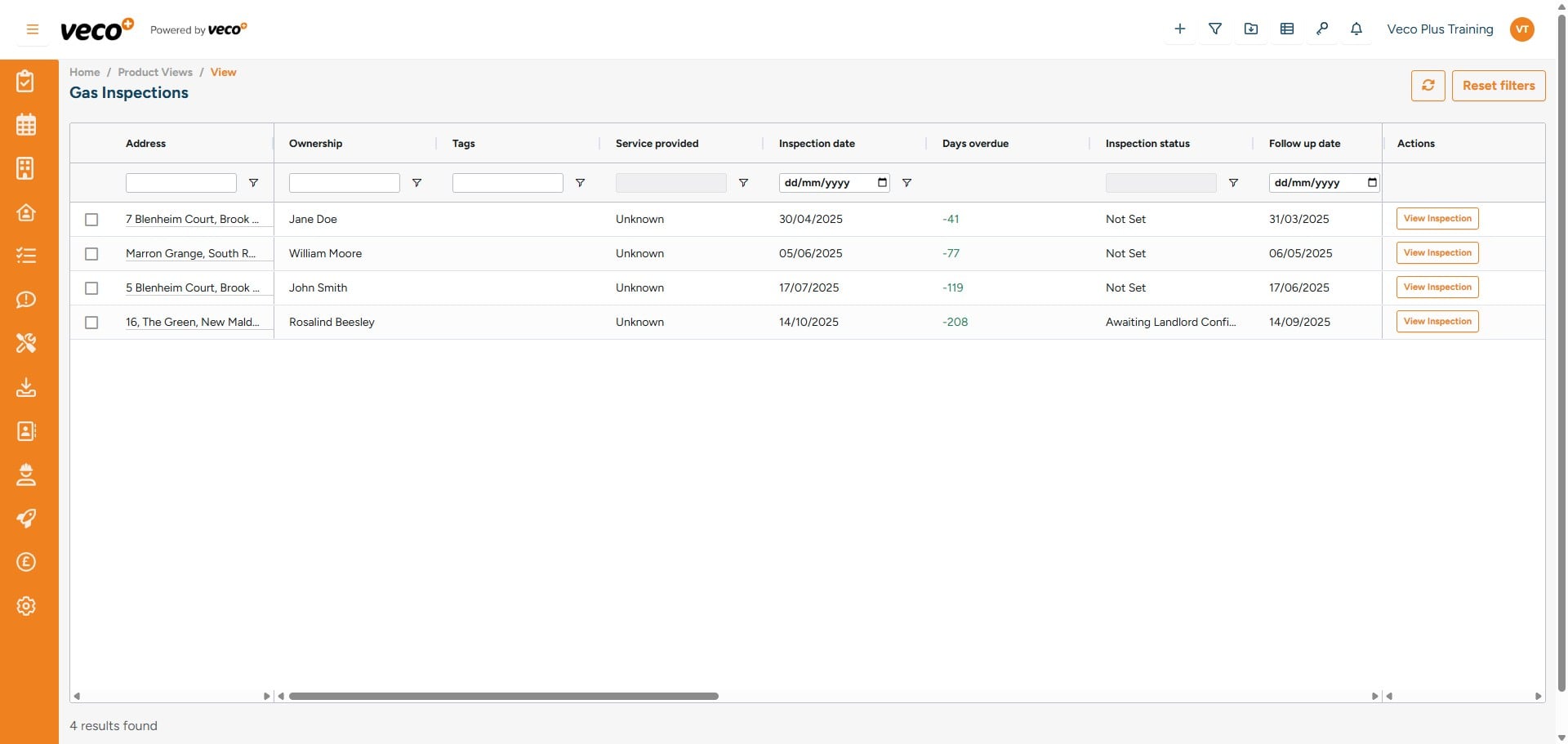
From the list below you can select 'View Inspection' which will open the inspcections